
Salesforce
Steps and required credentials to connect Salesforce to Squadbase
Required Information
| Field | Description |
|---|---|
| Instance URL | Your Salesforce org's My Domain URL (e.g., https://yourorg.my.salesforce.com). Found under Setup → Company Settings → My Domain. |
| Consumer Key | The Consumer Key (client_id) of your External Client App. The app must have the OAuth 2.0 Client Credentials Flow enabled and a Run-As user configured. |
| Consumer Secret | The Consumer Secret (client_secret) of your External Client App. |
Prerequisites
- Your Salesforce edition must support External Client Apps. Starter and Pro Suite editions are not supported.
- The Run-As user configured in the app must have API access permissions.
How to Obtain
Instance URL
Log in to Salesforce. Click the gear icon in the top right and select Setup.
In the left sidebar, go to Company Settings → My Domain. Copy the URL shown under Current My Domain URL (e.g., https://yourorg.my.salesforce.com).
Consumer Key / Consumer Secret
Open External Client App Manager
In Setup, use the left sidebar to navigate to Apps → External Client Apps → External Client App Manager.
Click New External Client Application in the top right.
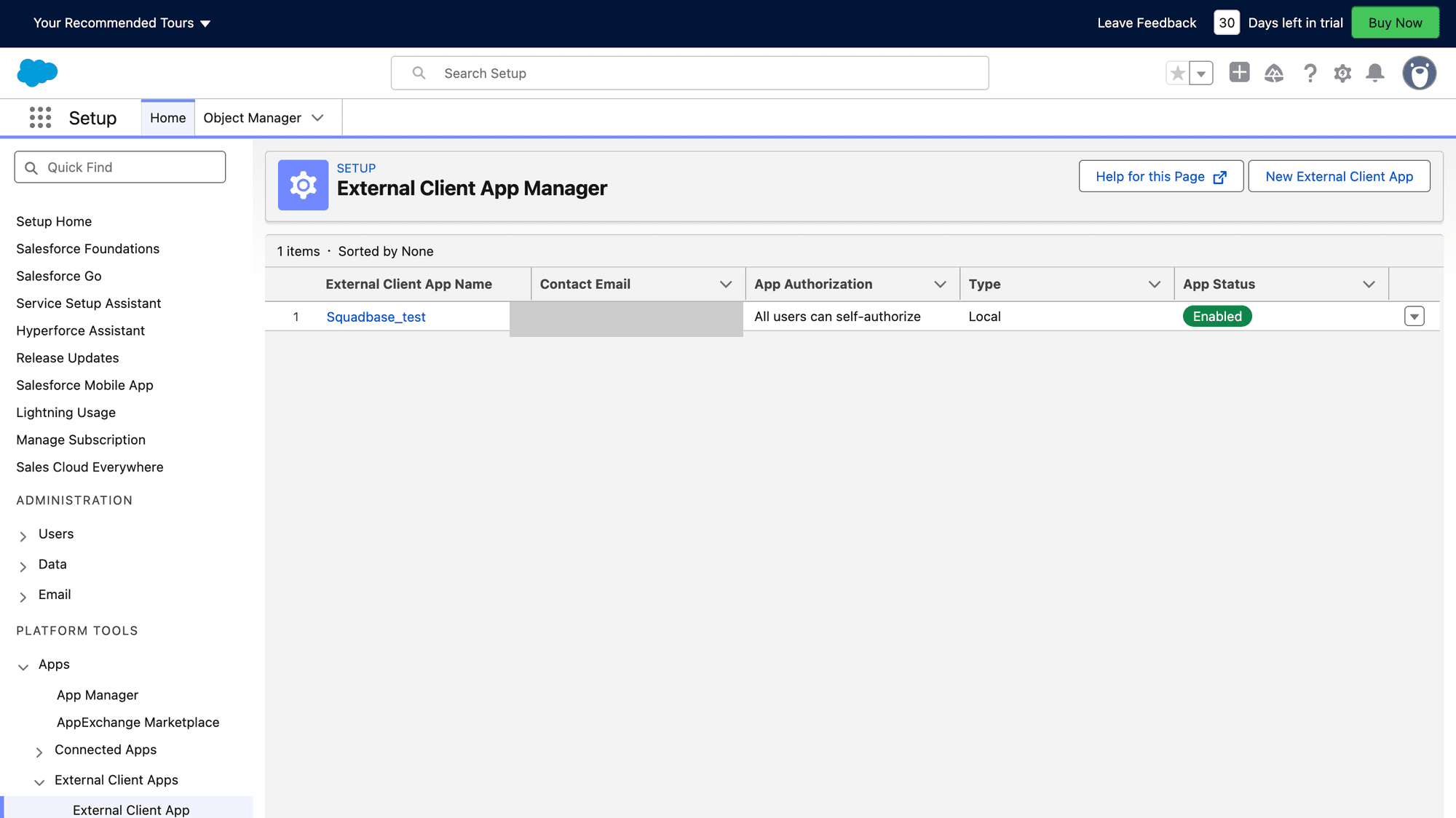
If you cannot find the menu, type "External Client App" in the Quick Find box at the top of the sidebar. If no results appear, your Salesforce edition may not support this feature.
Fill in Basic Information
Enter the required fields:
- External Client Application Name: Any descriptive name (e.g.,
Squadbase) - API Name: Auto-populated from the name
- Contact Email: Your email address
Configure OAuth Settings (Settings tab)
Expand the OAuth Settings section and configure the following:
- Check Enable OAuth
- Callback URL:
https://app.squadbase.dev/ - Under OAuth Scopes, add the following to Selected OAuth Scopes:
- Manage user data via APIs (
api) - Perform requests at any time (
refresh_token, offline_access)
- Manage user data via APIs (
Under the Enable Flows section:
- Check Enable Client Credentials Flow
Under the Security section:
- Uncheck "Require Proof Key for Code Exchange (PKCE) Extension for Supported Authorization Flows"
Save.
You must check Enable Client Credentials Flow and save in the Settings tab first. The "Run As" user field in the Policies tab will not appear until this is done.
Make sure to uncheck PKCE. Leaving it enabled will cause an invalid_grant error when connecting from Squadbase.
Configure the Policies Tab
After saving the Settings tab, open the Policies tab and click Edit.
Under OAuth Flows and External Client App Enhancements:
- Confirm that Enable Client Credentials Flow is checked
- Set Run As to the email address of a Salesforce user with API access (typically a system administrator)
Save.
The Run As field is required. Saving without setting it will not cause an error, but the API connection from Squadbase will fail at runtime.
Copy Consumer Key and Secret
Go to the Settings tab of the app and expand the OAuth Settings section.
Click Consumer Key and Secret. If prompted, verify your identity via the email confirmation screen.
Copy the Consumer Key and Consumer Secret shown.
Troubleshooting
"No user is enabled for this Client Credentials Flow"
- Cause: The Enable Client Credentials Flow checkbox is not checked in the Settings tab, or the Run As field is empty in the Policies tab.
- Fix: Follow Steps 3 and 4 above. Make sure to save the Settings tab before editing the Policies tab.
invalid_client_id
- Cause: The Consumer Key is incorrect, or the app is disabled.
- Fix: In the Policies tab, confirm that Application Status is Active.
invalid_grant
- Cause: PKCE is required for the app.
- Fix: In the Settings tab, under OAuth Settings → Security, uncheck "Require Proof Key for Code Exchange (PKCE) Extension for Supported Authorization Flows."