
BigQuery
Steps and required credentials to connect Google BigQuery to Squadbase
BigQuery supports two connection methods: OAuth and Service Account.
Connecting with OAuth
A simple connection method using your Google account. No additional files or configuration required.
Select BigQuery
On the data source setup screen, select "BigQuery."
Authenticate with Google
Click the "Connect with BigQuery" button to be redirected to Google's authentication screen. Select the Google account you want to use and complete the authentication.
Connecting with Service Account
A connection method using a Google Cloud service account, allowing more granular permission management.
Required Information
| Field | Description |
|---|---|
| Google Cloud Service Account JSON | A file containing authentication credentials linked to a Google Cloud service account. It acts as an "ID card" for accessing BigQuery from external applications and contains sensitive information such as private keys. |
| Google Cloud Project ID | A globally unique identifier for the resources created in Google Cloud. It is essential for specifying which project's data and budget (compute resources) to use when operating BigQuery. |
How to Obtain Each Value
Google Cloud Service Account JSON
Issue a Google Service Account for the integration.
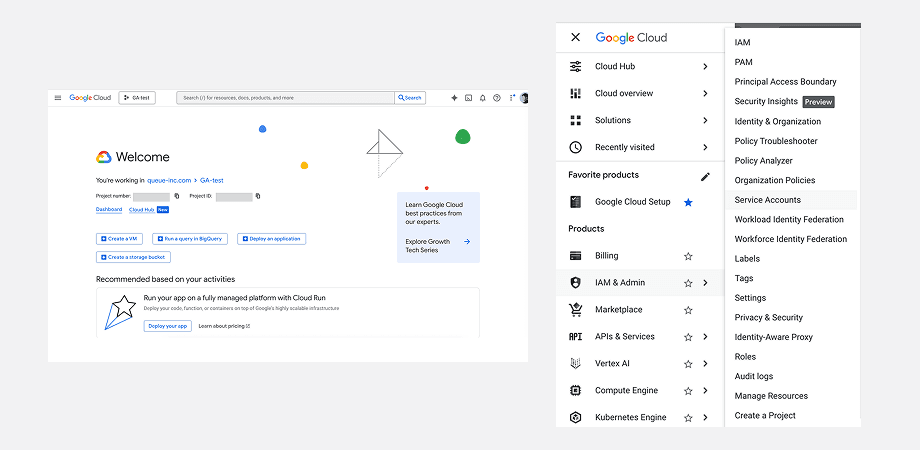
Open Service Accounts
In any project on Google Cloud Platform, select "IAM & Admin" → "Service Accounts" from the menu.
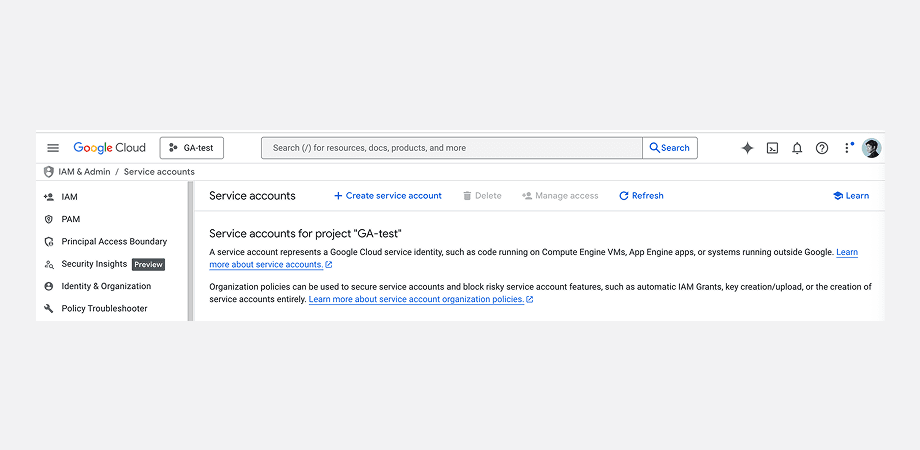
Create a Service Account
Click "+ Create service account" at the top of the Service Accounts page.
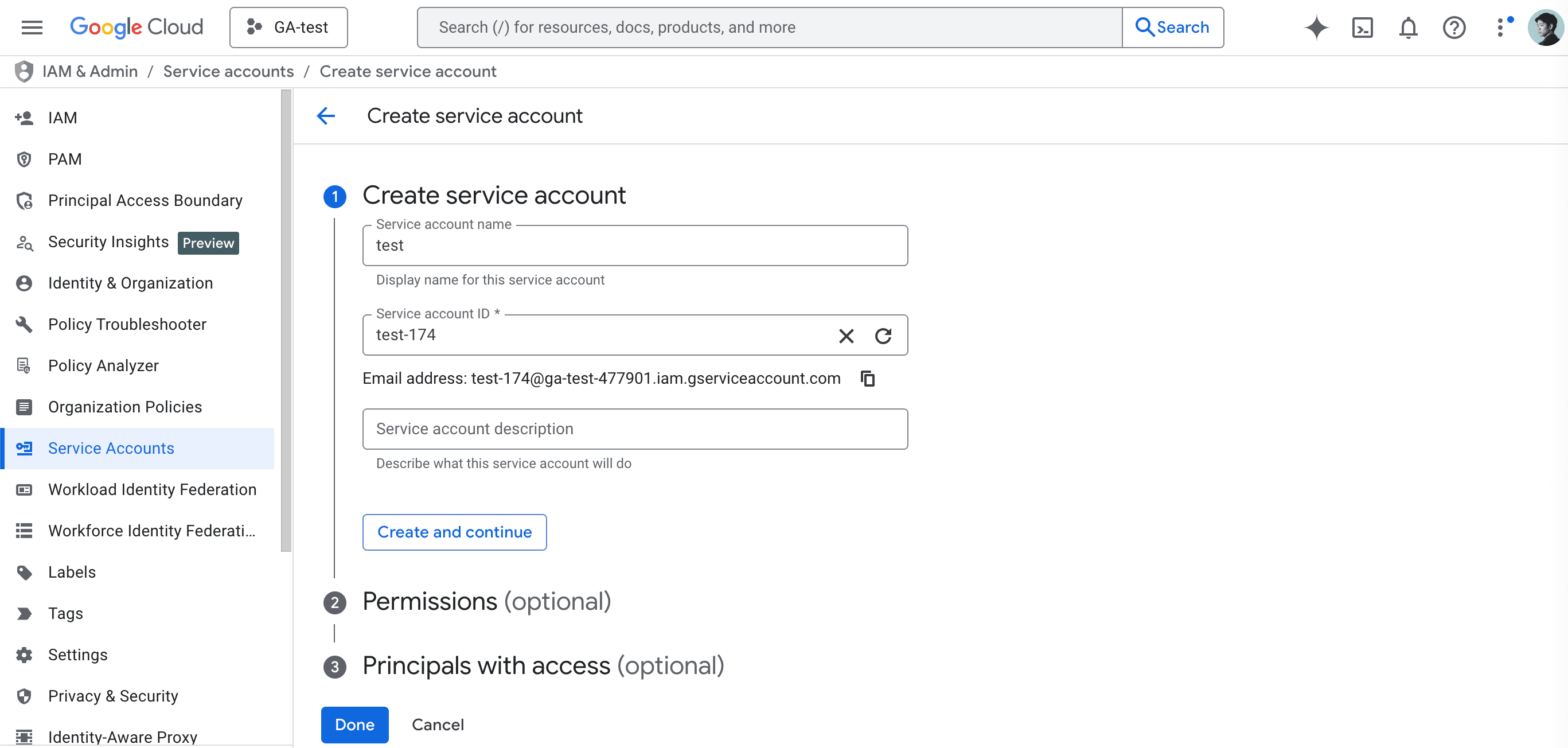
Fill in the required information:
- Service account name: Give it a descriptive name so you know what it's for.
- Service account ID: Automatically populated based on the service account name.
- Service account description: Optionally add a description for this service account.
Click "Create and continue" to create the service account.
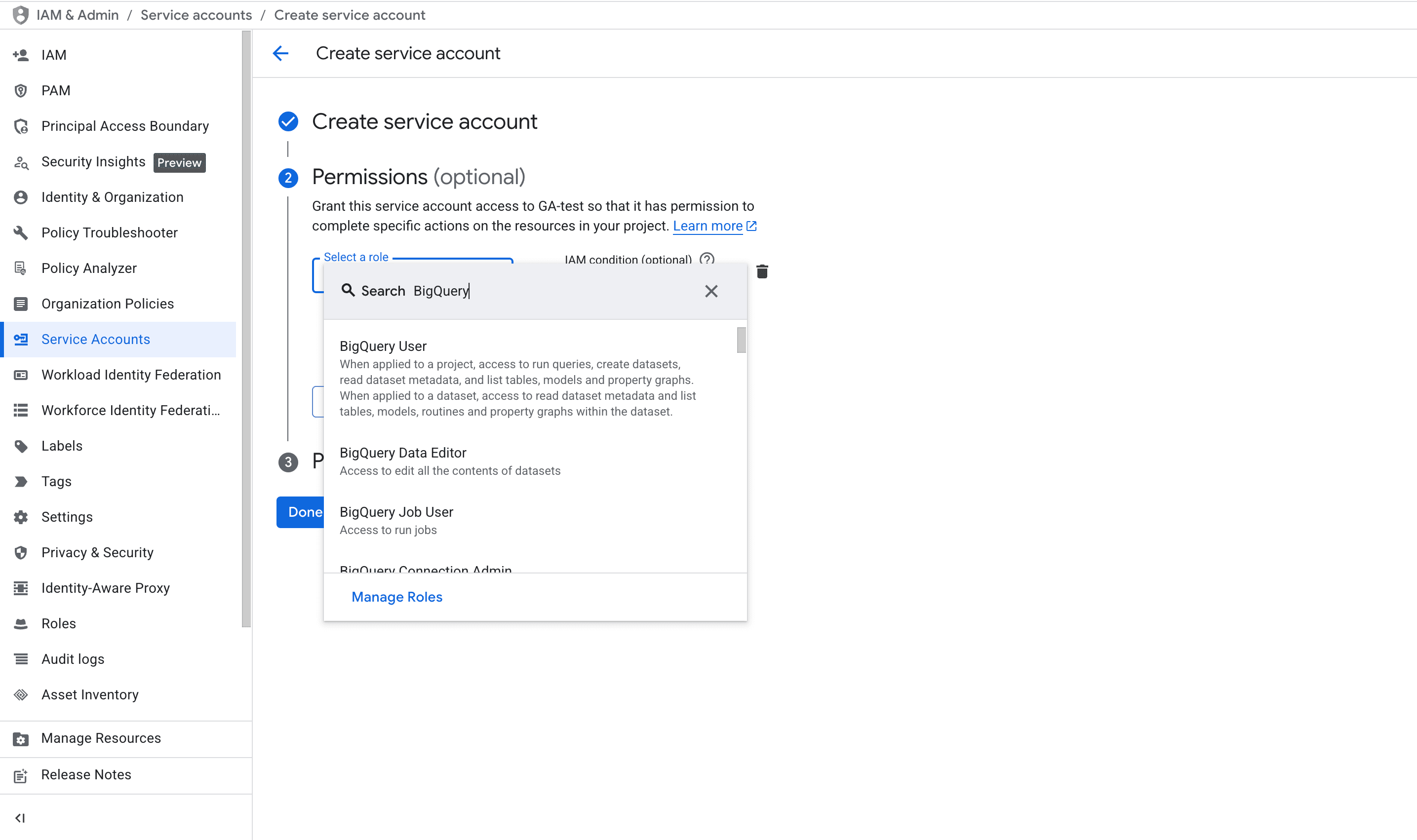
Grant Permissions
The required permissions depend on whether you want to query data or also edit it.
- Query only (read data): BigQuery Job User + BigQuery Data Viewer
- Edit (write/update data): BigQuery Job User + BigQuery Data Editor
Once added, click "Done."
The service account is now created.
Generate a Key
From the service account list, click the email address of the service account you just created.
Select the "Keys" tab, then click "Add key" → "JSON" and click the "Create" button.
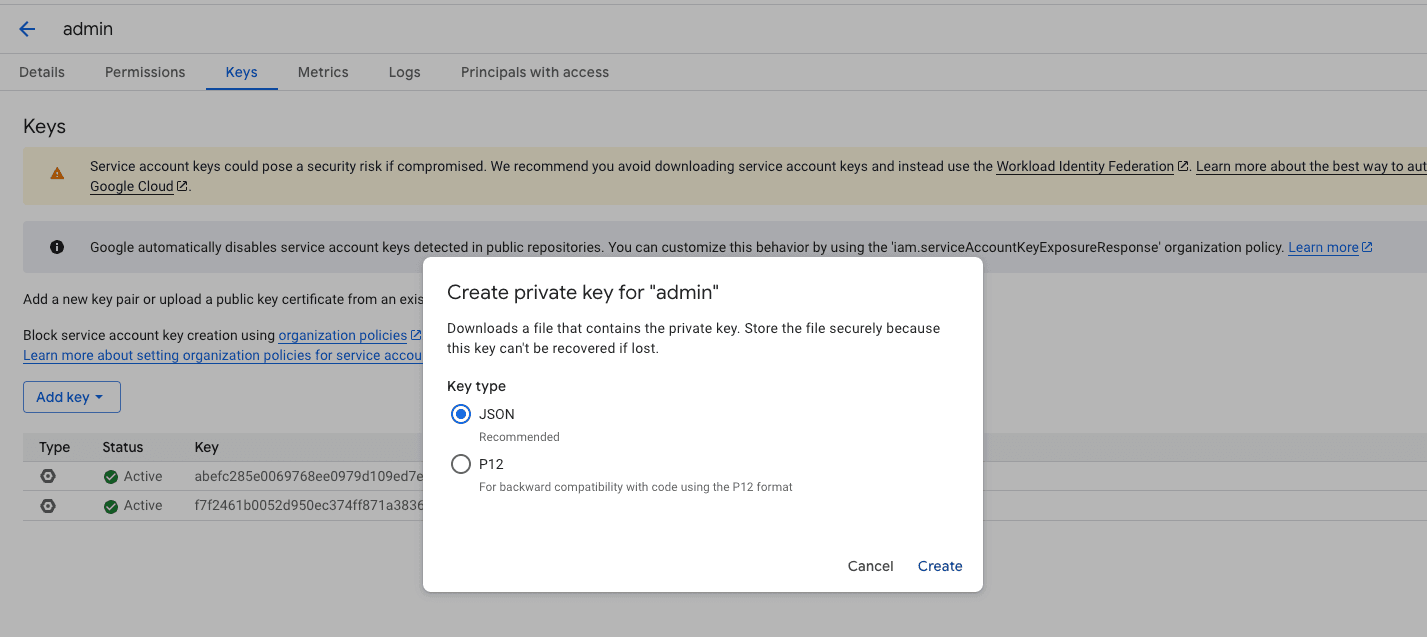
A JSON file will be downloaded to your computer. Upload this JSON file to Squadbase.
Google Cloud Project ID
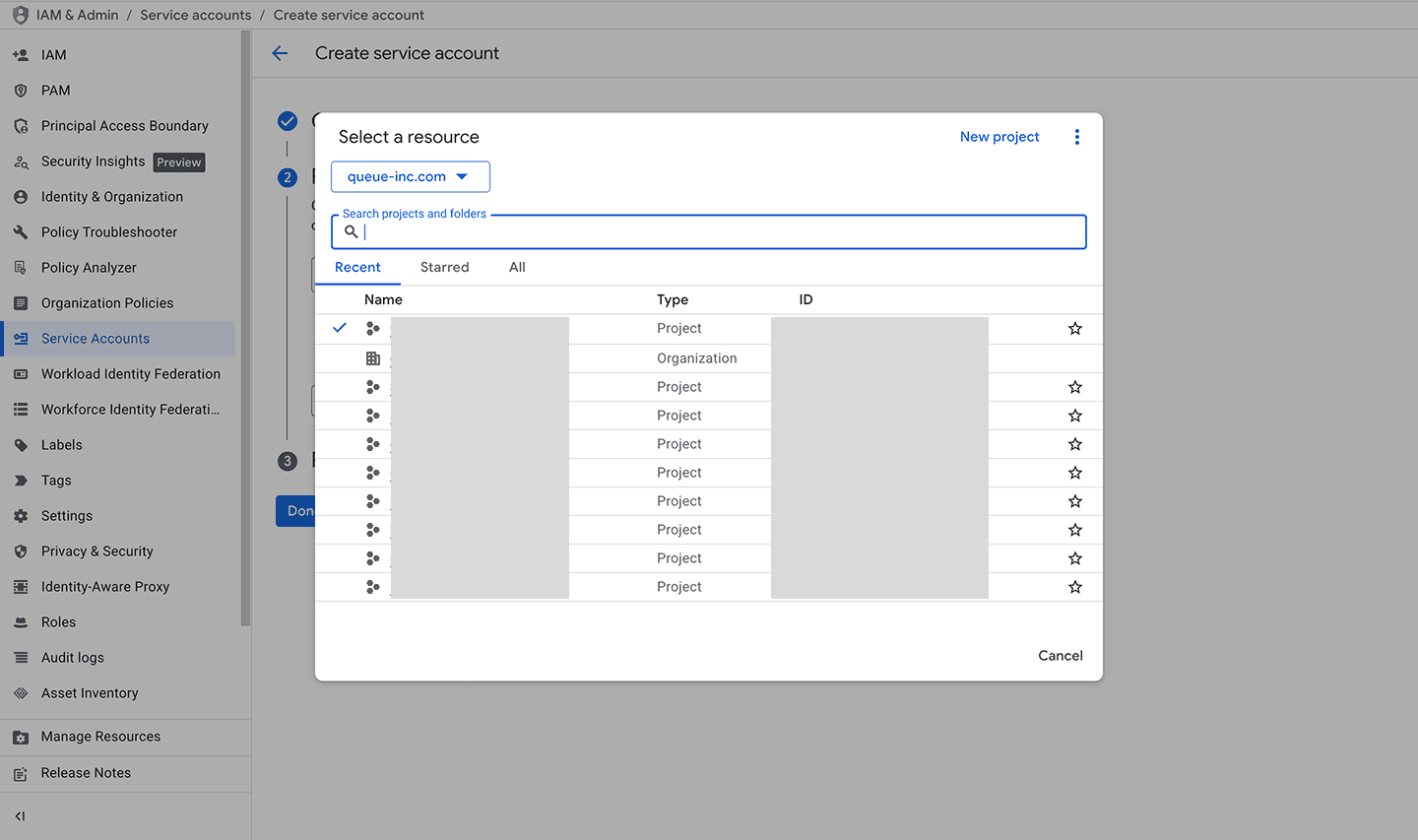
Click the project name in the upper-left corner of the console, to the right of the Google Cloud logo.
A dialog will open showing a list with project names and IDs side by side.
The alphanumeric string in the ID column (e.g., my-awesome-project-12345) is the Project ID needed for the integration. Make sure to select the Project ID of the project where your target BigQuery is located.
Since permissions are granted per project, if you use a specific dataset, include the dataset name in the Squadbase project knowledge. This allows the AI to use that dataset for analysis.