
Google Analytics
Steps and required credentials to connect Google Analytics to Squadbase
Required Information
| Field | Description |
|---|---|
| Google Cloud Service Account JSON | An authentication key file for accessing Google services. This JSON file is issued in Google Cloud and is used by Google to identify which application is using the API. |
| Google Analytics Property ID | The ID that identifies the Google Analytics property (measurement target) you want to connect. In GA4, it is a numeric-only format, used to specify which site or app's data to retrieve. |
How to Obtain Each Value
Google Cloud Service Account JSON
Issue a Google Service Account for the integration.
A Google Service Account is a dedicated account for "systems" such as programs or applications (not humans) to use Google services.
Open Service Accounts
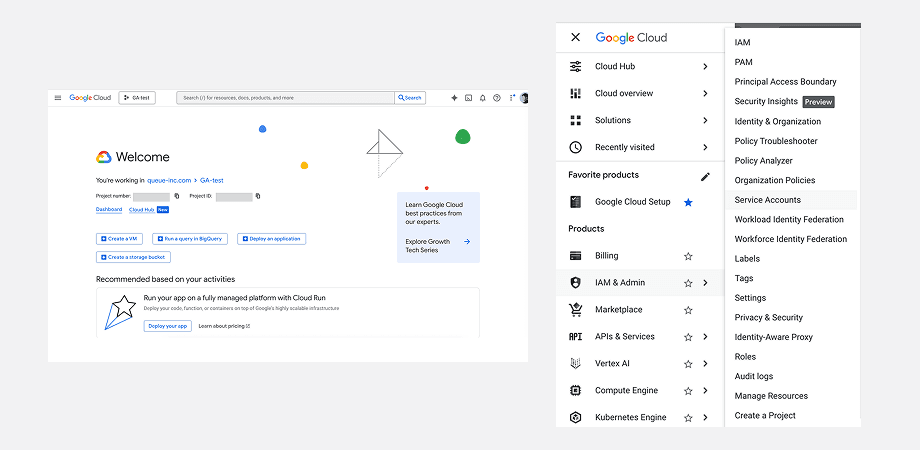
In any project on Google Cloud Platform, select "IAM & Admin" → "Service Accounts" from the menu.
Create a Service Account
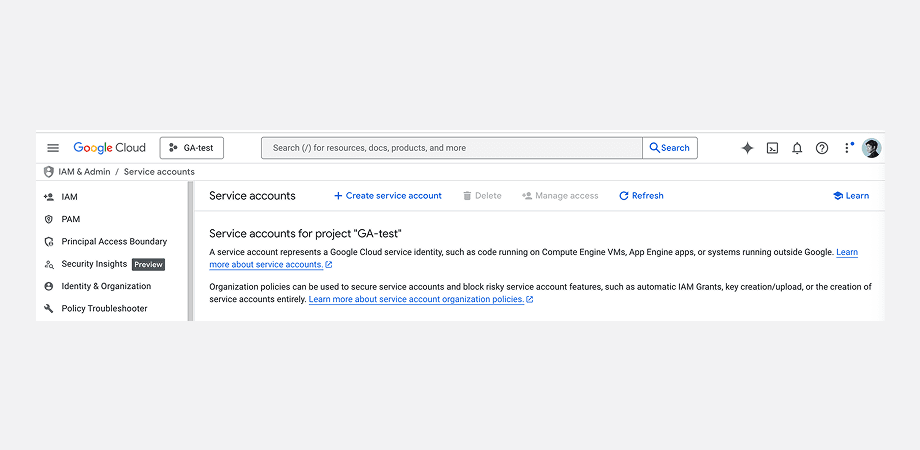
Click "+ Create service account" at the top of the Service Accounts page.
Fill in the required information:
- Service account name: Give it a descriptive name so you know what it's for.
- Service account ID: Automatically populated based on the service account name.
- Service account description: Optionally add a description for this service account.
Click "Create and continue" to create the service account.
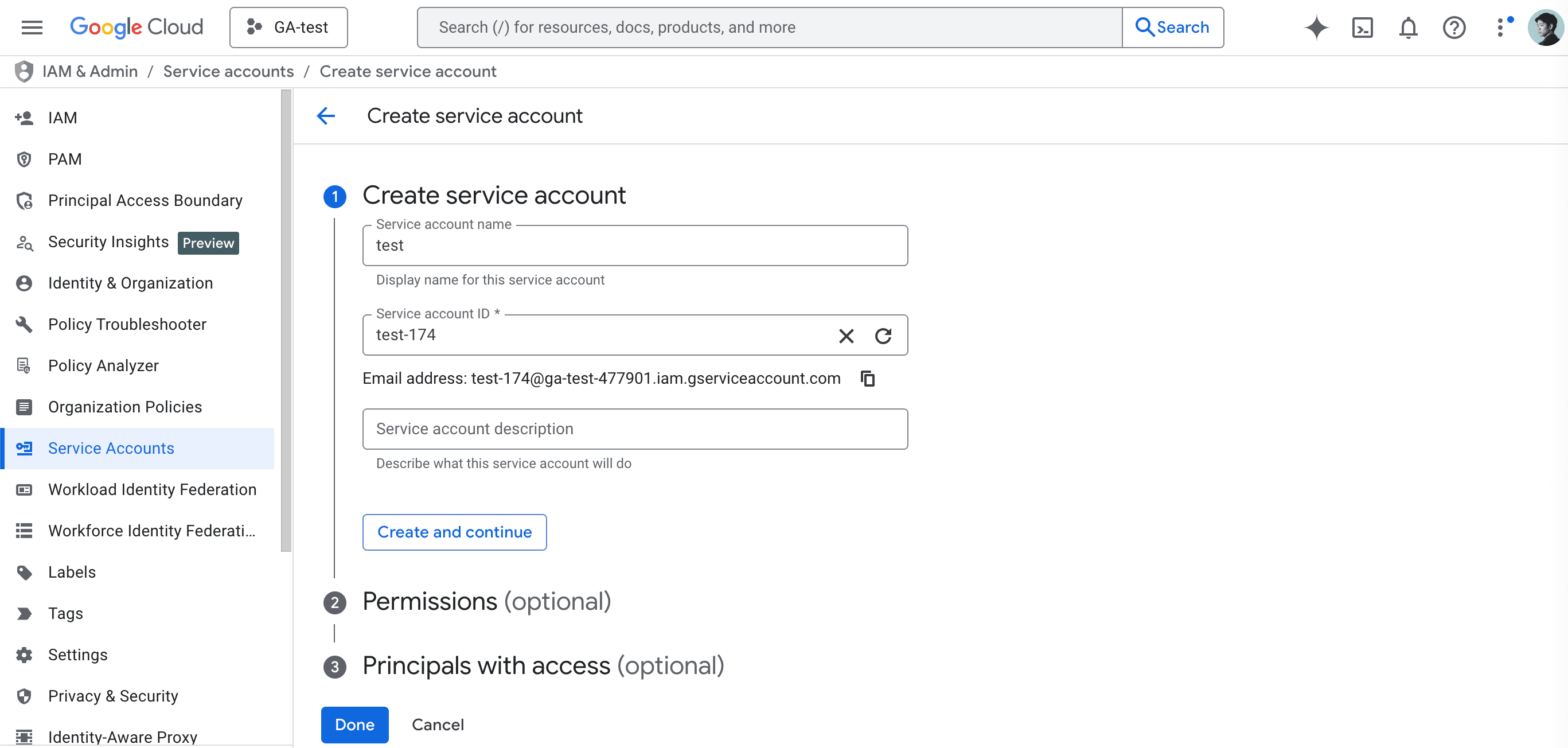
No configuration is needed for Permissions or Principals with access. Service account permissions are managed from the Google Analytics side.
Generate a Key
From the service account list, click the email address of the service account you just created.
Select the "Keys" tab, then click "Add key" → "JSON" and click the "Create" button.
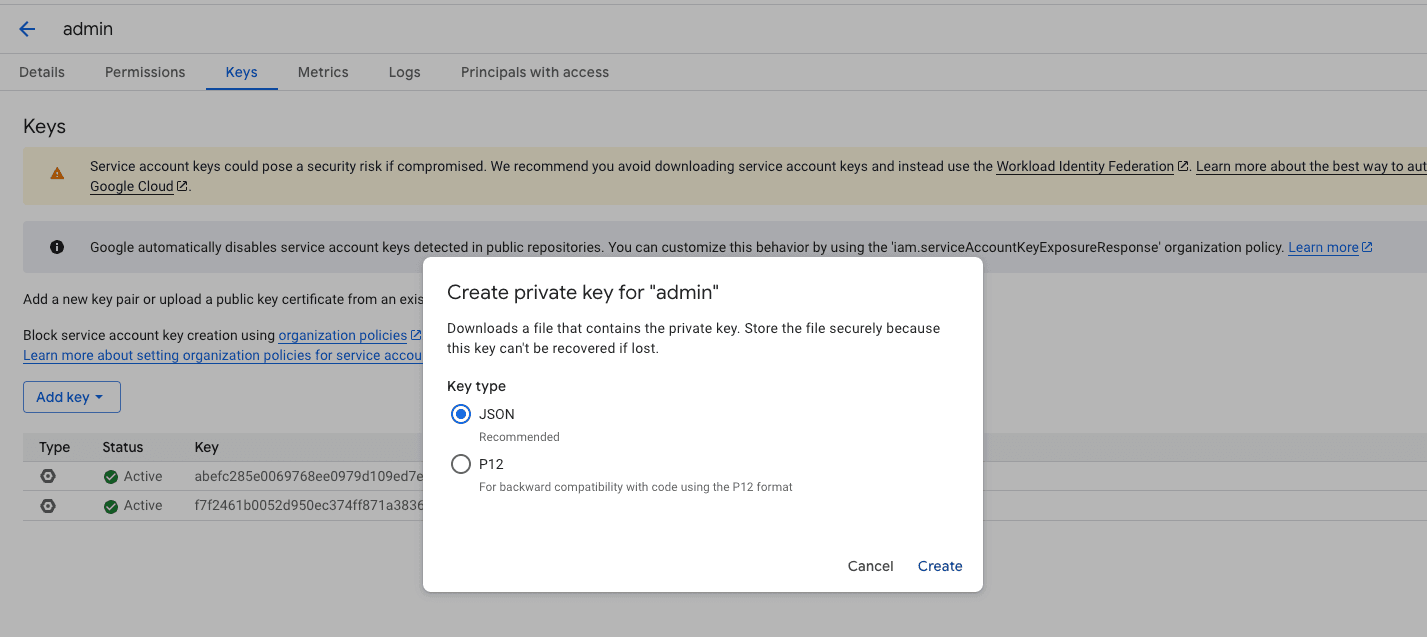
A JSON file will be downloaded to your computer. Upload this JSON file to Squadbase.
Enable the API
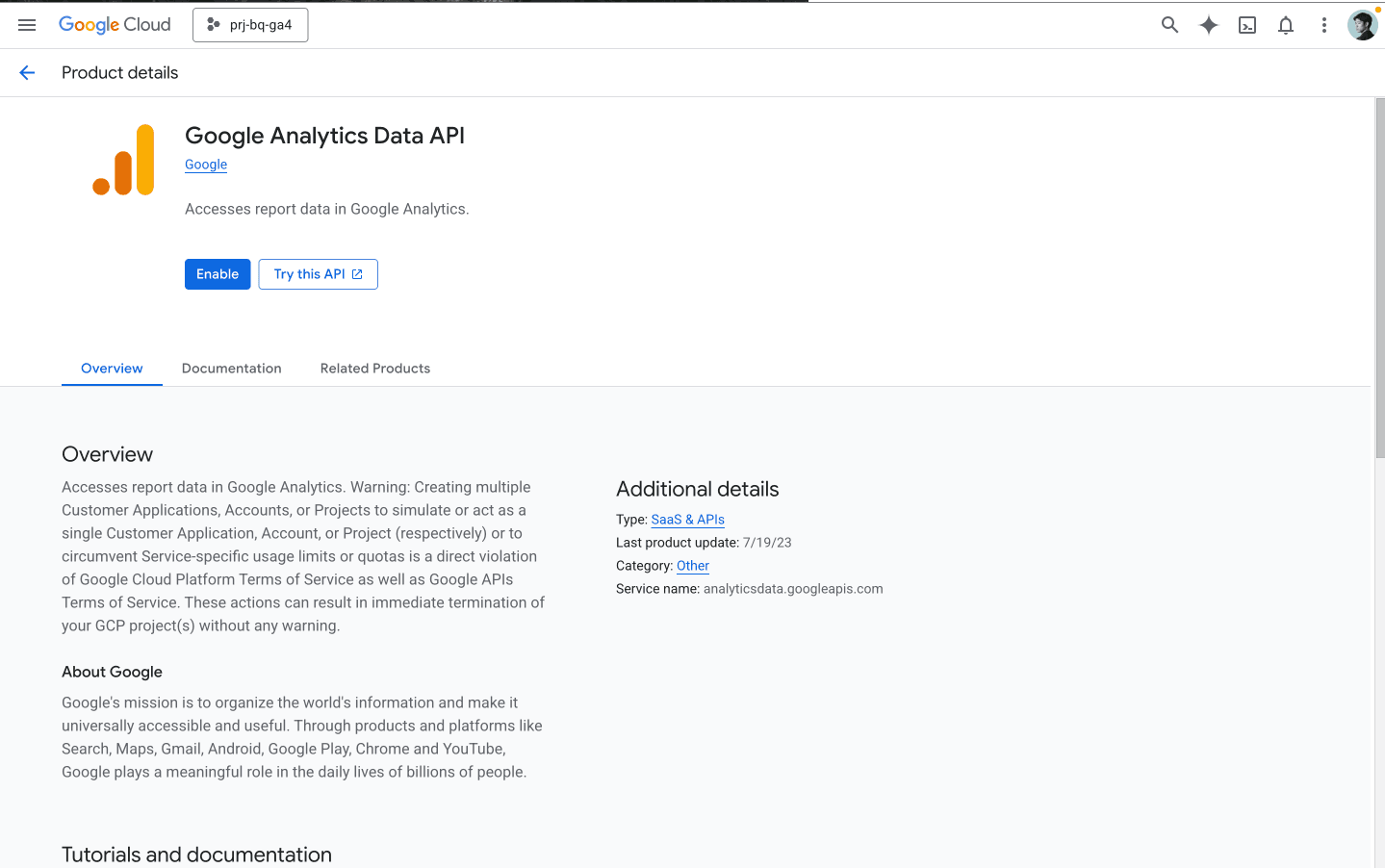
To allow the service account to access Google Analytics data, you need to enable the "Google Analytics Data API" in your Google Cloud project.
From the left sidebar in Google Cloud, select "APIs & Services" → "Library", then search for "Google Analytics" in the search box. Find "Google Analytics Data API" in the results and click "Enable."
Google Analytics Property ID
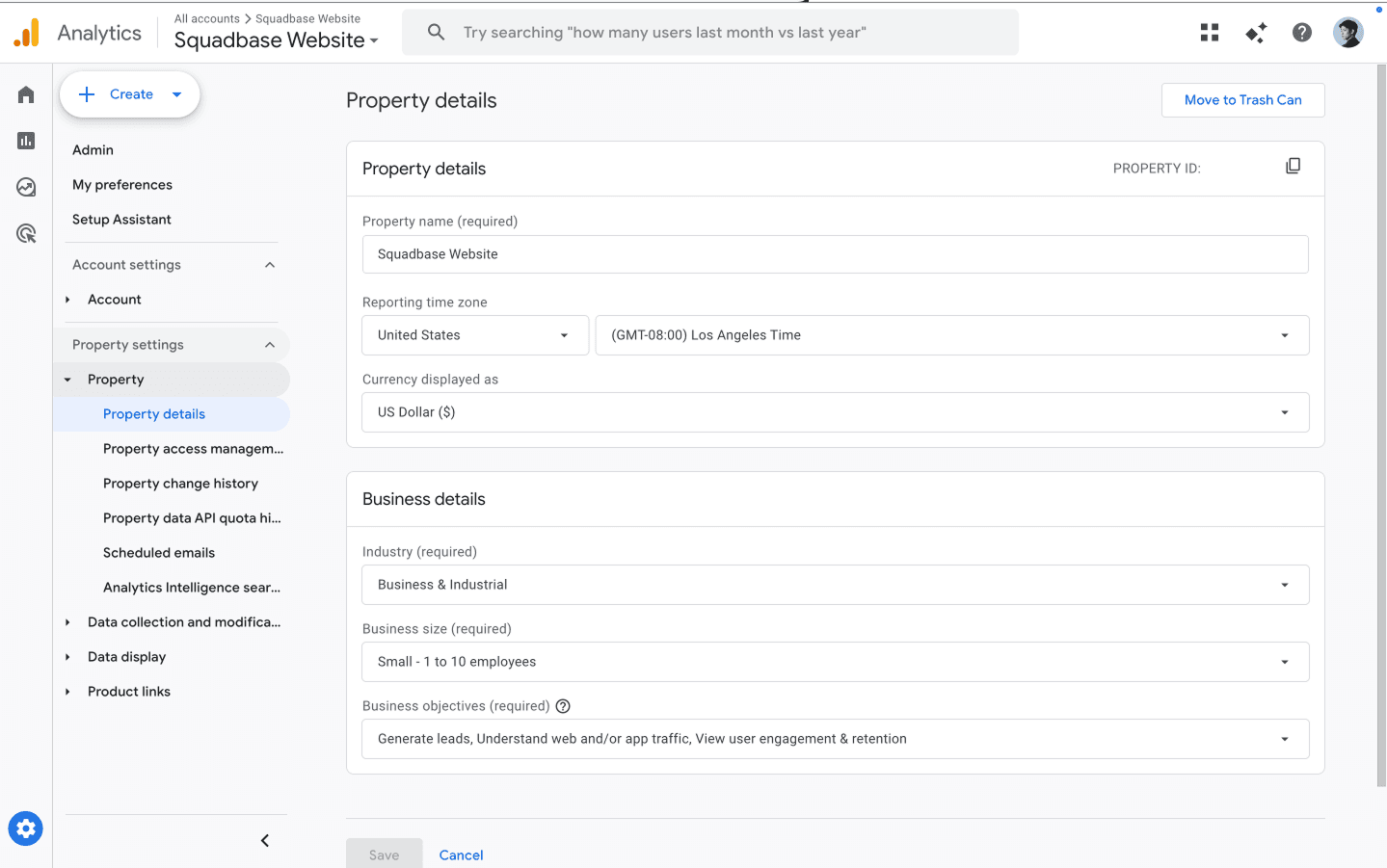
Log in to the Google Analytics property you want to analyze.
Click the Admin button at the bottom of the menu, then go to "Property" → "Property details." The Property ID displayed in the upper right of the screen is your Google Analytics Property ID. Enter this value in Squadbase.
Grant the Service Account Access to Google Analytics
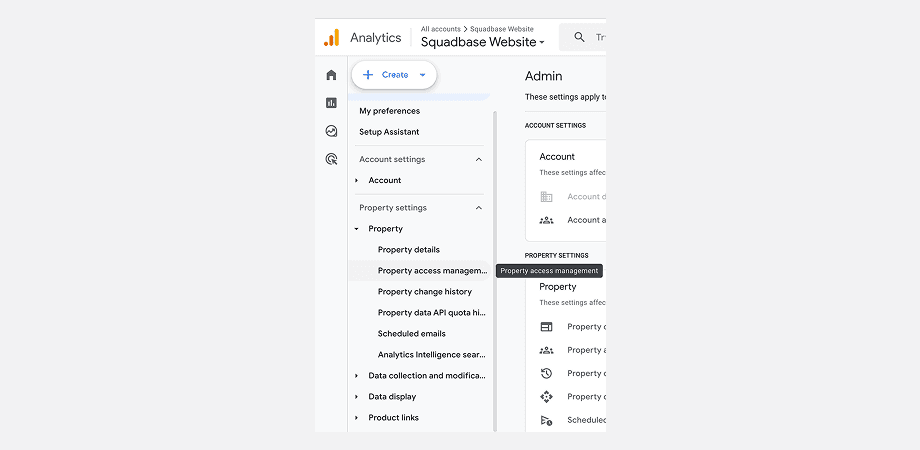
Service account permissions are managed from the Google Analytics side. Click "Property" → "Property access management."
Click the "+" button in the upper right to add the service account.
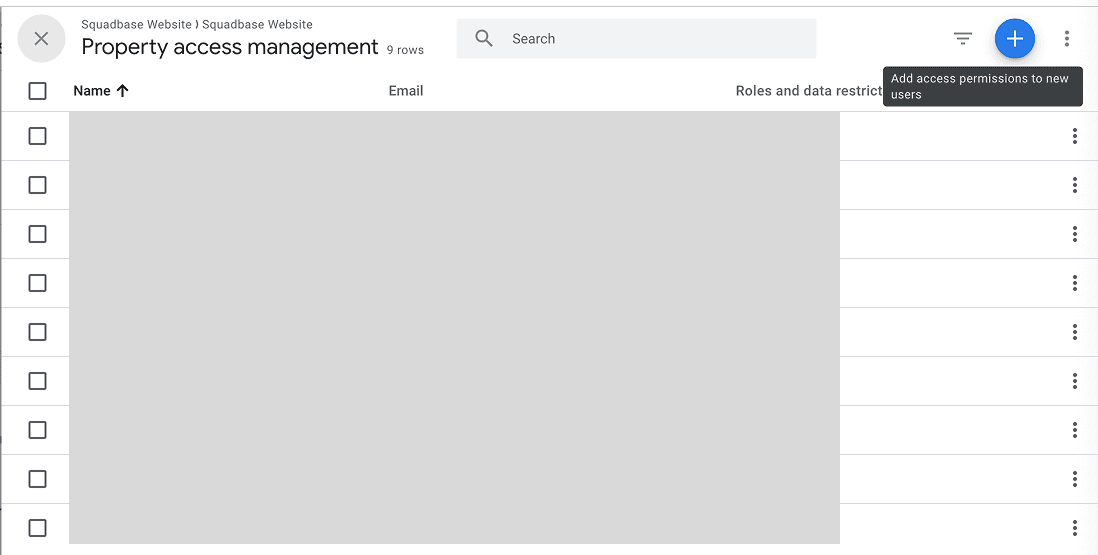
Enter the service account's email address in the Email field, and set the role to Viewer.
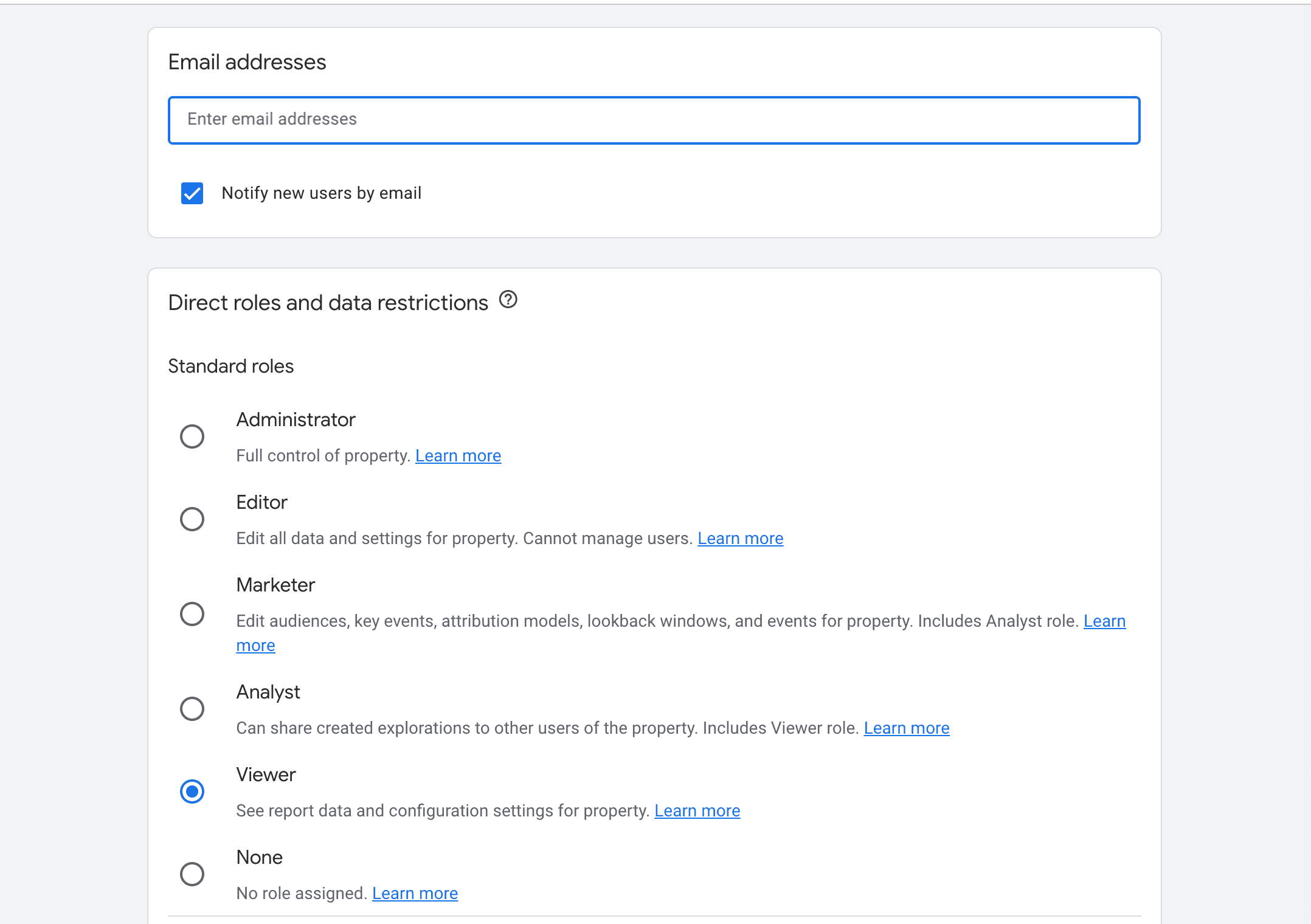
Using Editor or higher permissions risks unintended data modification. We recommend inviting with Viewer permissions.
Your Google Analytics data is now ready to be analyzed in Squadbase.