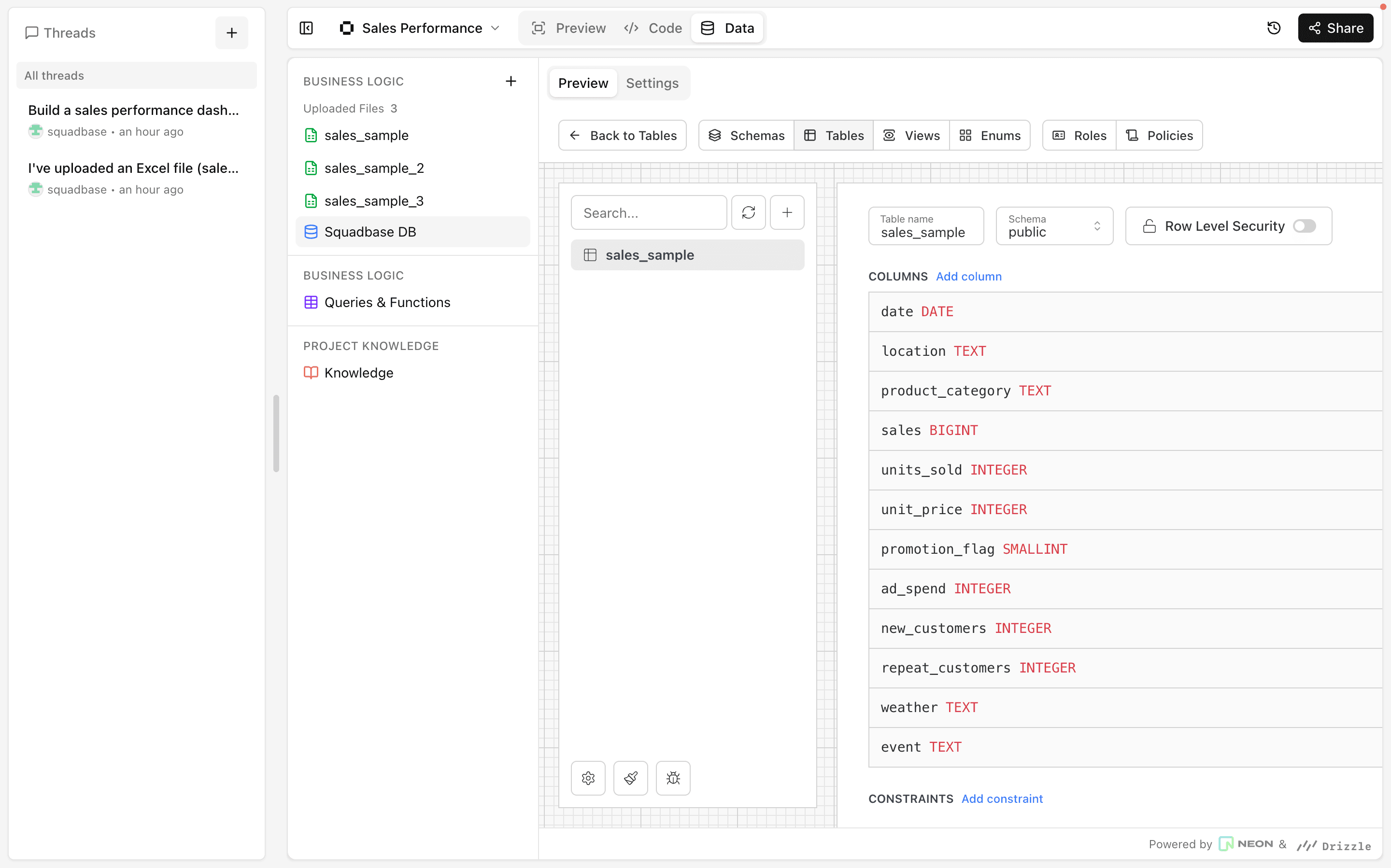
Squadbase DB
Use Squadbase's built-in PostgreSQL database for your projects
What is Squadbase DB?
Squadbase DB is a database built directly into Squadbase by default.
Use Cases
Storage for Excel/CSV Uploads
In Squadbase, files uploaded as Excel/CSV are automatically stored in Squadbase DB, keeping the data in a format that's easy to work with. This makes it straightforward to add or update data over time.
Application Backend
Normally, when building an app, you need to decide where to store data upfront.
With Squadbase DB, you can start persisting app data immediately — no need to sign up for a separate database service or configure one from scratch.
Examples of apps you can build:
- Customer management app
- Deal / task management app
- Simple internal master data management app
How to Use
Click the Data tab in the editor to navigate to the Squadbase DB interface.
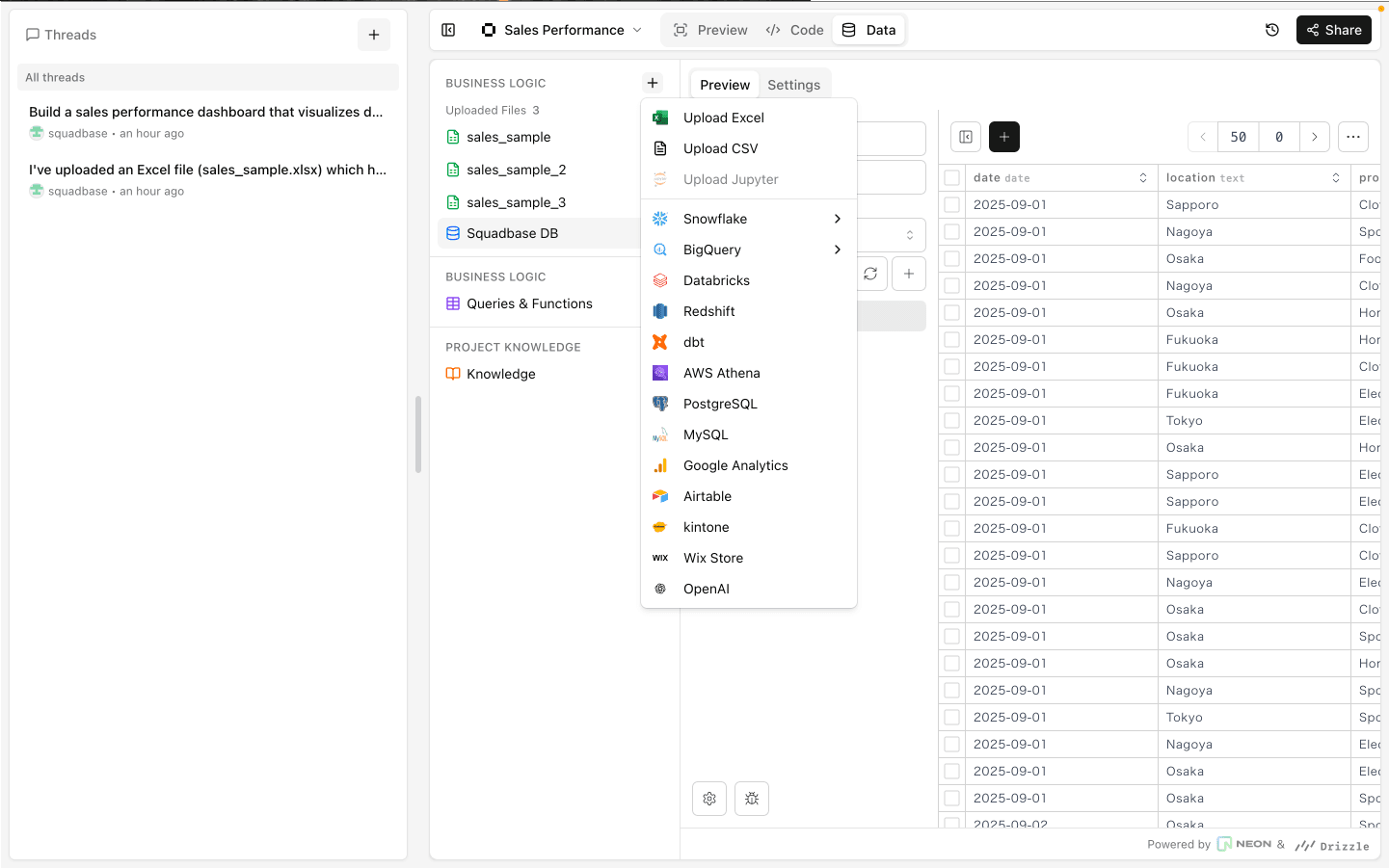
If no data exists yet, click the + button and choose to upload an Excel or CSV file to create your Squadbase DB.
Adding Data
Manual entry
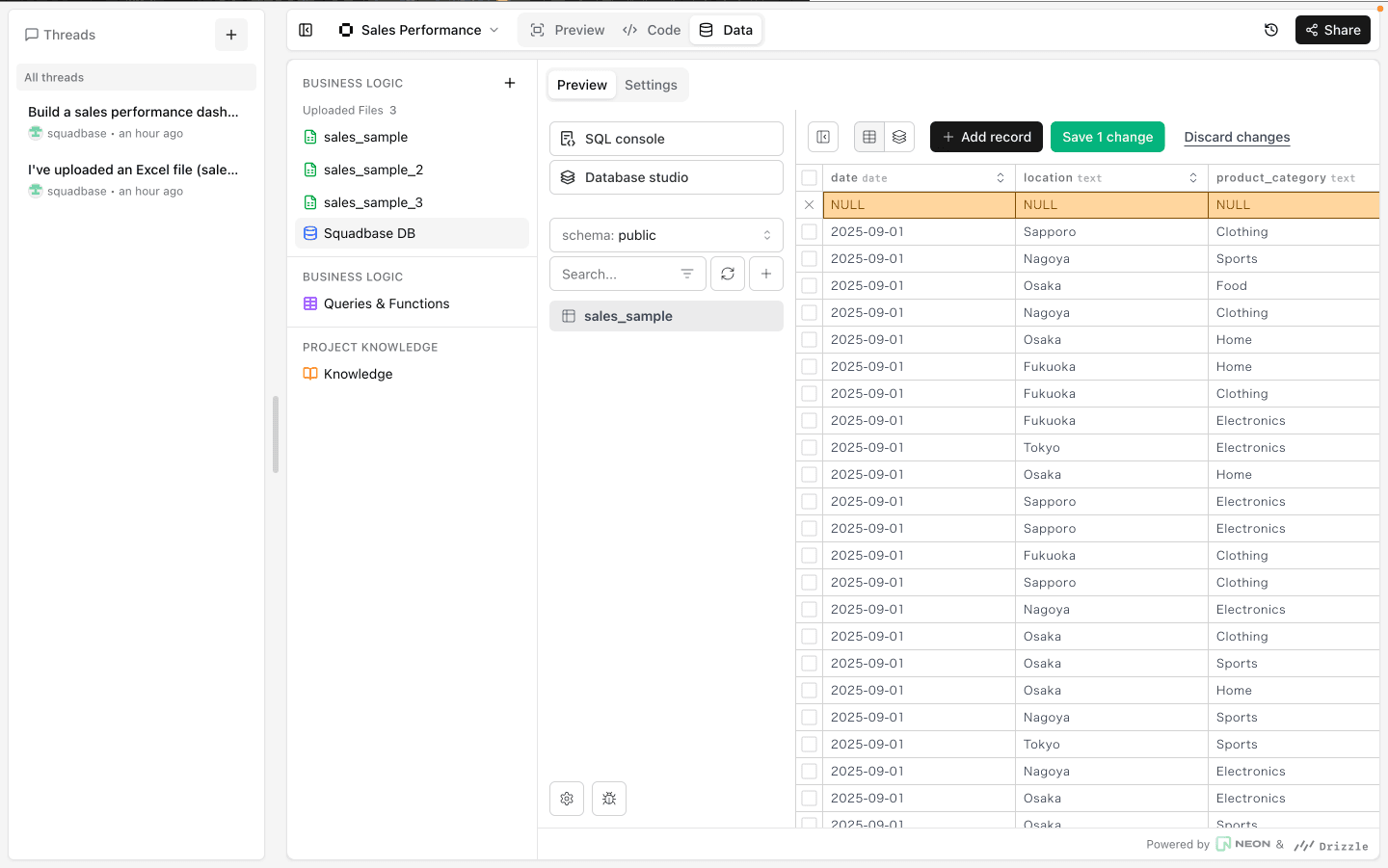
Click "Add records" at the top of the displayed database to add rows one at a time. You can type directly into each record.
Bulk import from file
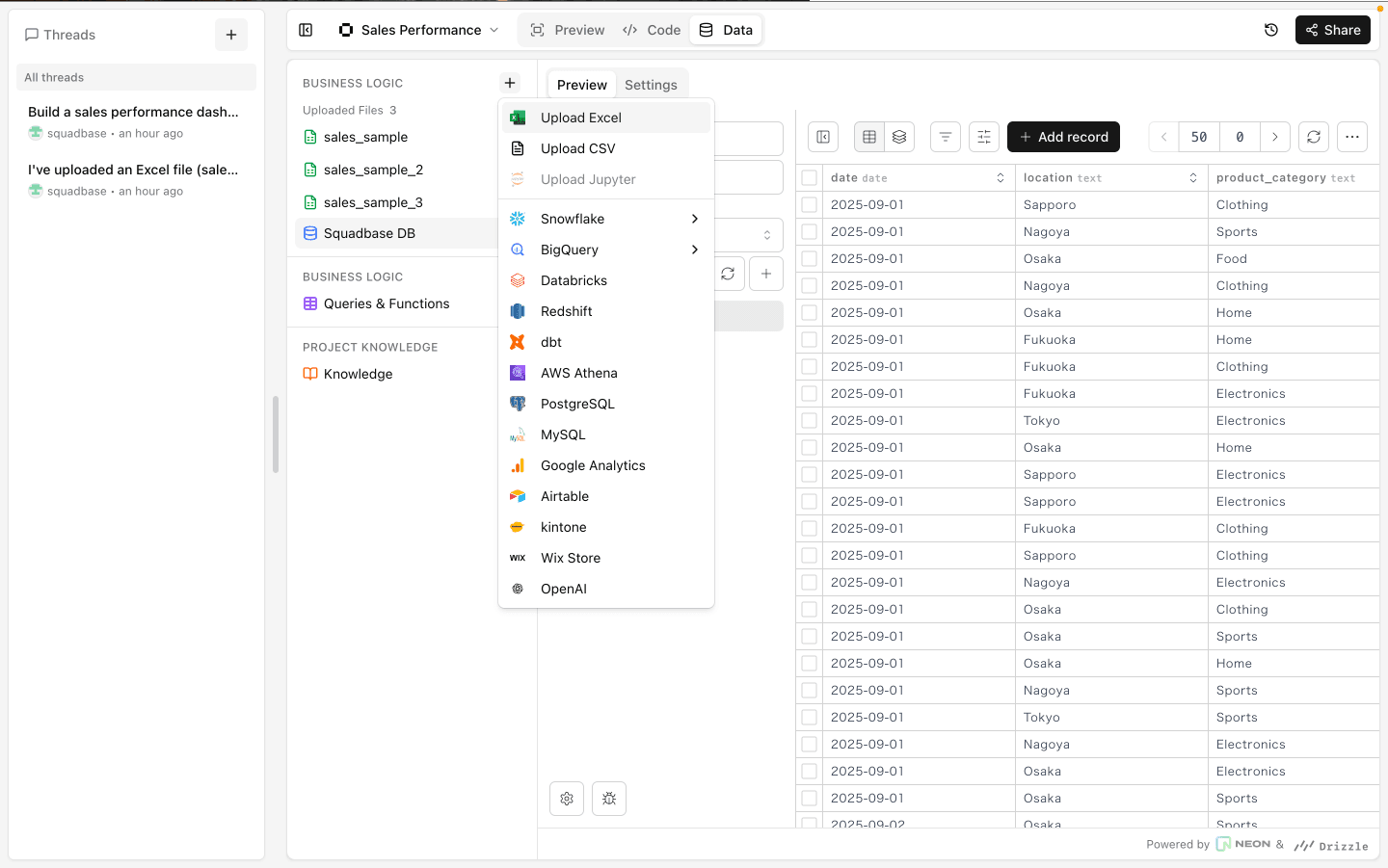
You can also bulk-add data to an existing database by importing a CSV or Excel file.
- Open the editor and click the Data tab.
- Click the 「+」 button and select "Upload Excel" or "Upload CSV" to upload your file.
- After the upload is complete, go back to the chat and enter a prompt such as "Add [file name] to the [table name] in Squadbase DB" and execute it.
Squadbase AI will then insert the data from the file into the existing table.
Querying Data
Open "SQL console" from the menu to launch the SQL editor. You can write and execute SQL queries directly.
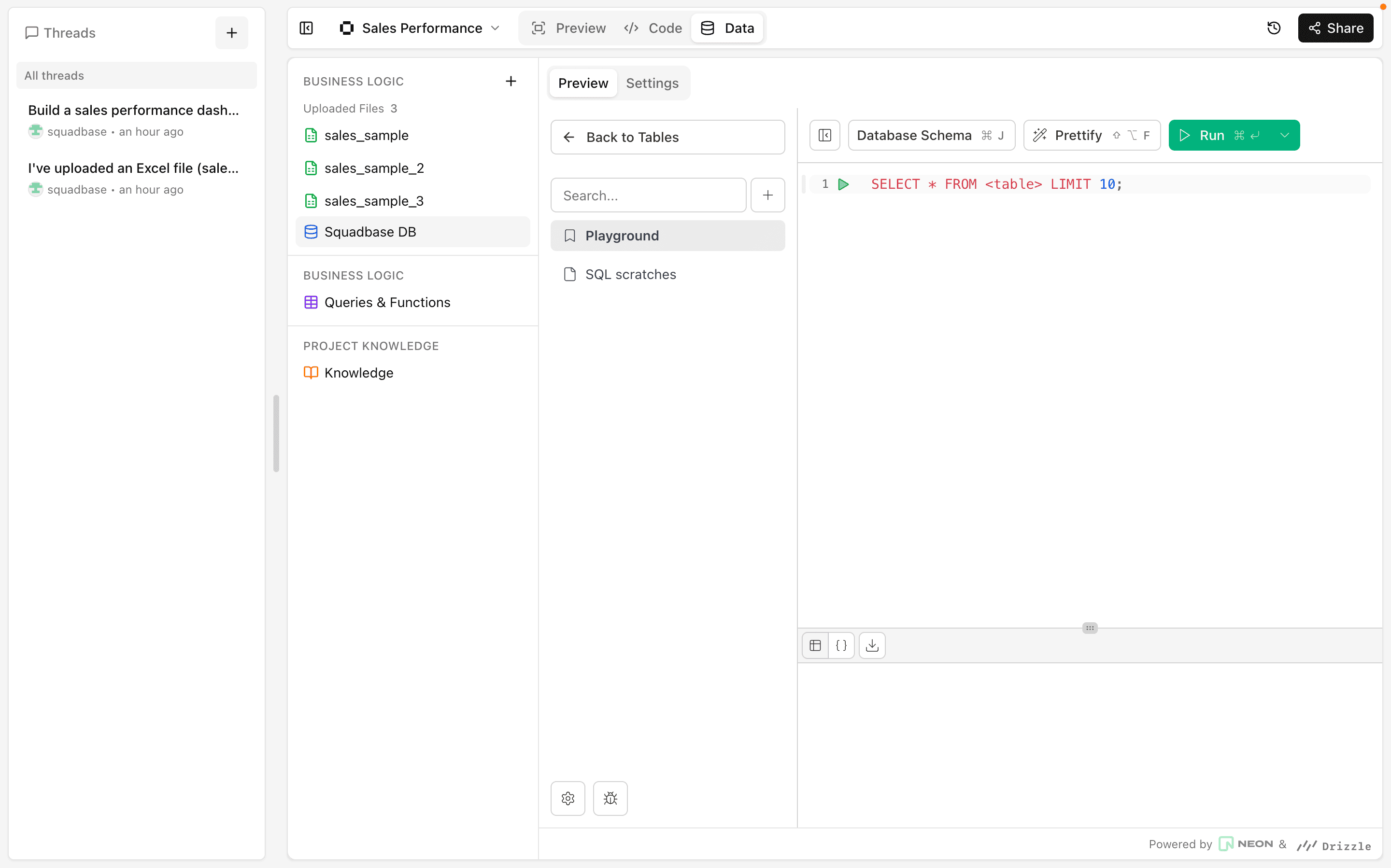
Table Schema Settings
Open "Database studio" from the menu to view and edit table definitions. You can add columns and configure column names, types, null constraints, and default values.