Share your App
How to publish and share your dashboard with your team
How Sharing Works
Here is the overall flow for sharing a dashboard with your team in Squadbase:
- Click "Share" in the editor
- Invite the members you want to share with (or set it to anyone with the link)
- Members access the dashboard via the URL
Publishing Your Dashboard
Publishing from the editor makes your dashboard available to share with your team.
How to Publish
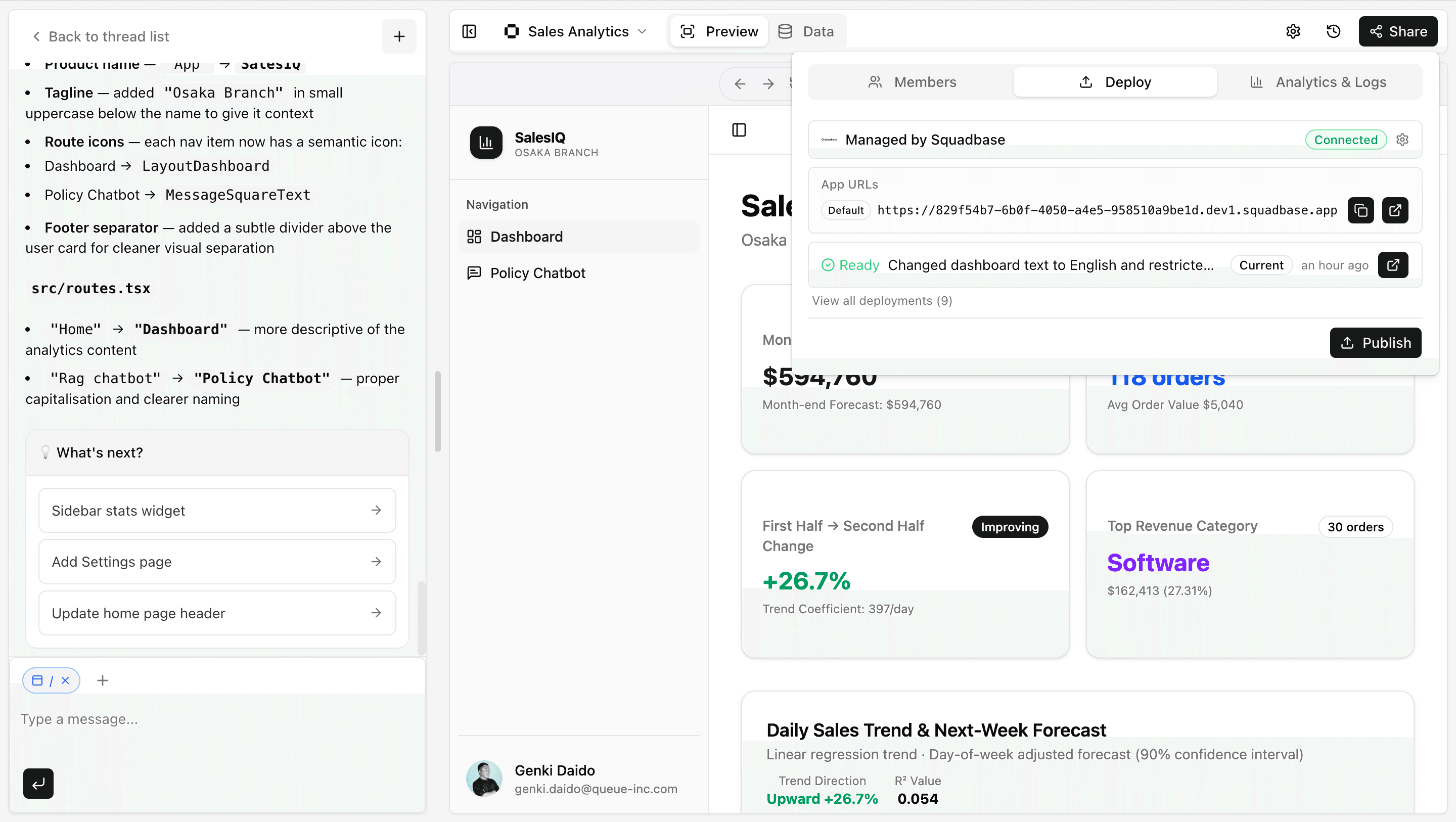
- Click the "Share" in the top-right of the editor, then click "Publish" from the "Deploy" tab
- The publishing process starts automatically
- Once the deployment is complete, a unique URL is issued
Invite Members to Share
After deploying, if you want to grant access to specific members only, send them an invitation.
How to Invite
- Click the "Share" in the top-right of the editor, then click "Invite" from the "Members" tab
- Select the members you want to invite
Member Access Levels
The access level granted at invitation is determined by the member's Organization Role.
| Organization Role | Access Level |
|---|---|
| Admin | Full access to all projects |
| Creator | Can deploy and view |
| Viewer | View only |
Share with Anyone with the Link
You can also allow anyone who has the URL to access the dashboard without an invitation. This is useful for broad internal sharing or creating public dashboards that require no authentication.
How to Set Up
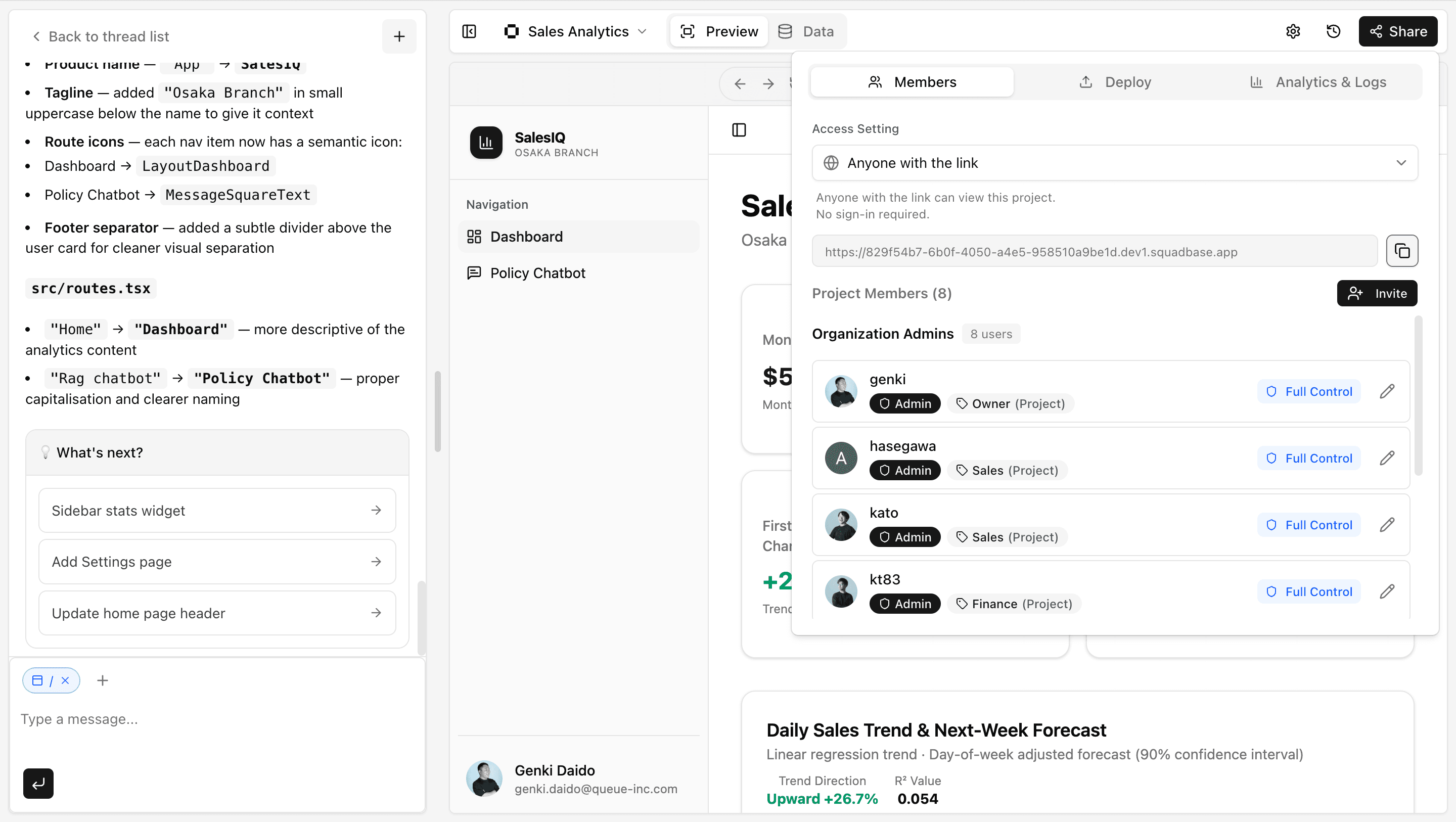
- Click the "Share" in the top-right of the editor and click the "Members" tab
- Under Access Setting, select "Anyone with the link"
With this setting, anyone who knows the URL can access the dashboard. Do not use this for dashboards that handle confidential data.
Tips & FAQ
Q: Where can I find the URL of a published dashboard?
A: You can find it via the "View" button on the project list, or from the app URL in the "Deploy" tab.
Q: Can I make a published dashboard private again?
A: Yes. Change the Access Setting from "Anyone with the link" back to "Invited members only" to restrict access to invited members again.
Q: Can space members access the project without an invitation?
A: Yes. Members in the same space can automatically access the project without a separate invitation.