Templates
Start a project from a template, or turn your project into a template your team can reuse
Templates let you start a project from a working dashboard. There are two kinds:
| Kind | Who can see it | Where it appears |
|---|---|---|
| Public templates | Everyone | The Public gallery tab of the template gallery |
| Team templates | Members of your organization | The Your organization tab |
Any member of your organization can create team templates, and by default everyone in the organization can use them. You can also narrow the sharing scope per template (see "Set the sharing scope" below). Listing your own templates in the public gallery is currently available to a limited set of organizations.
Create a project from a template
Open Templates in the left sidebar to browse the gallery. It opens on Featured — templates picked by the Squadbase team. Search to look across all public templates, ranked by relevance, and use Back to Featured to return to the curated list. You can also start from Create from a template on the home screen.
- Open a template to see its description, screenshots, and update history.
- Click "Use this template".
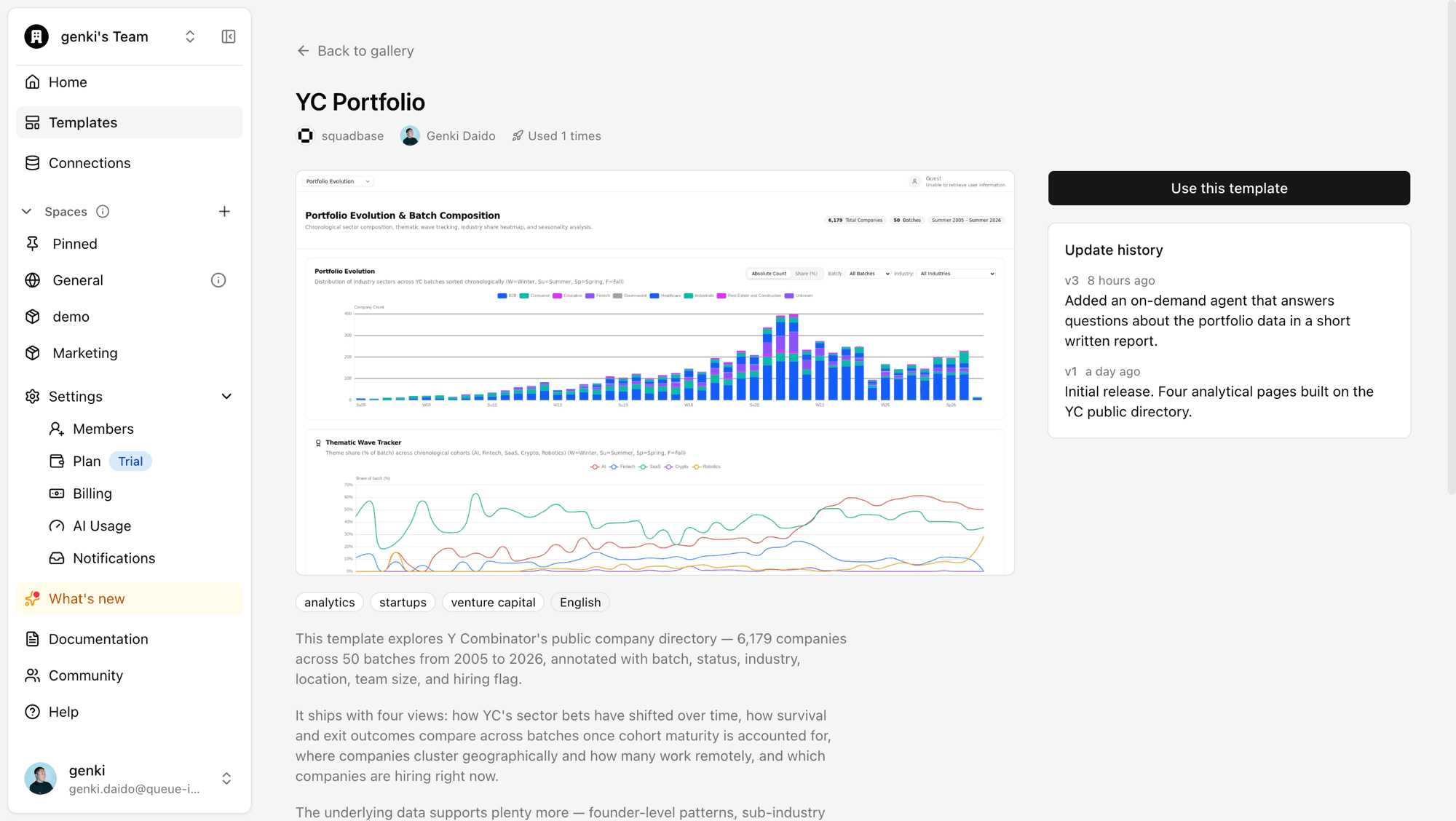
- Enter a project name and choose the space to create it in, then click Create.
Squadbase copies the template in the background and takes you to the new project when it's ready. You can close the dialog while it runs — the project appears in your project list with a "Preparing" badge until the copy finishes.
Projects created from a template start with sample data, so the dashboards work right away. Connect your own data sources anytime to replace the sample data with real data.
Templates created in your organization appear in the Your organization tab. You can use them the same way, whether or not they are published to the public gallery.
Turn your project into a template
You can register any of your projects as a template so your team can reuse it.
- Open the project in the editor, click Share in the top right, switch to the Template tab, and click "Publish as template".
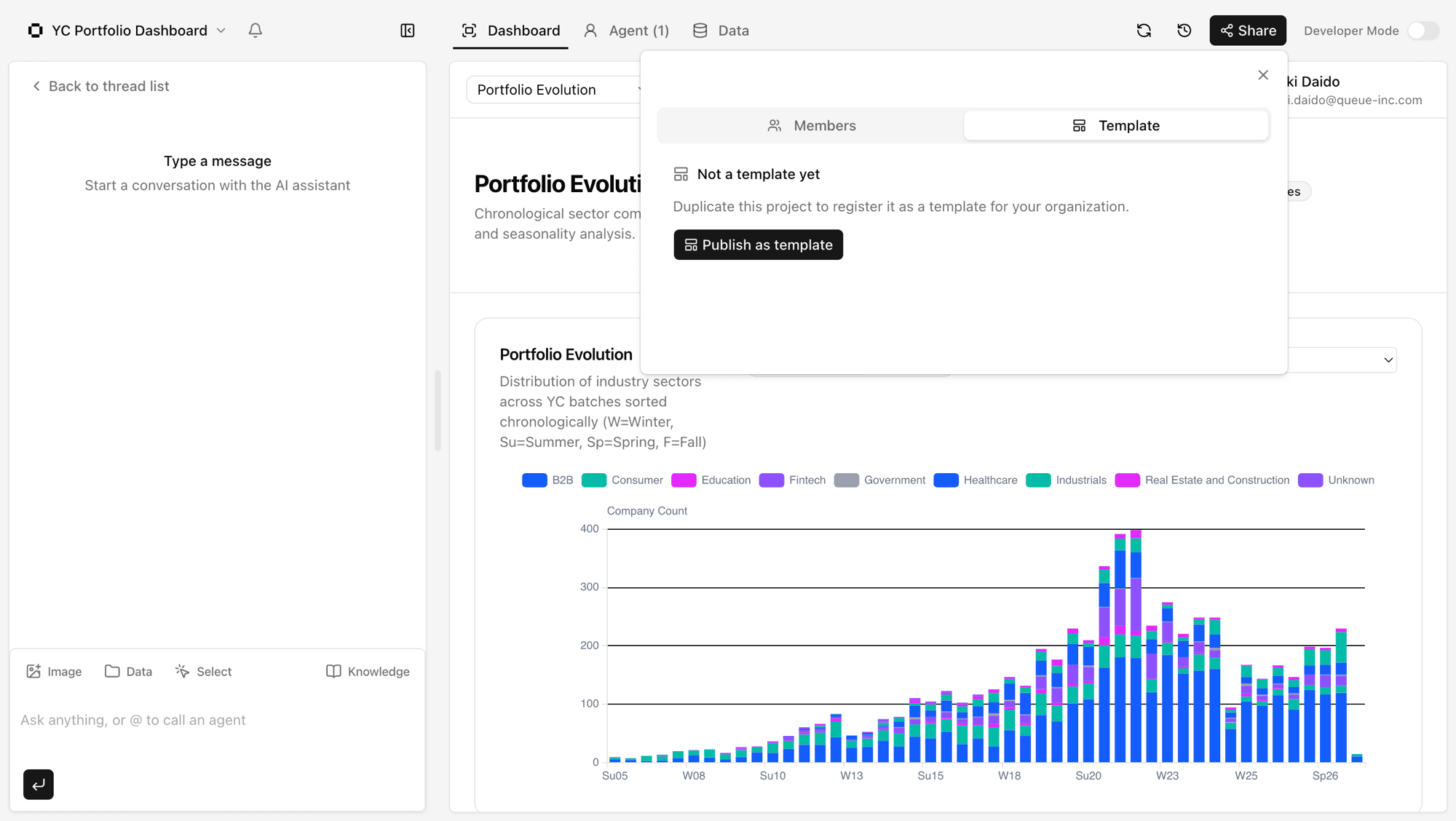
- Fill in the template details:
| Field | Notes |
|---|---|
| Description | What the template is for and what it contains |
| Images | Cover and gallery images (up to 10MB each). A screenshot of your project is added as the cover automatically |
| Categories | Free-form tags such as sales, marketing, or finance |
| Language | The template's language (English or Japanese) |
- Click "Create template".
Squadbase copies the project in the background. The new template is private to your organization — it does not appear in the public gallery unless you explicitly publish it later from its sharing settings.
What a template includes
A template is a snapshot of your project at the moment you create it. Later changes to the source project are not applied automatically (use "Refresh" below to apply them).
Included:
- Dashboards and the app itself
- The contents of the project's Squadbase DB (used as sample data)
- Project knowledge
- Data source settings such as host names and database names
- AI agents (their schedules are not activated automatically)
Not included:
- Credentials of any kind: API keys, passwords, OAuth authorizations, and secret environment variable values. Users of the template reconnect data sources with their own credentials
- AI agent notification settings and execution history
The data in your project's Squadbase DB is copied into the template and delivered to everyone who uses it. Before creating a template — and especially before publishing one — make sure the project does not contain confidential or personal data.
Refresh a template
After updating the source project, click Share in the editor's top right, open the Template tab, and click "Refresh" to rebuild the template's contents from the current project. The template's name, description, images, sharing scope, and public status stay the same.
- The preview images are not updated. Replace them afterwards if the look has changed significantly
- You can leave an optional change message. It appears in the change history — and in the public gallery's update history if the template is published
- Nobody can create a project from the template until the rebuild finishes
Manage your team's templates
Open Templates in the sidebar and switch to the Your organization tab to open Manage templates. Use templates directly from the list, or open a card to reach its detail page, where you edit, share, publish, and delete it. The list supports keyword search, filtering by category and language, and sorting by last updated, last used, popular, or name.
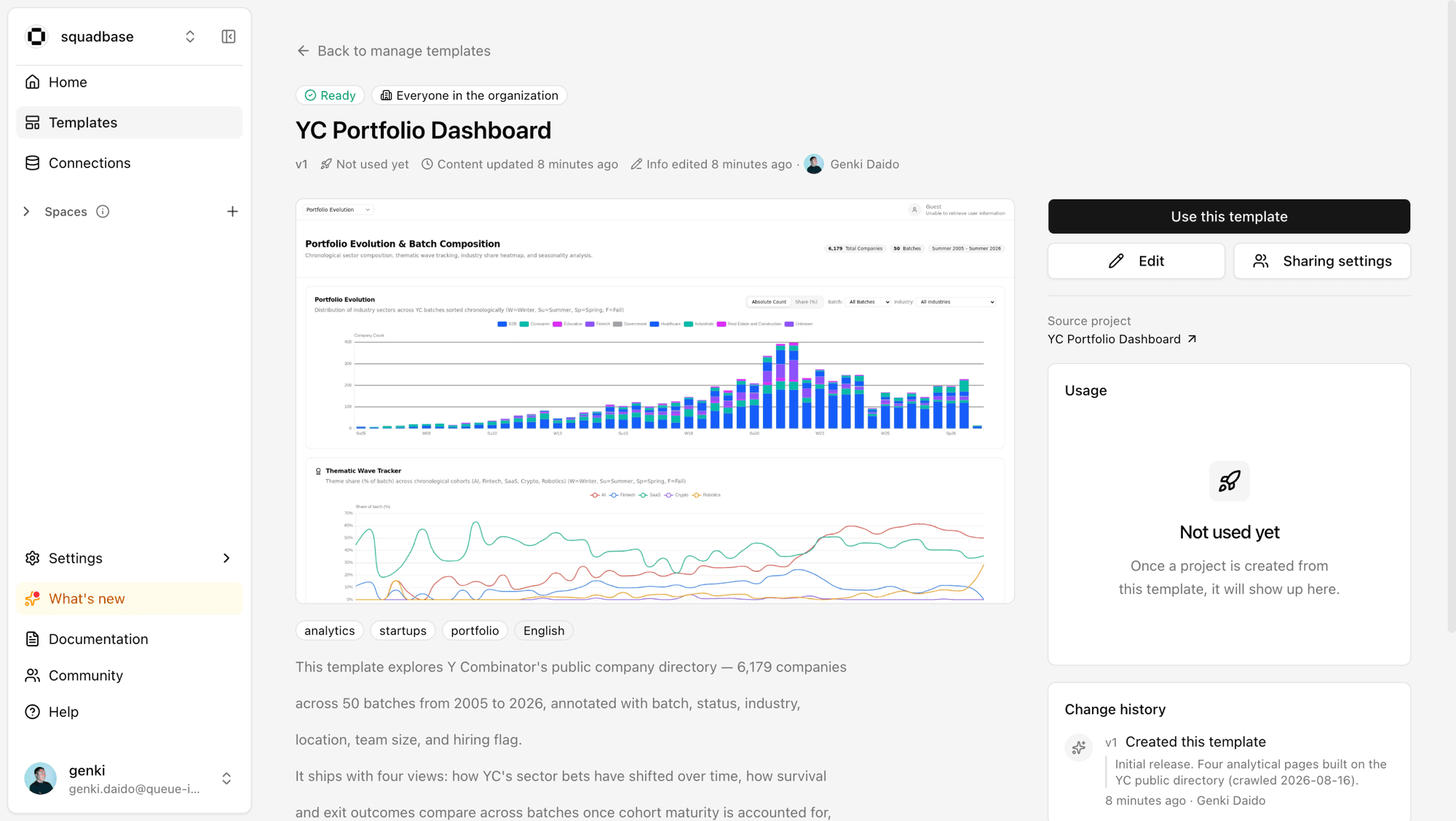
Template status
Each template shows the status of its background copy:
| Status | Meaning |
|---|---|
| Preparing | The copy is still running. You can edit details, but the template can't be used or published yet |
| Ready | The template can be used and published |
| Failed | The copy failed. Retry to rebuild it, or delete it if you no longer need it |
Retrying rebuilds the template from the source project. If the source project has been deleted, the template can no longer be rebuilt — delete it if you no longer need it.
Edit a template
Click Edit on the detail page to change the template's name, description, images, categories, and language. Changes to a public template are reflected in the gallery immediately.
When you open one of your organization's templates in the public gallery, the Edit button there takes you to the same screen.
Set the sharing scope
Open Sharing settings on the detail page to choose who in your organization can use the template.
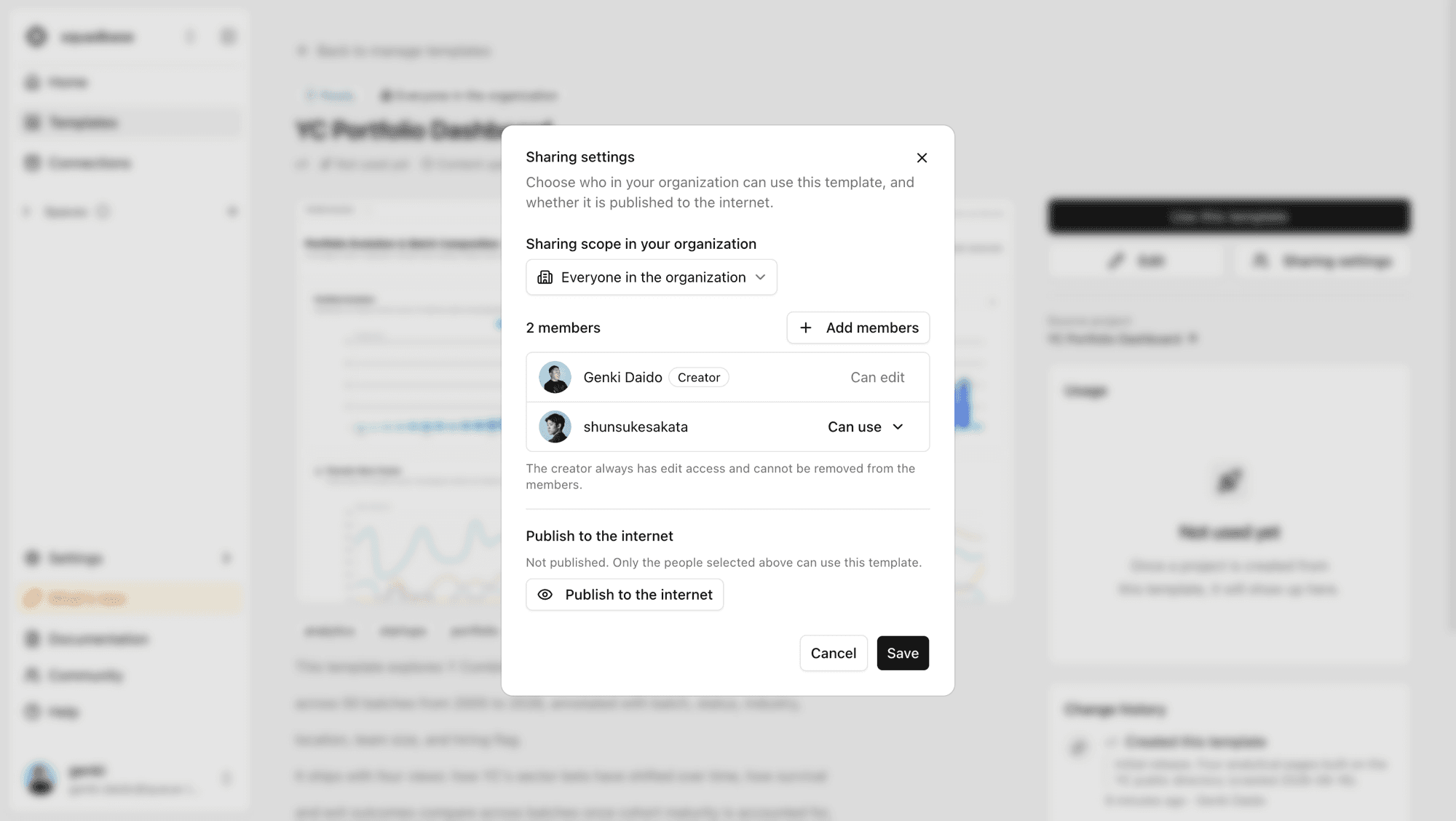
| Scope | Who can use it |
|---|---|
| Everyone in the organization (default) | All members of your organization |
| Invited members | Only the members you invite |
| Only me | Only the creator |
Each invited member can be granted "Can edit" or "Can use" access. The creator always has edit access. Narrowing the scope does not affect projects already created from the template.
Publish to the gallery
In the Publish to the internet section of the sharing settings, templates with Ready status can be listed in the public gallery. Once published, every organization and individual using Squadbase can view and copy the template.
The confirmation screen shows exactly what gets published:
- Published: the template name, description, and tags; preview images; the dashboard source code; queries, table names, and column names
- Not published: connection credentials and your actual data
Values hardcoded in the source (company names, amounts, customer names) are published as-is. Review your code before publishing.
Templates shared with only you cannot be published. You can unpublish at any time, but projects that have already been copied remain in other organizations.
Publishing to the public gallery is currently available to a limited set of organizations. Team templates are available to everyone.
Check the change history and usage
The detail page also shows the template's change history and usage.
- Change history: who changed what and when, with change messages. You can also see what changed in each edit
- Usage: how many times the template was used in your organization and in others, with a usage log for your organization. To protect privacy, the users and organization names of other organizations are not shown
For published templates, the public gallery's detail page also shows an update history (content updates only).
Delete a template
Enter edit mode on the detail page — the Delete button appears in the action panel on the right. Deleting shows the template's usage and asks you to type its name to confirm. Public templates must be unpublished first.
Deleting a template does not affect the source project or any projects already created from the template.