Organization Settings
Learn about your organization's profile, members, plan, billing, and other settings
Configure settings for your whole organization. Click the organization name at the top left of the sidebar and open Settings. The organization's settings are under Organization (Settings opens on Organization > General).
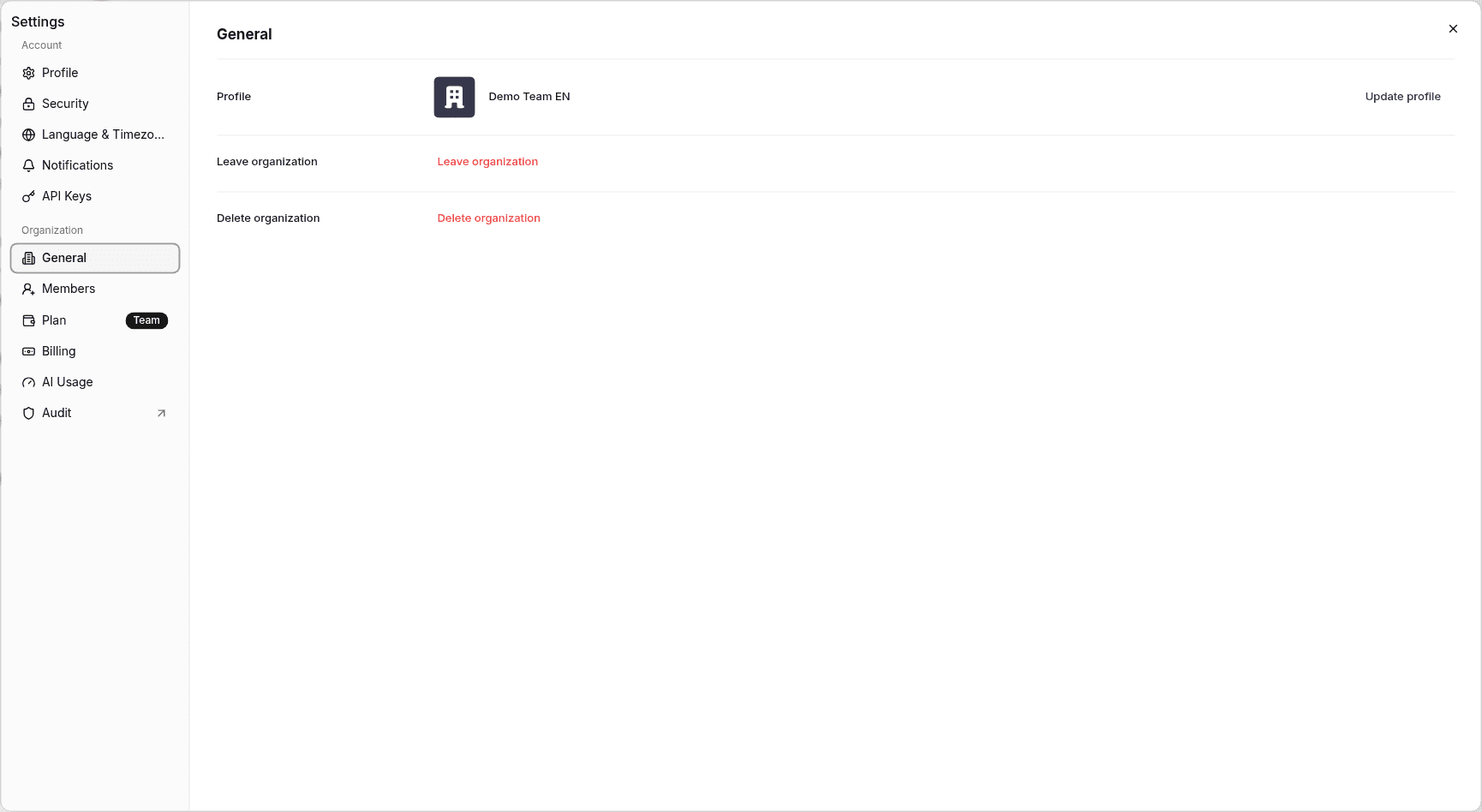
General
- Organization profile: Shows the organization's logo and name. Change them with Update profile
- Leave organization: Leave the organization. After you leave, you're taken to the General space
- Delete organization: Delete the organization
Admins can update the organization profile and delete the organization.
Organization menu
Below General, you'll find the following items. Which items you see depends on your role and plan.
| Item | What it's for | Shown to |
|---|---|---|
| Members | Invite members and manage roles. See Members and roles | All members |
| Plan | Check and change your plan. See Billing & Plans | All plans except Enterprise |
| Billing | Check your billing | Everyone except Viewers (not shown on the Enterprise plan) |
| AI Usage | Check AI usage. See AI Credits | Everyone except Viewers |
| Audit | Opens the audit log page. See Audit Log | Admins on the Team and Enterprise plans |
| SSO / SAML | Opens the SAML SSO settings page. See SAML SSO | Admins of organizations with the add-on |
| PrivateLink | Opens the private connectivity settings page. See Snowflake (AWS PrivateLink) | Admins of organizations with the add-on |
For your own account settings, see Personal Settings.