Signals
What signals are — the findings AI discovers in your data and delivers to you — when they arrive, and how to reply to them
A signal is a change or finding in your data that your team isn't aware of yet. Without you having to ask, the agent finds it and delivers it along with why it matters now and the evidence behind it. Instead of hunting through dashboards, people just read the signals that arrive and choose what to do next.
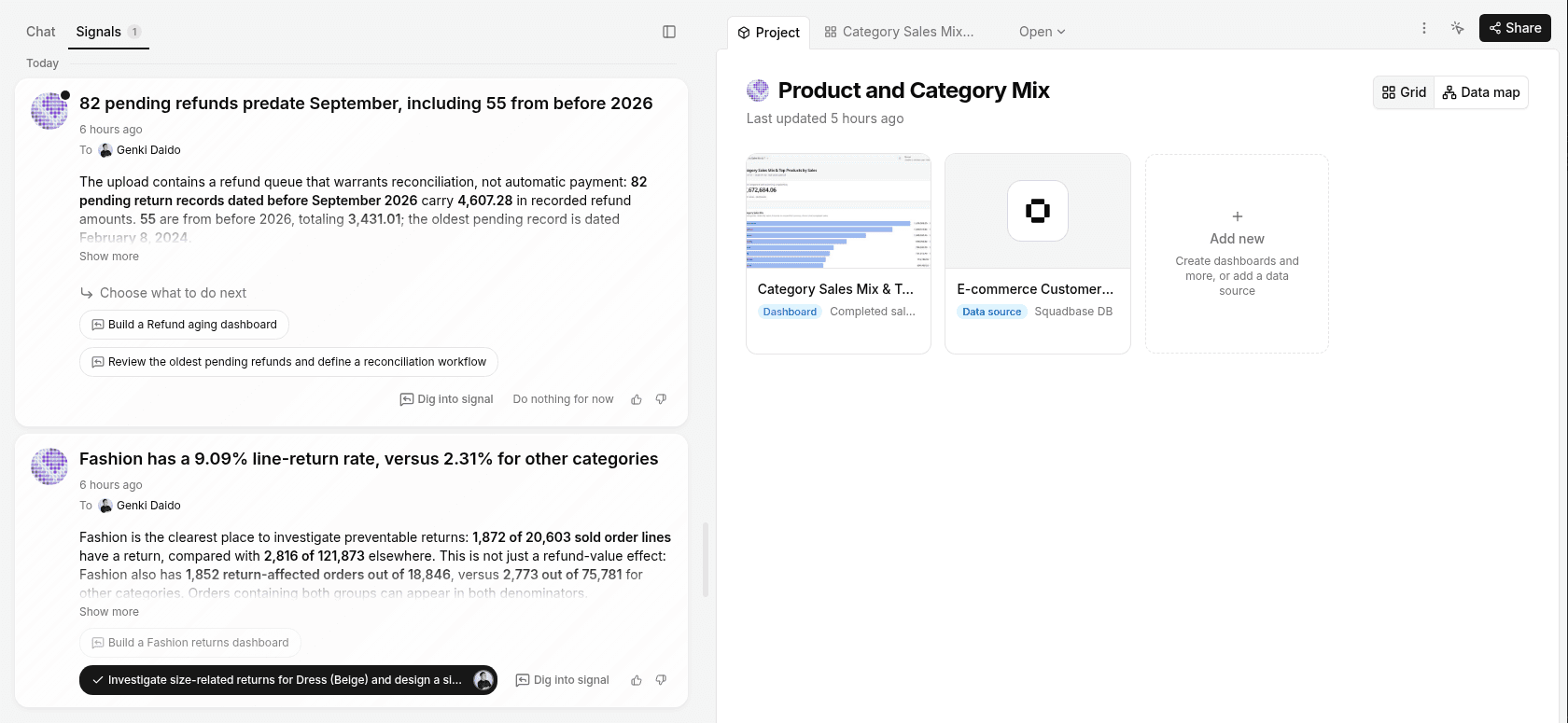
What's in a signal
A signal is made up of three parts.
| Part | Contents |
|---|---|
| Headline | One sentence describing what is happening. Example: "New deal win rate: 39.00% for referrals vs. 10.00% for outbound" |
| Body | The numbers behind the headline, the period, the basis of comparison, and what isn't known yet |
| Suggested replies | Options for what to do next. Example: "Break down the win-rate gap between referrals and outbound by product, customer size, and owner" |
The body states which data and which period were examined, and what they were compared against. To check the numbers, you can dig deeper in the project's dashboards or chat.
What signals tell you
Signals deliver things like:
- Facts and trends found in your data, and the reasons behind them
- Initiatives to improve your numbers
- How your numbers changed as a result of initiatives you ran
- New ways to use the data you already have
When useful, a signal also suggests creating a dashboard, slides, or an Automation.
When signals arrive
Signals are generated when you chat with AI in a project. As AI works through an analysis, when it finds a change or finding your team should know about, it delivers it as a signal before you ask.
When a signal arrives in the middle of a chat, a notice appears at the top center of the project screen. Click Open to view the signal, or × to close the notice. Delivered signals go into the Signals tab next to the Chat tab.
The more you create projects and analyze data, the more likely you are to receive signals. If you don't have any signals yet, try analyzing your data in a project's chat.
Where to see signals
Signals are delivered to Home and to the project editor.
- Home — Signals from all projects in your organization, and your team's decisions on them, are listed in one place. Your team can also see who replied and how. → Home
- A project's Signals tab — Open a project and select the Signals tab next to the Chat tab in the left pane to see only that project's signals. The number next to the tab is how many signals are waiting for a reply.
Reply to a signal
Each signal comes with several suggested replies. Just choose one, and the agent goes straight into the follow-up work.
Choose a suggestion
Click the suggestion closest to what you want to do. The chosen suggestion gets a check mark and your icon, and the signal becomes Replied.
AI continues the work
When you reply, a thread named after the signal's headline is created in the project's Chat tab, and AI continues the analysis along the lines of the suggestion.
Check the results and dig deeper
Check the results in the thread, then ask follow-up questions or ask AI to add the results to a dashboard.
Send feedback
Use 👍 / 👎 on a signal card to let us know whether the signal was useful.