Project access
How to invite members to a single project and set per-project roles and project roles
Who can access a project is decided in three ways.
| Method | What it does |
|---|---|
| Through a space | Space members can access every project in that space. → Spaces |
| Invite to a single project | Invite someone to a specific project without adding them to the space |
| Per-project roles | On the Team plan and above, make an organization Creator view-only on a specific project |
Invite people to a single project
To show a specific project to someone without adding them to the space, invite them at the project level.
- Click Share at the top right of the project
- In the Members tab, click Invite under "Project members" and choose members
Invited members can access only that project. They don't get access to other spaces or projects. For visibility settings and publishing apps, see Publish and share your app.
Per-project roles (Team plan and above)
On the Team plan and above, you can manage roles (Creator / Viewer) per project. For example, someone can be a Creator in the organization but view-only on a particular project.
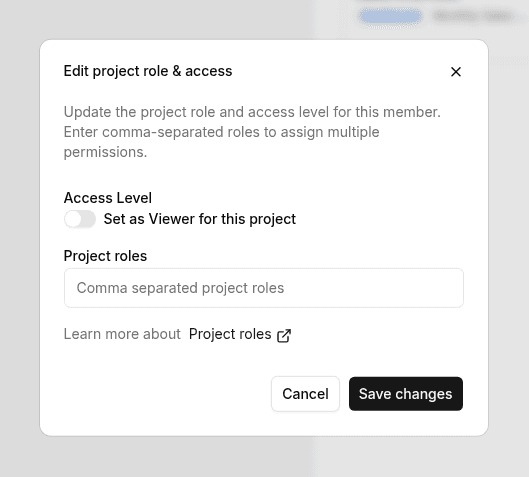
- Click Share at the top right of the project, then in the Members tab click the pencil icon next to the member. Edit project role & access opens
- Under Access Level, turn on Set as Viewer for this project and click Save changes
Members whose organization role is Viewer are Viewers on every project. To make them a Creator on a project, change their organization role. → Members and roles
Project roles
In the same Edit project role & access dialog, Project roles lets you give each member roles as free-form strings. To give several roles, separate them with commas. Project roles are separate from organization roles. Use them to change what data each user sees or what they can do inside a dashboard.
For controlling a dashboard with project roles, see Access control.