Spaces
How to group projects into spaces and manage space members
A space groups projects together. Space members can access every project in that space. If you create spaces for each department or team, you don't have to invite people project by project.
Every organization starts with a General space, which all organization members join automatically. General can't be renamed or deleted, and its members can't be changed.
Spaces in the sidebar
The sidebar lists the spaces you belong to, plus General. Each space's projects are listed under its name.
- Space names are headings. Clicking one doesn't open a page; open projects from the list under the space name
- Up to 5 projects are shown per space at first. If there are more, use Show more (N left) to see more and Show less to go back to 5
- Click the + to the right of a space name to open Create a new project on Home with that space selected. The + is shown to members who can create projects
If you open an old space page URL (/space/...), you are taken to Home.
Create a space
Admins and Creators can create spaces.
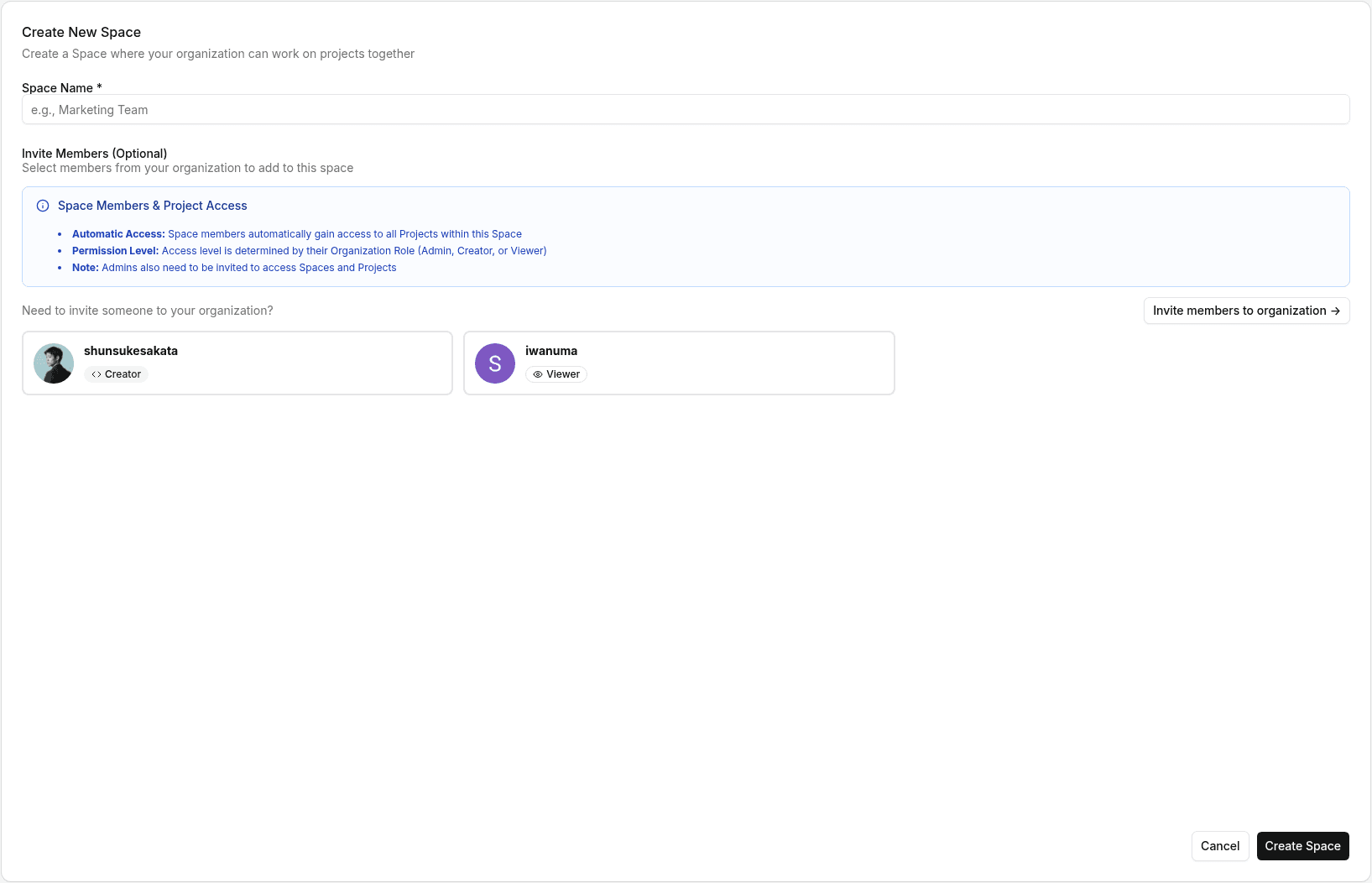
Open Create New Space
Click Create a new project on Home, then click the space name in "Create in General space" at the top of the panel. Click Create new space at the bottom of the list to open the space creation page.
The + next to a space name in the sidebar adds a project to that space. It doesn't create a space.
Enter a space name
Enter a Space Name (for example, Marketing Team). You can't use "general".
Choose members (optional)
Under Invite Members (Optional), choose the organization members to add to the space. Whoever creates the space becomes a member automatically. You can also add members later.
To invite someone who isn't in the organization yet, use Invite members to organization → to invite them by email.
Create the space
Click Create Space. You're taken back to Home with the new space selected as the destination. The new space also appears in the sidebar.
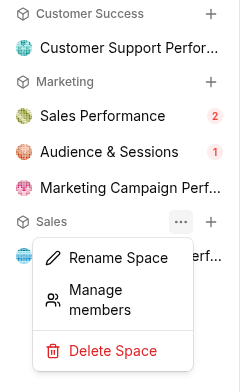
The space menu
Hover over a space name in the sidebar and a … appears to the left of the +. Click … to open this menu. General doesn't have this menu.
- Rename Space
- Manage members
- Delete Space
Members and access
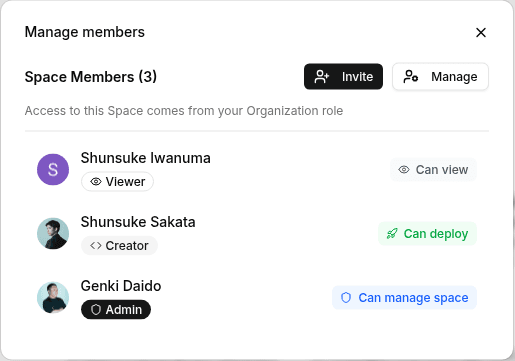
Space members can access every project in the space. What they can do depends on their organization role, shown in the Manage members list as follows.
| Organization role | Shown as | What they can do |
|---|---|---|
| Admin | Can manage space | Manage members, settings, and all projects |
| Creator | Can deploy | Deploy projects and collaborate with the team |
| Viewer | Can view | View the space's projects |
Admins don't see spaces they haven't joined in the sidebar and can't open their projects. Admins also need to be invited to access spaces and projects.
Add or remove members
- Open … > Manage members. You'll see the space's members and what each of them can do (Can view, Can deploy, Can manage space)
- Click Invite to open Add Members to Space. Select the organization members to add and click Add
To remove members, click Manage, select them, and click Delete Selected. Admins and Creators can add and remove members.
Delete a space
Delete a space from … > Delete Space.
A space with no projects is deleted when you click Delete space in the confirmation dialog.
For a space with projects, Delete space and projects opens and lists the projects that will be deleted. Type the space name and click Permanently delete to delete the space and its projects, including their data (and Squadbase DB). This can't be undone.
On the Team plan and above, a Creator can't delete a space if it contains a project where they are a Viewer.
FAQ
Q: I can't see a space another member created
A: The sidebar shows only the spaces you belong to, plus General. This applies to Admins too. Ask a member of that space to add you from Manage members.
Q: What happens to projects when I delete a space?
A: The projects in the space are permanently deleted along with their data. Check for any projects you want to keep before deleting.
Q: How do I share just one project?
A: You can invite people to a single project without adding them to a space. See Project access.