Members and roles
How to invite members to your organization and manage the Admin, Creator, and Viewer roles
In Squadbase, you invite your team members to an organization and group and share projects with spaces. This page covers inviting members to your organization and managing their roles.
Organizations, spaces, and projects
| Unit | Role |
|---|---|
| Organization | The unit for your company or team. Members, roles, plans, and data sources are managed by the organization |
| Space | A unit that groups projects. Creating one per department or team keeps access management simple. Every organization starts with a General space |
| Project | The unit of work where you create outputs such as dashboards. Each project belongs to exactly one space |
For the big picture, see Core concepts. Spaces are covered in Spaces, and project-level invitations and permissions in Project access.
Roles
Assign each member of your organization one of the following roles.
| Role | What they can do |
|---|---|
| Admin | Manage the organization (settings such as members, plans, and billing). Deploy and view projects |
| Creator | Create, edit, and deploy projects |
| Viewer | View projects only |
Admins don't see spaces they haven't joined in the sidebar and can't open their projects. Admins also need to be invited to access spaces and projects.
Invite members to your organization
Admins can invite members.
Open Members
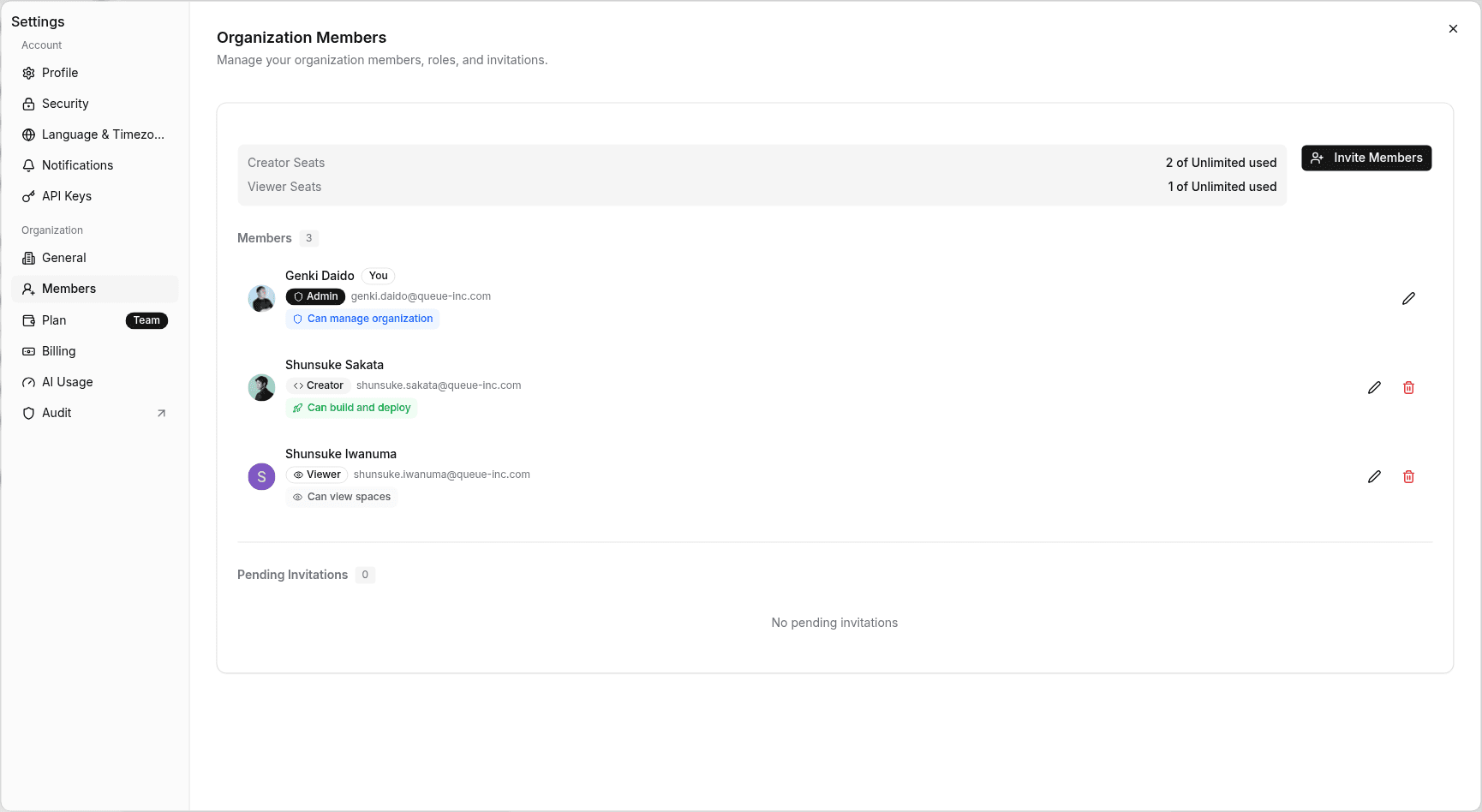
Click the organization name at the top left of the sidebar and open Settings. Settings opens on Organization > General, so click Members. The Organization Members screen opens with the message "Manage your organization members, roles, and invitations."
Send invitations
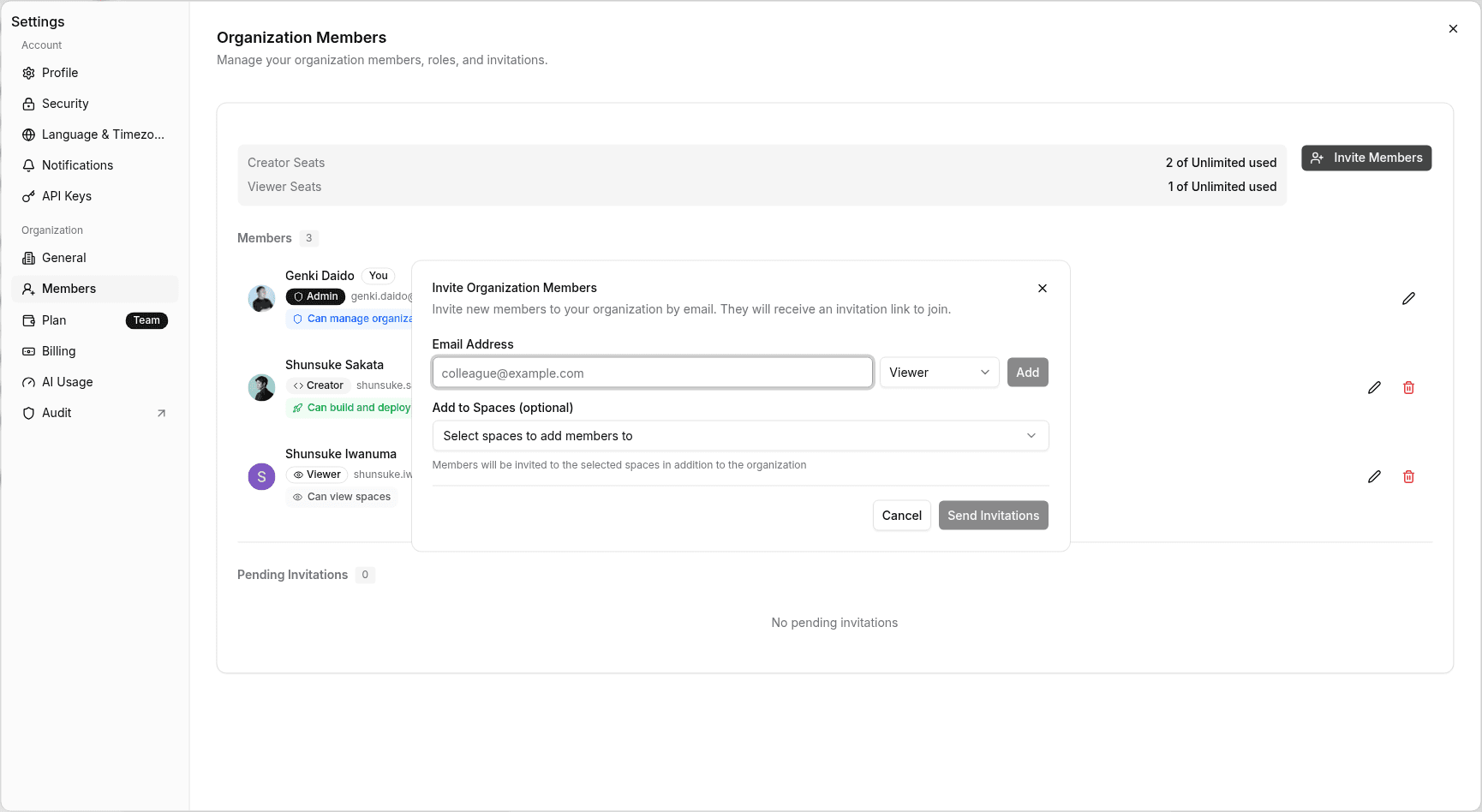
Click Invite Members to open Invite Organization Members. Enter the person's address in Email Address, choose a role, and click Add.
To add them to spaces at the same time, choose the spaces under Add to Spaces (optional). Then click Send Invitations.
Check the status of invitations
Invitations that haven't been accepted yet are shown under "Pending Invitations". To cancel one, use Revoke Invitation.
Change a role or remove a member
- To change a member's role, click the pencil icon to the right of the member in the list
- To remove someone from the organization, click the trash icon, then click Remove Member in Remove Organization Member. They lose access to all of the organization's projects. This can't be undone
Only Admins can remove members.
Switch and manage organizations
Click the organization name at the top left of the sidebar to open a menu. The organization name and your email address are shown at the top of the menu.
- Use Switch organization to switch to another organization you belong to. Create organization is at the bottom of its submenu
Updating the organization profile and leaving or deleting the organization are done in Settings → Organization → General. For details, see Organization Settings.