What is Automation?
An overview of Automation, which runs scheduled data loads (ETL) and AI agent work — analysis, reports, and notifications — automatically
Automation runs your recurring data work automatically. It does two main things, and you can combine them.
- Load data automatically (ETL) — fetch data from your data sources on a schedule and store it in Squadbase DB
- Hand work to an AI agent — analyze data, create reports and documents, and deliver them to the people who need them
Ask in the editor chat something like "Every morning, load our Salesforce deal data and tell each owner which deals changed significantly since yesterday," and the AI builds the Automation for you. From then on, it runs on its schedule.
Automation is the successor to Agents. Everything you could do with Agents, you can do with Automation. Existing agents can be moved to Automation. See Migrate from Agents.
What you can do with Automation
Load data automatically (ETL)
Load data from your data sources into Squadbase DB on a schedule. The loaded data is ready for dashboards and AI analysis.
Keep data up to date
"Every night, load our Salesforce deal data so the dashboard stays up to date."
Load only what's new
"Load ad performance from January 2026 onward, one day at a time. Each day, add the previous day."
Bring data sources together
"Every day, load Stripe invoices and Zendesk tickets so we can see them per customer."
Keep history
"Every morning, load stock levels and keep the daily history."
See Load data.
Hand work to an AI agent
Analyze on a schedule and deliver reports
"Every Monday morning, compare last week's CPA and CVR by campaign with the week before, and email the marketing team what stands out and how to improve."
"Find content ideas in our website traffic and ad data, and post them to Slack every week."
Spot risks and opportunities and tell the owner
"Every morning, find customers showing upsell opportunities or churn signals, and send their owners the actions to take."
"Every Monday morning, analyze project progress for risks and report the bottlenecks."
Alert only when something changes
"Every morning, if any product's sales dropped 20% or more versus the same weekday last week, post it to #sales-alert."
Put documents together
"On the 1st of every month, create a report summarizing last month's results."
Combine them
Loading data and AI work can run one after another in a single Automation.
"Every night, load ad performance. The next morning, tell each owner which campaigns are spending off-plan."
Run it from other tools
Zapier, n8n, internal tools, and more can run an Automation through the API. See Run via the API.
How Automation works
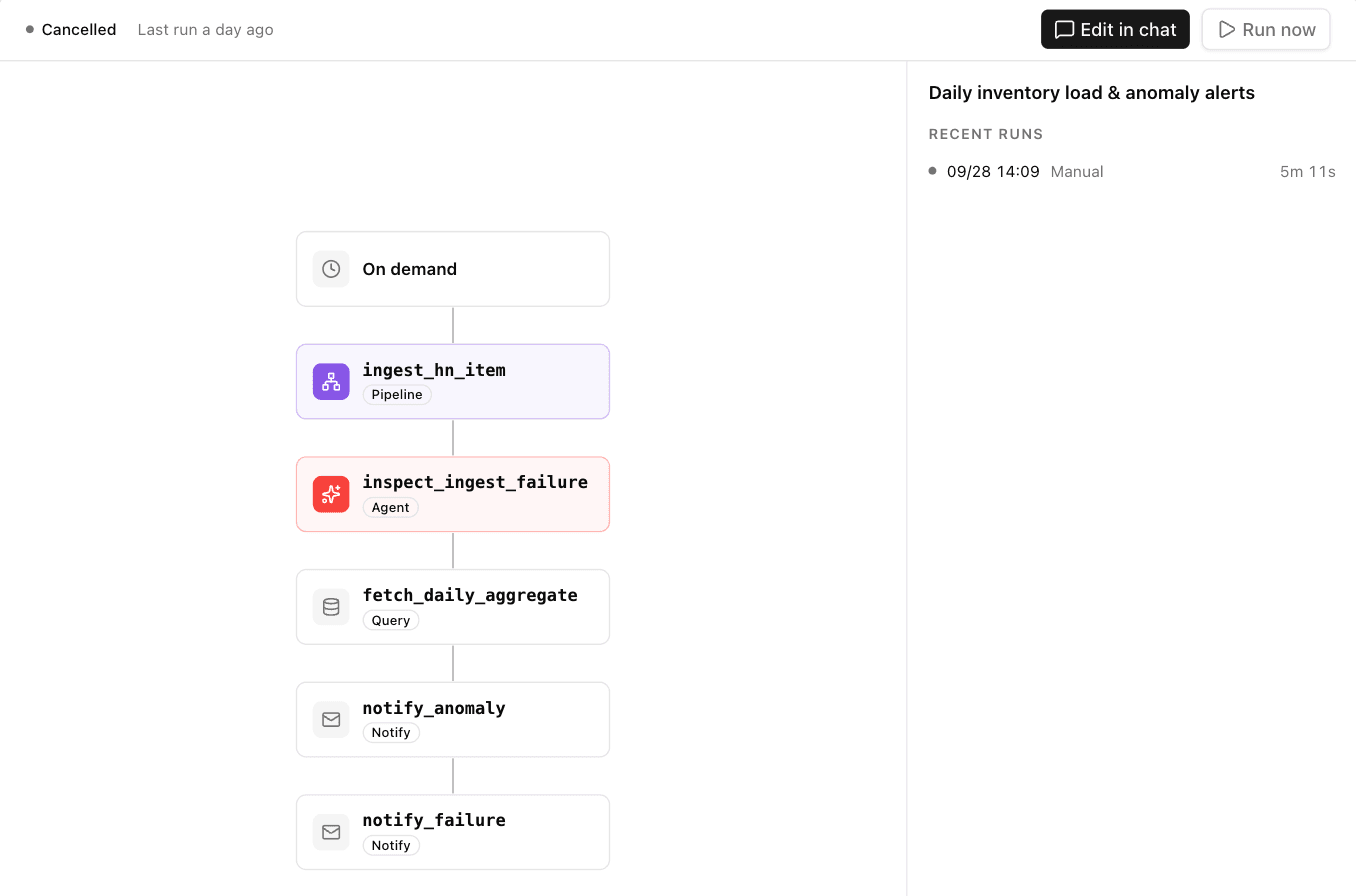
An Automation runs a series of steps from top to bottom. There are four kinds of steps.
| Step | What it does |
|---|---|
| Pipeline | Fetches data from a data source and loads it into Squadbase DB (ETL) |
| Query | Pulls the data needed for analysis with a query defined in Business Logic |
| Agent | The AI agent looks into the data, analyzes it, and creates reports, dashboards, and documents |
| Notify | Sends the results to Slack or email. Following your instructions, the AI decides whether to send, and what to send to whom |
The AI picks which steps to combine based on your request. "Just load the data" is a pipeline step alone; "analyze and send a report" is an agent step and a notify step; "load, then analyze and send" runs all three in a row.
Behaviors like "only tell me when it fails," "only send when a condition is met," or "tailor the message to each owner" are built in when you ask for them.
Requirements
- Automation is not available in legacy projects (projects created with "Create as a legacy project").
- Creating and running Automations requires Creator access or higher on the project.
- Storing data in Squadbase DB (using a pipeline) requires exactly one Squadbase DB connected to the project.
- Running Automations uses AI credits. See Automation credit usage.