Home
How to read Home, where the signals AI finds are delivered, and how to reply to them from there
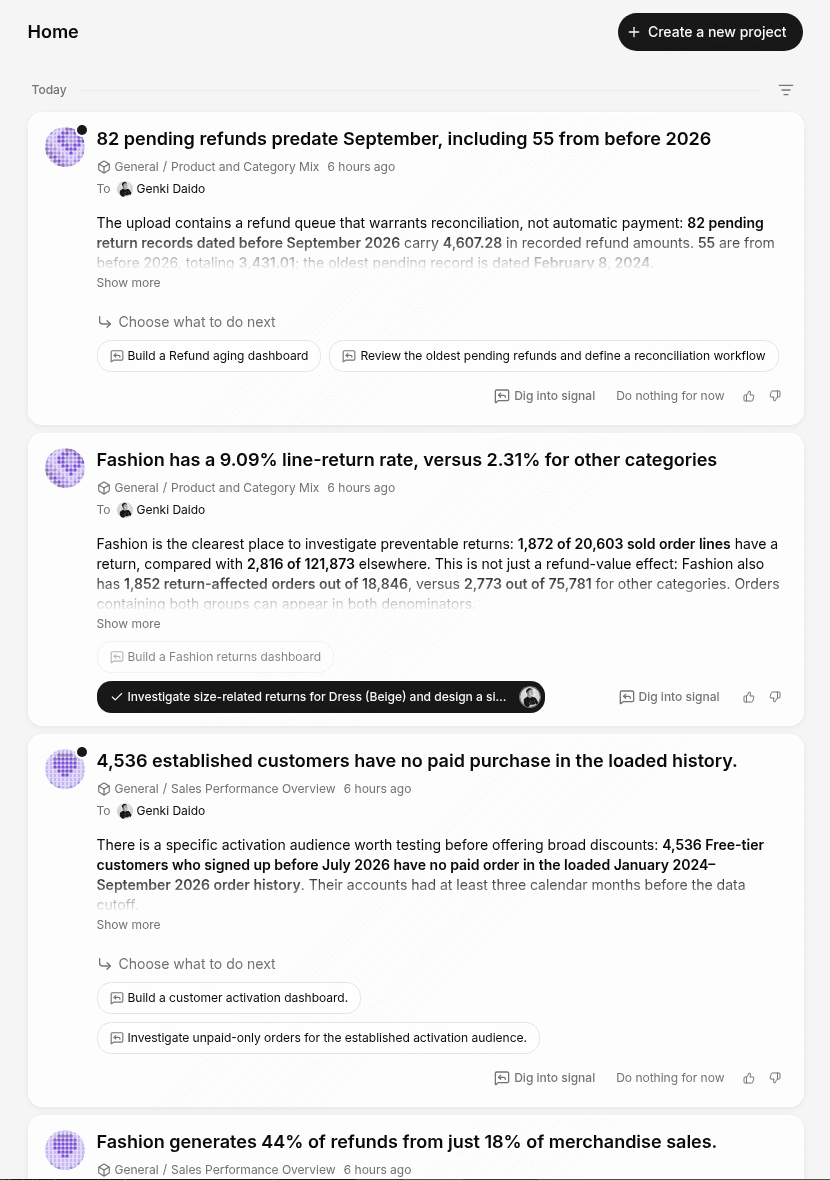
Home is the first place you see when you open Squadbase. Instead of checking dashboards one by one, the signals that AI finds in your data are delivered here.
Home brings together signals from all projects and your team's decisions on them in one place. Your team can also see who replied and how.
Open Home in the sidebar to see it. When signals are waiting for a reply, their count is shown next to Home.
Replying from Home
Read the signal
Read the headline and body. If needed, click Show more to see the full text.
Choose a suggested reply
Click the suggestion you're interested in. The chosen suggestion gets a check mark and your icon, and AI starts the follow-up analysis in that project's chat.
Check the results in the project
When you open the project, the thread started from your reply appears in the Chat tab. Check the results and ask further questions to dig deeper.
For the full reply flow, see Signals.
Signals are generated when you chat with AI in a project. If you don't have any signals yet, create a project with the Quick start and try analyzing your data in chat.
Template update notifications
If you have a project created from a template and that template is updated, a notification appears on Home (it's also sent by email). Click Apply to bring in the latest content without recreating the project. → Apply template updates