Templates
Create a project from a template, or turn your own project into a template your team can reuse
Templates let you start a project from a working dashboard. There are three kinds:
| Kind | Who can see it | Where it appears |
|---|---|---|
| Public templates | Everyone | The "Public gallery" tab of the Templates page |
| Team templates | Members of your organization | The "Your organization" tab of the Templates page |
| Approval-required templates | Members of organizations the provider approved | The page opened from the share link the provider sent. They don't appear in lists, search, or the public gallery |
Any member of your organization can create team templates, and by default everyone in the organization can use them. You can also narrow the sharing scope per template (see "Set the sharing scope" below). You can also let only organizations you approve use a template, without making it public (see "Share with approved organizations" below). Listing templates in the public gallery is currently available to a limited set of organizations.
Create a project from a template
- On Home, click the "Create a new project" button to open the panel
- In "Create in … space" at the top of the panel, choose the space to create the project in
- Choose "Start from a template"
- Find a template in the "Public gallery" or "Your organization" tab. You can narrow the list with the search box. Each card shows how many times it has been used ("Used N times")
- Check the description and other details with "Details" on the card, then choose the template and create the project
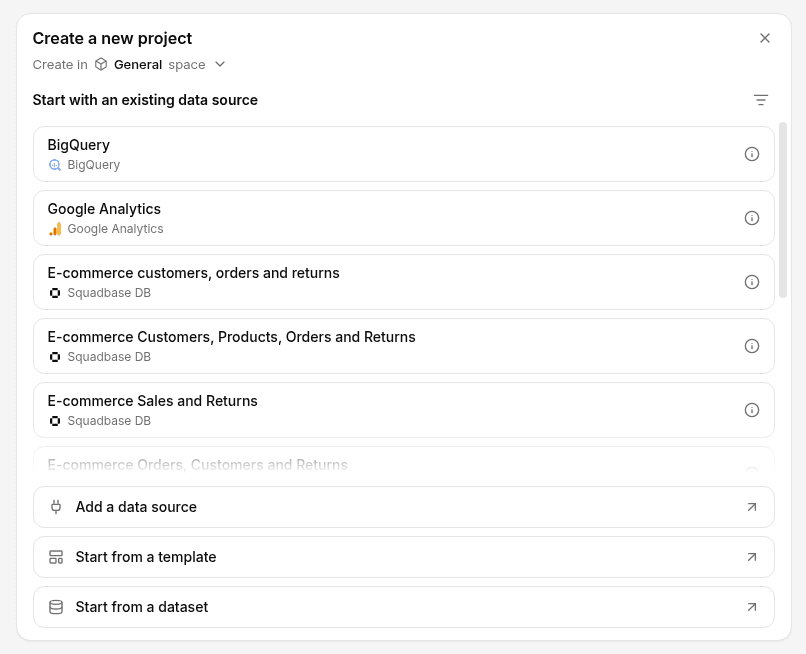
Projects created from a template start with sample data, so the dashboards work right away. You can connect your own data sources later to replace the sample data with real data.
Templates created in your organization appear in the "Your organization" tab. You can use templates that aren't published to the gallery for creating projects in the same way.
Apply template updates
You can bring template updates into projects created from that template later. Any changes you've made in each project are kept.
- When the template's provider refreshes it, you're notified on Home and by email
- Click "Apply" to reflect the latest content without recreating the project
Even when template updates overlap with changes made in the project, AI reconciles them automatically.
Turn your project into a template
You can register your own project as a template so your team can reuse it.
-
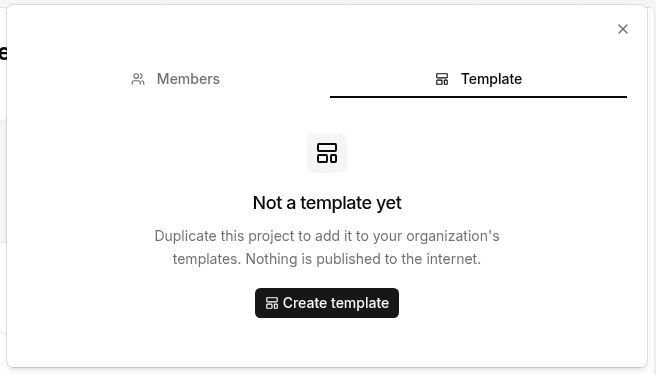
Open the project in the editor, click "Share" in the top right, and in the "Template" tab click "Create template"
For a project that isn't a template yet, the tab shows "Not a template yet" and the message "Duplicate this project to add it to your organization's templates. Nothing is published to the internet."
-
Enter the template details
| Field | Notes |
|---|---|
| Description | What the template is for and what it contains |
| Images | Cover and gallery images (up to 10MB each). A screenshot of your project is added as the cover automatically |
| Categories | Free-form tags such as sales or marketing |
- Click "Create template"
Squadbase starts copying the project in the background. The new template is private to your organization. It doesn't appear in the public gallery unless you publish it later from its sharing settings.
What a template includes
A template is a snapshot of your project at the moment you create it. Later changes to the source project are not applied automatically (to apply them, use "Refresh" below).
Included:
- Dashboards and the app itself
- The contents of the project's Squadbase DB (used as sample data)
- Project knowledge
- Data source settings such as host names and database names
- Automations, including notification targets such as Slack or Teams channels and email addresses
Not included:
- Credentials of any kind: API keys, passwords, OAuth authorizations, and secret environment variable values. Users of the template reconnect data sources with their own credentials
- Automation run history
The data in your project's Squadbase DB is copied into the template and delivered to everyone who uses it. Before creating a template, and especially before publishing one, make sure the project doesn't contain confidential or personal data.
Refresh a template
After updating the source project, click "Share" at the top right of the editor, open the "Template" tab, and click "Refresh" to rebuild the template's contents from the current project. The template's name, description, images, sharing scope, and public status stay the same.
- The preview images are not updated. Replace them afterwards if the look has changed significantly
- You can leave an optional change message. It appears in the change history, and in the public gallery's update history if the template is published
Manage your team's templates
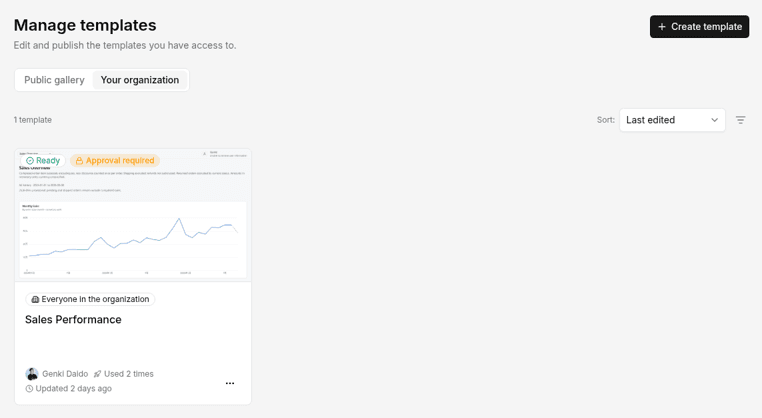
Click the organization name at the top left of the sidebar and open Templates. The page has two tabs: "Public gallery" and "Your organization".
- "Your organization" (Manage templates) — Edit and publish the templates you have access to. The list shows the number of templates and can be sorted with Sort (for example, Last edited) and narrowed with the filter icon. Open a card to reach its detail page, where you can edit, share, publish, and delete it. You can also create a template with "+ Create template".
- "Public gallery" — Search across all public templates with "Search all public templates...". Templates picked by the Squadbase team appear under Featured
Edit a template
Click "Edit" on the detail page to change the template's name, description, images, and categories. Changes to a published template are reflected in the gallery immediately.
When you open one of your organization's templates in the public gallery, the "Edit" button shown there also takes you to the same screen.
Set the sharing scope
Open "Sharing settings" on the detail page to choose who in your organization can use the template.
| Scope | Who can use it |
|---|---|
| Everyone in the organization (default) | All members of your organization |
| Invited members | Only the members you invite |
| Only me | Only the creator |
Each invited member can be given "Can edit" or "Can use" access. The creator always has edit access. Narrowing the scope doesn't affect projects already created from the template.
Share with approved organizations
You can let only the organizations you approve use a template, without making it public. This lets you hand out dashboards to each of your customers entirely within Squadbase, without publishing the template. Approval-based sharing is available on all plans.
- In the template's "Sharing settings", choose "Approval required" under "Sharing outside your organization" and save. Then use "Copy link" to send the share link to the other party
- An Admin or Creator in the organization that received the link clicks "Request access" on the linked page and sends the request. They can optionally add what they'll use it for
- The provider reviews requests under "Organizations with access" on the template and clicks "Approve" or "Decline"
Approved organizations can create projects from the template. The requesting organization gets a notification with the decision.
Publish to the gallery
In the "Publish to the internet" section of the sharing settings, you can list templates in the public gallery. Once published, every organization and individual using Squadbase can view and copy the template.
The confirmation screen shows what will be published:
- Published: the template name, description, and tags; preview images; the dashboard source code; queries, table names, and column names
- Not published: connection credentials and your actual data
Values hardcoded in the code (company names, amounts, customer names, and so on) are published as-is. Review them before publishing.
Templates whose scope is "Only me" can't be published. You can unpublish at any time, but projects that have already been copied remain in other organizations.
Listing templates in the public gallery is currently available to a limited set of organizations. Team templates are available to all organizations.
Check the change history and usage
The detail page also shows the template's change history and usage.
- Change history: who changed what and when, with change messages. You can also see the differences in each edit
- Usage: how many times the template was used in your organization and in other organizations, and a usage log for your organization. To protect privacy, the users and organization names of other organizations are not shown
For published templates, the public gallery's detail page also shows an update history (content updates only).
Delete a template
Enter edit mode on the detail page, and "Delete" appears in the action panel on the right. When you delete, the template's usage is shown and you must type the template name to confirm. Published templates must be unpublished first.
Deleting a template doesn't affect the source project or any projects already created from the template.