
Redshift
Steps and required credentials to connect Amazon Redshift to Squadbase
Required Information
| Field | Description |
|---|---|
| AWS Access Key ID | The AWS Access Key ID for authentication. |
| AWS Secret Access Key | The AWS Secret Access Key for authentication. |
| AWS Region | The AWS region where your Redshift cluster is located (e.g., us-east-1). |
| Database Name | The name of the database to connect to. |
| Cluster Identifier | The Redshift cluster identifier. Required for Provisioned Cluster (use either cluster-identifier or workgroup-name). |
| Workgroup Name | The Redshift Serverless workgroup name. Required for Serverless (use either cluster-identifier or workgroup-name). |
| Secrets Manager ARN (optional) | The ARN of the secret in AWS Secrets Manager for database credentials. Optional for both Provisioned Cluster and Serverless. |
| Database User (optional) | The database user for IAM authentication. Required for Provisioned Cluster if Secrets Manager ARN is not set. |
How to Obtain Each Value
AWS Access Key ID / AWS Secret Access Key
Obtain these from IAM in the AWS Management Console.
- Open "IAM" in the AWS Management Console
- Select the target user under "Users"
- Open the "Security credentials" tab and click "Create access key"
- Save the displayed Access Key ID and Secret Access Key
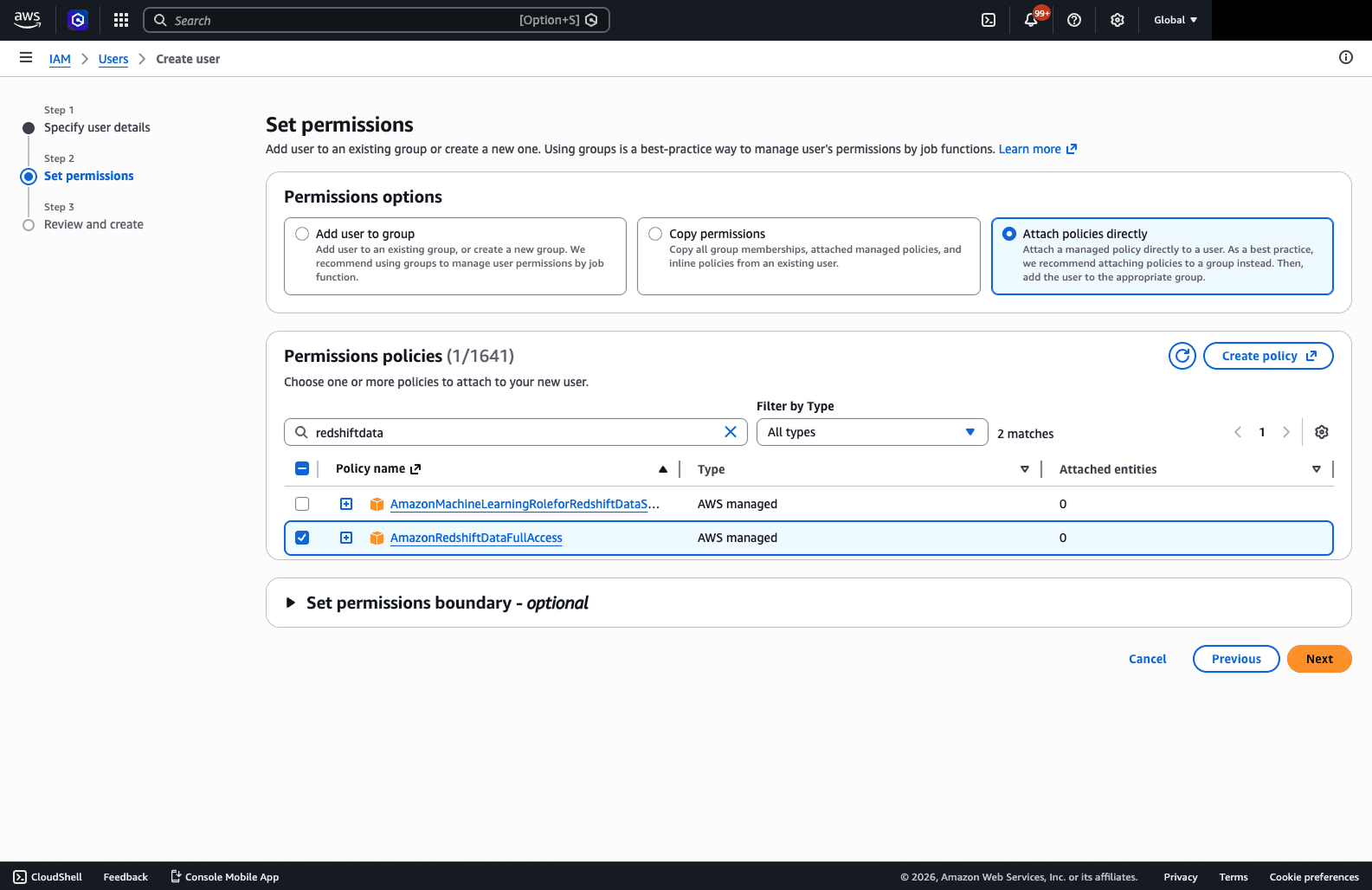
Grant the IAM user the permissions required to query Redshift (e.g., AmazonRedshiftDataFullAccess).
AWS Region
Check the region name displayed in the top-right corner of the AWS Management Console, or find it in the Redshift cluster details screen (e.g., ap-northeast-1).
Database Name
Find it in the cluster or workgroup details screen in the Redshift console.
Cluster Identifier / Workgroup Name
- Provisioned Cluster: The cluster name shown in the "Clusters" list in the Redshift console
- Serverless: The workgroup name shown in the "Workgroups" list under "Serverless" in the Redshift console
Secrets Manager ARN (optional)
Obtain from AWS Secrets Manager in the AWS Management Console.
- Open "Secrets Manager" in the AWS Management Console
- Select the secret that stores your Redshift credentials
- Copy the "Secret ARN" displayed on the details page
Database User (optional)
The Redshift database user ID. Use the database user displayed in the cluster details in the Redshift console, or the master username set when the cluster was created.