
dbt
Steps and required credentials to connect dbt to Squadbase
Required Information
| Field | Description |
|---|---|
| dbt Cloud Host | The hostname of your dbt Cloud instance (e.g., cloud.getdbt.com). |
| dbt Account ID | The numeric ID of your dbt Cloud account. |
| dbt Production Environment ID | The numeric ID of your dbt production environment. |
| dbt API Token | A service token or personal access token used to authenticate with the dbt Cloud API. |
How to Obtain Each Value
dbt Cloud Host
For most users, this is cloud.getdbt.com. If your organization uses a single-tenant or custom deployment, use the hostname shown in your browser's address bar when logged in to dbt Cloud.
dbt Account ID
- Log in to dbt Cloud
- Look at the browser's address bar — the URL includes your account ID
- The URL format is:
https://cloud.getdbt.com/accounts/{account_id}/... - Copy the numeric value in place of
{account_id}
Alternatively, go to Account settings — the account ID is shown in the URL or in the settings page.
dbt Production Environment ID
- In dbt Cloud, navigate to Orchestration → Environments
- Click on your production environment
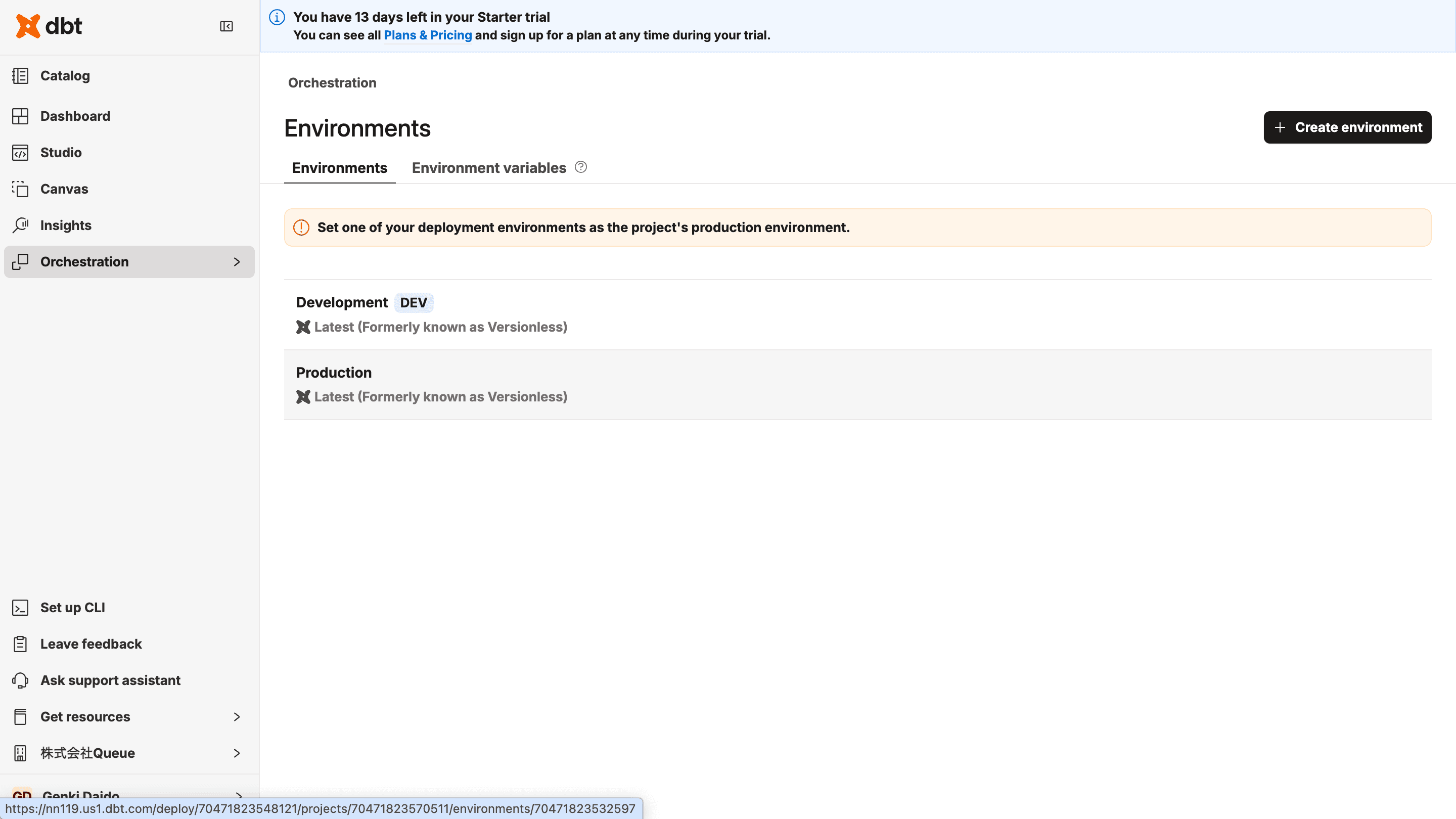
- Look at the URL in your browser — the environment ID is the numeric value in the URL
- The URL format is:
https://cloud.getdbt.com/accounts/{account_id}/environments/{environment_id}/...
dbt API Token
- In dbt Cloud, click your account name in the top-left corner → Your profile → API tokens, then navigate to Service tokens (recommended for production) or Personal tokens
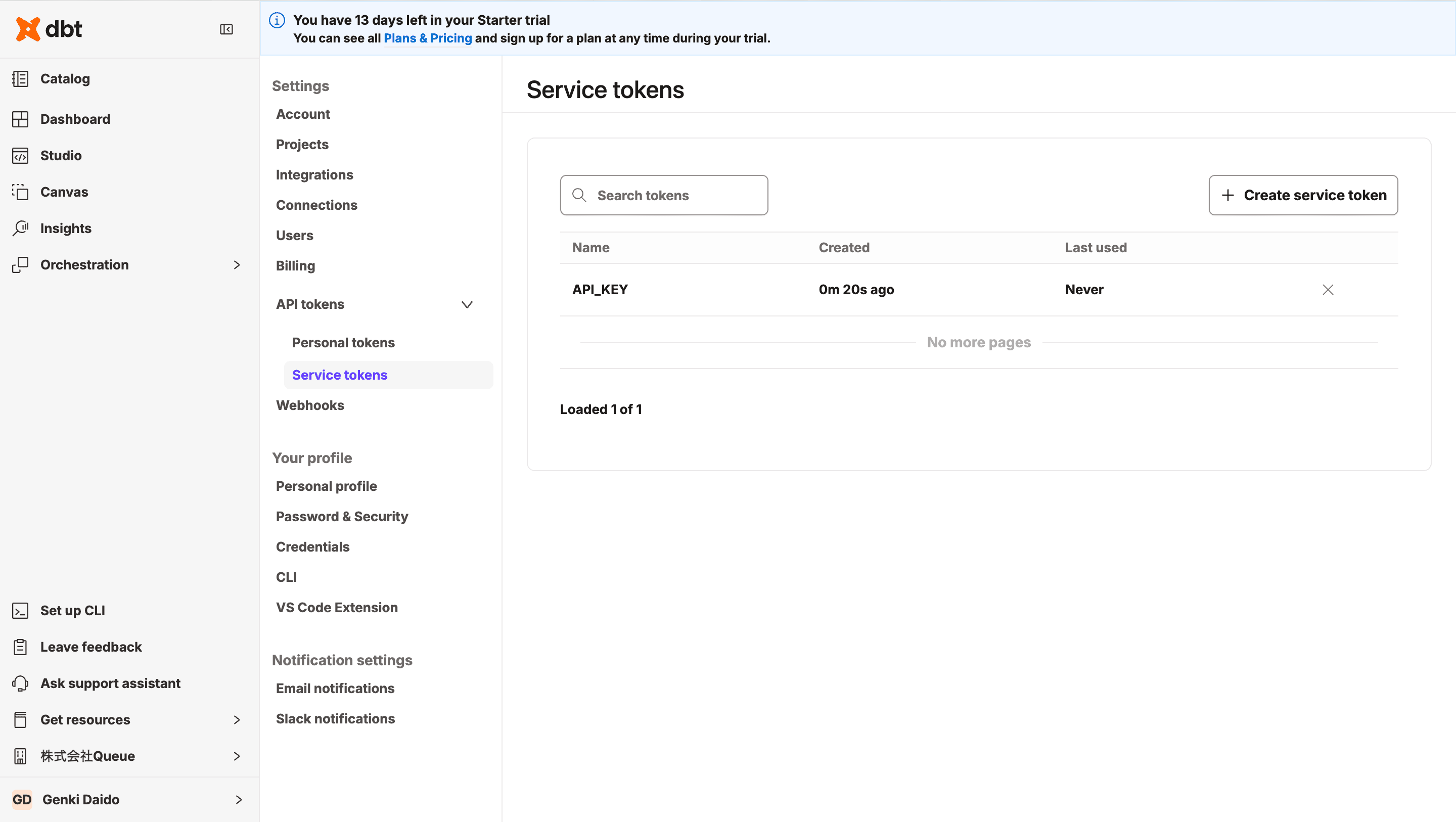
- Click + Create personal access token
- Assign the necessary permissions (at minimum, Job Admin or Metadata Only for read access)
- Copy the generated token and store it in a safe place