
Snowflake
Steps and required credentials to connect Snowflake to Squadbase
Snowflake supports two connection methods: Service Account (private key authentication) and PAT (Personal Access Token).
Common Required Information
The following information is required for both connection methods.
| Field | Description |
|---|---|
| Snowflake Account | The account identifier for your Snowflake account, in ORGNAME-ACCOUNTNAME format (e.g., myorg-xy12345). |
| Snowflake User | The username used to connect to Snowflake. |
| Snowflake Role | The name of the role (permission set) that defines what you can access in Snowflake. |
| Snowflake Warehouse | The name of the virtual warehouse (compute resource) used to execute queries. |
How to Obtain
Snowflake Account / User / Role: Click your username in the bottom-left corner to open personal settings. The "Account" field is your account identifier, the name at the top is your username, and the "Switch Role" field is your role.
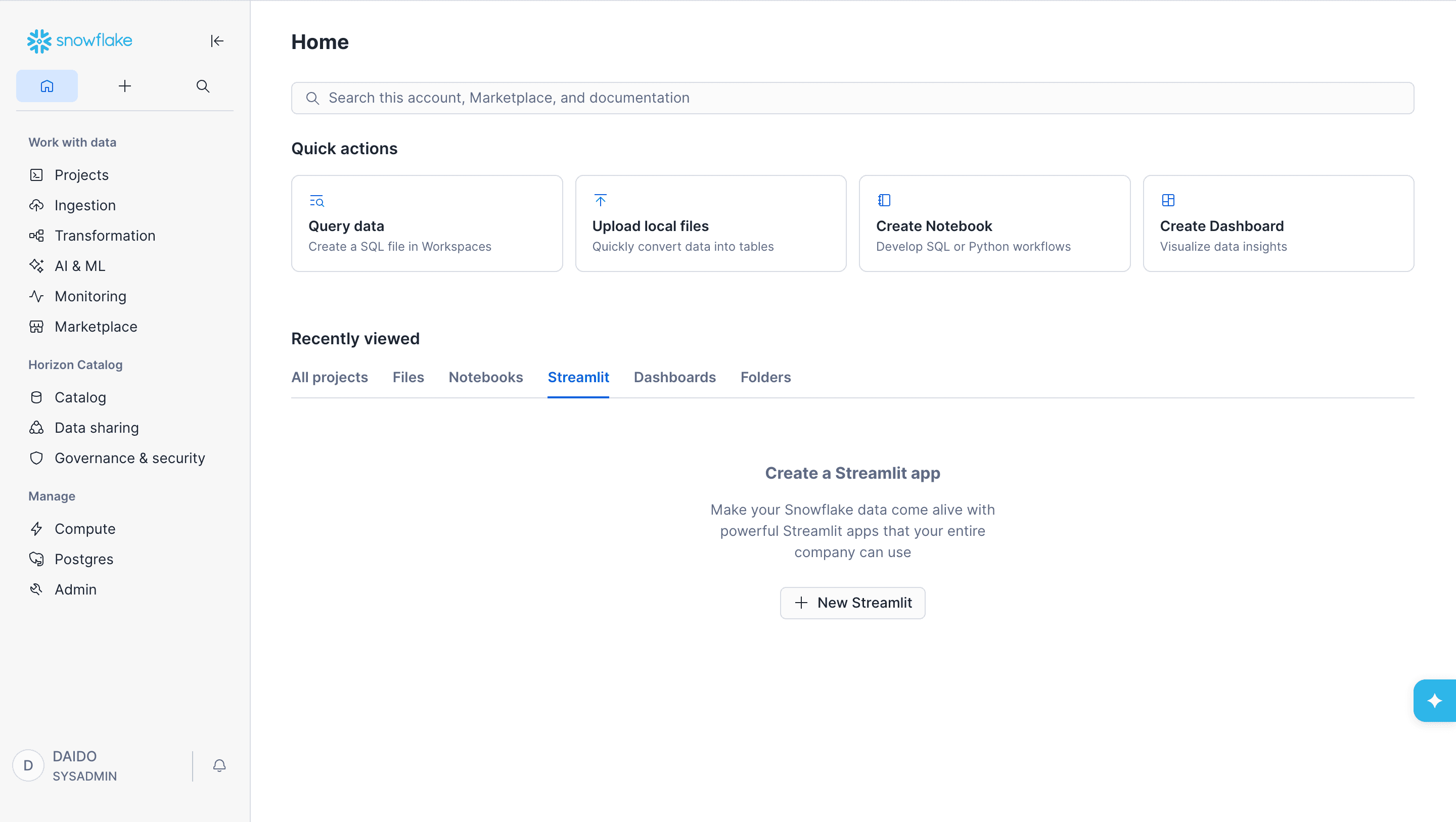
Snowflake Warehouse: Open "Compute" → "Warehouses" from the left sidebar. The values in the "NAME" column are your warehouse names.
Connecting with Service Account (Private Key)
A more secure authentication method using a private key.
Required Information
| Field | Description |
|---|---|
| Snowflake Private Key | The private key (Base64-encoded) used for authentication with Snowflake. |
How to Obtain the Private Key
Prerequisites
- OpenSSL must be installed
- You must have Snowflake administrator privileges (or OWNERSHIP privileges for the user)
Generate a Private Key
Open a terminal and run the following command.
Generate an unencrypted private key (recommended: simple setup):
openssl genrsa 2048 | openssl pkcs8 -topk8 -inform PEM -out rsa_key.p8 -nocryptGenerate a passphrase-encrypted private key (more secure):
openssl genrsa 2048 | openssl pkcs8 -topk8 -v2 des3 -inform PEM -out rsa_key.p8If you choose the encrypted version, you will be prompted to enter a passphrase during command execution. Store the passphrase in a safe place.
If successful, a rsa_key.p8 file will be created.
Generate a Public Key
Generate a public key from the private key you created.
openssl rsa -in rsa_key.p8 -pubout -out rsa_key.pubAssign the Public Key to a Snowflake User
Run the following SQL in a Snowflake worksheet or SnowSQL.
ALTER USER <username> SET RSA_PUBLIC_KEY='<public key content>';For the public key content, paste only the string between -----BEGIN PUBLIC KEY----- and -----END PUBLIC KEY----- from the rsa_key.pub file.
Setting the public key requires OWNERSHIP privileges or MODIFY PROGRAMMATIC AUTHENTICATION METHODS privileges on the target user.
Connecting with PAT (Personal Access Token)
A simpler method that uses a token issued from the Snowflake UI. No private key generation or management is required.
Required Information
| Field | Description |
|---|---|
| Personal Access Token | A Personal Access Token (PAT) issued from Snowflake. |
How to Obtain a Personal Access Token
Log in to Snowflake
Log in to Snowflake and click your username in the bottom-left corner to open personal settings.
Create a PAT
Select "Programmatic access tokens" in your personal settings and click "+ Generate token".
Set a token name and expiration, then click "Generate".
Copy the Token
Copy the generated token and store it in a safe place.
The token is only shown at the time of generation. Once you close the dialog, it cannot be displayed again — make sure to copy it before closing.