
Data Sources
Upload files like Excel or connect to various external data sources
Available Data Sources
- Excel/CSV
- Snowflake
- BigQuery
- Databricks
- Redshift
- dbt
- AWS Athena
- PostgreSQL
- MySQL
- MongoDB
- ClickHouse
- Attio
- Google Analytics
- Google Calendar
- Gmail
- Intercom
- Zendesk
- Mailchimp
- Notion
- HubSpot
- Airtable
- kintone
- Wix Store
- Gamma
- Amplitude
- Jira
- Linear
- Asana
- Mixpanel
- Backlog
- Sentry
- Customer.io
- Stripe
- Salesforce
When you create a database with Squadbase DB, Squadbase AI can write to the data source—creating tables and records.
Uploading Excel/CSV files stores the data in Squadbase DB, making it accessible to Squadbase AI.
Connecting to Data Sources
Connect your data sources to dashboards and Squadbase AI. You can upload files or connect to external data sources like BigQuery, Snowflake, and PostgreSQL—each with its own dedicated connection method.
Once you upload files or connect external data sources, your dashboards and Squadbase AI gain access to your data.
Key Features
- Easy Connection Setup: Connect data sources through project creation or the editor's Data tab
- AI Integration: Squadbase AI automatically understands your data sources once connected
What You Can Do
- AI-Powered Data Analysis: Squadbase AI understands your data structure and builds accurate dashboards
- Multi-Source Integration: Set up multiple connections in a single project to unify your data
Connecting Data Sources
From Project Creation
Open the Create Project Screen
Click the "Create Project" button in the top-right corner of the project list screen
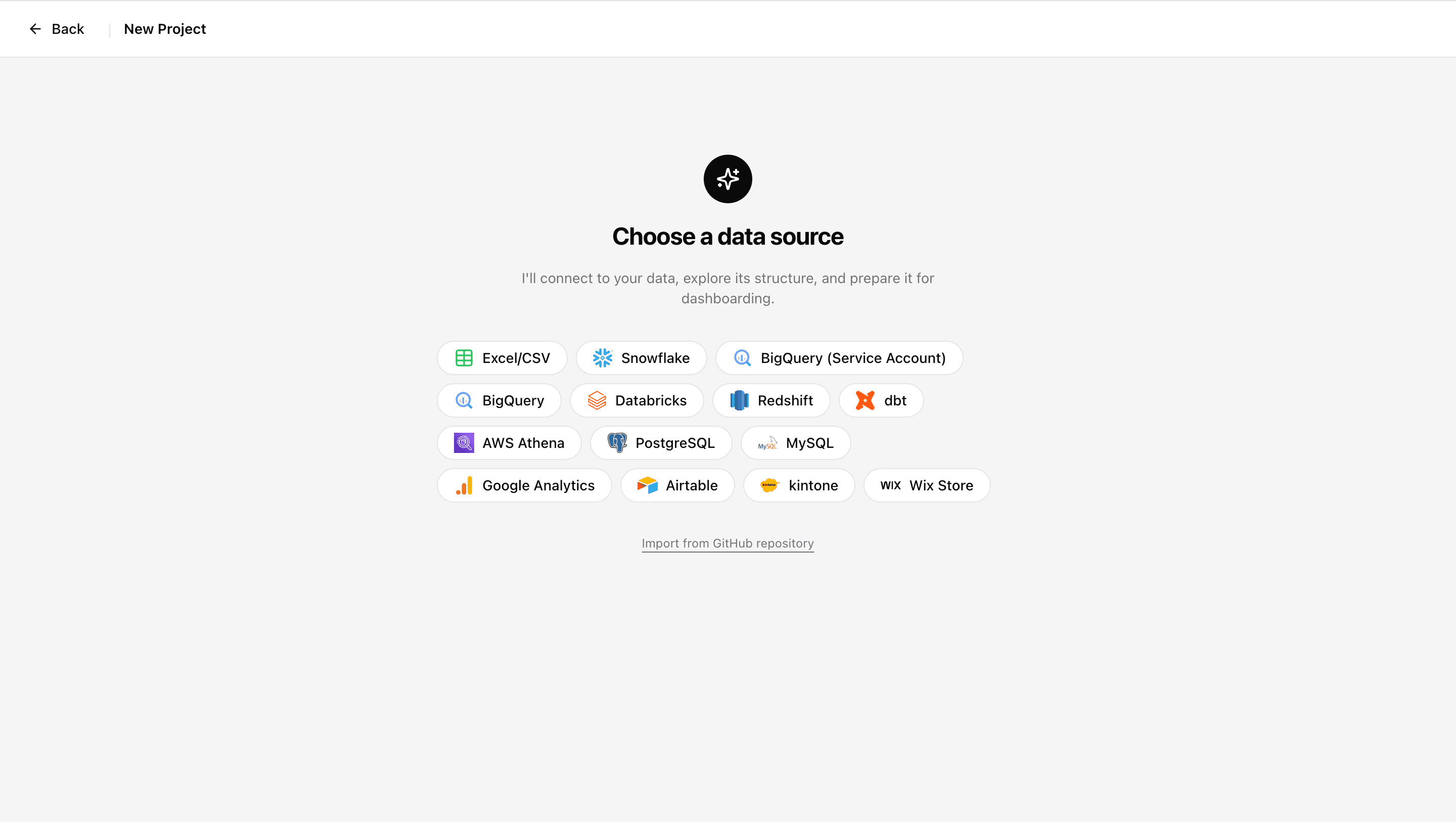
Enter Your Credentials
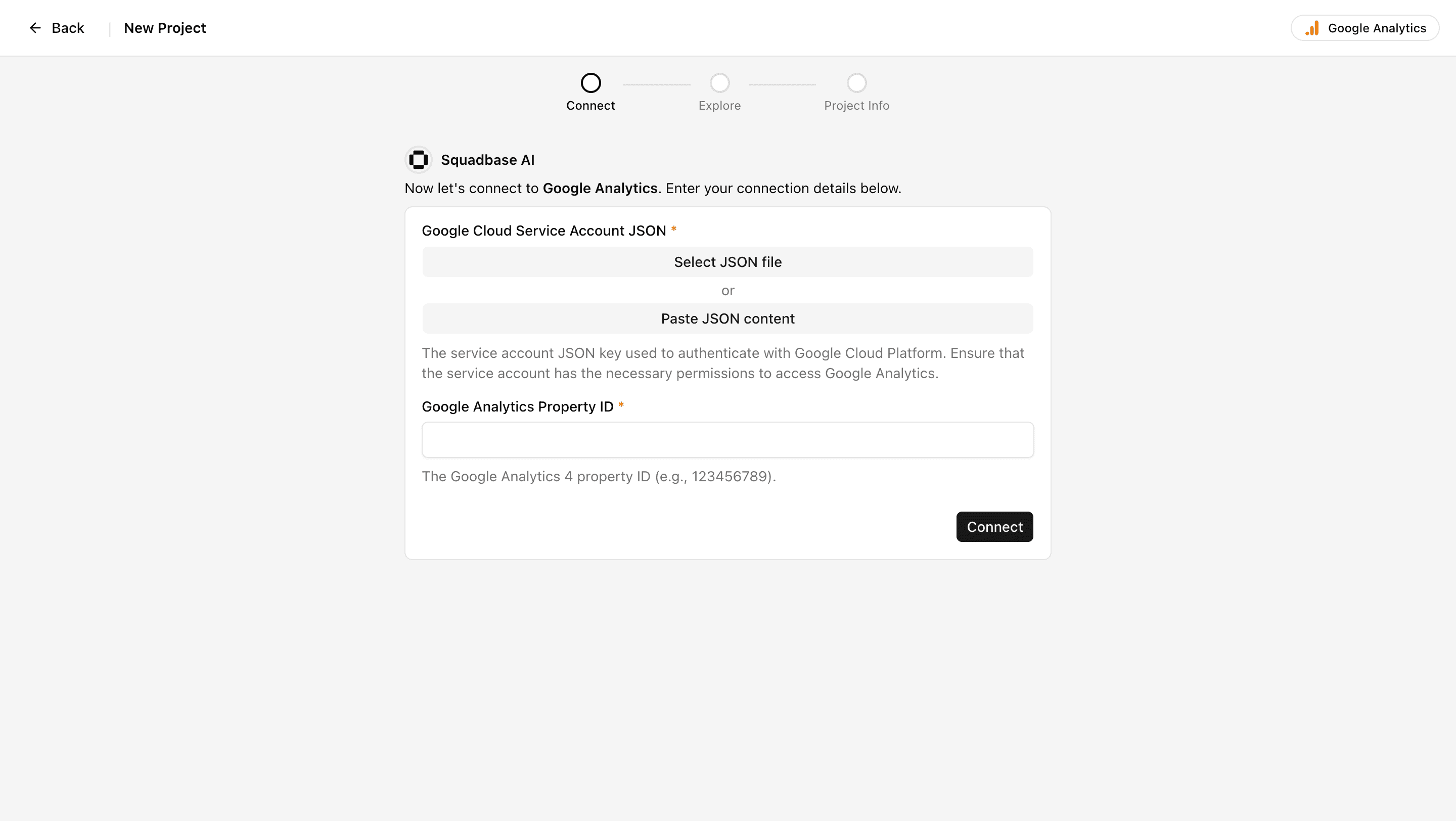
A credentials form appears. Fill in the required connection details.
If you select a file as your data source, no credentials are required.
Connect to Your Data Source
When you submit the form, the following happens automatically:
- Your credentials are saved as environment variables
- Squadbase AI gains access to your data source
- If needed, Squadbase AI installs client libraries and generates utility code
From the Data Tab
Open the Data Tab
- Open the editor
- Click the "Data" tab at the top of the screen
Select Your Data Source
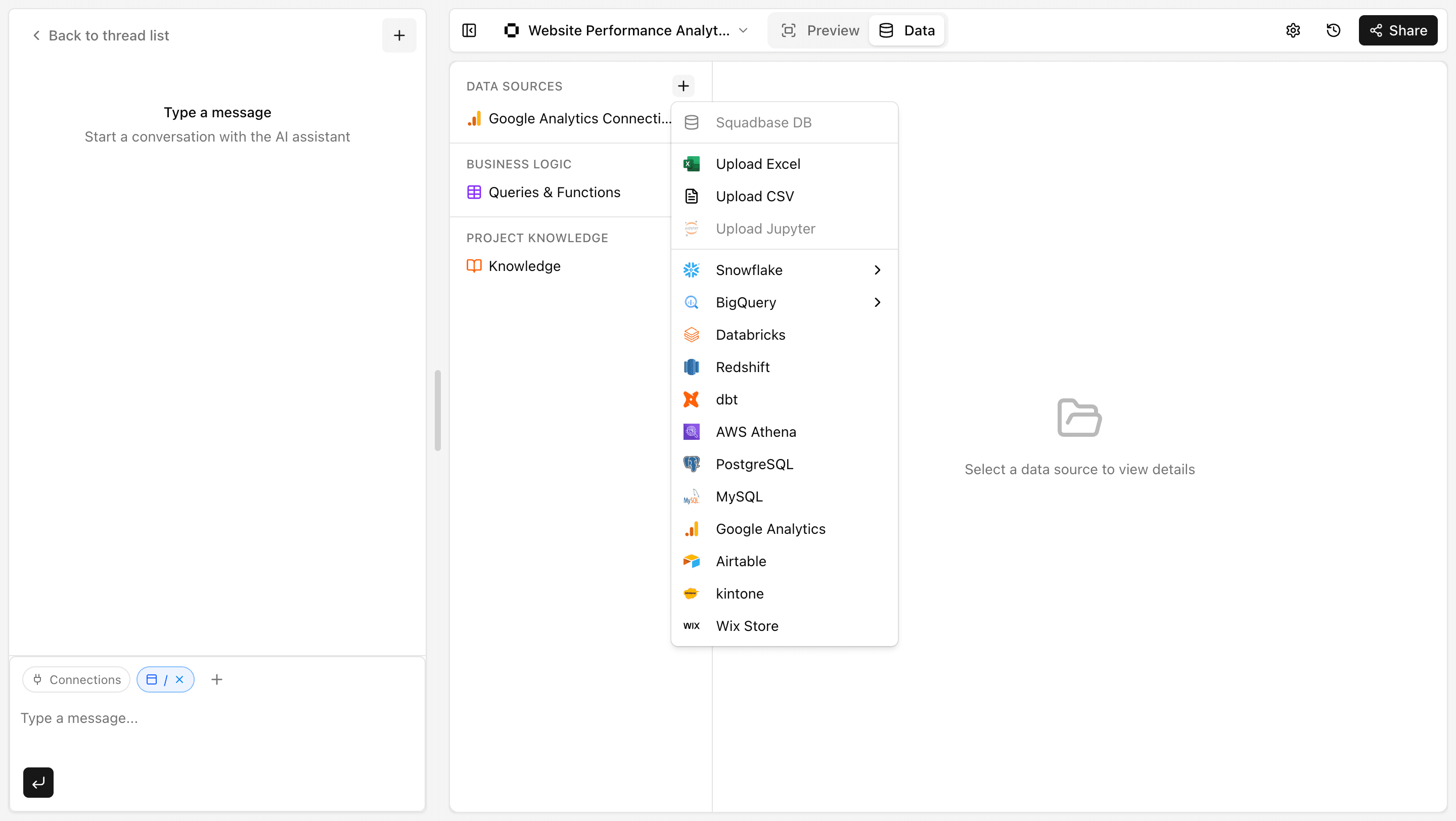
Click "+" and select the data source you want to use. A credentials form will appear.
Enter Your Credentials
Fill in the required credentials and connection details.
Create the Connection
When you submit the form, the following happens automatically:
- Your credentials are saved as environment variables
- Squadbase AI gains access to your data source
- If needed, Squadbase AI installs client libraries and generates utility code
Working with Squadbase AI
Once connected, Squadbase AI automatically integrates with your data sources.
What Happens Automatically
- MCP Server Integration: The MCP server for your data source is automatically configured for Squadbase AI
- Data Source Understanding: Squadbase AI automatically explores your table structures and schemas, enabling data analysis and dashboard creation
- Source-Specific Optimization: Squadbase AI receives the knowledge it needs for each specific data source
How to Use It
Once connected, simply ask Squadbase AI in natural language.
Examples:
- "Get the user count from BigQuery"
- "Analyze the sales data and show me the trends"
- "Create a dashboard using the BigQuery sales data"
- "Add the uploaded CSV data to the sales table in Squadbase DB"
Because Squadbase AI understands your data sources through the MCP server, it can generate highly accurate dashboards.
FAQ
Q: My connection is failing
A: Check the following:
- Are your credentials (API key, service account, etc.) correct?
- Have the Outbound IPs been added to your database's allowlist?
- Is your database running?