
MongoDB
Steps and required credentials to connect MongoDB to Squadbase
Required Information
| Field | Description |
|---|---|
| MongoDB Connection URL | The MongoDB connection string (e.g., mongodb+srv://user:password@cluster.mongodb.net or mongodb://user:password@host:27017). |
| MongoDB Database | The name of the database to connect to. |
How to Obtain
MongoDB Connection URL
MongoDB Atlas
- Log in to MongoDB Atlas
- Select your project and click your cluster
- Click the Connect button
- Select Drivers
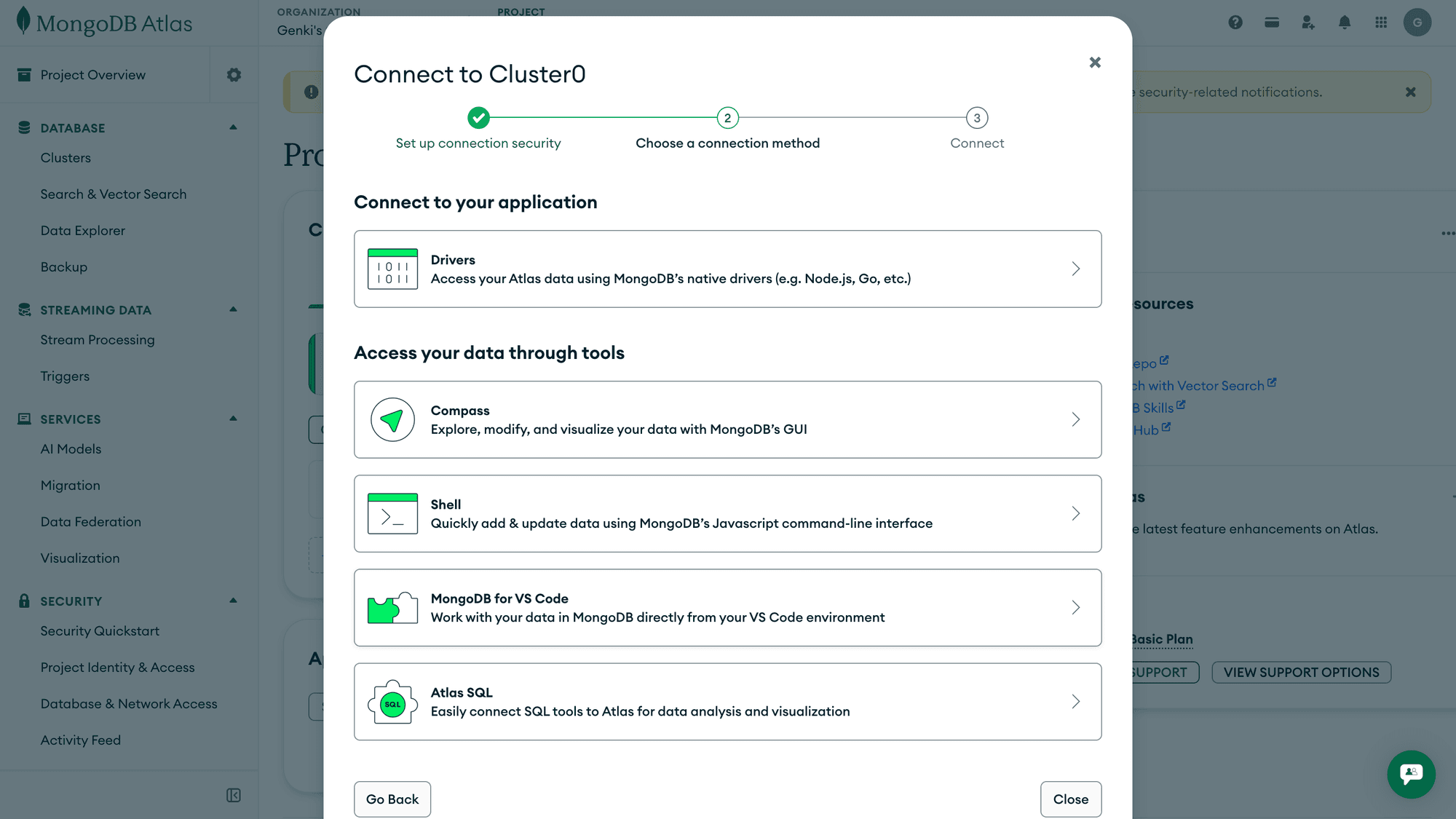
- Copy the connection string shown
The connection string will look like:
mongodb+srv://<username>:<password>@cluster0.xxxxx.mongodb.netReplace <username> and <password> with your database user credentials.
Self-hosted MongoDB
The connection string follows this format:
mongodb://[username]:[password]@[host]:[port]| Part | Description |
|---|---|
username | The MongoDB username |
password | The password for the user |
host | The hostname or IP address of the MongoDB server |
port | The MongoDB port number (default: 27017) |
Example
mongodb://myuser:mypassword@db.example.com:27017MongoDB Database
The name of the database you want to connect to. In MongoDB Atlas, you can find your databases under Collections in the cluster view.
IP Access List Settings (MongoDB Atlas)
MongoDB Atlas only allows connections from IP addresses registered in the IP Access List (when accessed over the public internet). To connect from Squadbase, you need to add Squadbase's source IP addresses to the Atlas IP Access List.
Steps:
- Click Database & Network Access in the MongoDB Atlas left sidebar
- Open the IP Access List tab and click + ADD IP ADDRESS
- Enter one Squadbase source IP address and click Confirm
- Repeat steps 3–4 for all Squadbase source IP addresses
Squadbase source IP addresses:
| IP Address |
|---|
54.65.34.27 |
34.9.68.157 |
34.84.41.207 |
104.155.119.135 |
202.79.125.144 |