
Mixpanel
Steps and required credentials to connect Mixpanel to Squadbase
Required Information
| Field | Description |
|---|---|
| Service Account Username | The Mixpanel service account username for authentication. |
| Service Account Secret | The Mixpanel service account secret for authentication. |
| Project ID | The Mixpanel project ID. Found in Project Settings. |
| Region (Optional) | The data residency region of your Mixpanel project. Set to eu for EU, in for India. Leave empty for US (default). |
How to Obtain
Service Account Username / Service Account Secret
Open Organization Settings
Log in to Mixpanel and click the gear icon at the bottom left. In the menu that appears, hover over your organization name and select Organization Settings.
Navigate to Service Accounts
In Settings, select the Org tab, then click Service Accounts in the left sidebar.
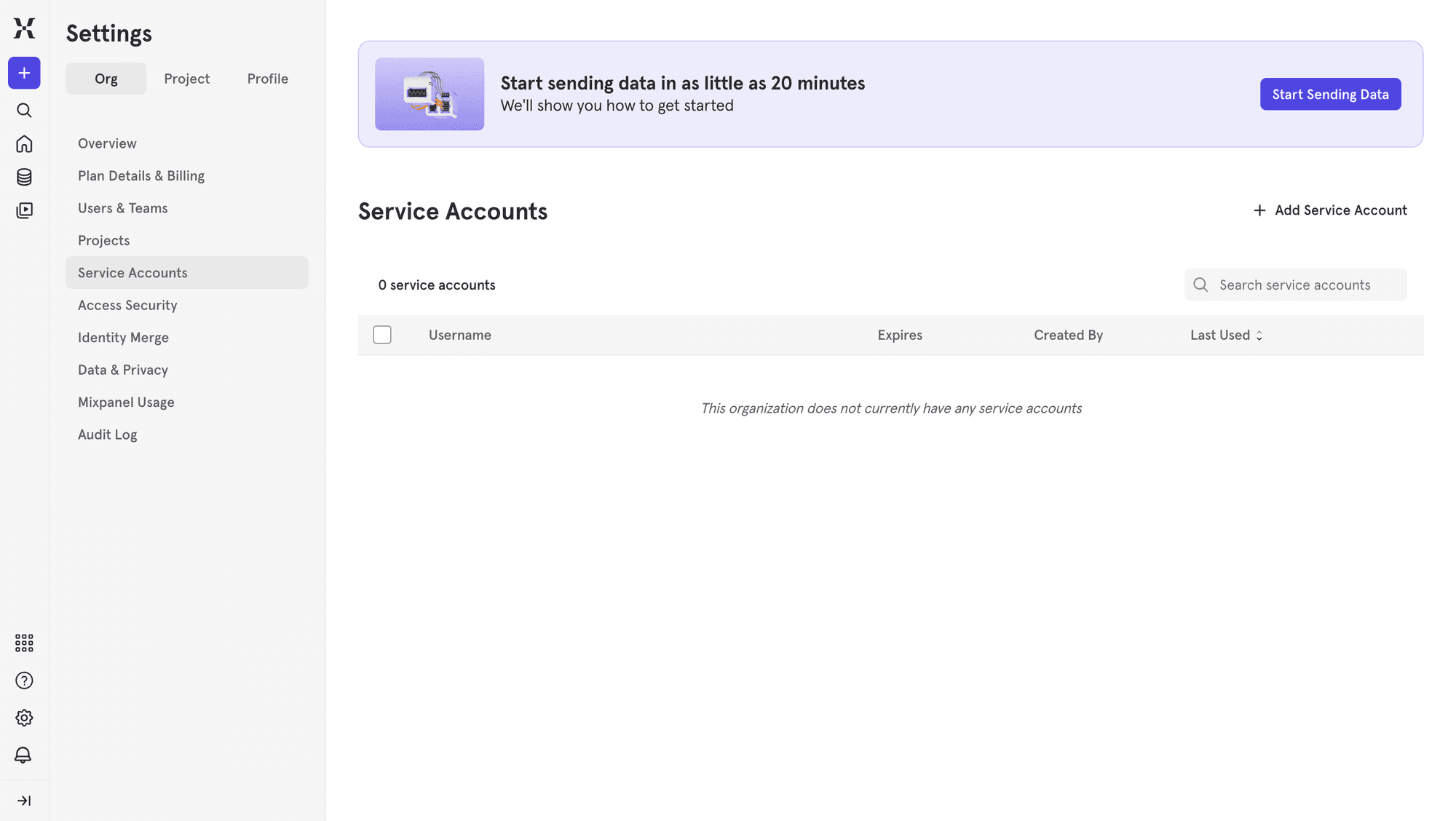
Create a service account
Click Add Service Account, enter a name (e.g., Squadbase), and set the required project permissions. Click Create.
Copy the Username and Secret shown — the Secret will not be displayed again after closing the dialog.
The Service Account Secret is only shown once at creation. Make sure to copy it before closing the dialog.
Project ID / Region
- Click the gear icon at the bottom left and select Organization Settings
- Select the Project tab in Settings
- Select the project you want to connect
- The Project ID and data residency region are both displayed on this page
| Region | Value |
|---|---|
| United States | Leave empty (default) |
| European Union | eu |
| India | in |