
Gmail
Steps and required credentials to connect Gmail to Squadbase
Required Information
| Field | Description |
|---|---|
| Google Cloud Service Account JSON | An authentication key file for accessing Google services. This JSON file is issued in Google Cloud and is used by Google to identify which application is using the API. |
| Target User Email | The Gmail address of the Google Workspace user whose mailbox you want to access (e.g., user@yourcompany.com). Entered in Squadbase after uploading the service account JSON. |
Connecting Gmail via a service account requires Google Workspace and administrator privileges. Domain-wide delegation must be enabled to allow the service account to access user mailboxes.
How to Obtain Each Value
Google Cloud Service Account JSON
Issue a Google Service Account for the integration.
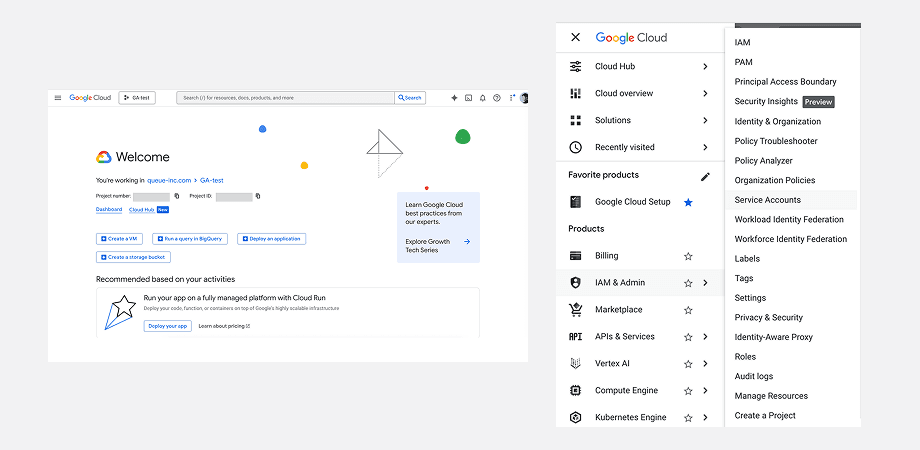
Open Service Accounts
Log in to Google Cloud Console and in any project, select "IAM & Admin" → "Service Accounts" from the menu.
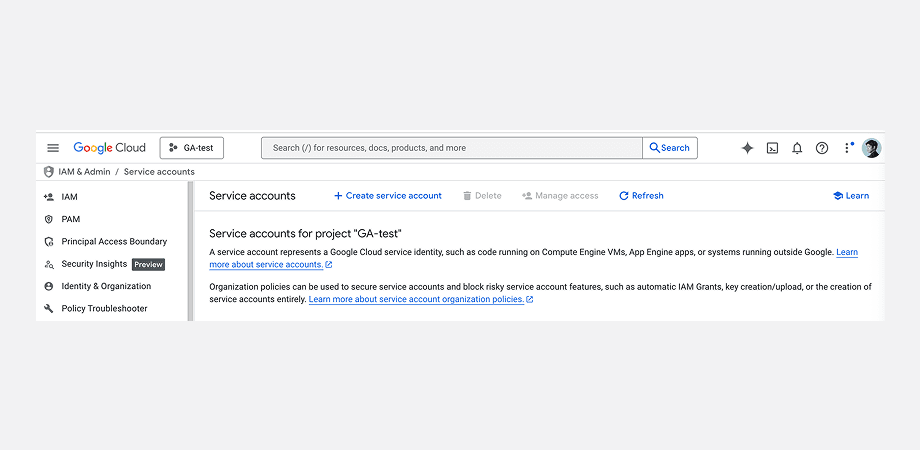
Create a Service Account
Click "+ Create service account" at the top of the Service Accounts page.
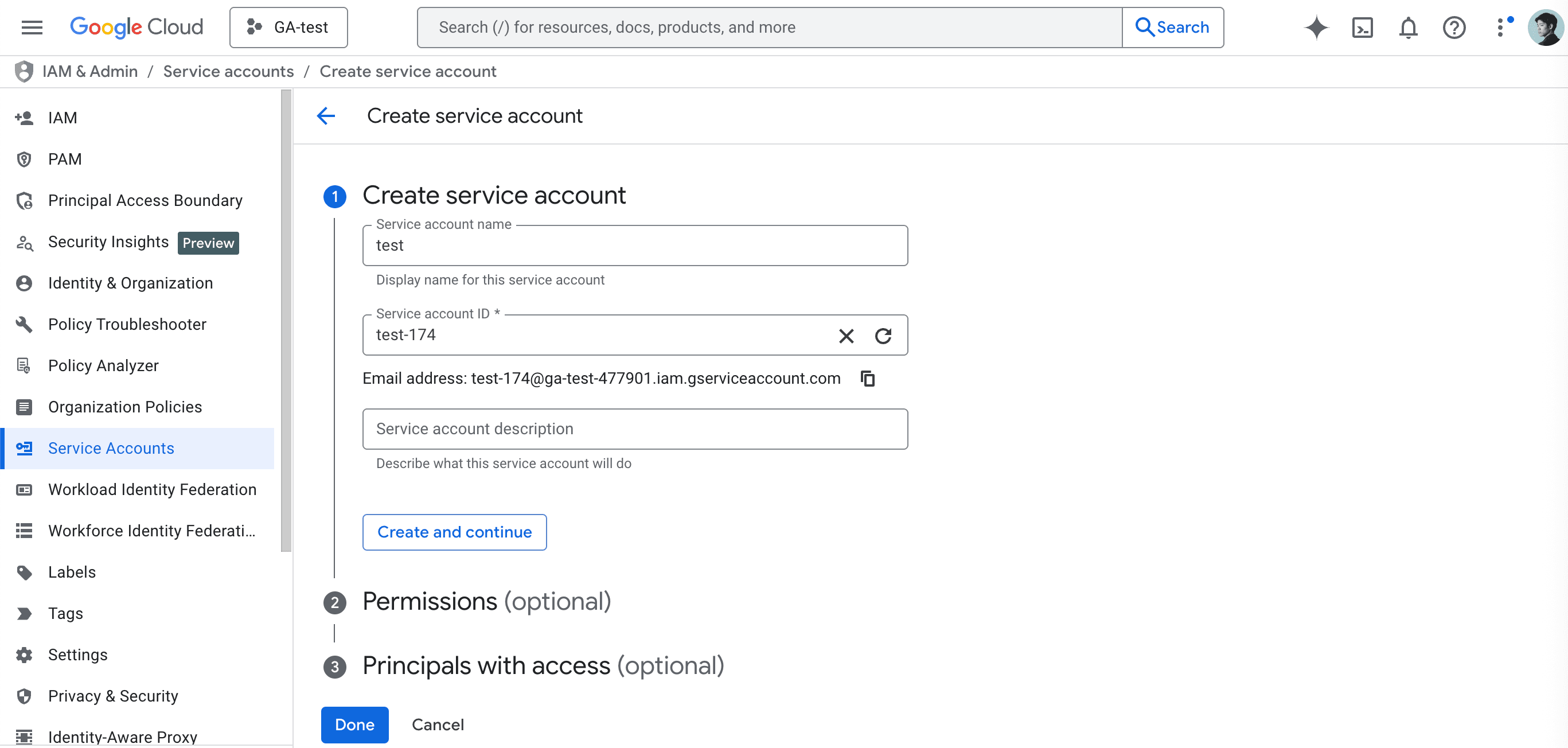
Fill in the required information:
- Service account name: Give it a descriptive name so you know what it's for.
- Service account ID: Automatically populated based on the service account name.
- Service account description: Optionally add a description for this service account.
Click "Create and continue" to create the service account.
Generate a Key
From the service account list, click the email address of the service account you just created.
Select the "Keys" tab, then click "Add key" → "JSON" and click the "Create" button.
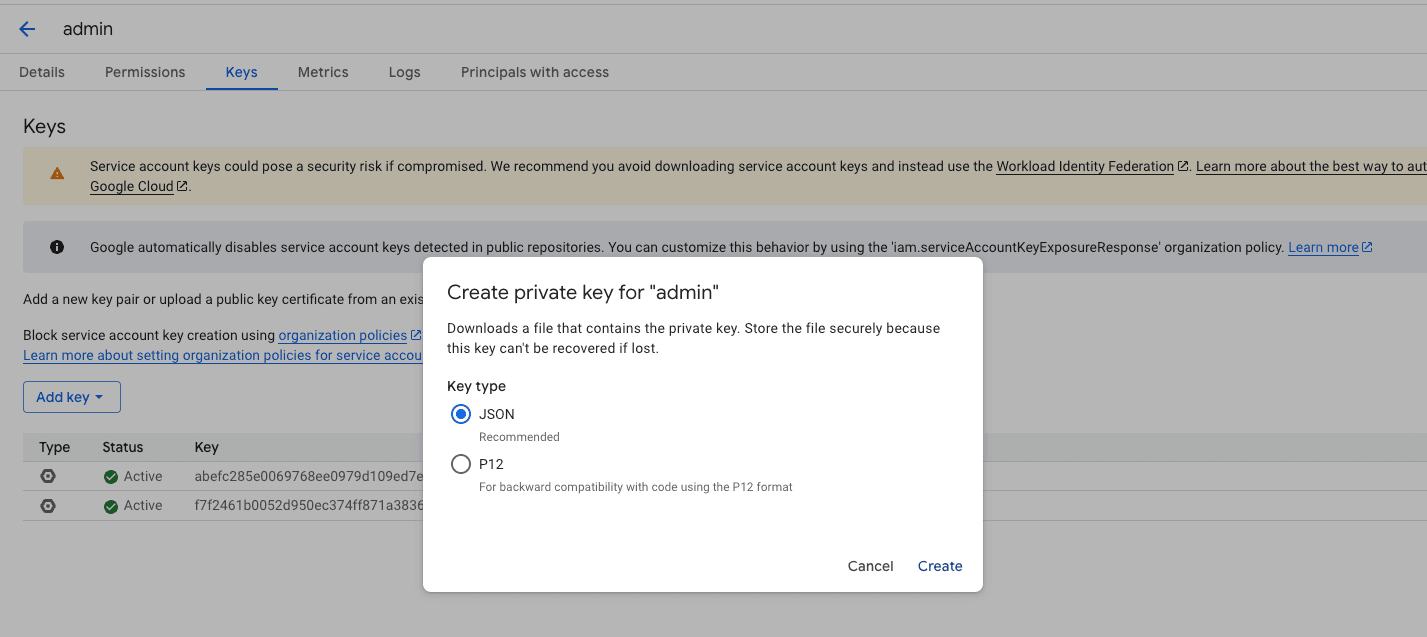
A JSON file will be downloaded to your computer. Upload this JSON file to Squadbase.
Enable the API
To allow the service account to access Gmail data, enable the "Gmail API" in your Google Cloud project.
From the left sidebar in Google Cloud, select "APIs & Services" → "Library", then search for "Gmail" in the search box. Find "Gmail API" in the results and click "Enable."
Enable Domain-Wide Delegation
On the service account detail page, open the Advanced settings section and check Enable Google Workspace Domain-wide Delegation. Enter a product name for the consent screen and save.
Next, log in to the Google Workspace Admin console as an administrator. Go to Security → Access and data control → API controls → Domain-wide delegation, and click Add new. Enter the service account's Client ID and add the following OAuth scope:
https://www.googleapis.com/auth/gmail.readonlyTarget User Email
After uploading the service account JSON, Squadbase will ask for the Target User Email. Enter the Gmail address of the Google Workspace user whose mailbox you want to access (e.g., user@yourcompany.com).