
Google Calendar
Steps and required credentials to connect Google Calendar to Squadbase
Required Information
| Field | Description |
|---|---|
| Google Cloud Service Account JSON | An authentication key file for accessing Google services. This JSON file is issued in Google Cloud and is used by Google to identify which application is using the API. |
How to Obtain Each Value
Google Cloud Service Account JSON
Issue a Google Service Account for the integration.
A Google Service Account is a dedicated account for "systems" such as programs or applications (not humans) to use Google services.
Open Service Accounts
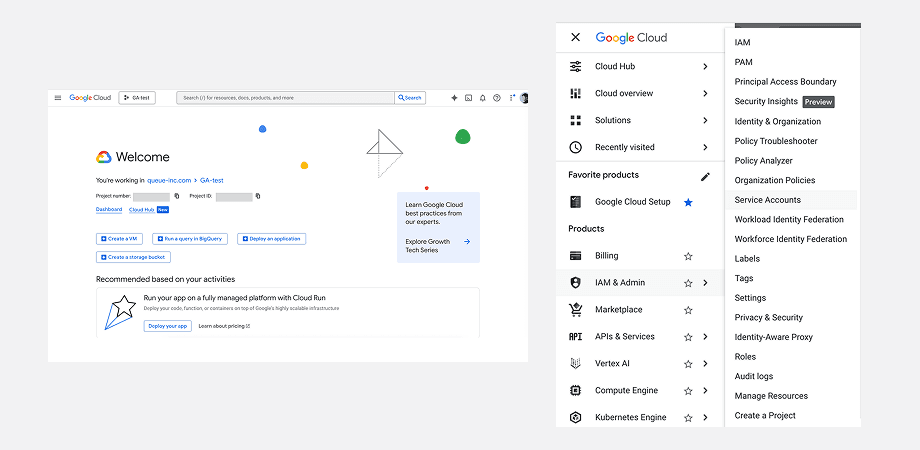
Log in to Google Cloud Console and in any project, select "IAM & Admin" → "Service Accounts" from the menu.
Create a Service Account
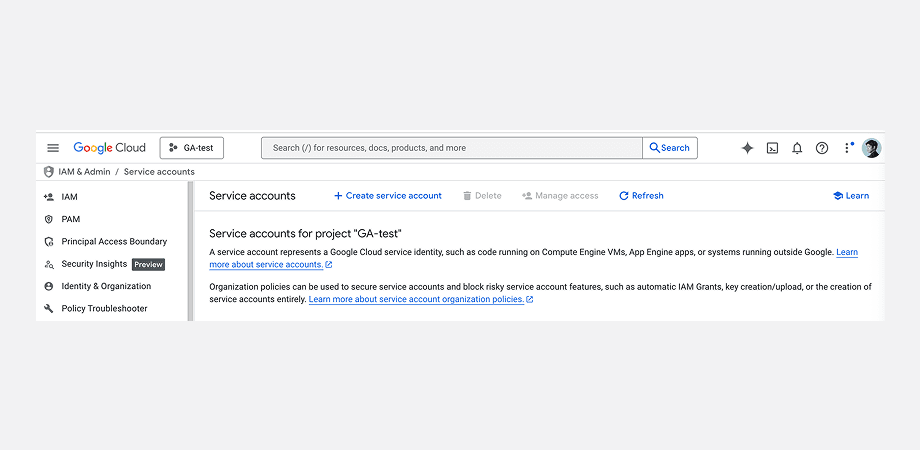
Click "+ Create service account" at the top of the Service Accounts page.
Fill in the required information:
- Service account name: Give it a descriptive name so you know what it's for.
- Service account ID: Automatically populated based on the service account name.
- Service account description: Optionally add a description for this service account.
Click "Create and continue" to create the service account.
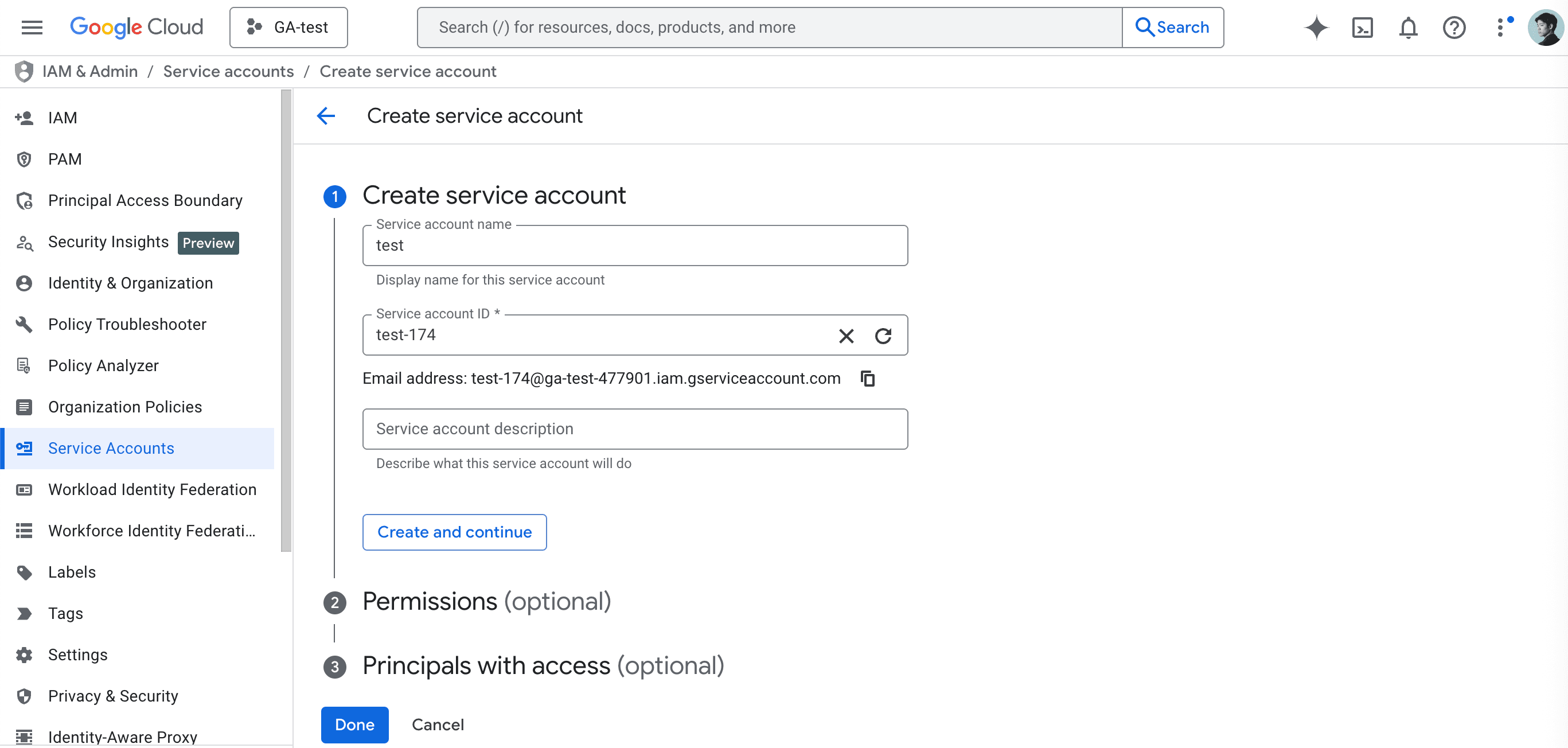
No configuration is needed for Permissions or Principals with access. Calendar sharing is managed from the Google Calendar side.
Generate a Key
From the service account list, click the email address of the service account you just created.
Select the "Keys" tab, then click "Add key" → "JSON" and click the "Create" button.
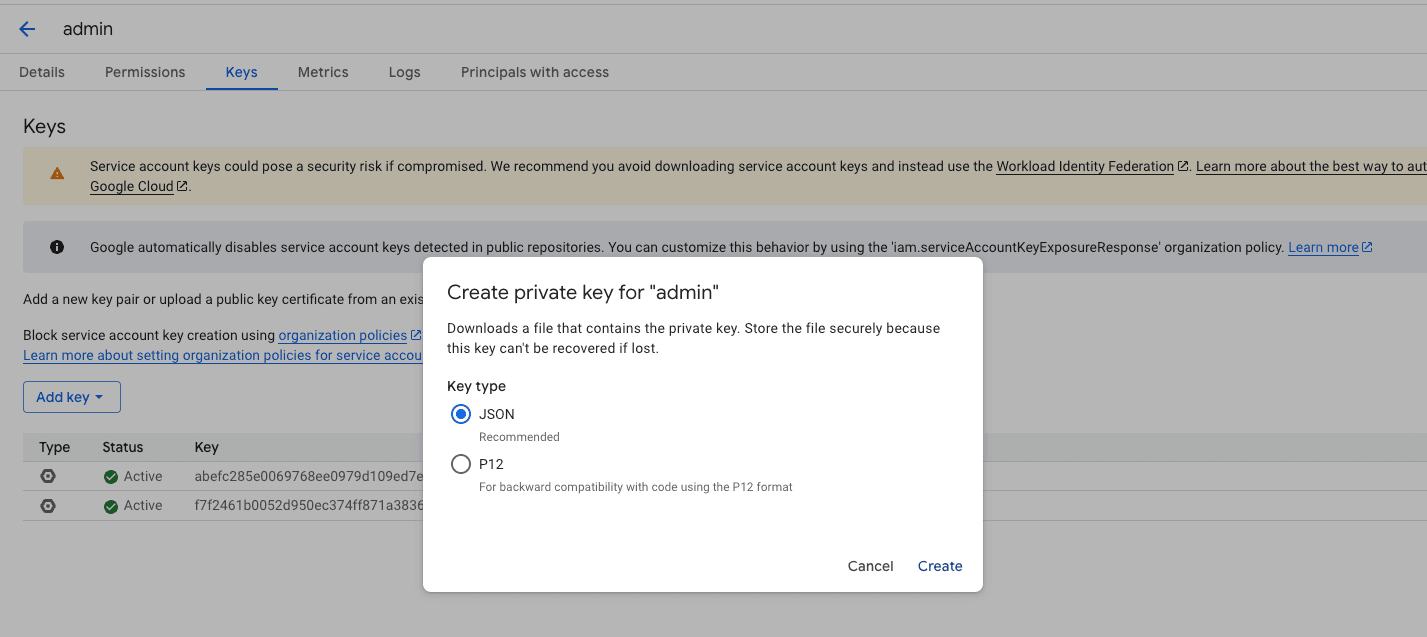
A JSON file will be downloaded to your computer. Upload this JSON file to Squadbase.
Enable the API
To allow the service account to access Google Calendar data, enable the "Google Calendar API" in your Google Cloud project.
From the left sidebar in Google Cloud, select "APIs & Services" → "Library", then search for "Google Calendar" in the search box. Find "Google Calendar API" in the results and click "Enable."
Grant Access to the Service Account
Choose one of the following methods to grant the service account access to Google Calendar.
Method 1: Invite the Service Account to Google Calendar
This method works for both personal Gmail and Google Workspace accounts. Share the target calendar directly with the service account.
In Google Calendar, click the three-dot menu (⋯) next to the calendar you want to connect in the left sidebar and select Settings and sharing. Under the Share with specific people or groups section, click + Add people and groups, enter the service account's email address, and set the permission to See all event details.
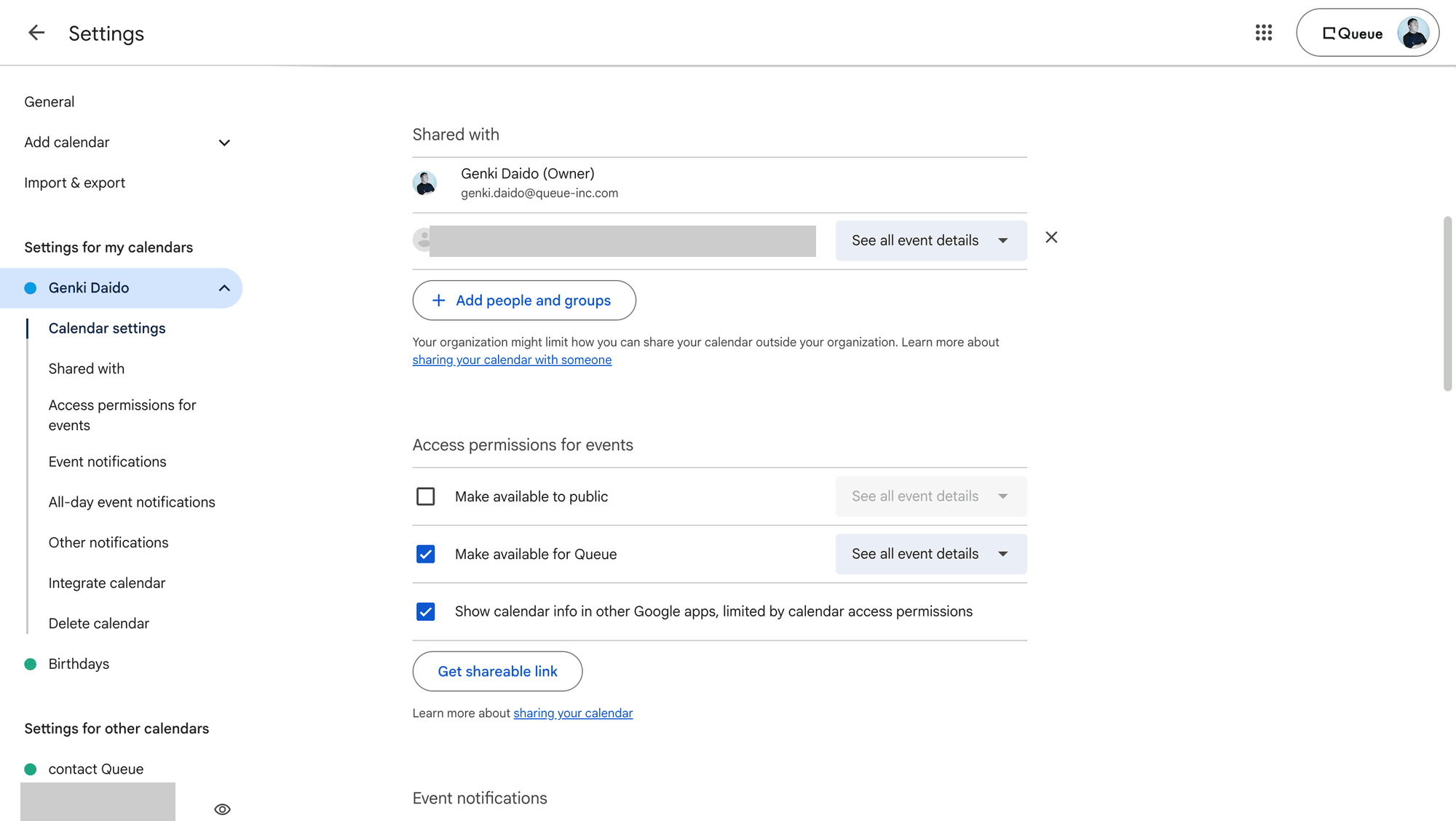
Using "Make changes to events" or higher permissions risks unintended data modification. We recommend sharing with "See all event details" permissions.
For personal Gmail accounts: You can invite the service account directly — no additional settings are required.
For Google Workspace accounts: A Google Workspace administrator must change the external sharing settings for the calendar beforehand. In the Google Workspace Admin Console, go to Apps → Google Workspace → Calendar → Sharing settings, and set the external sharing option to All information will be shared (external users will not be allowed to change the calendar). Without this setting, sharing with the service account (which is treated as an external user) will not work.
Method 2: Domain-Wide Delegation (Google Workspace)
If you are using Google Workspace and want to grant access to all users' calendars across the domain, you can use domain-wide delegation.
Domain-wide delegation requires Google Workspace administrator privileges. It is not available for personal Gmail accounts.
Get the Service Account's Client ID
In Google Cloud Console, go to IAM & Admin → Service Accounts and click the service account you created. Copy the OAuth 2.0 Client ID (a numeric ID shown on the detail page).
Open Domain-Wide Delegation in Google Workspace Admin
Log in to Google Workspace Admin Console with an administrator account. Navigate to Security → Access and data control → API controls, then click Manage domain-wide delegation.
Add the Service Account
Click Add new, then enter the following:
- Client ID: Paste the Client ID copied in Step 1
- OAuth scopes:
https://www.googleapis.com/auth/calendar.readonly
Click Authorize.