InfluxDB
Steps and required credentials to connect InfluxDB to Squadbase
Required Information
| Field | Description |
|---|---|
| InfluxDB URL | The base URL of your InfluxDB instance, without a trailing slash. Works with InfluxDB 2 (Cloud on *.cloud2.influxdata.com, OSS 2.x) and InfluxDB 3 (Cloud Serverless, Enterprise, OSS 3.x). |
| API Token | The API token used to authenticate against your InfluxDB instance. |
| Database | The default database to query. For InfluxDB 3, this is the database name. For InfluxDB 2, use the bucket name. |
| Organization (Optional) | The InfluxDB organization name. Required for InfluxDB 2 Flux queries and writes (including InfluxDB Cloud on *.cloud2.influxdata.com). Optional for InfluxDB 3 when using SQL only. |
How to Obtain
InfluxDB URL
- InfluxDB Cloud 2.x: Your cluster URL is displayed in the InfluxDB Cloud portal after logging in. It follows the format
https://us-east-1-1.aws.cloud2.influxdata.com. - InfluxDB Cloud Serverless / 3.x: Found in your account dashboard. Follows the format
https://us-east-1-1.aws.cloud3.influxdata.com. - Self-hosted: The URL where your InfluxDB is running (e.g.,
http://localhost:8086).
Do not include a trailing slash.
API Token
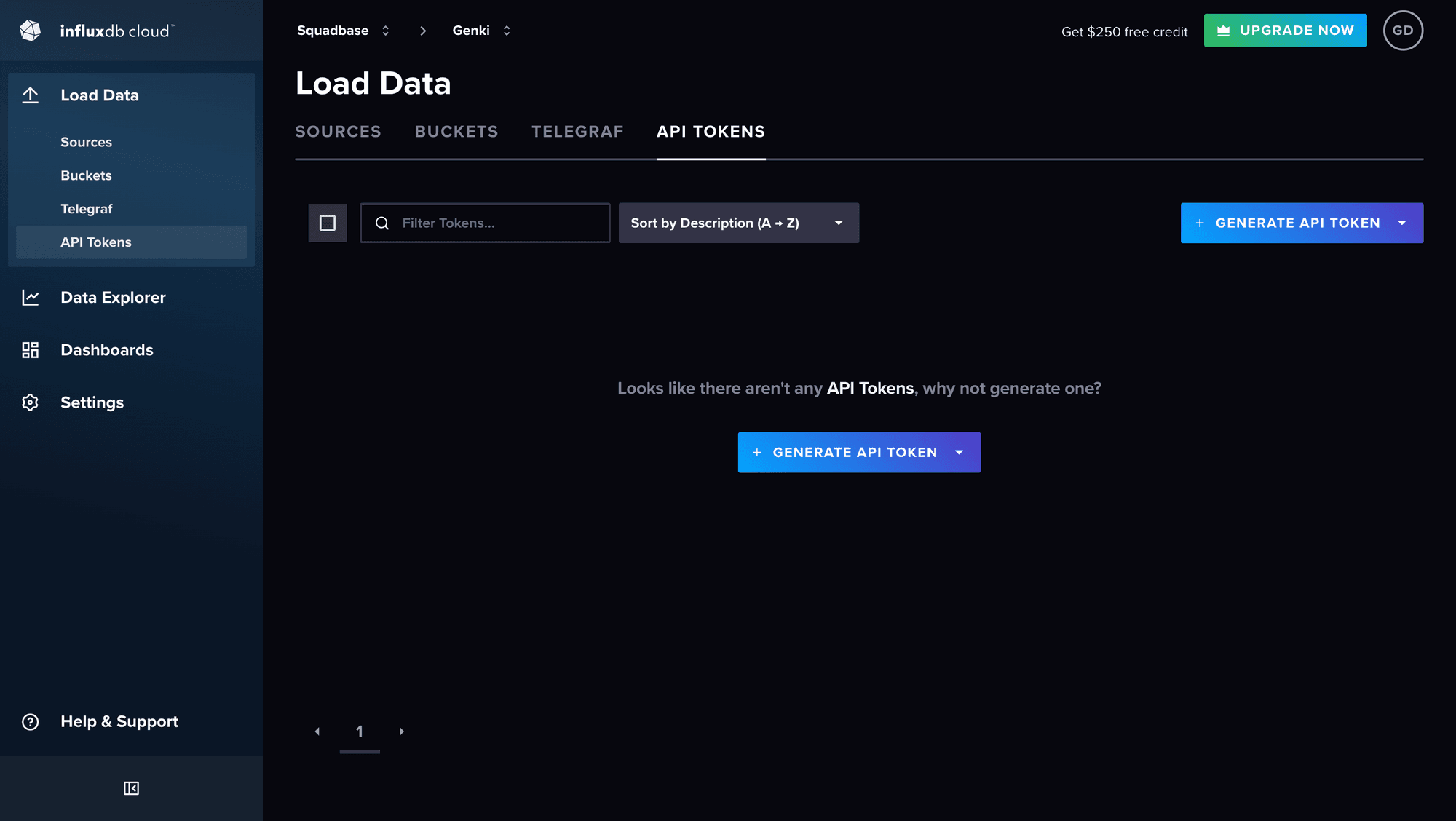
Generate a Token
Click Generate API Token and select the appropriate token type:
- All Access API Token: Grants full read/write access to all resources.
- Custom API Token: Allows you to limit access to specific buckets or databases with read-only permissions.
For Squadbase, read-only access is sufficient. Select Custom API Token and grant Read access to the target bucket or database for tighter security.
Copy the Token
Copy the generated token immediately — it will not be shown again after you close the dialog.
The API token is only shown once at creation. Make sure to copy it before closing the dialog.
Database
- InfluxDB 2: Enter the bucket name you want to query.
- InfluxDB 3: Enter the database name you want to query.
You can view your buckets in Load Data → Buckets, or your databases in the InfluxDB 3 dashboard.
Organization
- InfluxDB 2 / InfluxDB Cloud 2.x: Required. Click the account name in the top navigation bar and select Organizations. The name listed on the Organizations page is your organization name.
- InfluxDB 3: Optional when using SQL queries only.