Azure SQL
Steps and required credentials to connect Azure SQL to Squadbase
Required Information
| Field | Description |
|---|---|
| Azure SQL JDBC URL | The JDBC connection URL for your Azure SQL Database (e.g., jdbc:sqlserver://<server>.database.windows.net:1433;database=<db>;encrypt=true). The jdbc: prefix may be omitted (sqlserver://...). |
| Username (Optional) | Azure SQL login (typically <user>@<server>). Can be embedded in the JDBC URL via user=.... |
| Password (Optional) | Azure SQL password. Can be embedded in the JDBC URL via password=.... |
| SSH Tunnel Host (Optional) | Hostname of the SSH bastion host to tunnel through. Leave empty to connect directly. |
| SSH Tunnel Port (Optional) | SSH port of the bastion host. Defaults to 22. |
| SSH Tunnel Username (Optional) | Username for SSH authentication. Required when SSH Tunnel Host is set. |
| SSH Private Key (Optional) | Private key (PEM, base64-encoded) for SSH authentication. Required when SSH Tunnel Host is set. |
| SSH Private Key Passphrase (Optional) | Passphrase for the SSH private key, if it is encrypted. |
Microsoft Entra-only authentication is selected by default when creating an Azure SQL server. This mode disables SQL authentication (username/password), which will prevent Squadbase from connecting.
To enable SQL authentication:
- Log in to the Azure Portal and navigate to SQL databases, then select your database
- In the Overview tab, click the link next to Server name to open the SQL server
- Go to Settings → Microsoft Entra ID and uncheck Support only Microsoft Entra authentication for this server, then click Save
- Click Reset password at the top of the page to set a server admin password
How to Obtain
Azure SQL JDBC URL
The easiest way to get the JDBC URL is from the Connection strings page in the Azure Portal. This provides a complete, ready-to-use URL with all required parameters.
Steps to obtain:
- Log in to the Azure Portal
- Navigate to SQL databases and select your database
- In the left menu, go to Settings → Connection strings
- Select the JDBC tab
- Copy the JDBC (SQL authentication) connection string
- Replace
{your_password_here}with the server admin password (the one set via Reset password on the SQL server page)
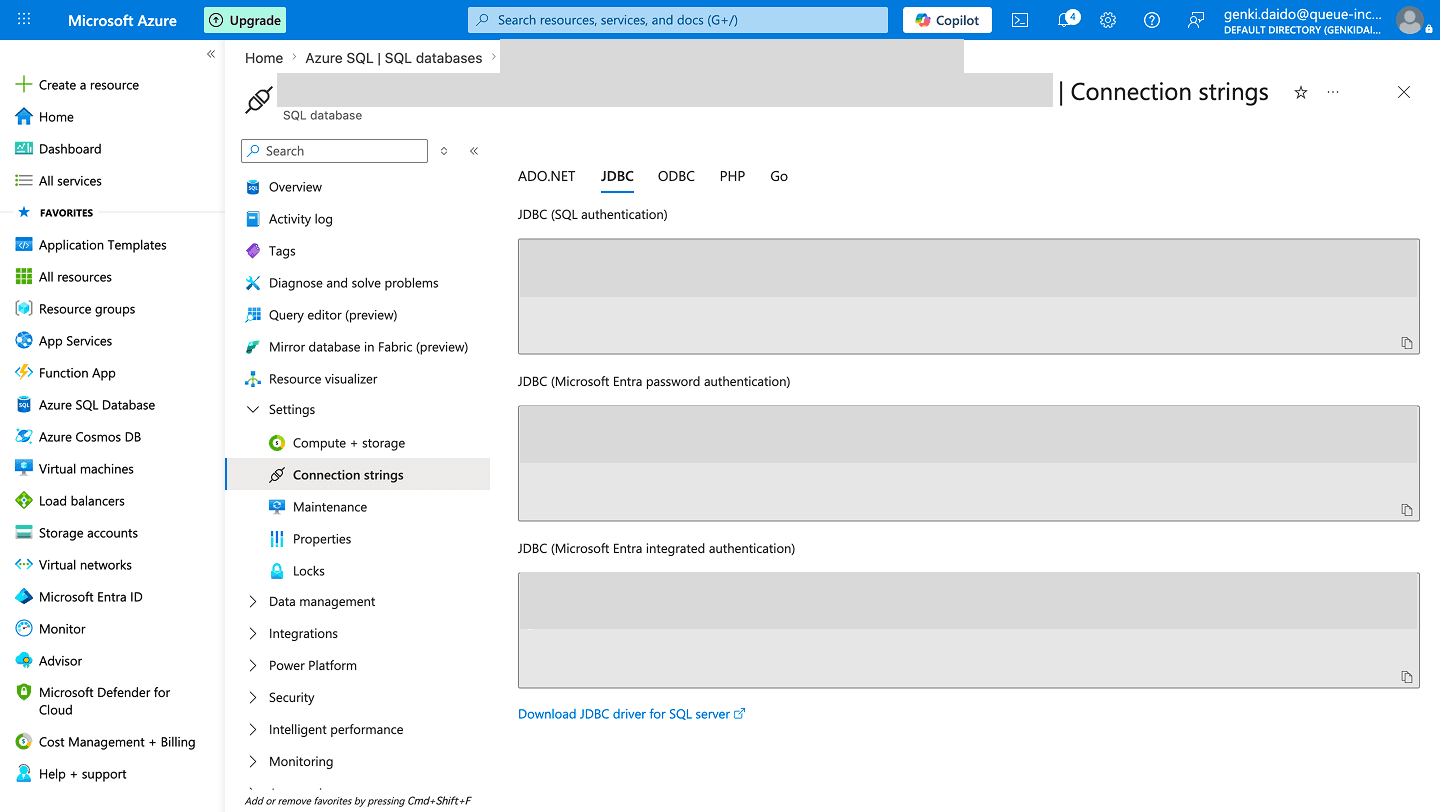
Example:
jdbc:sqlserver://myserver.database.windows.net:1433;database=mydb;user=myuser@myserver;password=mypassword;encrypt=true;trustServerCertificate=false;hostNameInCertificate=*.database.windows.net;loginTimeout=30;The jdbc: prefix may be omitted — Squadbase accepts both jdbc:sqlserver://... and sqlserver://....
Username / Password (Optional)
If you copied the JDBC URL from the Connection strings page, the username is already embedded in it (as user=...). You only need to fill in Username and Password separately if you removed them from the URL.
Username is the SQL Server admin login name. Password is the password set for that admin account at server creation time — it cannot be viewed in the Azure Portal, only reset.
To find the username or reset the password:
- Log in to the Azure Portal
- Navigate to SQL databases and select your database
- In the Overview tab, click the link next to Server name to open the SQL server
- The Server admin (username) is shown in the Overview tab under Essentials
- If you don't know the password, click Reset password at the top of the Overview page to set a new one
If you prefer not to use the server admin account, you can create a dedicated SQL login with read-only permissions using SQL Server Management Studio (SSMS) or Azure Data Studio.
SSH Tunnel (Optional)
If your Azure SQL instance is on a private network and not directly accessible from the internet, you can connect through an SSH bastion host.
| Field | How to obtain |
|---|---|
| SSH Tunnel Host | The public hostname or IP address of the SSH bastion server |
| SSH Tunnel Port | The SSH port of the bastion server (default: 22) |
| SSH Tunnel Username | The username used to authenticate with the bastion server |
| SSH Private Key | The private key (PEM format) corresponding to the authorized public key on the bastion server |
| SSH Private Key Passphrase | The passphrase for the private key, if it is encrypted |
Firewall Settings
Azure SQL blocks all external connections by default. You need to add Squadbase's source IP addresses to the firewall allowlist before connecting.
Add the following IP addresses:
| IP Address |
|---|
54.150.149.0 |
35.223.81.231 |
35.243.108.28 |
34.78.26.4 |
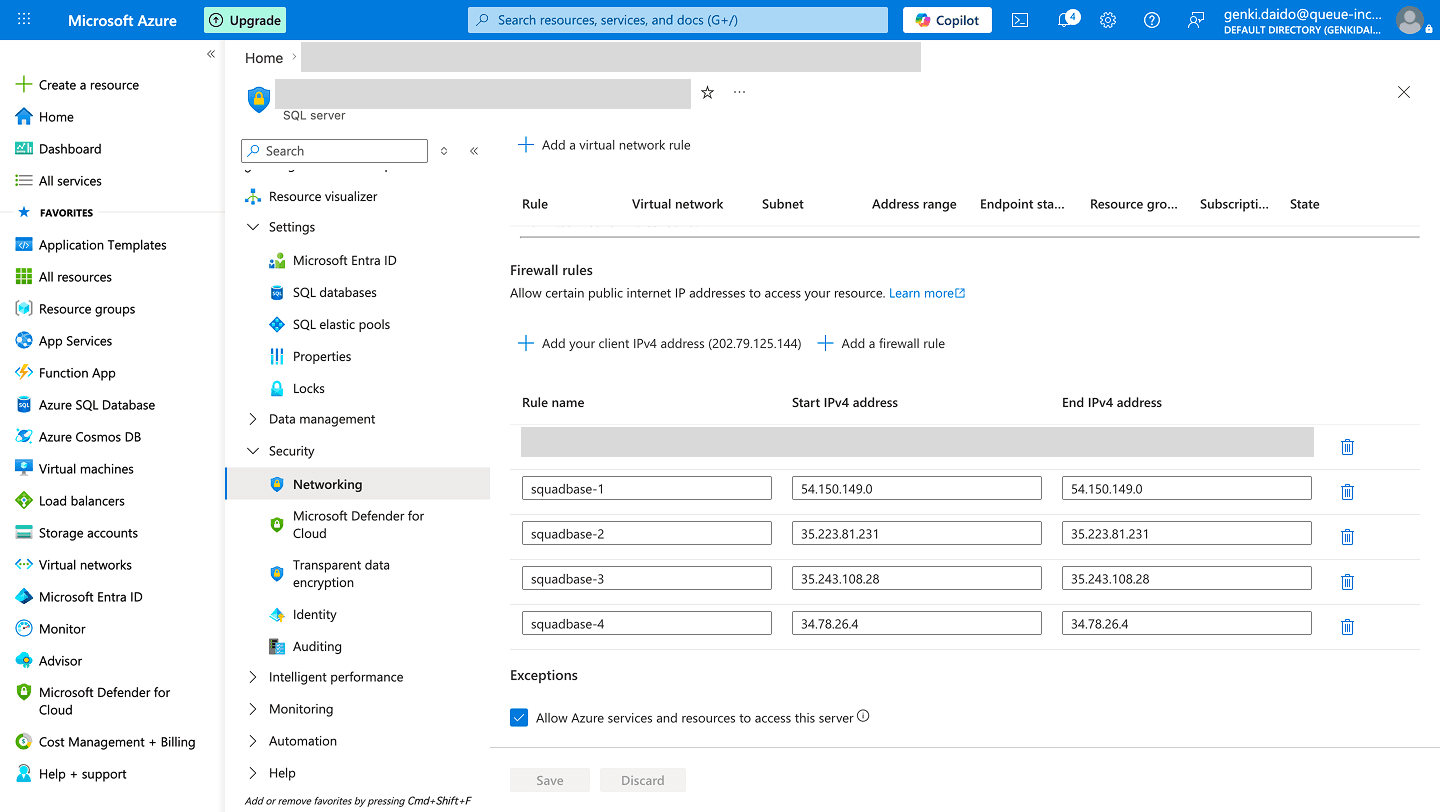
Steps:
- Log in to the Azure Portal and navigate to SQL databases, then select your database
- In the Overview tab, click the link next to Server name to open the SQL server
- Select Security → Networking
- Under Firewall rules, click + Add a firewall rule
- For each IP address above, enter the same address in both Start IPv4 address and End IPv4 address
- Click Save