Projects and chat
How to create a project, how the project screen is laid out, and how to analyze data and create outputs by chatting with AI
A project is your workspace for analyzing data. It brings together data sources, files, outputs such as dashboards, and your chats with AI. As you analyze in chat, the findings AI discovers are delivered as signals.
Create a project
Create a new project
Click the Create a new project button on Home, or the + to the right of a space name in the sidebar, to open the panel. In Create in … space at the top of the panel, you can choose the space to put the project in. If you open the panel from +, that space is already selected.
You can also open a data source's details screen on the Data sources screen and click Create project with this data at the top right to start a new project with that data. See Data sources.
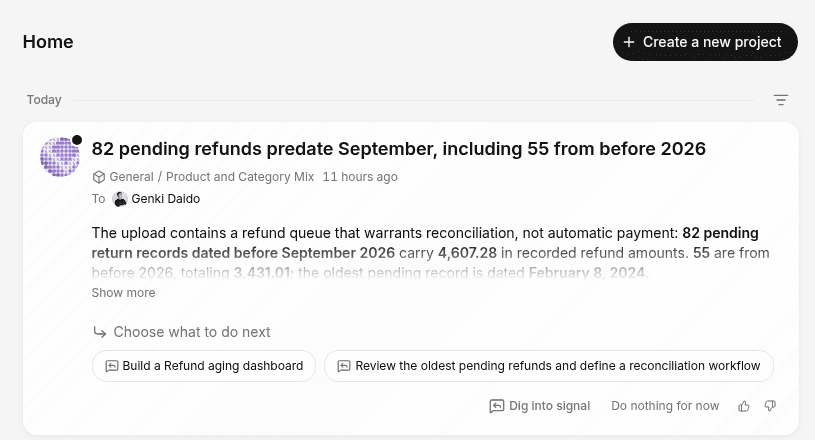
Choose the data to start with
In the panel, choose how to start.
- Start with an existing data source — Choose from the data sources already connected in your organization
- Add a data source — Connect a service or upload Excel / CSV. You'll move to the add data source screen; once connected, come back here to continue
- Start from a template — Copy a sample dashboard and swap in your connected data. → Templates
- Start from a dataset — Choose from datasets
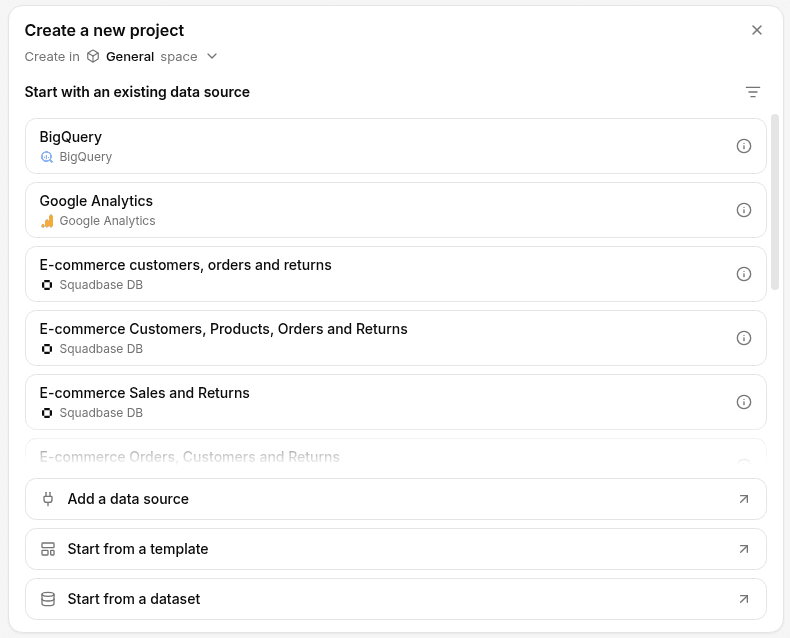
Decide what to build with AI
Once the project is ready, AI reviews the structure of your data and suggests a direction for what to build and which charts to include in the dashboard. Pick from the suggestions or write your own instructions.
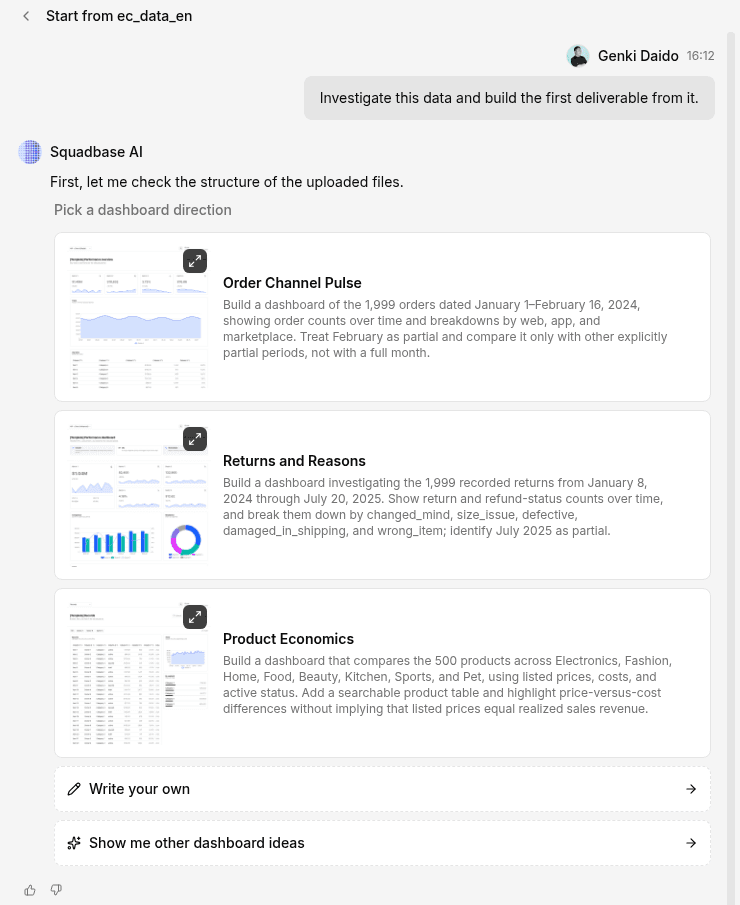
For detailed steps from an Excel file to a published dashboard, see the Quick start.
Screen layout
When you open a project, your conversation with AI and the project's contents are shown side by side. The project's dashboard tab opens automatically.
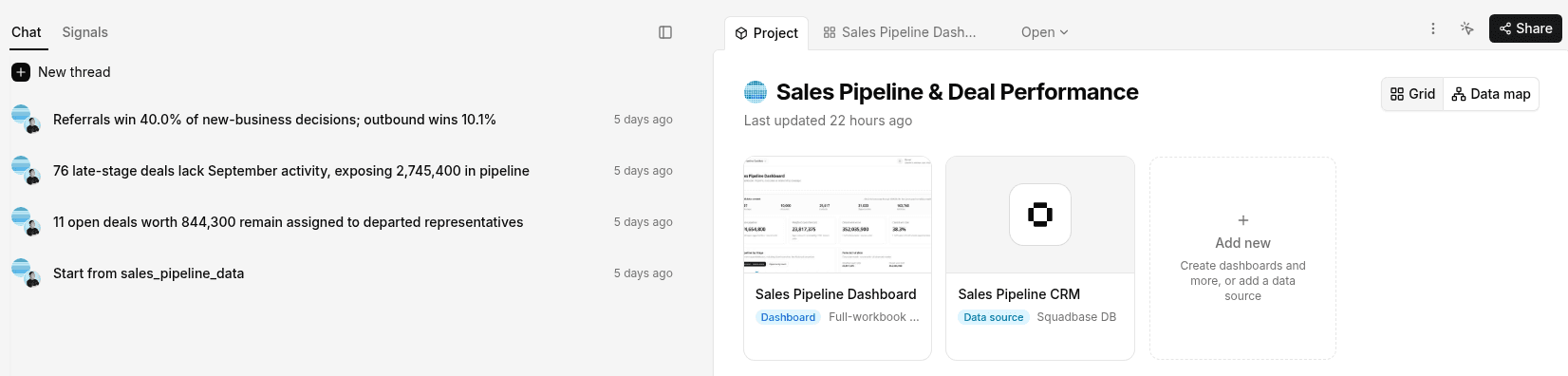
Chat and signals
| Tab | Contents |
|---|---|
| Chat | Your conversation with AI. Use New thread to keep topics in separate threads, and open past threads from the list |
| Signals | Next to the Chat tab. Contains the signals generated in this project. The number next to the tab is how many are waiting for a reply. → Signals |
Project contents
| Element | Contents |
|---|---|
| Project tab | A list of the project's contents. Dashboards, data sources, and files are shown as cards. Switch views with Grid and Data map |
| Output tabs | When you open a dashboard or other output, its preview is shown as a tab |
| ⋮ | The project's action menu (see below) |
| Share | Publish the project or invite members. → Publish and share your app |
⋮ menu
- Project settings — Set the project name, space, knowledge, domain, and more. You can also restart the workspace or delete the project here
- History — View and restore past states. → History
- Developer mode — Adds a code tab
Analyze in chat
In the chat box ("Enter a question or request"), write what you want to know or build, and send it.
Show me the monthly trend in win rate, for outbound deals onlyUse the buttons below the input box to specify what to give AI.
| Button | Contents |
|---|---|
| File | Attach a file |
| Select | Click an element in the preview to give instructions for that element only |
You can also ask for changes to a dashboard in chat. For examples, see "Adjust the dashboard" in the Quick start.
As you analyze in chat, the changes and findings AI discovers are delivered as signals. When a signal arrives in the middle of a chat, a notice appears at the top center of the screen. Click Open to view it, or × to close it.
Create new outputs
From the Create new card in the Project tab, you can have AI create dashboards, slides, spreadsheets, documents, and automations. Clicking the card opens a new chat, where you describe what you want to create.
For automations, see What is Automation?
Project settings
In the sidebar, click the … next to the project and choose Project settings. This menu contains Copy app link, Copy editor link, Rename project, Manage members, Project settings, and Delete.
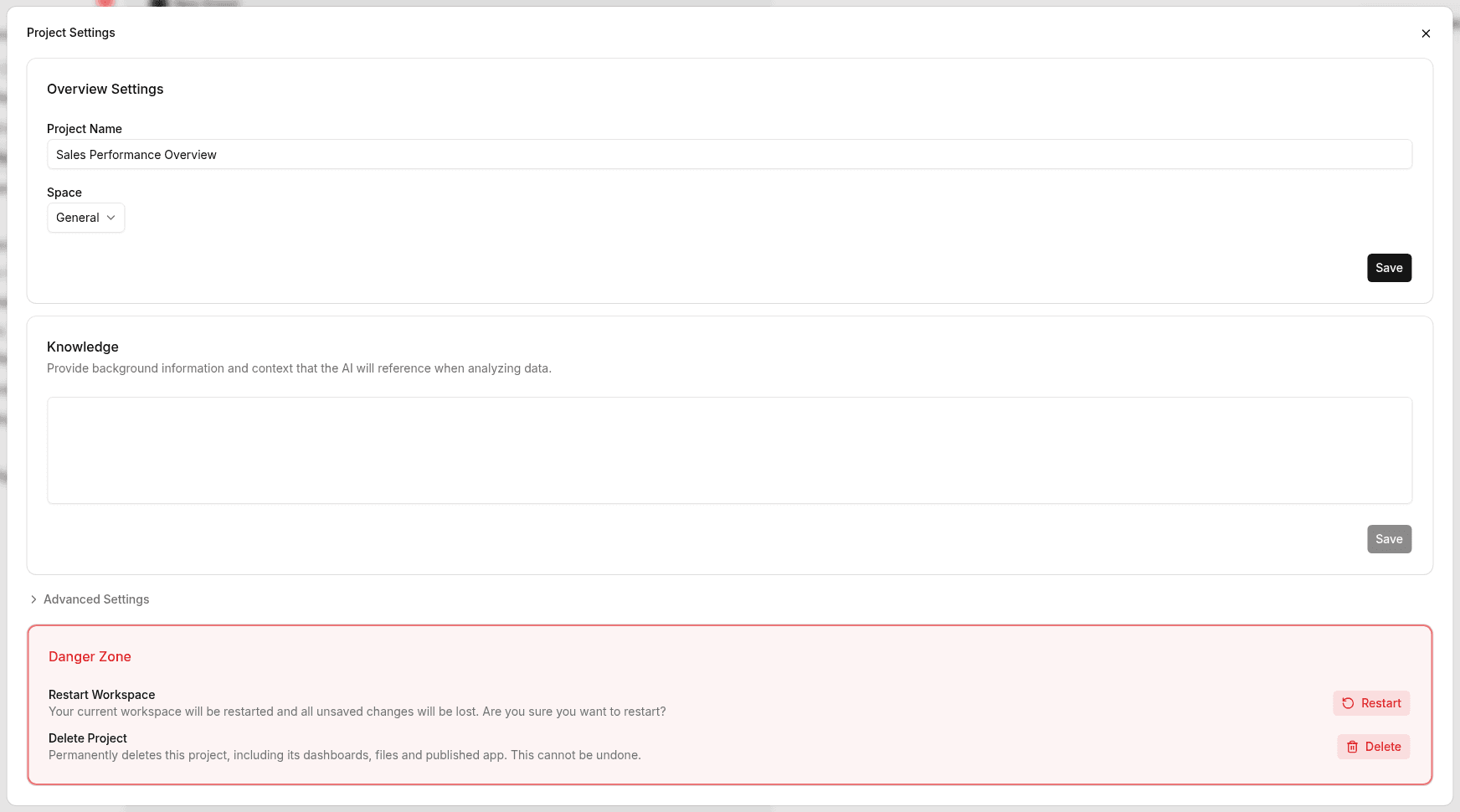
The Project Settings dialog has the following sections.
| Section | Contents |
|---|---|
| Overview Settings | The project name (Project Name) and the space it belongs to (Space) |
| Knowledge | Background information and context that AI refers to when analyzing data. → Knowledge |
| Advanced Settings | Click to expand. Set Environment Variables (→ Environment variables) and Domains: the subdomain of the published URL (Subdomains) and Custom Domains (→ Custom domains) |
| Danger Zone | Restart Workspace and Delete Project (the project is permanently deleted, including dashboards, files, and published apps, and this cannot be undone) |
Workspace startup
When you open a project, a workspace starts up for AI to work in.
The workspace won't stop partway through, even if you work for a long time. Any restarts needed along the way are done automatically by Squadbase while you're not actively working, and unsaved changes are kept.
Squadbase Member Activity
How to use the Squadbase Member Activity connector, which turns your team's AI chat conversations into a data source so you can analyze how AI is used
Signals
What signals are — the findings AI discovers in your data and delivers to you — when they arrive, and how to reply to them