Data sources
How to connect databases, business SaaS tools, files, and public data, and reuse them from any project in your organization
For AI to notice changes, it first needs data. A data source is where the data Squadbase analyzes comes from.
Data sources are connected at the organization level. Once connected, a data source can be reused from any project in your organization. You don't need to set up credentials again for each project.
The Data sources screen
Open Data sources in the sidebar to see a list of your organization's data sources.
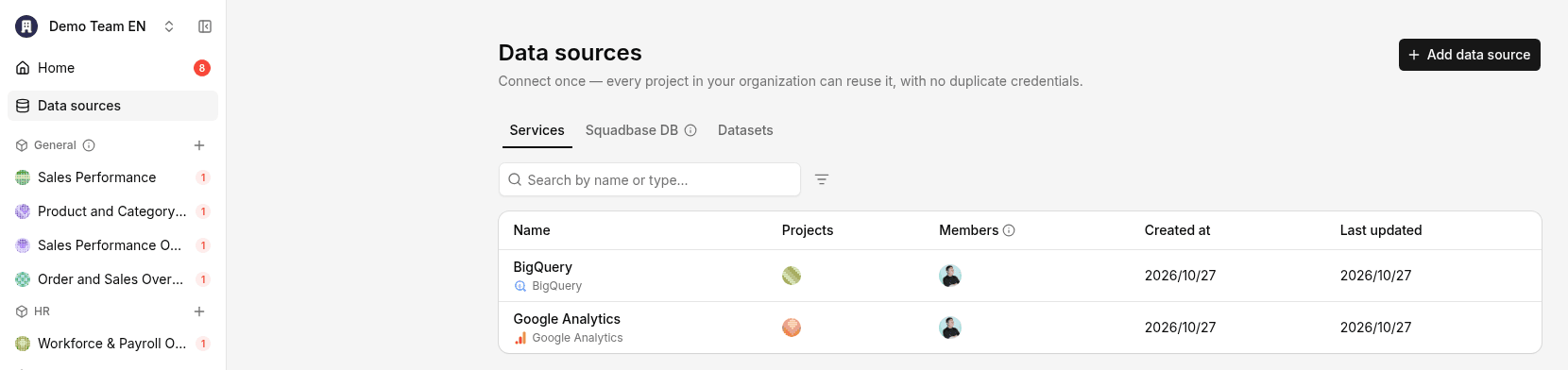
When there are no data sources yet, Add data source is shown in the center instead of the list.
| Tab | Contents |
|---|---|
| Services | Connections to external services such as databases and business SaaS tools. Data sources shared with you also appear here |
| Squadbase DB | The database provided by Squadbase. Use it to import Excel / CSV files and as the destination for Automation data loads. → Squadbase DB |
| Datasets | Datasets added from public data |
Add a data source
Open Add data source
On the Data sources screen, click Add data source. If you choose Add a data source when creating a project, you'll also come to this screen.
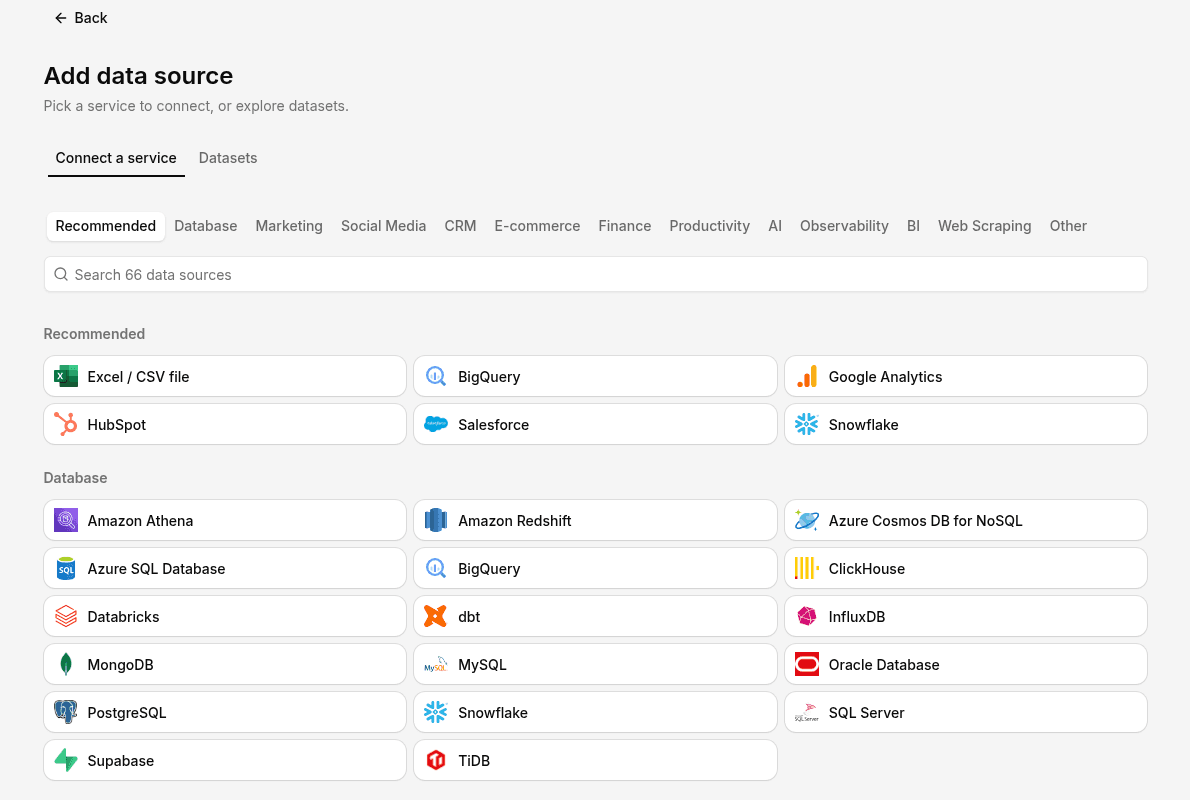
Add data source opens as a full page, not a dialog, with two tabs: Connect a service and Public data. Click Back to return to the previous screen.
Choose what to connect
In the Connect a service tab, choose what to connect.
- Excel / CSV file — Under Recommended, upload an Excel / CSV file. When you choose a file, a new project is created and the file is imported in the editor
- Search and categories — Use the "Search 66 data sources" box or category tabs such as Recommended, Database, Marketing, CRM, and Other. → Connectors
Enter credentials
Follow the on-screen instructions to enter the information needed to connect. The required information differs by data source; see each connector's page.
If you just want to try things out, the easiest way to start is with Sample data or an Excel / CSV file under Try it now. For the steps, see the Quick start.
Use connected data in a project
When creating a new project, you can choose a data source connected in your organization from Start with an existing data source in the Create a new project panel. → Create a project
In an existing project, use Data in the chat input box to specify the data to work with.
Check or change data source settings
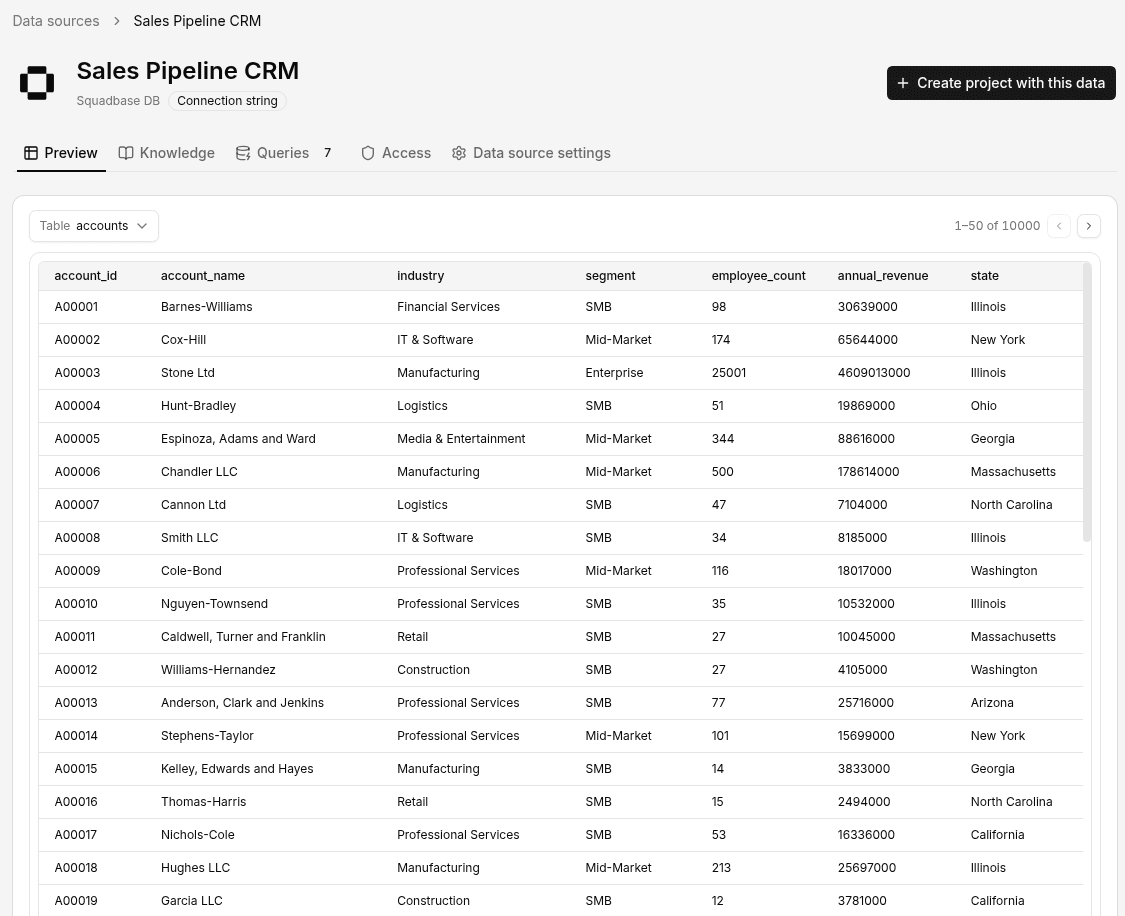
Open a connected data source from the list on the Data sources screen to see its details screen. The details screen has the following tabs.
| Tab | What it's for |
|---|---|
| Preview | Choose a table and check its contents |
| Knowledge | Write and save information the AI refers to during analysis, such as what tables and columns mean and caveats about the data |
| Queries | Lists the queries that project AIs have created for this data source, with who made each one, the project that uses it, and its name and description |
| Access | Set which members the data source is shared with and which projects can use it. You can also see which projects are using it now. For Squadbase DB, this is also where you share the data with other organizations. See Share your organization's data |
| Data source settings | Rename or delete the data source. For service data sources, you can also check the connection status and connection details; for Squadbase DB, you can check storage usage |
The tabs you see depend on the data source. For example, BigQuery has no Preview tab.
Use Create project with this data at the top right to start a new project from it. For Squadbase DB, you then choose whether the project can only read the database or can also edit its data.
Public data
Public data is a dataset that makes Squadbase DB data available for read-only use. When the Squadbase DB is updated, the changes are reflected for everyone who uses the dataset.
Use public data
From the Public data tab in Add data source, you can find and add published datasets. When creating a new project, you can also choose one from Start from a dataset. Datasets you add appear in the Datasets tab of the Data sources screen.
Share your organization's data
You can share Squadbase DB data with other organizations from the data source's details screen. The list in the Squadbase DB tab of the Data sources screen has no sharing action; use its Shared outside your organization column to check the current state ("This organization only" when it isn't shared).
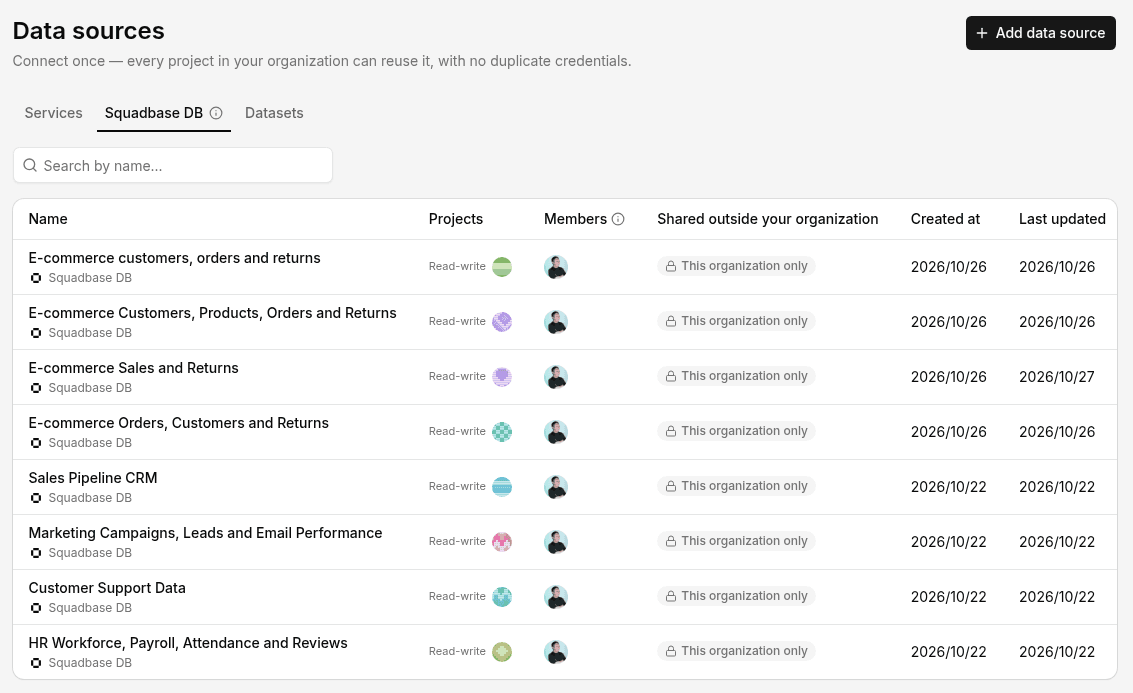
- In the Squadbase DB tab of the Data sources screen, open the Squadbase DB you want to share
- Open the Access tab on the details screen (next to Preview, Knowledge, Queries, and Data source settings)
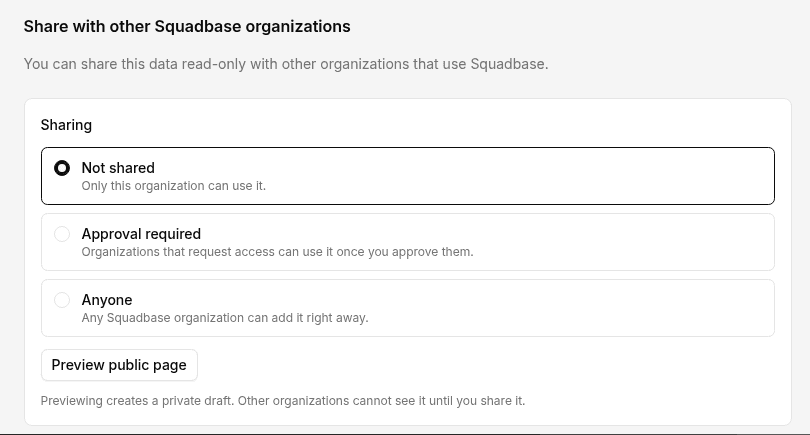
- In Share with other Squadbase organizations ("You can share this data read-only with other organizations that use Squadbase."), choose who can use it under Sharing
- Not shared — Only this organization can use it
- Approval required — Organizations that request access can use it once you approve them
- Anyone — Any Squadbase organization can add it right away
Use Preview public page to check how the public page looks. Previewing creates a private draft; other organizations can't see it until you share it.
Which projects in your organization can use the data source is set separately, in Access settings (Allow all projects) on the same tab.