Tableau
Steps and required credentials to connect Tableau to Squadbase
This connector allows Squadbase AI to access your Tableau data — such as workbooks, views, and data sources — for analysis and dashboard creation.
Required Information
| Field | Description |
|---|---|
| Tableau Server URL | Base URL of your Tableau Cloud or Server instance, without a trailing slash (e.g., https://us-east-1.online.tableau.com). |
| Site Content URL | The value after /site/ in your Tableau URL (e.g., mycompany). For the Default site on Tableau Server, pass an empty string. |
| Personal Access Token Name | The name of your Personal Access Token (PAT), generated under Account Settings → Personal Access Tokens. |
| Personal Access Token Secret | The secret value of the PAT, shown once at creation time. |
| REST API Version (Optional) | Tableau REST API version to use (e.g., 3.28). Defaults to 3.28. |
Workbooks stored in your Personal Space are not accessible via the Tableau REST API and will not be returned by Squadbase. Move any workbooks you want to connect to a regular project (workspace) before connecting.
How to Obtain
Tableau Server URL
- Tableau Cloud: Your server URL is the base domain of your Tableau Cloud instance (e.g.,
https://us-east-1.online.tableau.com). You can find it in your browser's address bar when logged in. - Tableau Server (on-premise): The URL of your Tableau Server instance (e.g.,
https://tableau.example.com).
Do not include a trailing slash.
Site Content URL
The Site Content URL is the value that appears after /site/ in the Tableau URL when you navigate to a site.
- Example: If your URL is
https://us-east-1.online.tableau.com/site/mycompany/..., the Site Content URL ismycompany. - Tableau Server Default site: The Default site has no
/site/segment in the URL. Pass an empty string ("") explicitly.
Personal Access Token Name and Secret
PATs are managed through the Tableau Cloud or Tableau Server web interface — not through the Tableau Desktop application.
- Open your Tableau Cloud or Tableau Server URL in a web browser and log in
- Click your profile icon or name in the top-right corner of the page
- Select My Account Settings (or navigate to your user profile page)
- Scroll to the Personal Access Tokens section
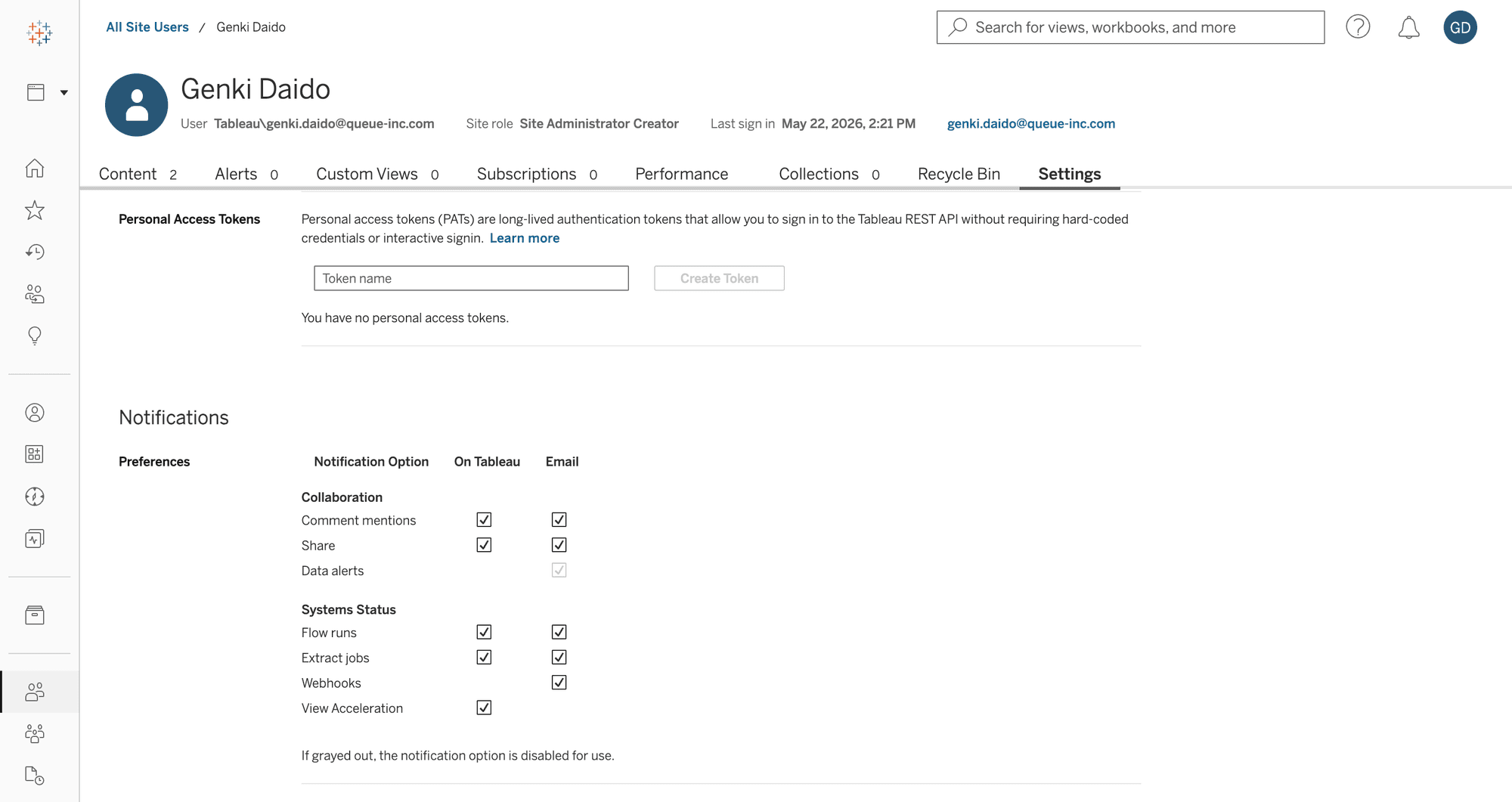
- Enter a token name in the Token name field and click Create Token
- Copy both the Token Name and Token Secret — the secret is shown only once
The Personal Access Token Secret is shown only once at creation. Store it securely. Tokens expire after 15 days of inactivity by default and must be rotated regularly.
If you see "Your site administrator has disabled PAT creation," ask your Tableau site administrator to enable Personal Access Tokens under Site Settings.
REST API Version (Optional)
Leave this field empty to use the default version (3.28), which is compatible with current Tableau Cloud and recent Tableau Server releases. If you need to pin a specific version, refer to the Tableau REST API version compatibility documentation.