Set up Slack notifications
Configure Slack as a notification destination for your Automation to receive run results in your chosen channels.
An Automation's notify step can deliver run results to Slack channels. This page explains how to set up Slack notifications.
Slack notifications can be combined with email notifications — you can configure multiple destinations at the same time.
How to set up notifications
Open the notification destination card
When you ask the chat to create an Automation or change its destinations, a Where should notifications be sent? card appears. In the Slack section, choose Send Slack notification.
Click "Connect Slack"
In the Slack section, click "Connect Slack". The Slack authorization screen opens in a new tab.
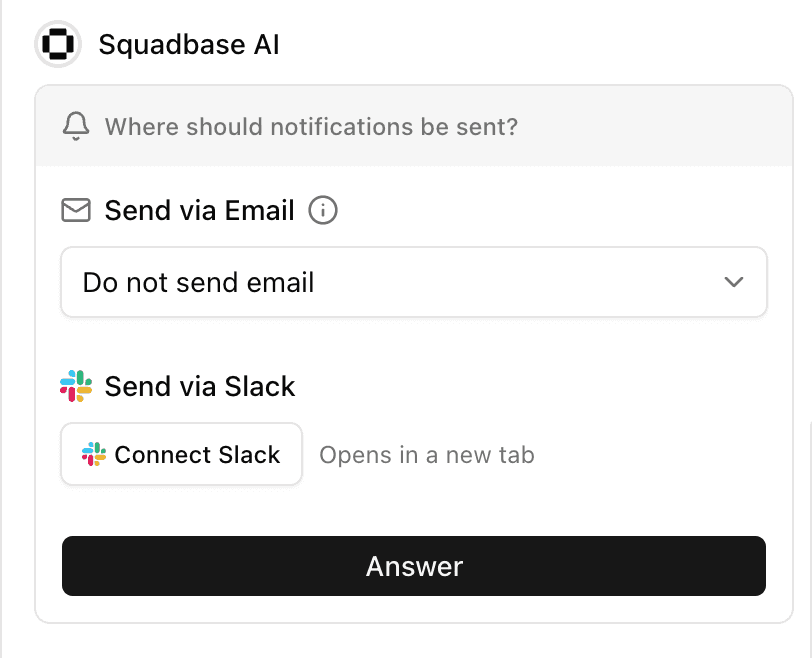
If your browser blocks pop-ups, the new tab may not open. Allow pop-ups for the site and try again.
Authorize Squadbase in your Slack workspace
Follow the prompts to sign in to the Slack workspace you want to connect, and approve the integration. When it completes, you are returned to the original tab.
The authorization screen may display "App is not approved by Slack." This message appears because Squadbase is not yet listed in the Slack App Directory. It is safe to proceed — click Allow to complete the connection.
Invite the Squadbase bot to the channel
Before an Automation can post messages, the Squadbase bot must be a member of the channel you want to use as a notification destination. In Slack, open that channel and type the following in the message input:
/invite @SquadbaseSend the message to add the bot to the channel.
If you skip this step, the notify step fails. Add the bot to the channel and run the Automation again.
Search and select channels
Type a channel name in the search box to filter, then select the channels you want to notify. You can select multiple channels.
The channel list shows channels that Squadbase can access in the connected workspace. If a channel does not appear, make sure the Squadbase app has been added to that channel.
Click Answer
Click Answer, and the AI sets the selected channels as destinations of the notify step.
Run the Automation
Click Run now on the Automation screen, or wait for its schedule. When the notify step runs, messages are posted to the selected Slack channels.
Disconnect Slack
To disconnect Slack, choose "Disconnect" from the channel selection dropdown.