Create Agent
Learn how to create Agents that automate data analysis and report delivery in Squadbase
Agents have been discontinued. Existing agents no longer run, and their schedules no longer fire. Move to Automation, the successor. See Migrate from Agents for the steps.
Agents in Squadbase let you automate recurring data analysis and report generation. Once set up, an agent runs on a schedule and delivers results via email or Slack — no manual intervention required.
Example Use Cases
Marketing performance analysis (Google Analytics, BigQuery)
- "Find content ideas from website traffic and ad data, and send a weekly digest."
- "Every Monday, compare last week's CPA and CVR by campaign against the previous week and send a summary report."
Project budget & progress tracking (Jira, Google Calendar)
- "Every Monday morning, analyze project risks and report on bottlenecks."
Upsell opportunity & churn detection (Snowflake, Salesforce, Zendesk)
- "Every morning, identify users showing upsell potential or churn signals and email each account owner with recommended actions."
Sales prep & pipeline management (HubSpot, Google Calendar, Gmail)
- "Before each meeting today, draft a prep brief from past meeting notes and customer activity logs, and email it to the account rep."
- "Every Monday morning, review meeting transcripts and emails from the past week and send each sales rep feedback on their communication."
How to Create an Agent
1. Open the Agent tab
Navigate to the Agent tab at the top of your project. If no agents exist yet, you'll see a Create agent button in the center of the screen.
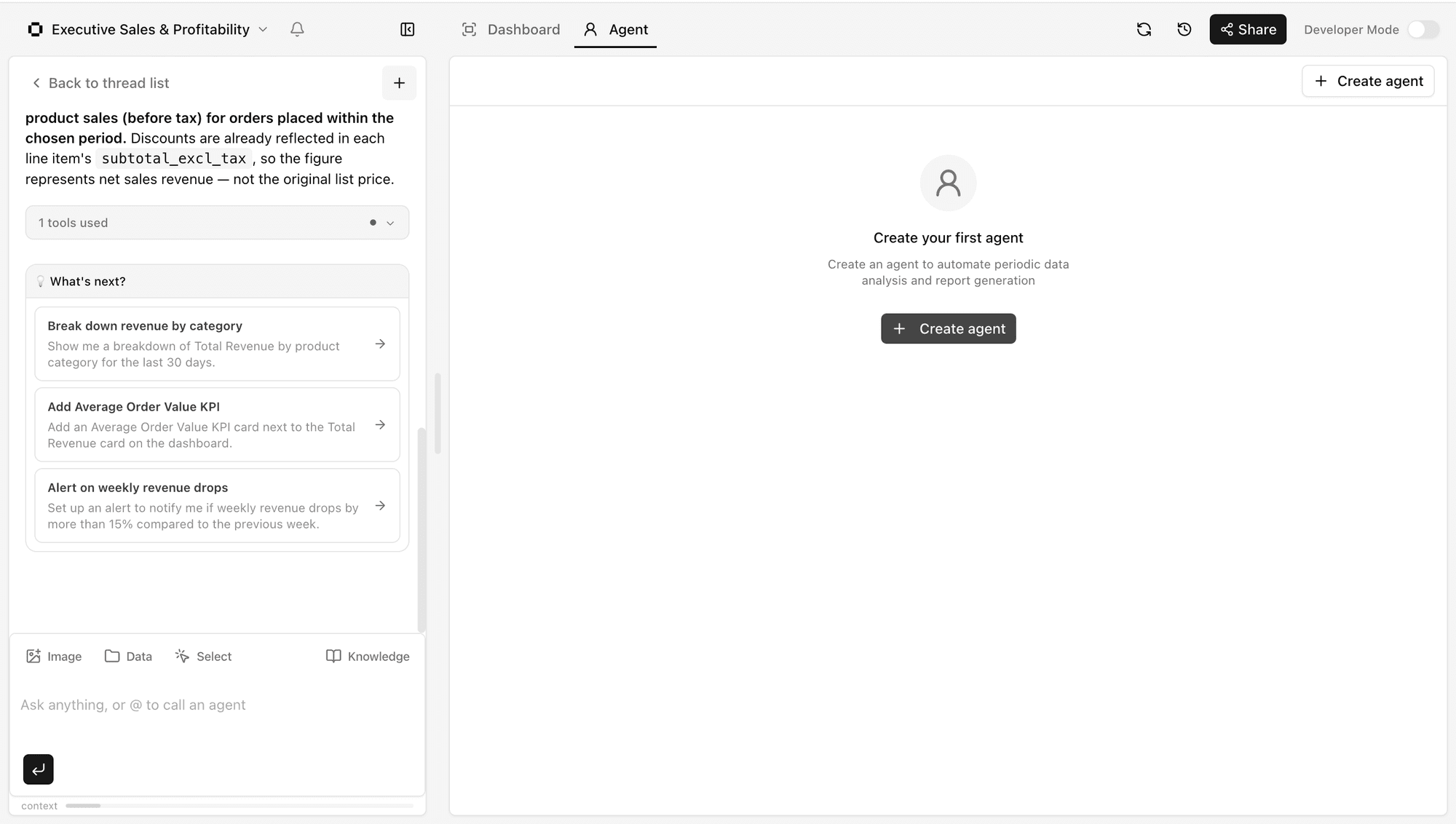
Click + Create agent (also available in the top-right corner) to begin.
2. Describe your agent in natural language
The left-hand chat panel switches to Agent creation mode. Type a plain-language description of what you want the agent to do. The more context you provide — which data sources to use, what metrics to include, what format the output should take — the more accurate the generated agent will be.
3. Configure notifications
After you submit your instruction, the agent will ask where to send the results.
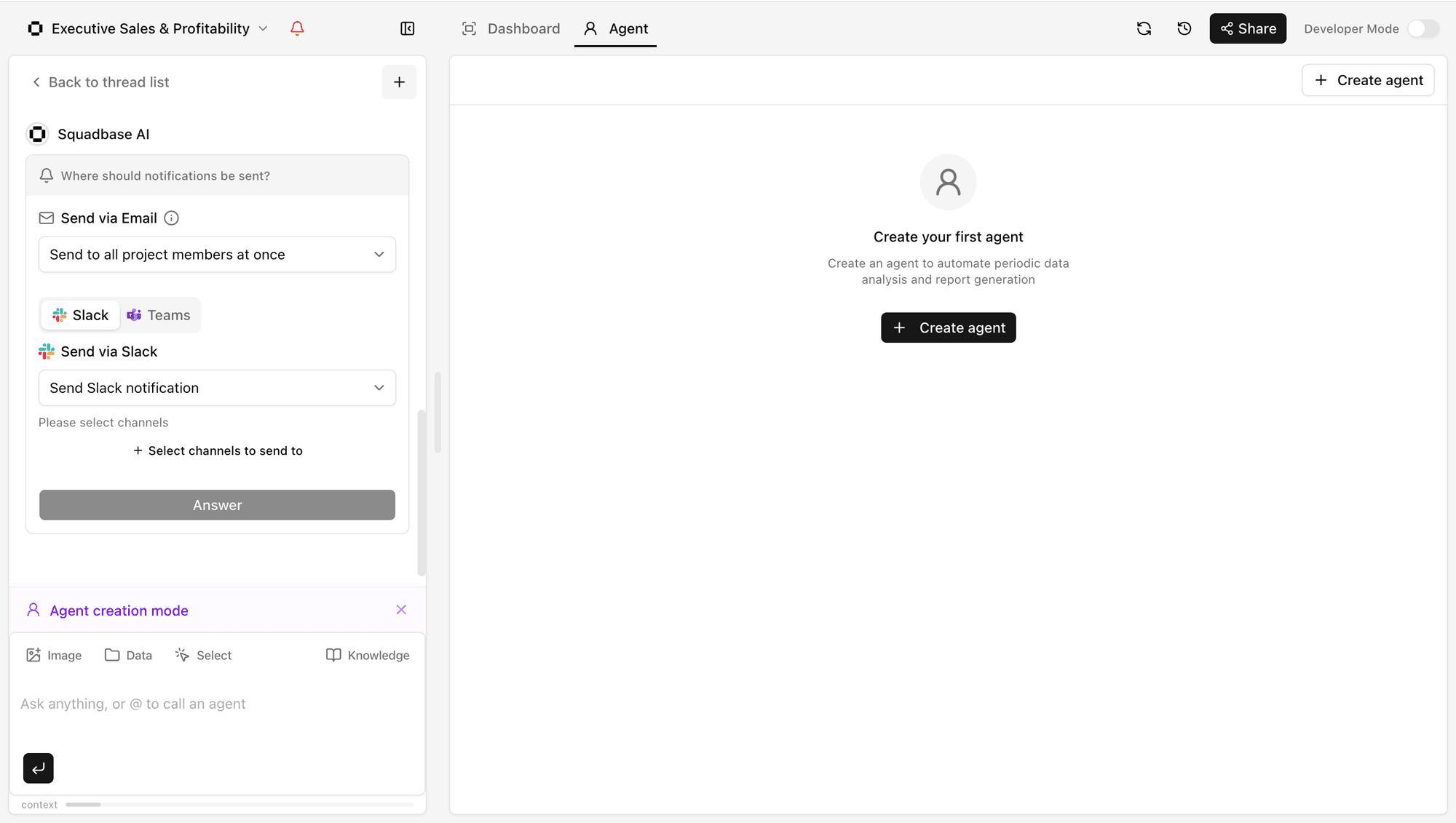
- Send to all project members at once
- Send to specific members only
- Other (free text) — enter any email address or describe the recipient in plain language (e.g., "Send to the person in charge found by searching the CRM")
Slack
- Select which channel to send the report to
You can combine email and Slack notifications simultaneously.
4. Set a schedule
Choose how often the agent should run.
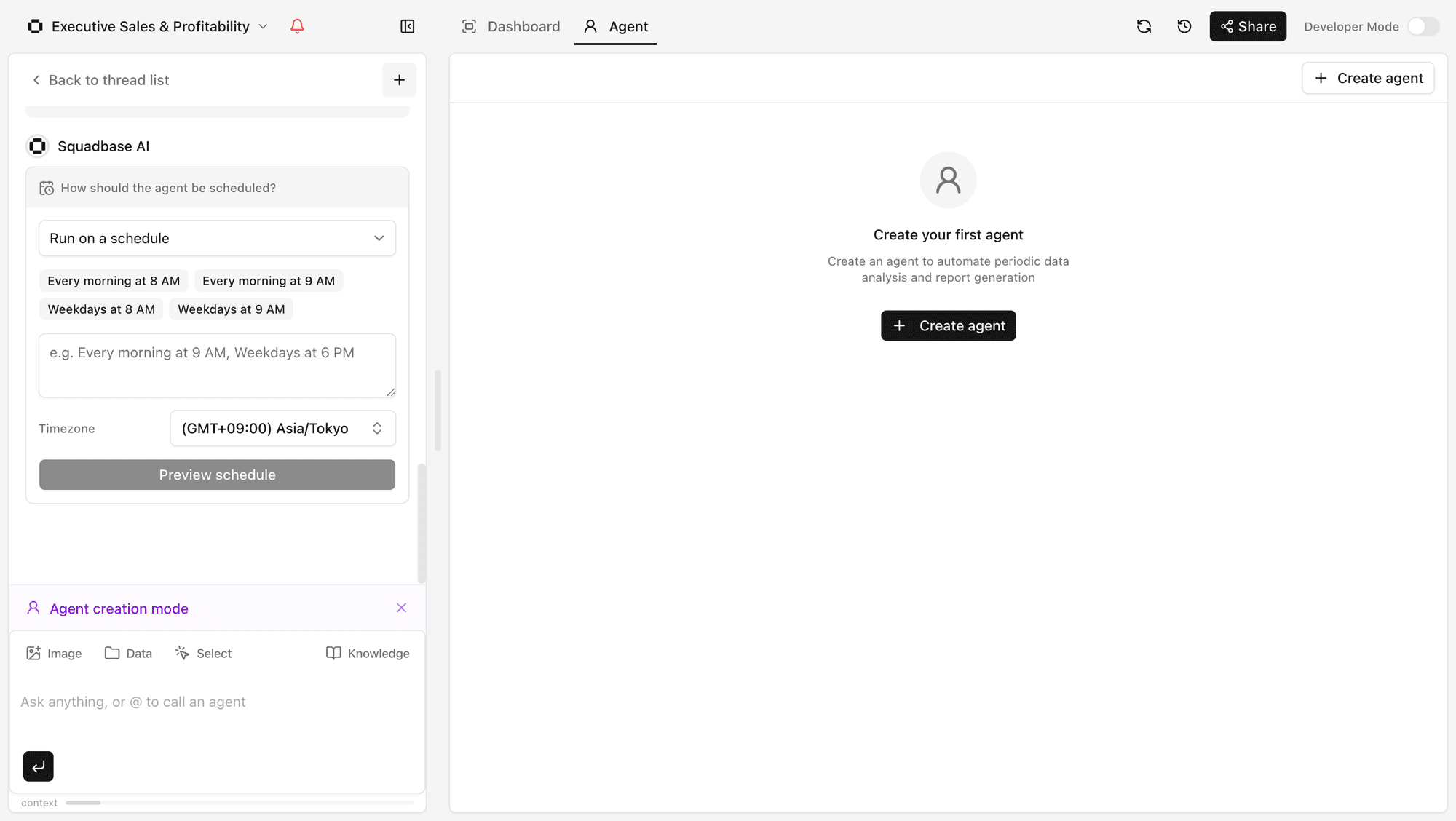
Available options include:
- Every morning at 8 AM / 9 AM — runs daily
- Weekdays at 8 AM / 9 AM — skips weekends
- Custom — type any schedule in plain language (e.g., "Every Monday at 7 AM")
- Run once — one-shot execution without a recurring schedule
You can also set the timezone for the schedule.
5. Review and save the agent
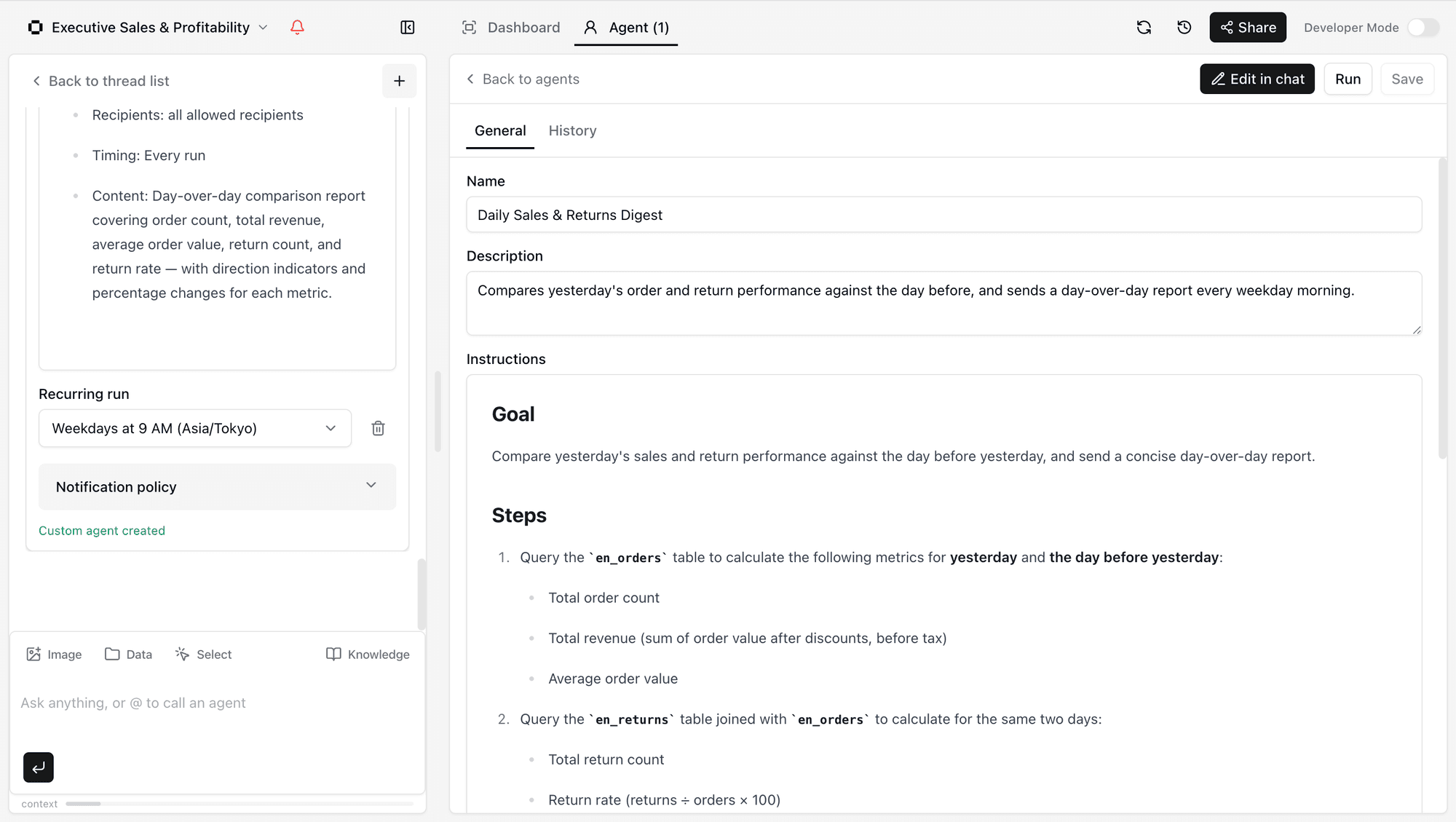
Once all settings are confirmed, Squadbase generates the agent configuration based on your input. This includes a name, a short description, and a structured set of instructions that defines the agent's goal, the steps it will follow to analyze your data, and its notification policy.
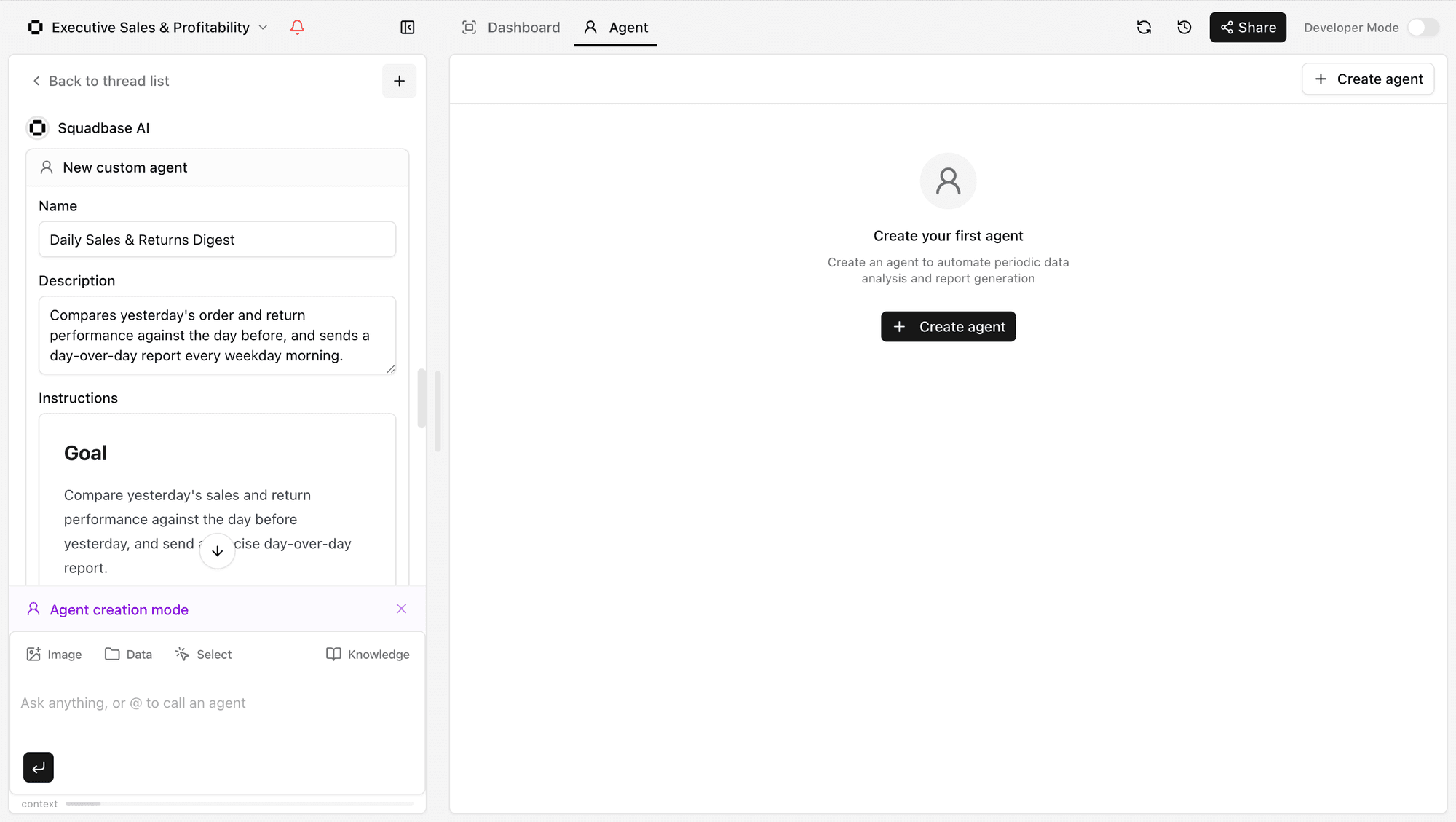
Review the configuration and edit any field if needed, then create the agent.
6. Run and manage the agent
The new agent appears in the Agent tab. From here you can:
- Edit — modify the agent's instructions, notification settings, or schedule
- Run — trigger the agent immediately without waiting for the next scheduled run
- History — view past execution results
When the agent completes a run, the report is delivered automatically to the configured email addresses and/or messaging channels.