Shift Your Monthly GA4 Reporting from Data Busywork to Actionable Insight

"I spend hours every month just compiling GA4 data." "I'm producing reports, but I never have time to include improvement recommendations."
Sound familiar?
The most valuable part of any report is the analysis — interpreting data to inform decisions and propose next steps. But in practice, extracting data from GA4, copying it into spreadsheets, building charts, and formatting everything eats up hours every month. By the time you get to the analysis, you're out of time and energy. This is a reality for many marketers.
In this article, we'll show how Squadbase can streamline your GA4 reporting workflow, freeing up time for the work that actually matters — analysis and insight.
The Problem with Existing Tools: Great at Visualization, but That's Where It Ends
There's no shortage of tools for visualizing GA4 data — GA4's built-in dashboards, Looker Studio, Excel, Google Sheets. When it comes to making charts, you have plenty of options.
But regardless of which tool you use, two challenges remain.
Changing Perspectives or Making Adjustments Is Time-Consuming
Every time a manager or client asks you to "switch from bounce rate to engagement rate" or "put the KPI summary at the top and the detail tables below," you're back in the BI tool adjusting filters, or rewriting spreadsheet formulas. BI tools require expertise to configure, and spreadsheet formatting tends to become dependent on specific individuals. It's hard to reach a state where you can casually accommodate a request to "look at the data a little differently."
Analysis and Insights Have to Be Written from Scratch Every Time
"Sessions increased 15% compared to last month" — you can see that from the chart. But figuring out why they increased, what happens if the trend continues, and what to do next is a task that no existing tool handles. After spending all your time on aggregation and chart-building, you still have to write your analysis from a blank page every month. This is the fundamental reason reporting stays stuck as mere "busywork."
What Changes with Squadbase
The visualization tools exist. But "flexibly changing perspectives" and "deriving analysis from data" are not covered by existing solutions. As long as these two gaps remain manual, reporting can never move beyond busywork.
Squadbase addresses these challenges that existing tools couldn't solve, bringing the following changes.
Let AI Handle Aggregation and Dashboard Creation
Trend charts for sessions, users, and pageviews; page-level performance tables — things you used to build manually can now be completed with a single instruction to AI.
Just Say "Show It Like This" and the Dashboard Changes
"Filter to the top 50 pages." "Show only the last 3 months." "Add a cross-tabulation by traffic channel and device type." Changes that would require learning BI tool settings or understanding SQL, or rebuilding pivot tables in a spreadsheet, can now be done entirely through chat.
AI Even Drafts the Analysis for You
AI reads the data used in the dashboard and outputs suggestions — improvement points and observations on trend changes — as comments. Starting from a draft versus starting from a blank page makes an enormous difference in both the time required and the depth of your analysis.
How Monthly Reporting Changes After Adopting Squadbase
Let's walk through how the workflow changes for a marketing professional who creates GA4 reports every month.
For details on connecting to GA4, see the following page:
Setup: Build the Dashboard "Template"
Previously, at the start of every month, you'd open GA4, export data, paste it into a spreadsheet, create charts, and format everything — repeating this entire process each time.
With Squadbase, you build this "template" just once, together with AI.
After connecting GA4, type something like "Show me a chart of sessions, users, and pageviews over the past 6 months" in the editor's chat field. AI retrieves the data from GA4 and automatically generates a dashboard visualizing monthly trends. Emerging patterns become visible at a glance on the chart.
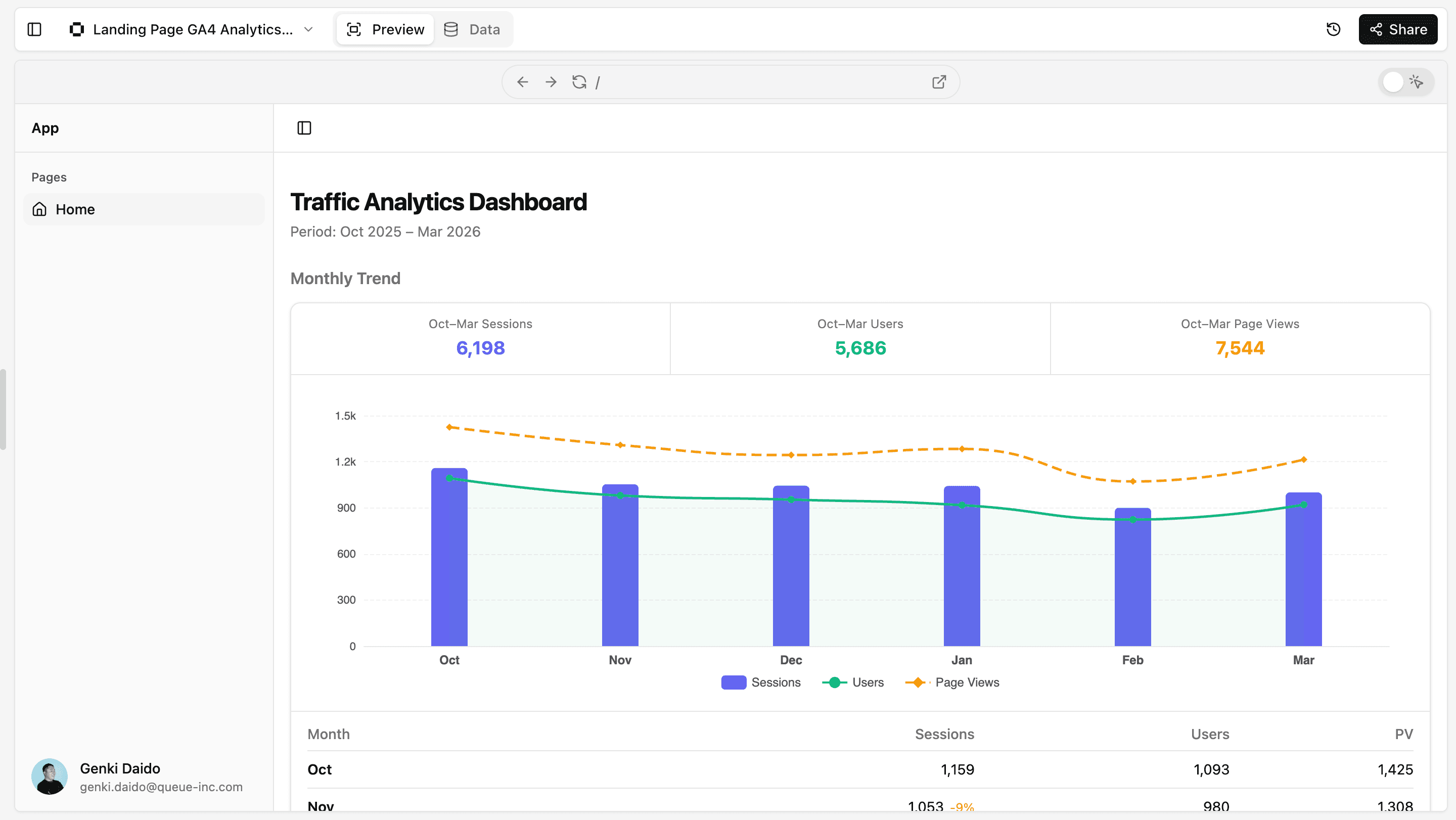
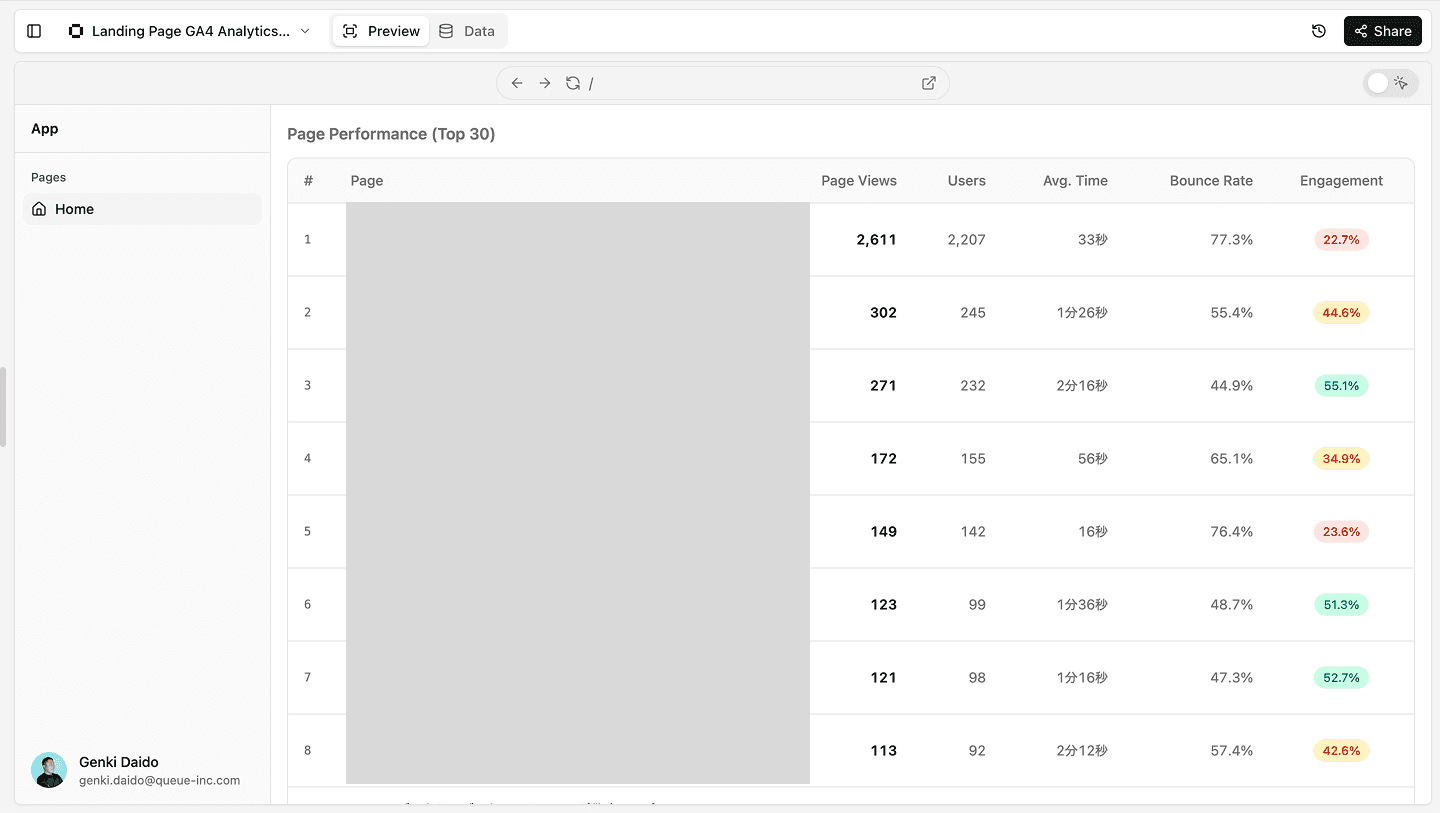
Next, say "Add page-level performance too, showing the top 30 pages," and a table listing performance by page title is added to the dashboard. What used to require repeatedly switching between GA4 screens and copying data is now done with a single sentence. You can instantly see which pages are driving traffic and which are underperforming.
Then, ask "Comment on the improvement points you can identify from this data," and AI reads the dashboard data and generates a draft analysis. For example, you might get insights like "Page X has high sessions but a low engagement rate — reviewing the content flow could yield improvements" or "The share of mobile traffic has been trending upward over the past 2 months — consider optimizing the UI for mobile."
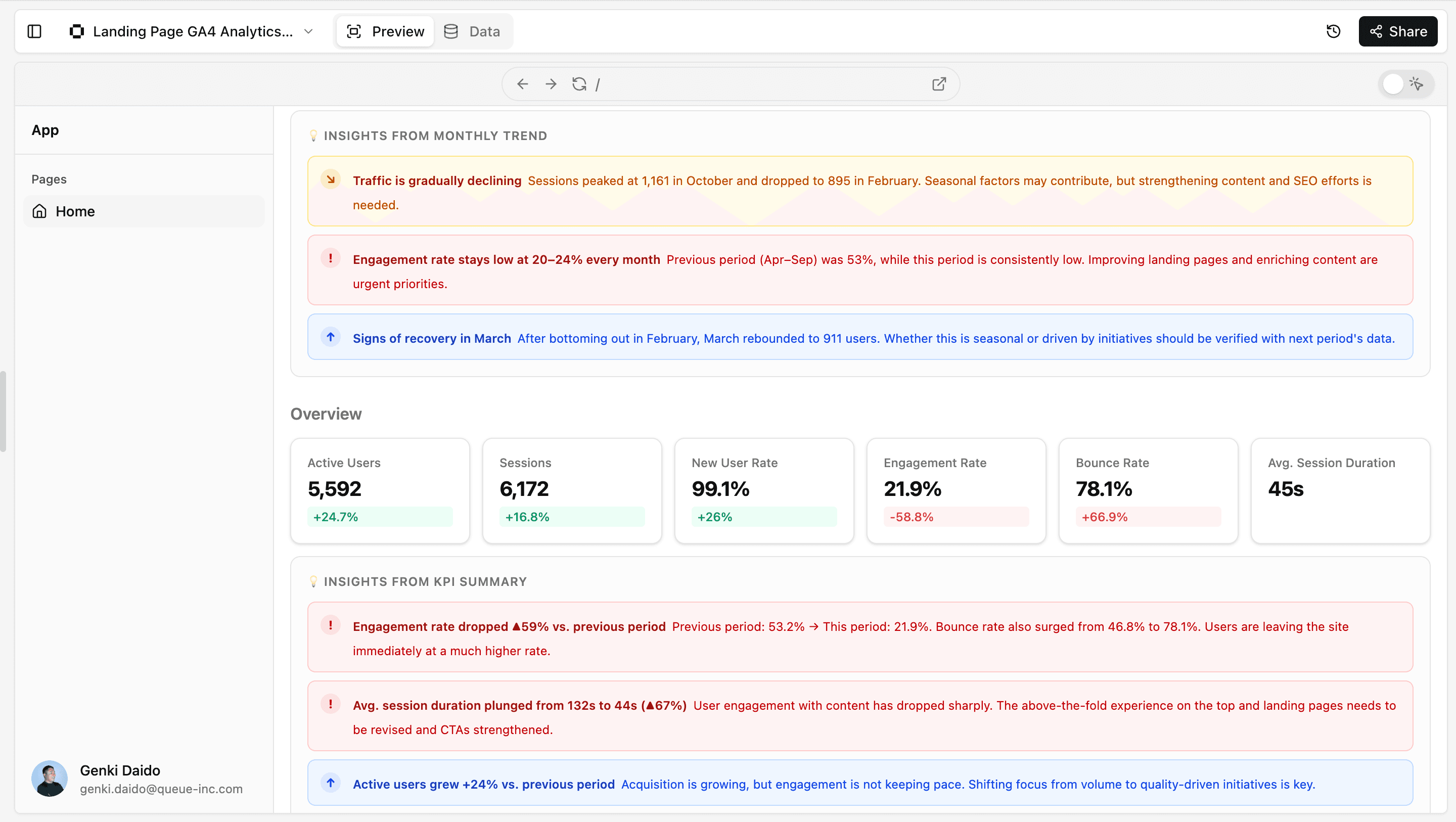
Using this as a base, add your own context — recent initiatives, business background — and the analysis section of your report is complete.
With practice, you can finish all of this in about 15–20 minutes. A process that used to take hours is significantly shortened, even in the first month.
Ongoing: Just "Update → Review → Share"
Once the dashboard template is in place, the monthly workflow becomes even simpler.
Updating data takes just one button click. This refresh button can also be added through chat.
Press the update button, and the dashboard you built last month is redrawn with the latest data. New month's data is added to the trend charts, and the page-level table numbers are refreshed. Changes from the previous month are visible at a glance, so understanding "what changed compared to last month" takes no time at all.
Have AI draft the analysis again, review and add your own insights, then share the link — and you're done.
When Someone Says "I Want to See It from a Different Angle"
It's not uncommon to get follow-up requests after submitting a report — "I want to see it by traffic channel instead of by page" or "Can you break it down by new vs. returning users?"
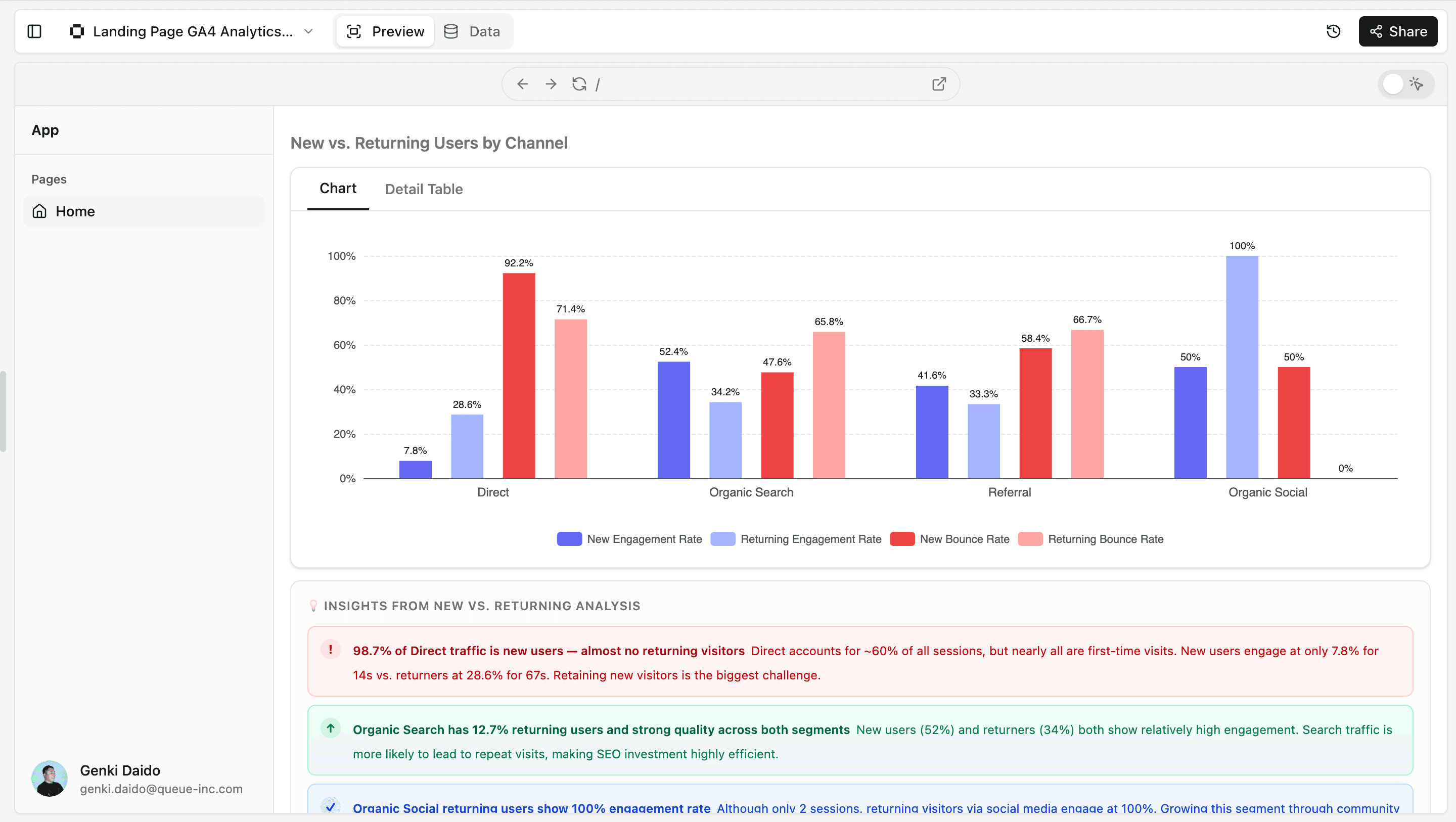
Previously, you'd have to open the BI tool's settings and reconfigure the layout, or rebuild a pivot table in a spreadsheet. With Squadbase, just type "Analyze by traffic channel instead of by page, and break it down by new and returning users" in the chat field. Within seconds, the dashboard updates to show a bar chart comparing engagement rates and bounce rates for new and returning users across channels like Direct, Organic Search, Referral, and Organic Social.
Sharing with Your Team
Access permissions can be managed at the project level. You can assign edit and view permissions separately, making it easy to set up workflows like "marketing team can edit, executives can only view."
For details on permission management, see the following page:
Additionally, viewers are free on Squadbase. Members who only need to view the dashboard incur no cost, so you can share freely with your entire team.