Connect GA4 Data to Squadbase via BigQuery. How to Build a Dashboard in 30 Minutes

Introduction
Many of you working with GA data analysis are likely using GA's native dashboards or Looker integrations for your analysis.
However, the data available through GA's API has limitations.
For example, the following types of data cannot be retrieved via the API:
- Tracking individual user behavior using raw IDs (user_pseudo_id)
- Retroactive analysis of unregistered custom parameters
In particular, tracking user behavior by ID is something many people want to do but find themselves unable to — a common frustration.
In this article, we'll show you how to transfer GA data to BigQuery and easily perform user behavior analysis without writing any SQL.
Transferring GA Data to BigQuery
GCP-Side Configuration
First, prepare a container (project) to receive the data.
-
Go to the Google Cloud Console.
-
Create a project: Select "New Project" from the project selection menu at the top of the screen (you can also use an existing one if available).
-
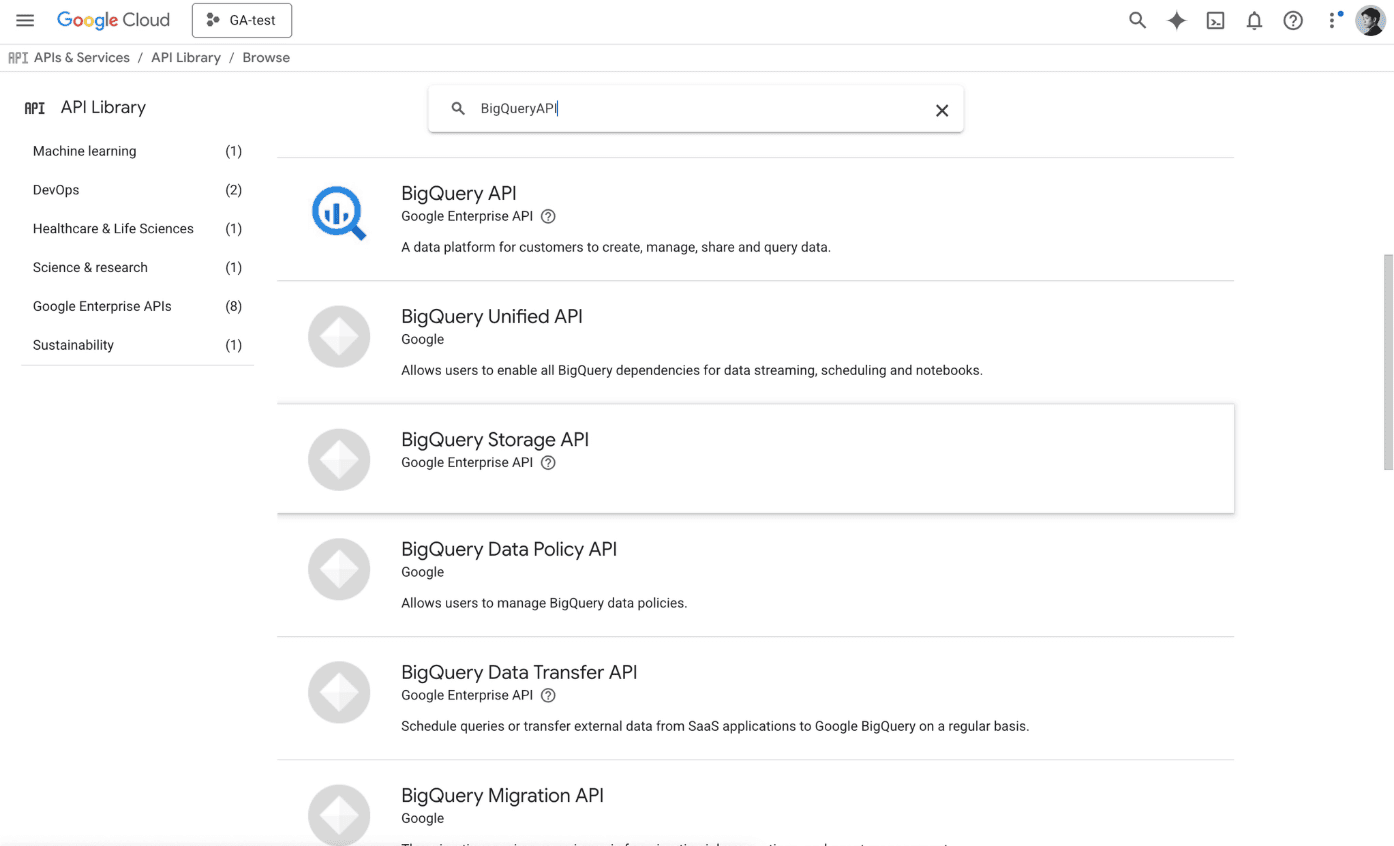
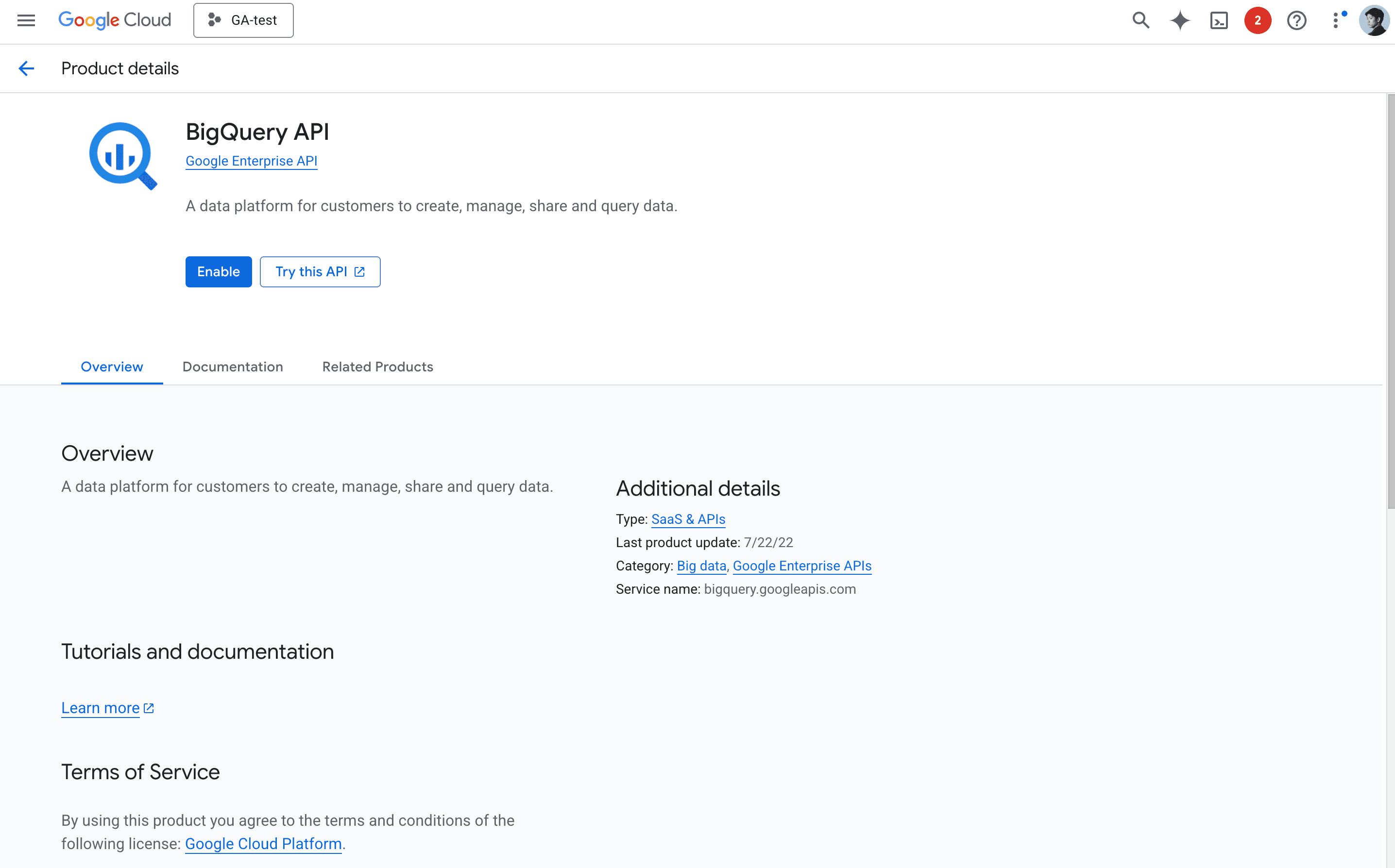
Enable the BigQuery API: From the menu, go to "APIs & Services" > "Library," search for "BigQuery API," and click "Enable."
-
Verify permissions:
- Make sure that the user performing the setup (you) has "Owner" or "BigQuery Admin" permissions for the project.
Linking Configuration in the GA4 Admin Panel
Next, tell GA4 to "send data to this project."
-
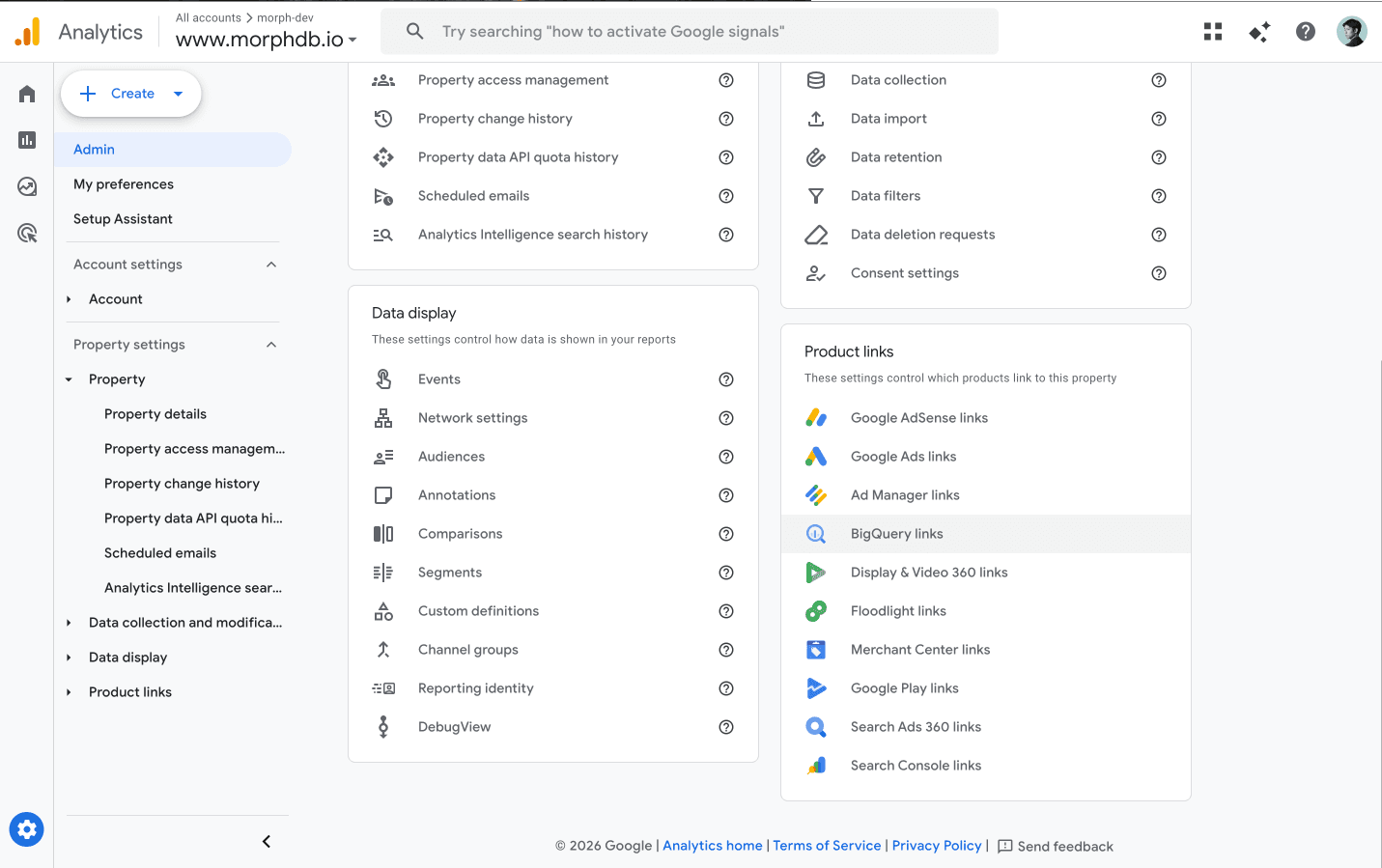
Open GA4 "Admin": Click the gear icon in the bottom left, and select the BigQuery link under Product Links.
-
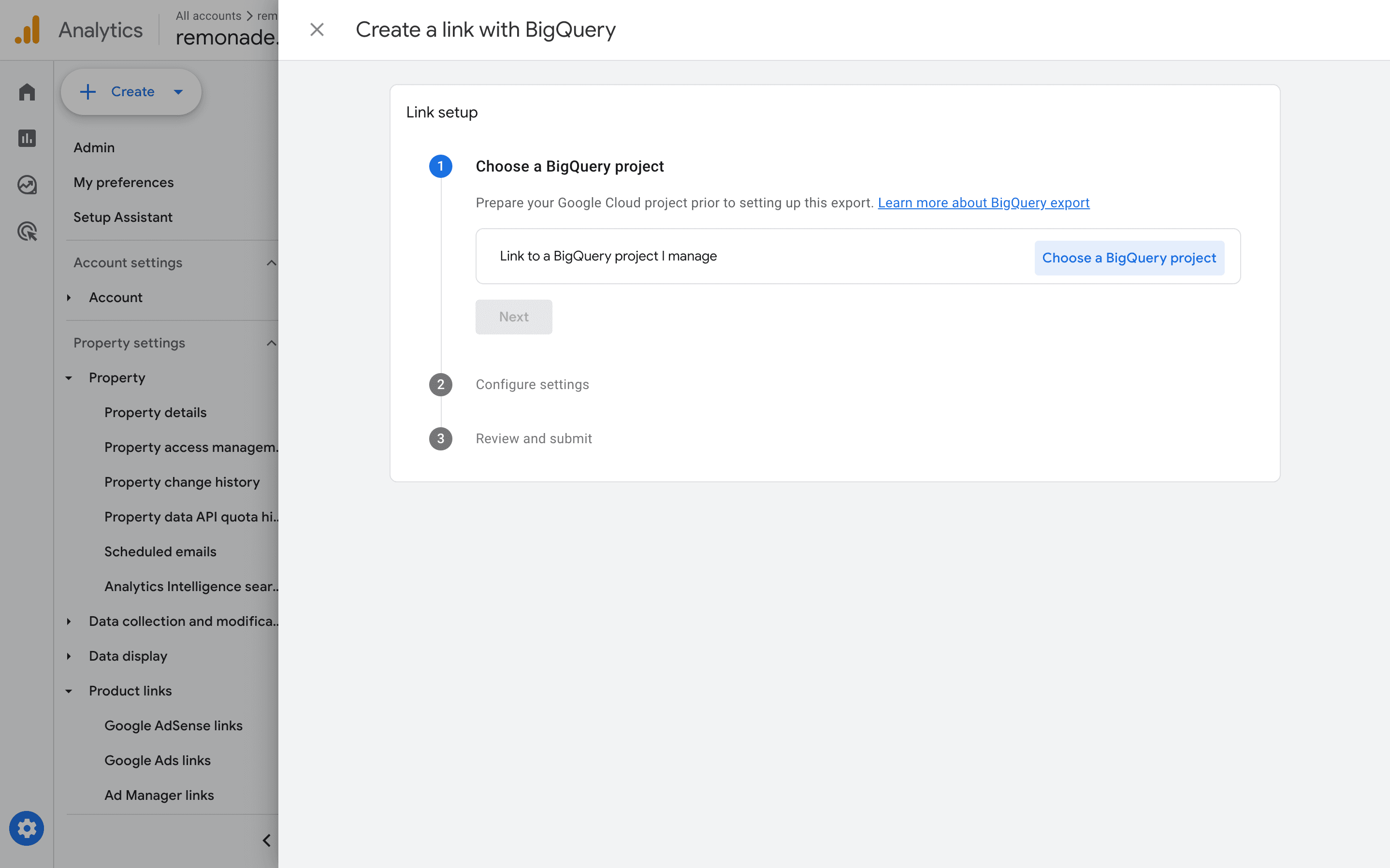
Create a link: Click the [Link] button and select the Google Cloud project you created (or selected) in Step 1.
-
Set the data location: Choose where to store the data.
-
Select export settings:
- Frequency:
- Daily: Data from the previous day is transferred once per day (free tier allows up to 1 million events per day).
- Streaming: Near real-time transfer within minutes. Note: Minor data transfer costs apply.
- Data type: Check "Events."
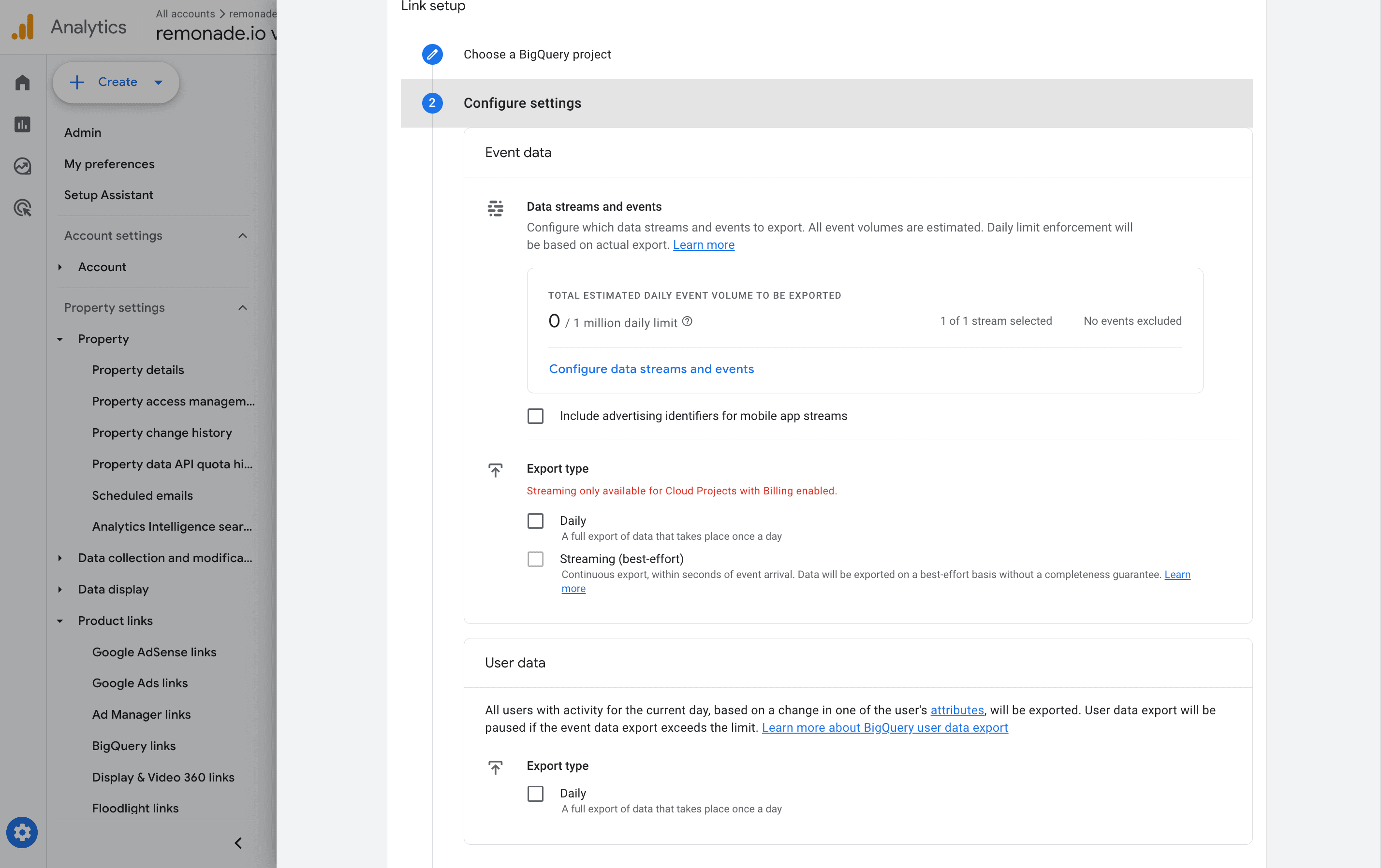
- Frequency:
-
Submit: Review the details and click "Submit" to complete the setup.
Retrieve BigQuery connection information
Required Information
- Google Cloud Service Account JSON A file containing authentication credentials associated with a Google Cloud service account. It acts as an "ID card" when external applications access BigQuery, and contains sensitive information such as private keys.
- Google Cloud Project ID A globally unique identifier for resources created on Google Cloud. It is essential for specifying which project's data and computing resources to use when performing BigQuery operations.
How to Obtain Them
Google Cloud Service Account JSON
Issue a Google Service Account for integration.
In any Project on Google Cloud Platform, select "Service Accounts" from the menu.
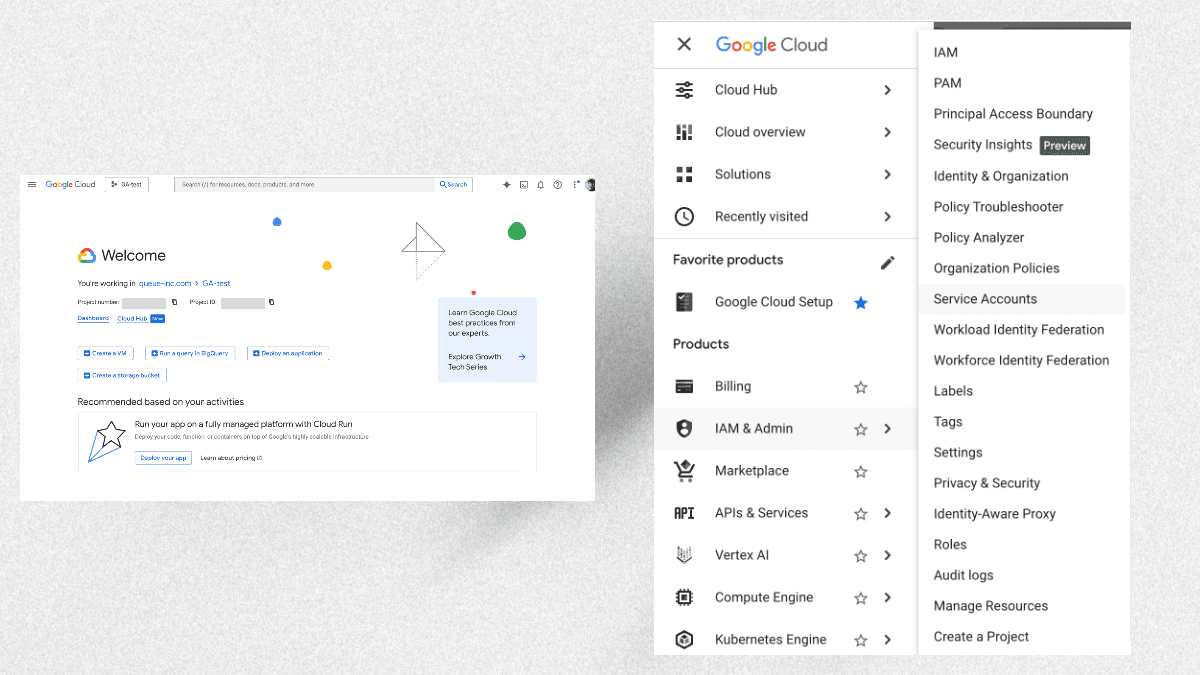
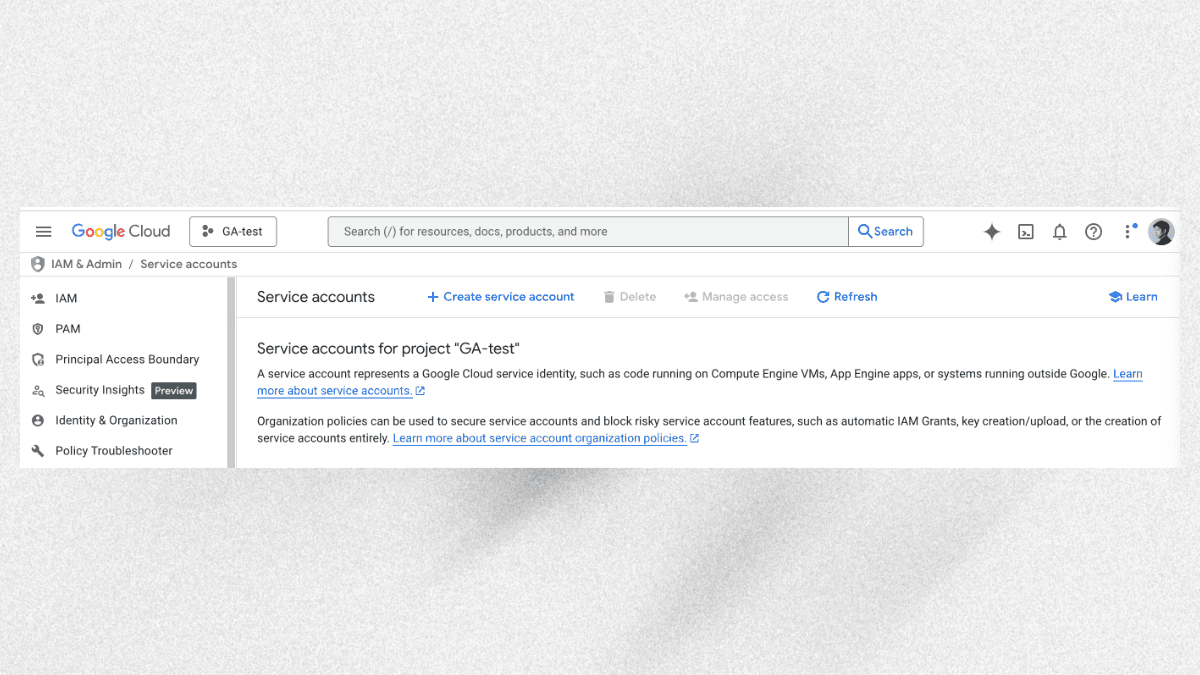
After clicking on Service Accounts, click + Create service account at the top of the screen.
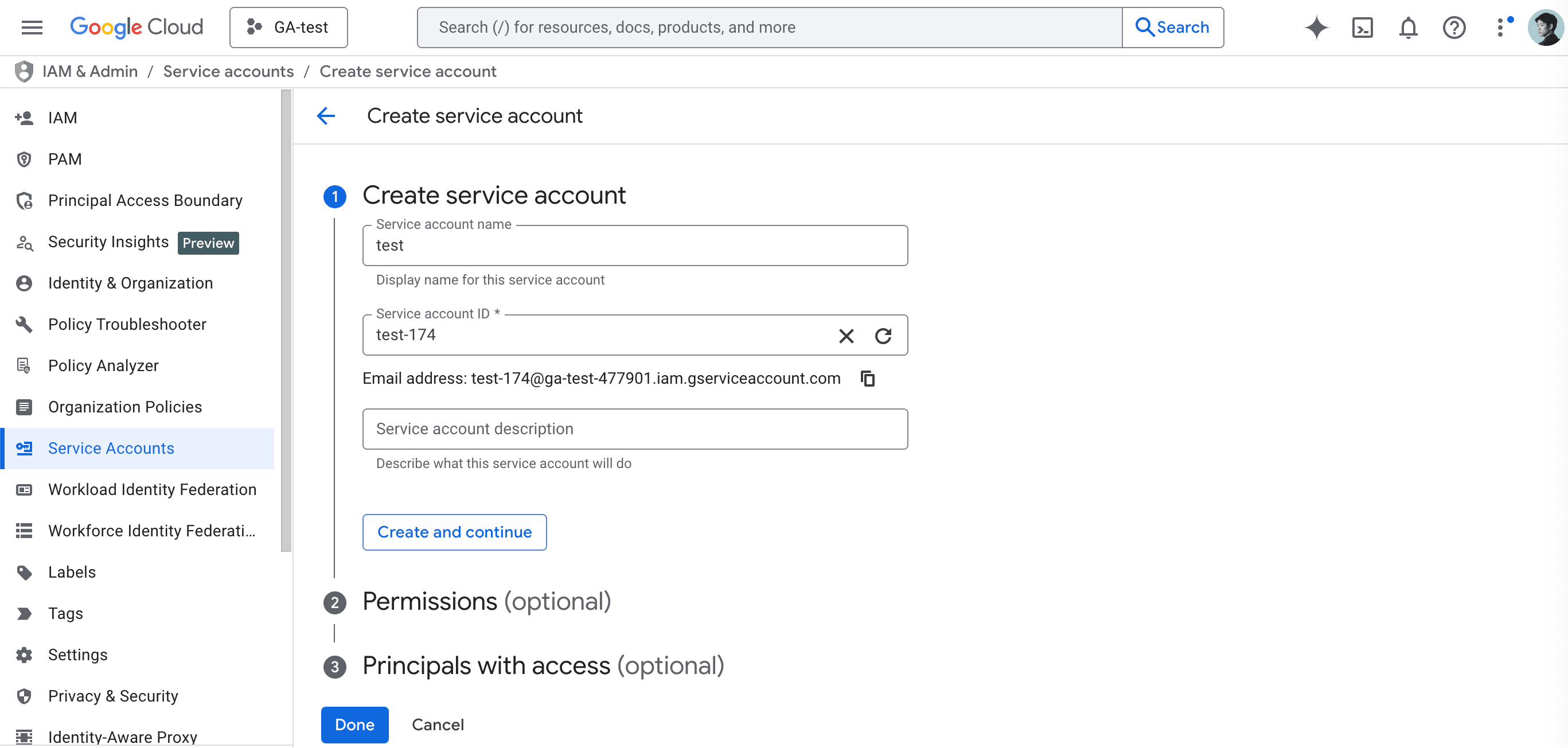
Enter the information required to create a service account:
- Service account name: Give it a descriptive name so you can identify its purpose.
- Service account ID: This is auto-populated based on the service account name.
- Service account description: Optionally add a description for this service account.
Click "Create and continue" to create the service account.
Next, grant Permissions.
The permissions differ depending on whether you want to query data or also edit it:
- To query data (read-only): BigQuery Job User + BigQuery Viewer
- To edit data (write/update): BigQuery Job User + BigQuery Editor
Once added, click "Done."
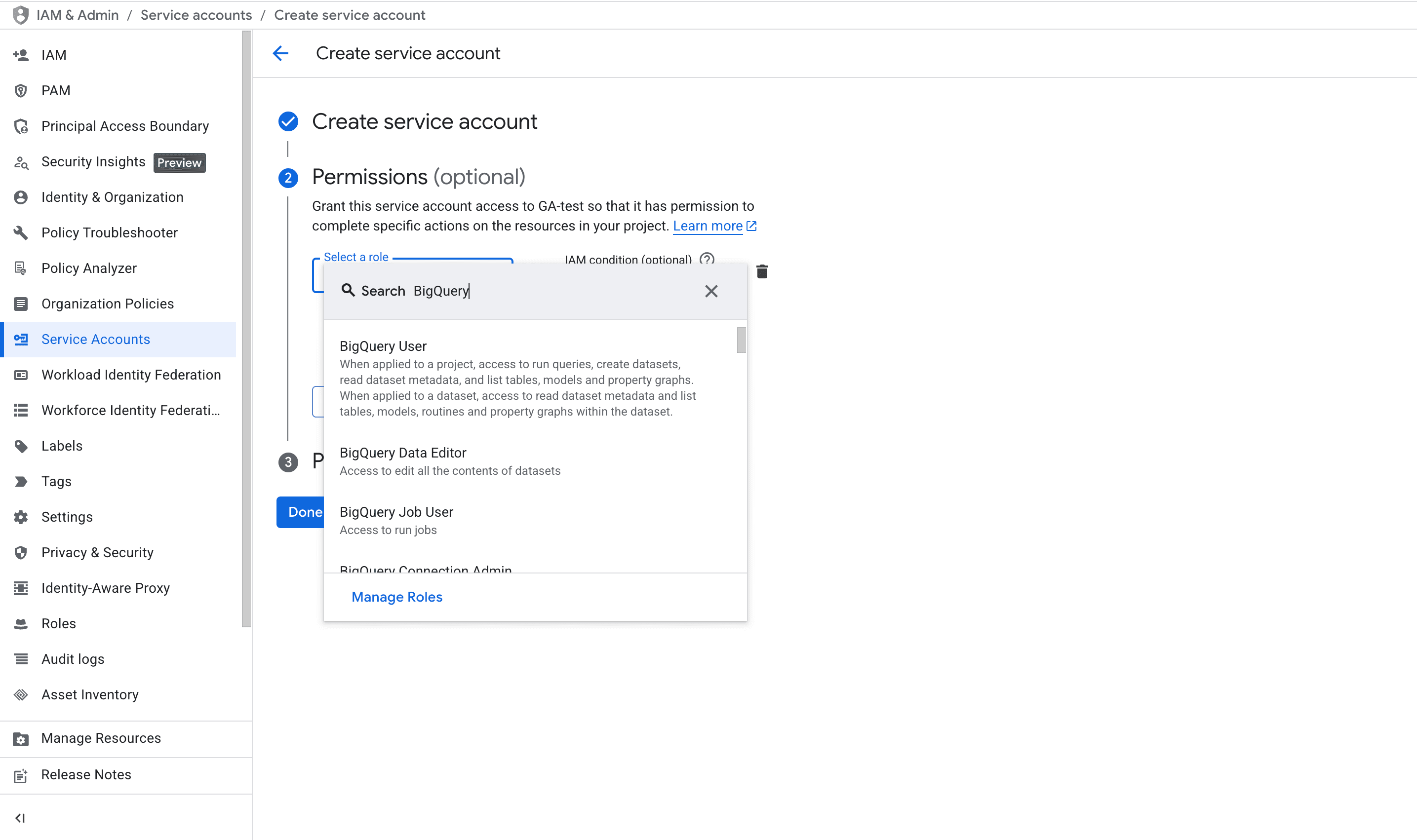
This completes the service account creation.
Next, generate a key.
From the service account list, click the email address of the service account you created.
Select the "Keys" tab, choose Add key > JSON, and click the "Create" button.
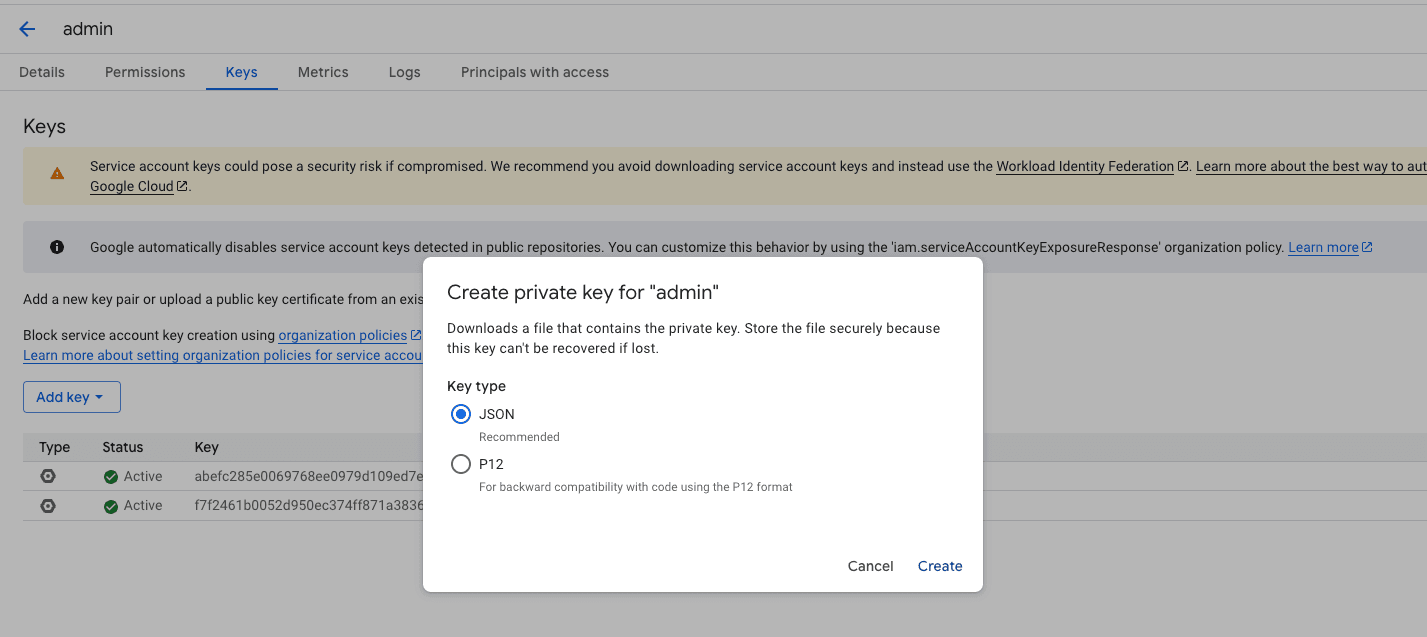
A JSON file will be downloaded to your PC. Please upload this JSON file in a later step.
Google Cloud Project ID
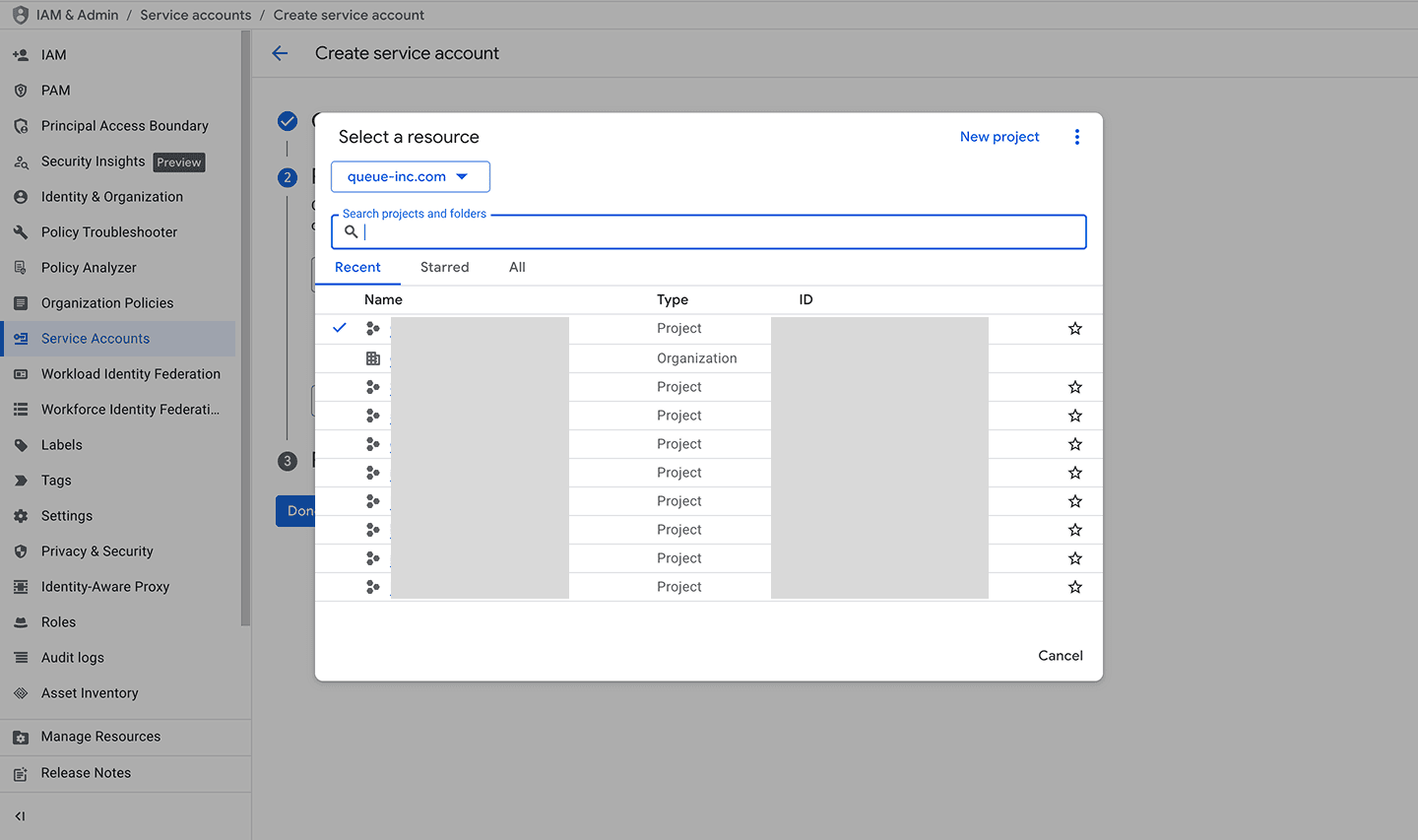
Click the project name to the right of the Google Cloud logo in the upper left of the console screen.
In the dialog that opens, you'll see a list with names and IDs displayed side by side.
The alphanumeric string in the ID column (e.g., my-awesome-project-12345) is the Project ID needed for integration. Make sure to select the Project ID of the project where the BigQuery you want to connect is located.
Performing Data Analysis with Squadbase
Using the connection details obtained in the steps above, you can perform AI-powered analysis with Squadbase.
There are two ways to connect Squadbase with BigQuery: using a service account or using one-click OAuth authentication. For detailed connection steps and how to build dashboards and conduct analysis after connecting, see the article below.
Follow along to get started.
With Squadbase, simply connecting to BigQuery lets you go from natural language questions to SQL generation, visualization, and full dashboard creation — all in one environment. You can also freely customize the generated dashboard by adding metrics and more.
By routing data through BigQuery, you can visualize user behavior such as which pages users navigate between.

![[2026 Latest] Four Ways to Analyze GA4 Data with AI](/_next/image?url=https%3A%2F%2Fd8z0qzypa7wcr04r.public.blob.vercel-storage.com%2Fmedia%2Fblog%2Farticle-image-cycle10-1.png&w=3840&q=75)