How to analyse GA4 data with Squadbase

Introduction
"I set up GA4, but I can't find the data I need." "It takes me hours every month just to create reports."
Sound familiar?
Google Analytics 4 (GA4) is a powerful analytics tool, but its complexity often leads to a common frustration: "The data is there, but we can't put it to use." On the other hand, adopting a full-scale BI tool like Looker Studio or Tableau comes with a steep learning curve—leaving many teams stuck in a dilemma.
If that resonates with you, we'd like to introduce you to Squadbase.
With Squadbase, you can build a professional-grade dashboard in just 15 minutes—no technical expertise required. In this article, we'll walk you through the entire process, from connecting GA4 to completing your dashboard, step by step.
What Is Squadbase? The Benefits of Connecting It with GA4
Squadbase is an AI-powered, no-code dashboard creation tool. It integrates with a variety of data sources, including GA4, giving anyone the ability to visualize and analyze data with ease.
Benefits of Connecting GA4 with Squadbase
| Feature | Details |
|---|---|
| Setup | Completed through API integration alone. No SQL or complex configuration required |
| Speed | Build a dashboard in as little as 15 minutes using AI-generated suggestions |
| Easy Sharing | Share via URL and manage viewing permissions across your team seamlessly |
| Cost | Dramatically lower barrier to entry compared to full-featured BI tools |
Traditional BI tools typically require familiarity with tool-specific workflows and an understanding of SQL. With Squadbase, all you need is a Google account. From there, the AI suggests the optimal dashboard layout, so you can get started right away—even if you have no idea where to begin.
Prerequisites: What You'll Need
Let's walk through the specific steps for connecting your data.
First, there are a few things you'll need to set up on the Google side.
Creating a Google Service Account
You'll need to create a Google Service Account for the integration.
(A Google Service Account is a special type of account designed for systems—such as programs and applications—to access Google services, rather than for individual users.)
In Google Cloud Platform, navigate to any Project and select Service Accounts from the menu.
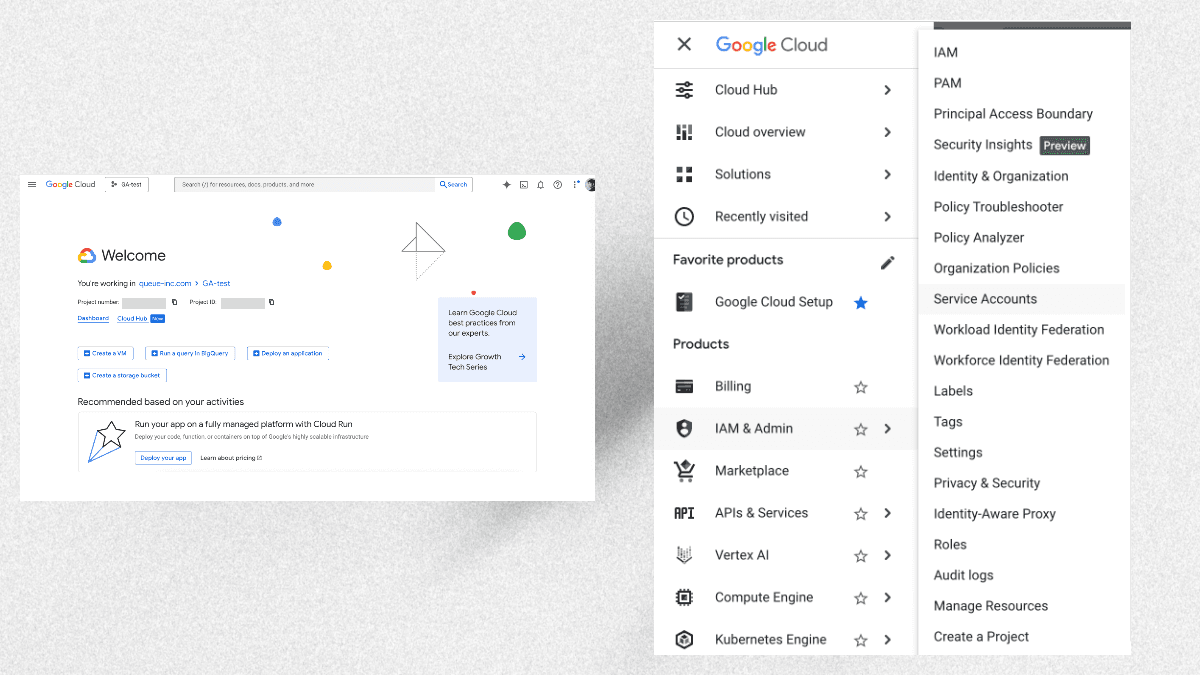
After clicking on Service Accounts, click + Create service account at the top of the screen.
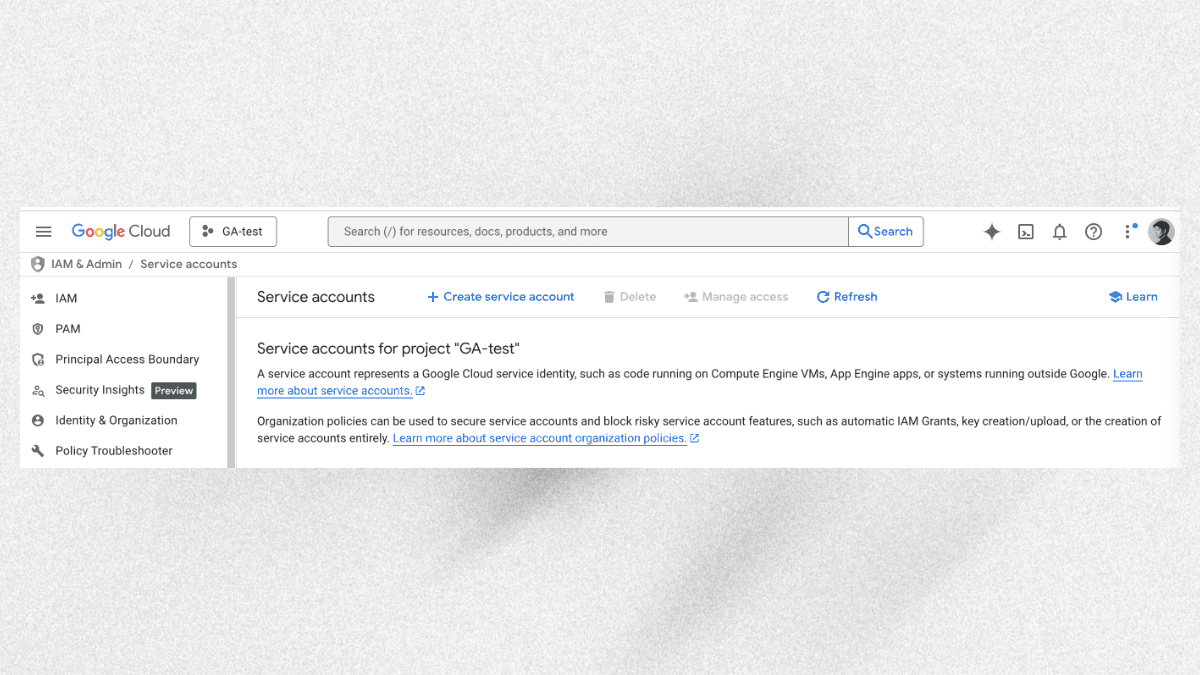
Enter the required information to create the service account:
- Service account name: Give it a descriptive name so you can easily identify its purpose.
- Service account ID: This will be auto-populated based on the service account name.
- Service account description: Optionally, add a description for this service account.
Click Create and continue to create the service account.
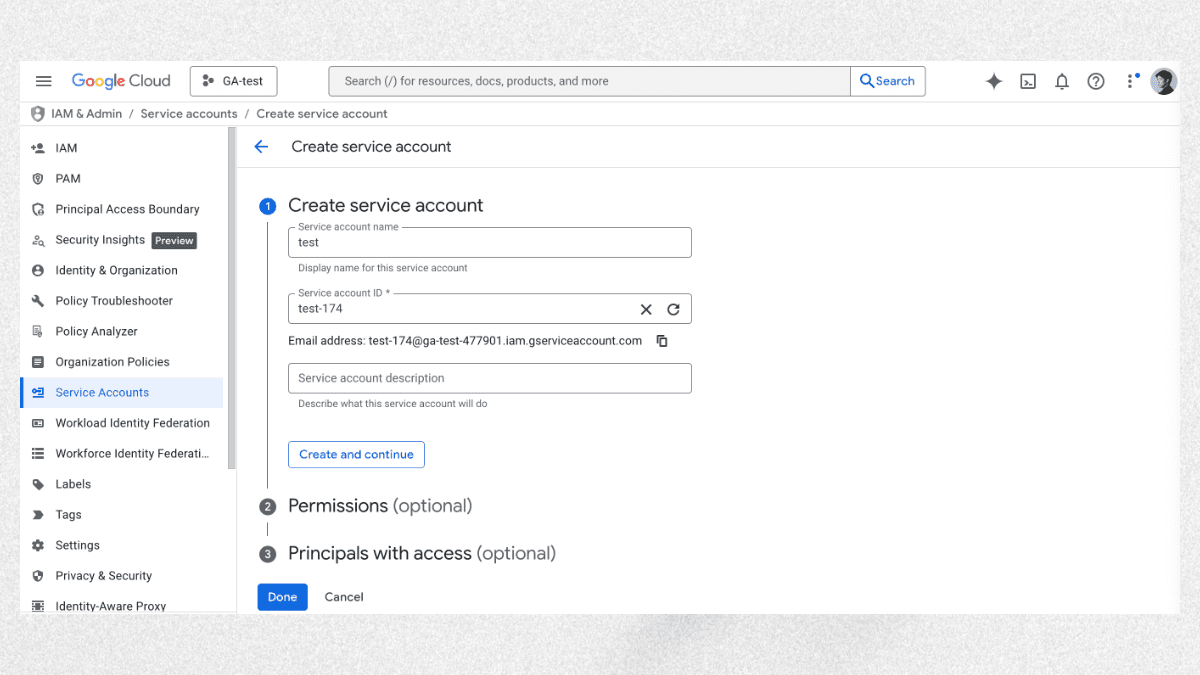
You don't need to configure anything for Permissions or Principals with access. (Service account permissions will be managed on the Google Analytics side.)
Next, you'll generate a key.
From the service account list, click the email address of the service account you just created.
Select the Keys tab, then click Add key > JSON and click the Create button.
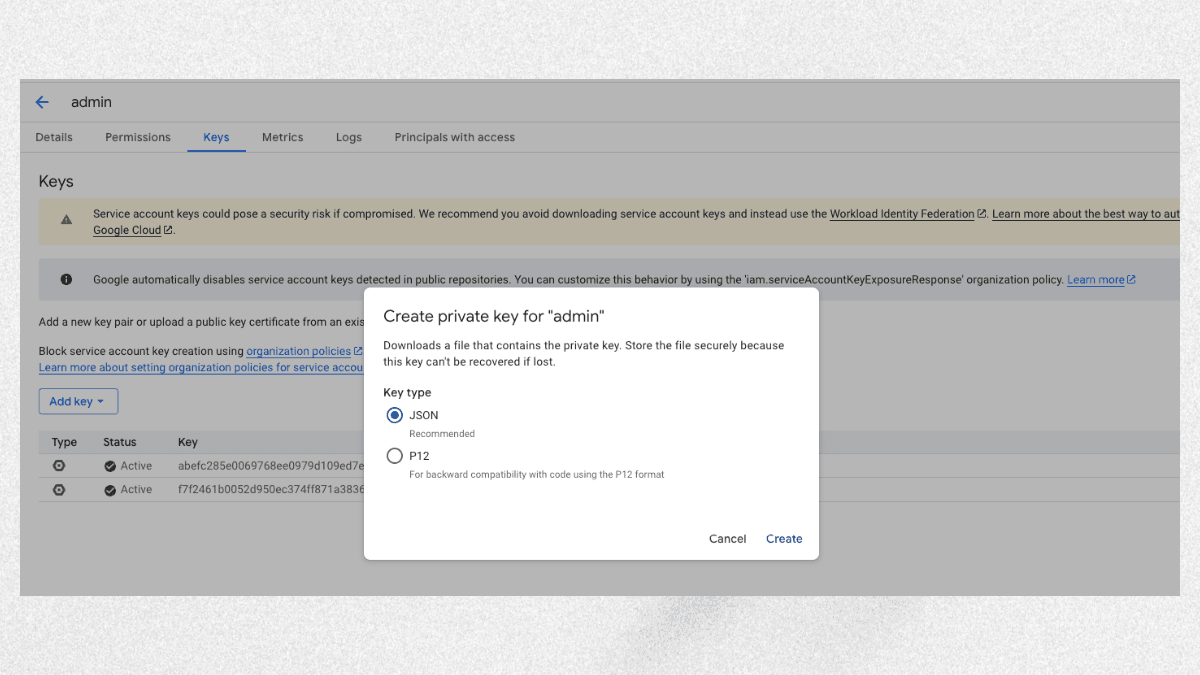
A JSON file will be downloaded to your computer. You'll need this file later when connecting to Squadbase.
Configuring Google Analytics
Next, configure the settings on the Google Analytics side.
Log in to the Google Analytics property you want to analyze.
Click the Admin button at the bottom of the menu, then navigate to Property > Property Access Management.
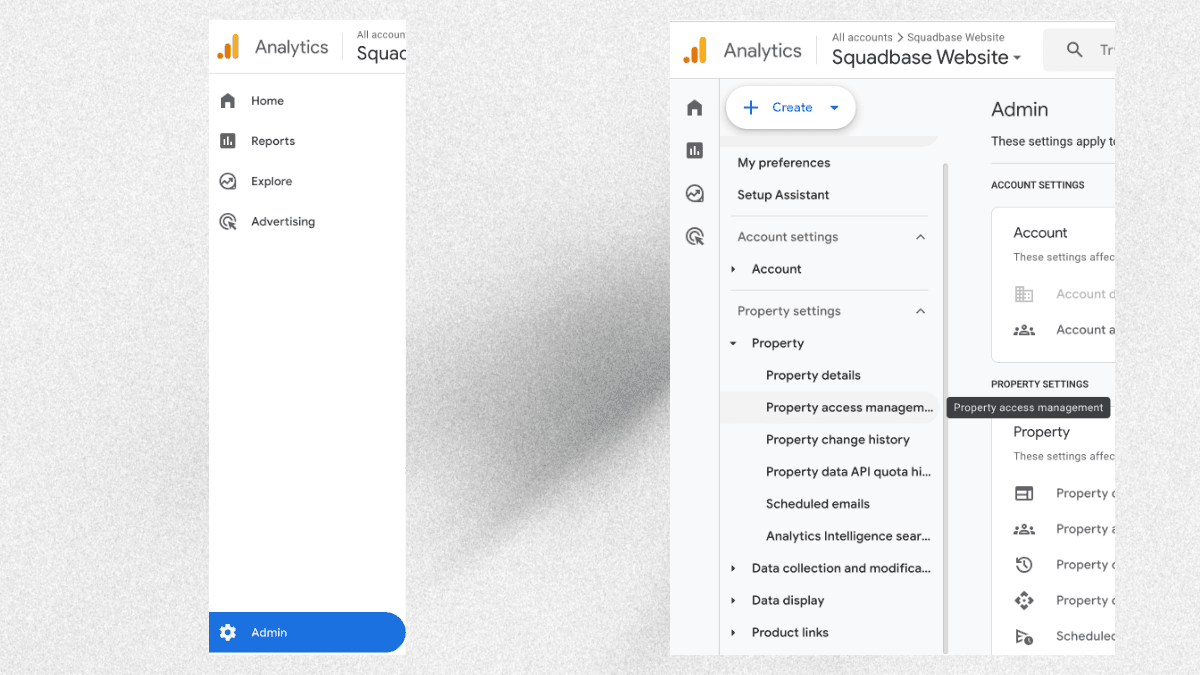
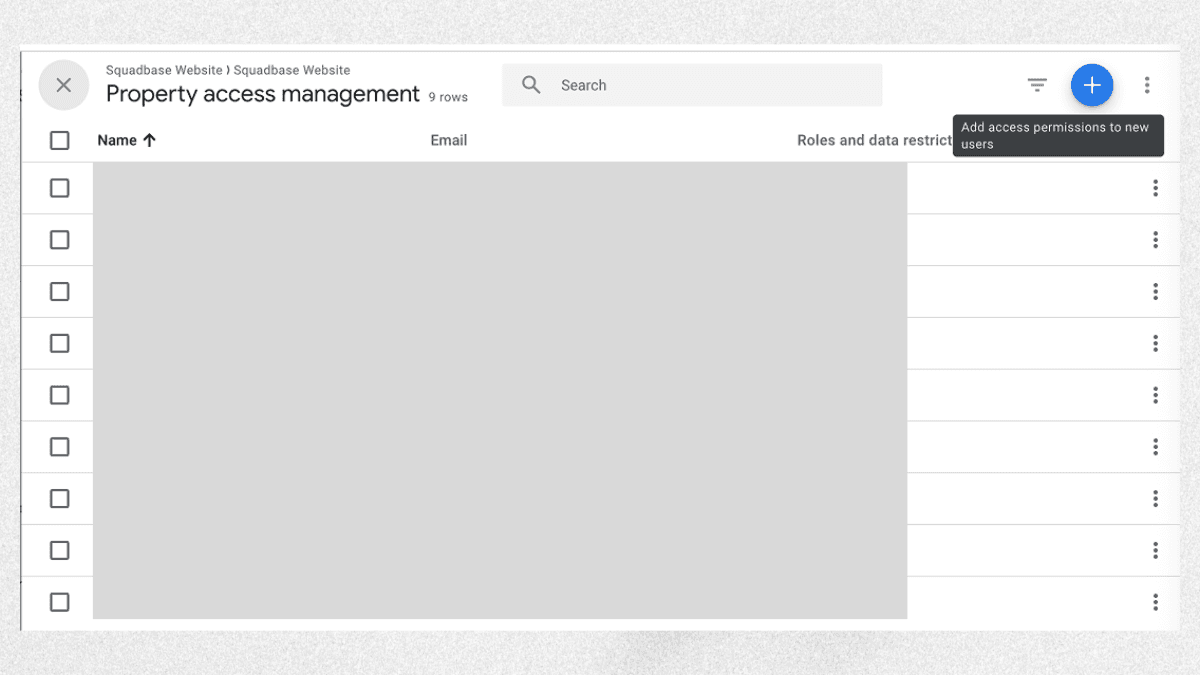
Click the + button in the upper right to add the service account you created to the GA property.
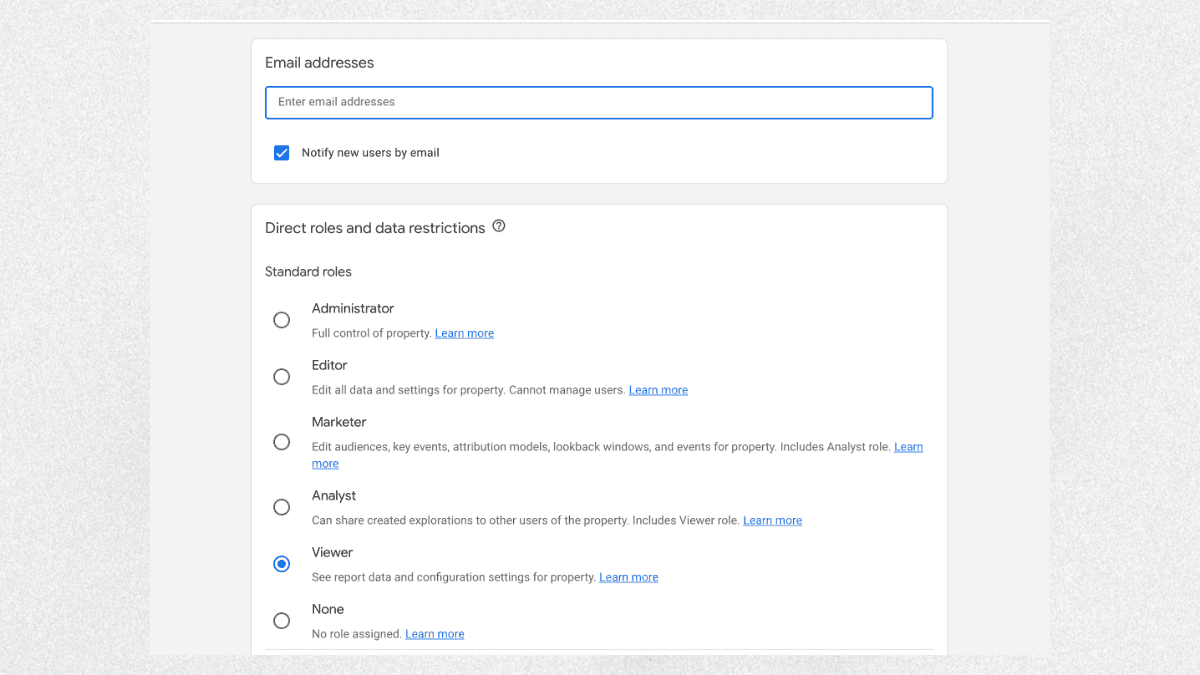
Enter the service account's email address in the Email field and set the permissions to Viewer. (We recommend using Viewer permissions, as Editor or higher permissions could allow data to be modified.)
That completes the Google-side setup.
Done in 15 Minutes! Four Steps to Build Your Dashboard
Now let's use the Google Service Account you've prepared to build a dashboard in Squadbase.
Step 1: Connect Squadbase with GA4 (Approx. 5 minutes)
Start by connecting your GA4 data to Squadbase.
Log in to Squadbase, create a project from "+ New," and select Google Analytics as the data source.
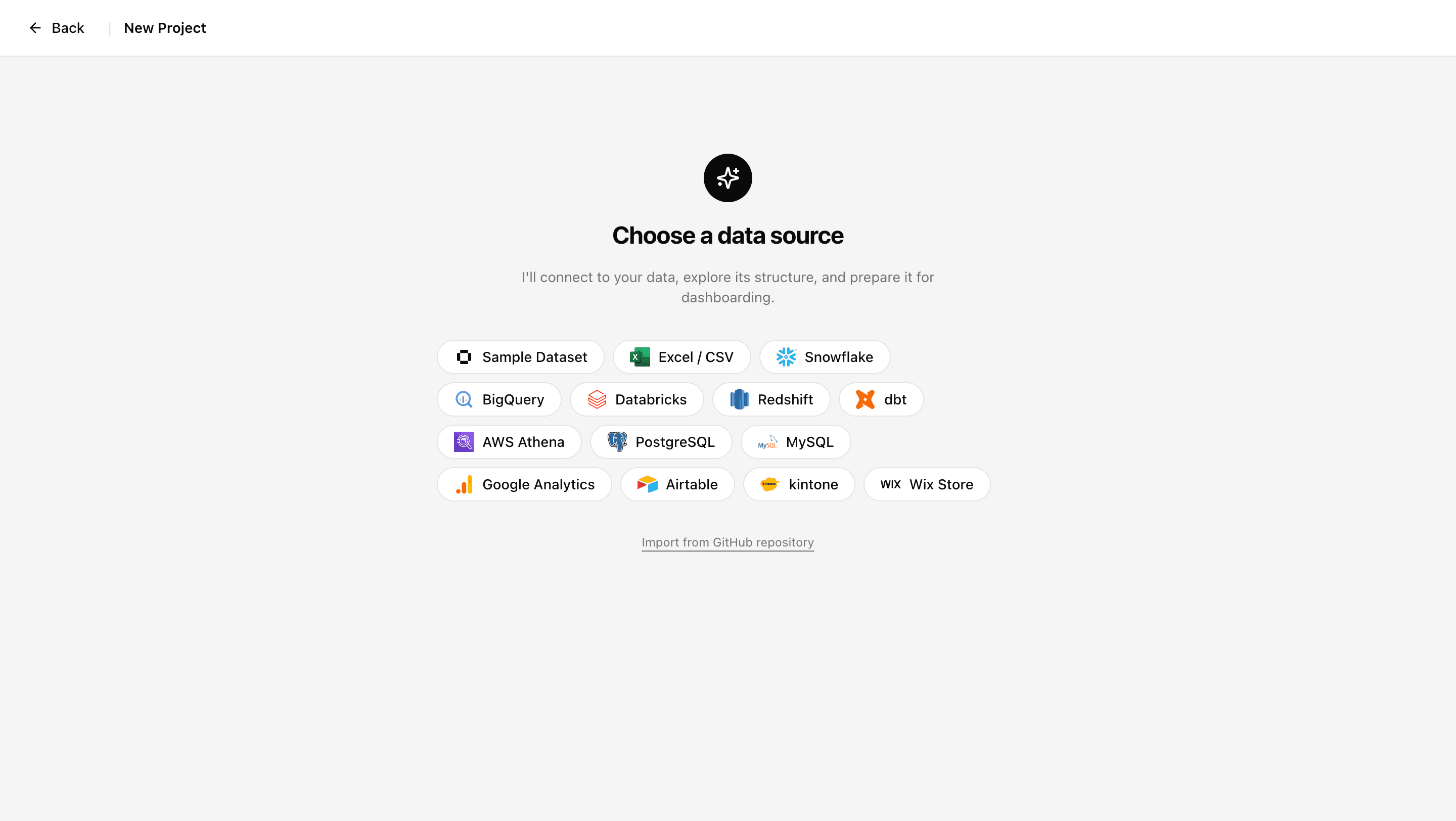
Next, you'll be prompted to enter a JSON file and Property ID. Upload the JSON file you downloaded when creating your service account and enter your GA Property ID.
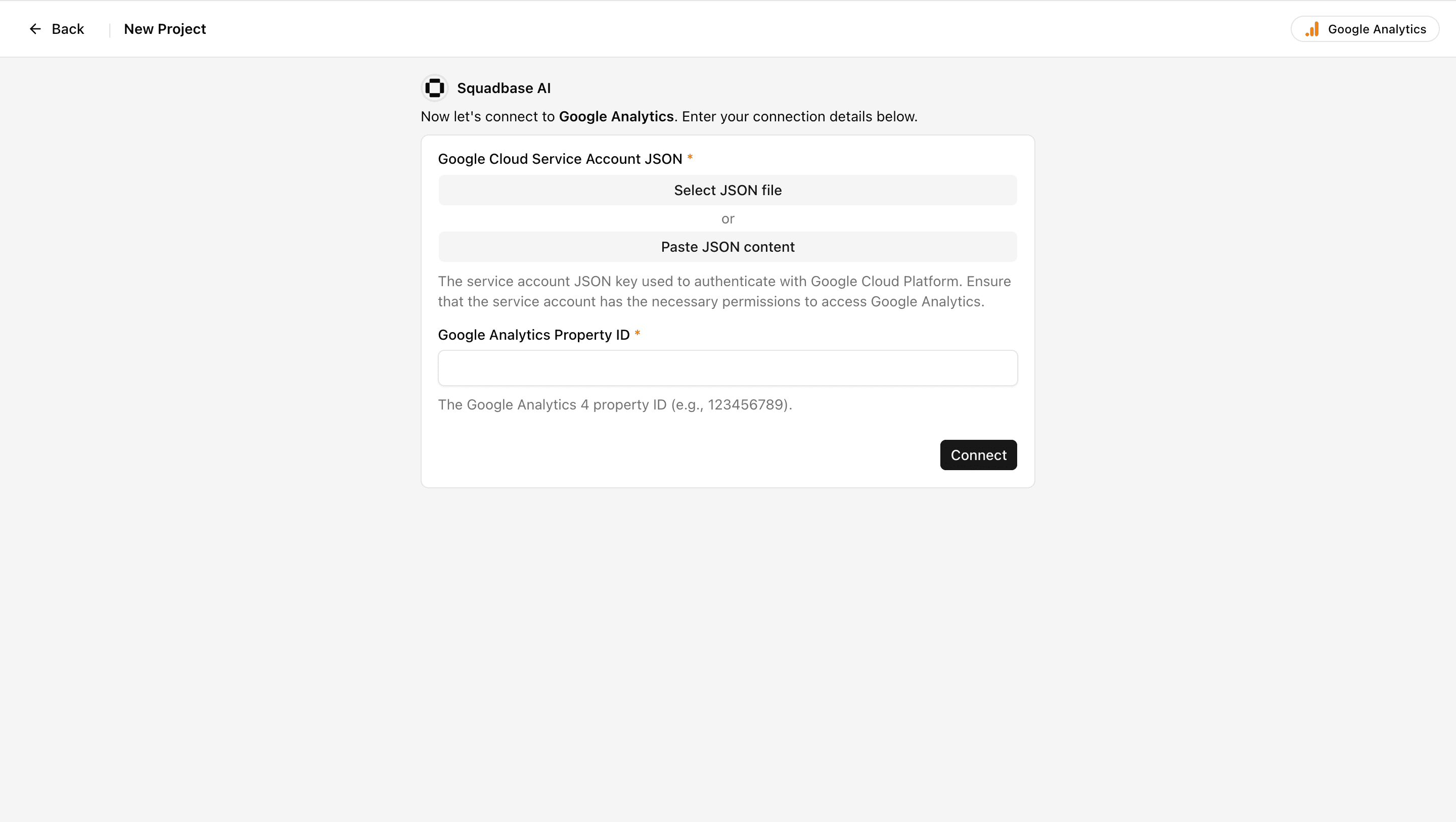
That's all it takes to complete the integration. No complex API setup or token management required.
Step 2: Select from AI-Generated Suggestions (Approx. 2 minutes)
Once the data source connection is complete, Squadbase's AI automatically analyzes your data structure.
When the analysis is done, you'll see suggestions for what kind of dashboard to create. Select one of the suggestions, or if you have a specific idea in mind, enter your own analysis instructions.
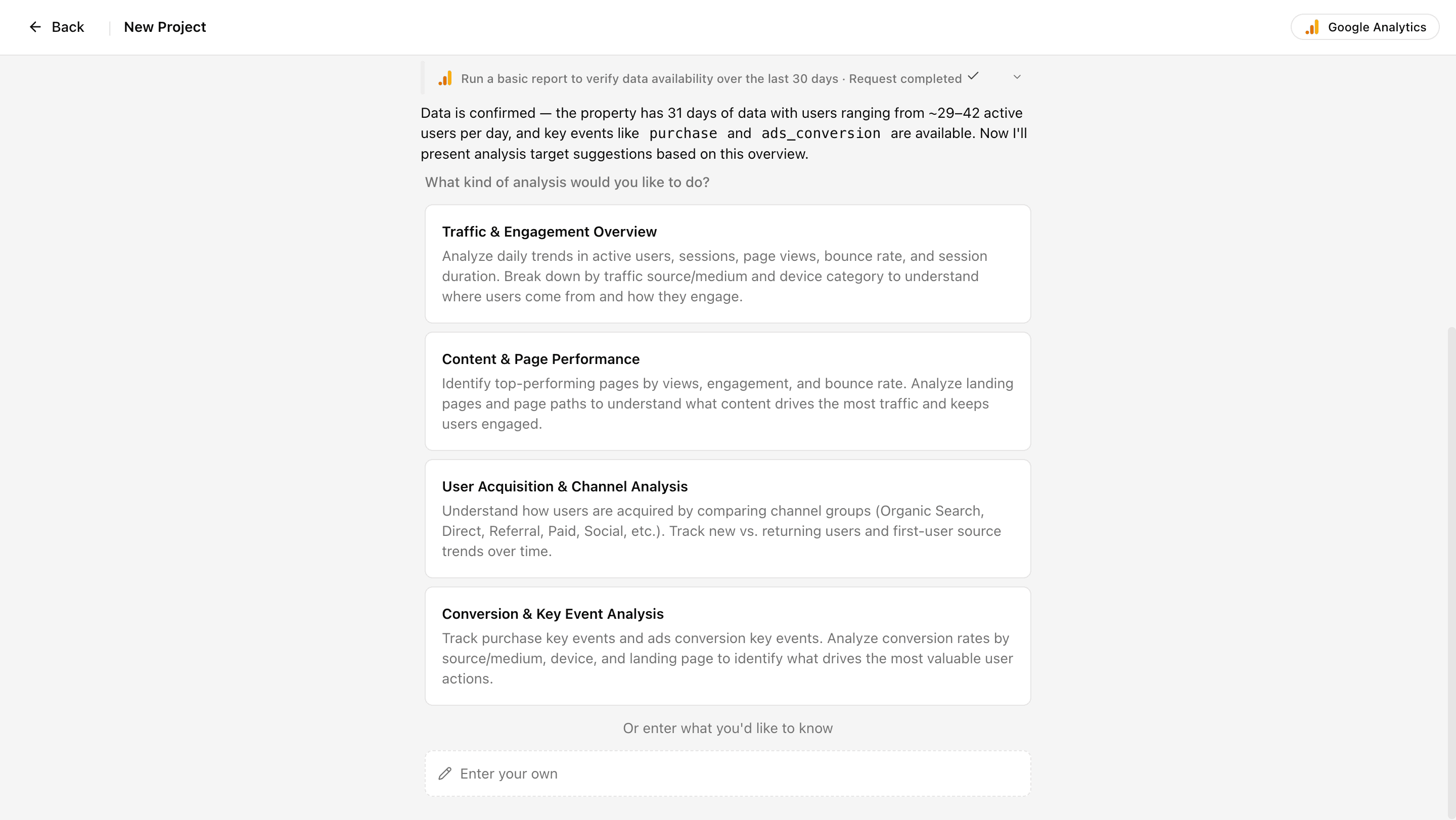
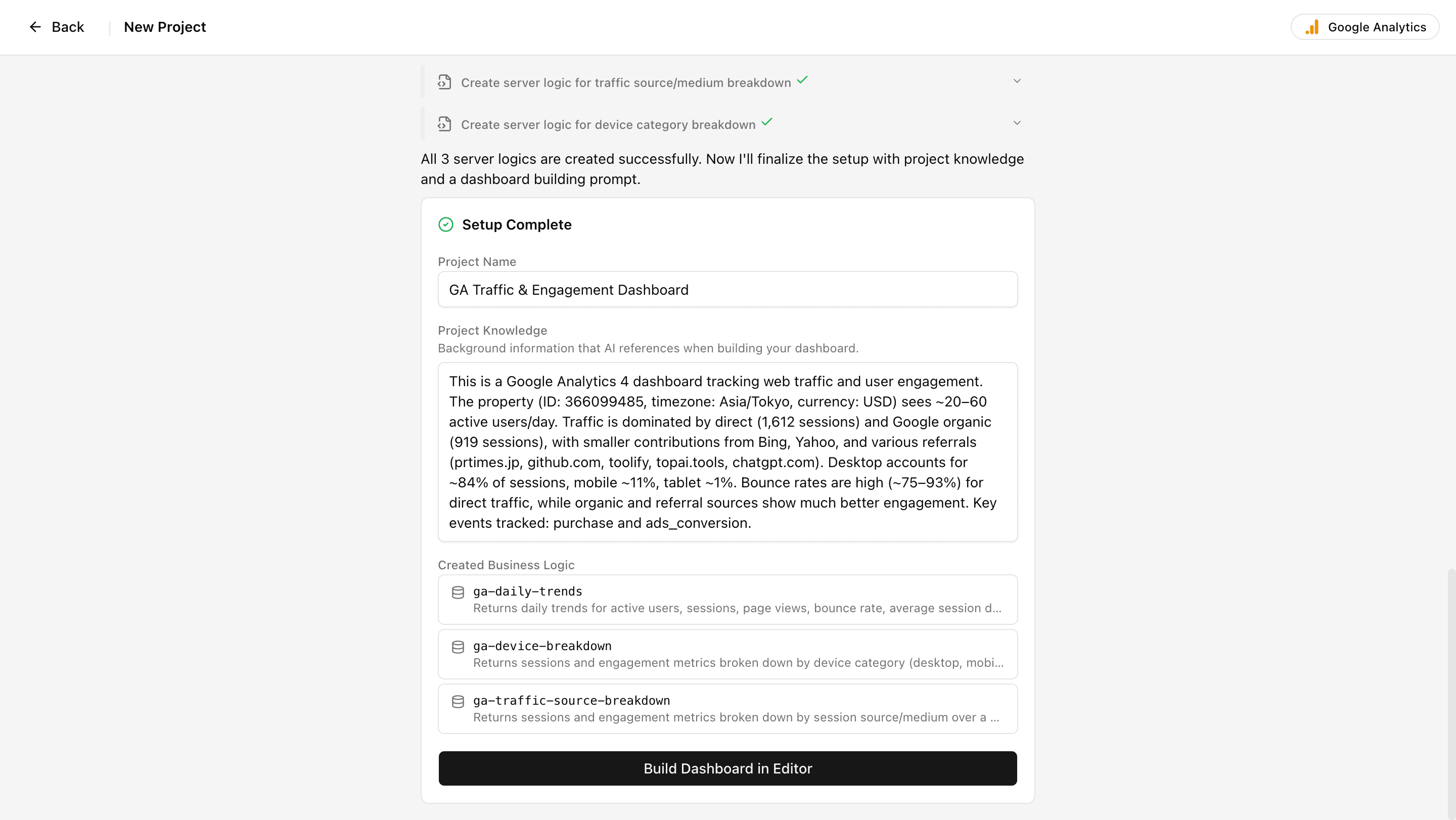
After making your selection or entering instructions, Squadbase AI will create the following:
- Project name
- Project Knowledge — background knowledge that the AI references when building the dashboard
- Business Logic — definitions of queries and functions that the AI prioritizes when performing data analysis and creating dashboards
Click "Build Dashboard in Editor" to navigate to the editor screen.
Step 3: Customize Your Metrics (Approx. 5 minutes)
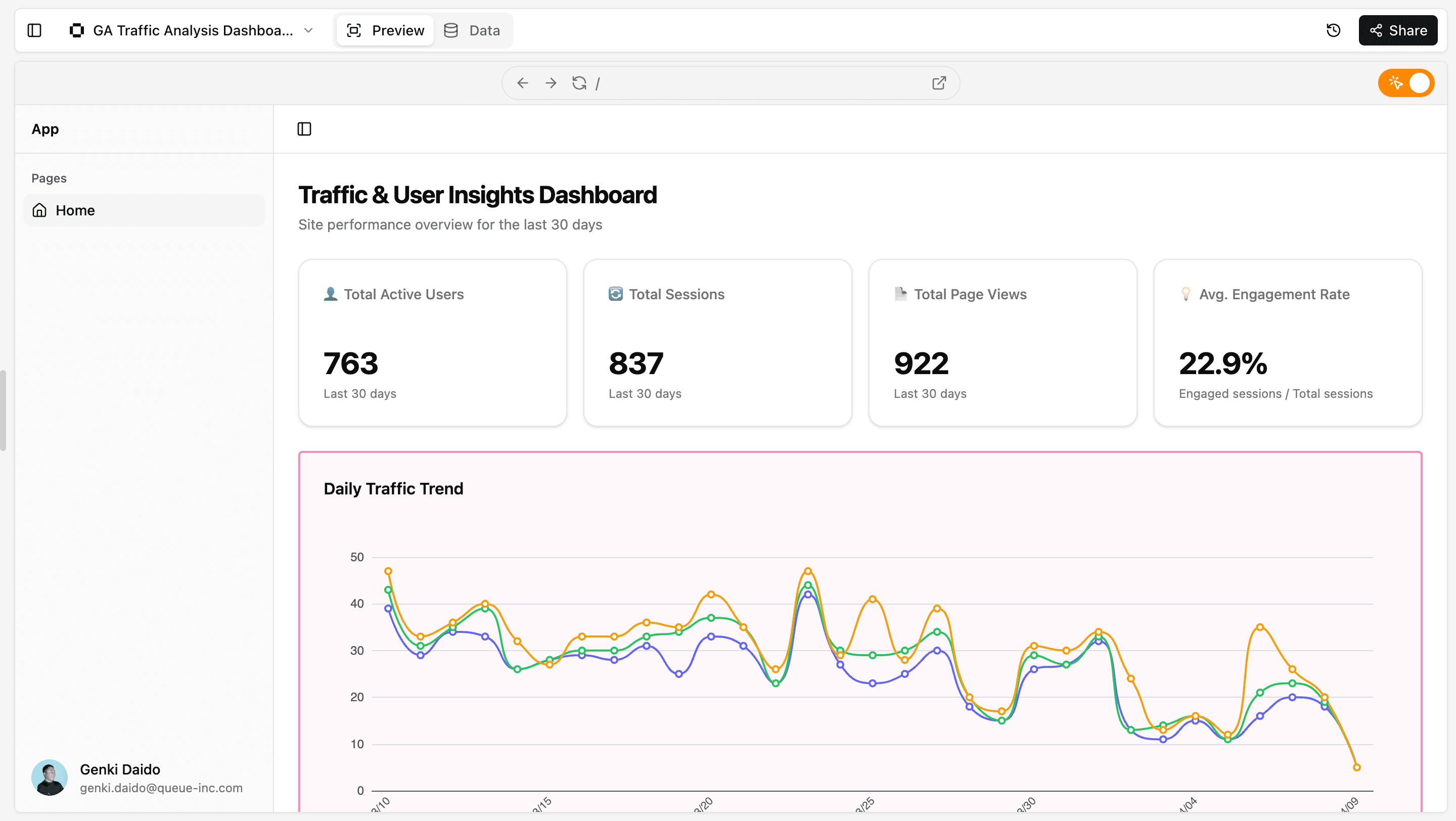
A dashboard will be created based on the information you selected in Step 2. Review the generated dashboard, keep only the metrics your organization needs, and remove or adjust the rest.
With Squadbase's Component Selector, you can modify individual charts. For example, you can make customizations such as:
- Changing chart types (e.g., line chart → bar chart)
- Setting default date ranges (last 7 days, 30 days, 90 days, etc.)
- Adding or removing metrics
- Configuring filter conditions
No coding required whatsoever. If you think "I never look at this metric," delete it. If you think "I need this one too," add it. That's all it takes to build a dashboard tailored to your organization.
Step 4: Configure Sharing and Verify Auto-Refresh (Approx. 3 minutes)
Finally, configure the settings so your team can start using the dashboard.
Sharing Settings
- Click the Share button to generate a URL for the dashboard.
- You can also invite team members by entering their email addresses.
- Set granular permissions for each member, such as view-only or edit access.
Auto-Refresh Verification
Squadbase automatically keeps your connected GA4 data up to date. There's no need to manually pull data, so your team always has access to the latest numbers.
And with that, your dashboard is complete.
Frequently Asked Questions (FAQ)
Q: Can I connect GA4 on the free plan?
A: Yes, basic integration is available on the free plan. However, there may be limitations on data volume, refresh frequency, and the number of dashboards you can create. We recommend starting with a free trial to evaluate the experience before committing to a full rollout. For detailed pricing information, please visit the official Squadbase website.
Q: Do I need IT expertise?
A: Not at all. Squadbase is operated entirely through natural language, so no SQL or programming knowledge is needed.
Q: Can I migrate from Looker Studio?
A: There is no feature to directly import reports created in Looker Studio. However, by connecting to the same GA4 property, you can build an equivalent dashboard from scratch in Squadbase. By leveraging the AI suggestion feature, you can complete the migration in a short amount of time.
Q: Is my data secure?
A: Squadbase connects to GA4 using Google's authentication framework (OAuth). Your Google account password is never stored on Squadbase's side. All communications are encrypted, making it safe for enterprise use.
![[2026 Latest] Four Ways to Analyze GA4 Data with AI](/_next/image?url=https%3A%2F%2Fd8z0qzypa7wcr04r.public.blob.vercel-storage.com%2Fmedia%2Fblog%2Farticle-image-cycle10-1.png&w=3840&q=75)