When GA4 Analytics Hits Its Limits — Connect BigQuery to Go from "Just Looking" to "Actionable Data"

You've set up GA4 and check your reports every day. Pageviews and events are all being tracked. But the moment you try to dig deeper — "Did this campaign actually drive results?" or "What sets converting users apart?" — you hit a wall. Sound familiar?
GA4 is a great starting point for analytics, but sooner or later you'll run into its limitations: you can't slice data the way you want, deep user-level behavioral analysis isn't really possible, and joining with external data is a pain. You can view reports just fine, but getting to analysis that actually informs decisions is a different story.
In this article, we'll walk through how BigQuery integration changes the game for analytical flexibility, and how Squadbase puts that data in the hands of your entire team.
The Limits of the GA4 Data API
The GA4 Data API is designed to retrieve predefined dimensions and metrics. It's handy for automating standard reports, but at its core, it's built for fetching pre-packaged data.
As a result, the following types of analysis are either difficult or severely limited through the API:
- Reconstructing user behavior from raw event data
- Building funnels with custom steps and conditions
- Tracking multi-session conversion paths over time, from first touch to conversion
- Running granular aggregations based on custom event parameters
- Joining with external data sources such as CRM, ad platforms, or purchase records
The API has its place, but when it comes to asking your own questions and exploring data freely, BigQuery is the clear winner.
What Changes with BigQuery
With GA4's BigQuery Export, raw event-level data flows directly into BigQuery. Every single row contains a user ID, timestamp, event name, and all associated parameters — fully accessible via SQL.
This unlocks analyses like:
User flow analysis
Where exactly are users dropping off in the LP → product detail → cart → purchase journey? You can freely combine conditions like first-time visitors only or traffic from a specific campaign.
Comparing converting vs. non-converting users
What pages do purchasers visit before buying? Where does their behavior diverge from non-purchasers? These insights directly inform what to prioritize next.
Behavioral patterns by traffic source
Compare visit frequency, engagement patterns, and days-to-conversion across paid, organic search, and social channels.
Custom analysis using event parameters
Search keywords, button types, membership tiers — the kind of granular breakdowns that are hard to work with in the GA4 UI become straightforward with SQL.
Cross-data business analysis
Join ad spend, purchase data, and CRM/SFA customer attributes with site behavior to draw a clear line from on-site activity all the way through to revenue and LTV.
The real value of BigQuery integration isn't just about where data is stored. It's about being able to reconstruct user behavior as a sequence of events and analyze it however you want. Your GA4 data transforms from something you look at into something you can actually work with.
How to Analyze with Squadbase
Even with data sitting in BigQuery, many teams get stuck at the next step. Only people who can write SQL can run analyses. Every new question means filing a request. Visualization and sharing take time. The data is there, but it's not being used.
Squadbase solves this problem. It connects to BigQuery and provides a single environment where you can go from a natural-language question to SQL generation, visualization, and full dashboards.
Let's walk through what analysis looks like in Squadbase, with actual screenshots.
Connecting Squadbase to BigQuery
Squadbase connects to BigQuery via OAuth.
As long as your Google account has read access to the BigQuery project you want to analyze, setup is completed in a single click.
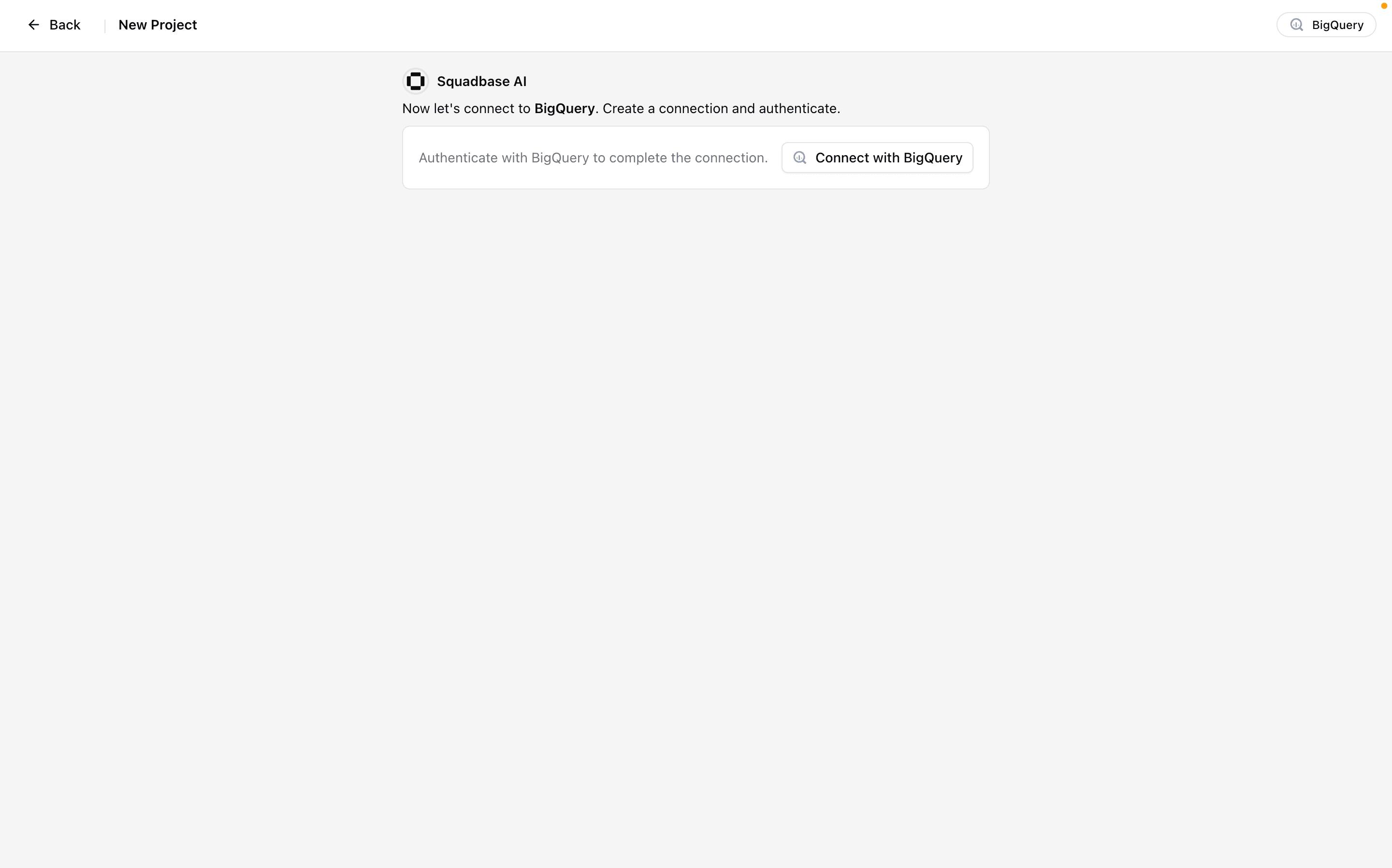
For setup using a service account, please refer to our documentation:
Once authenticated, you'll see a list of BigQuery projects associated with your Google account. Simply click the project you want to analyze.
For this walkthrough, we'll use a public dataset containing GA4 sample data.
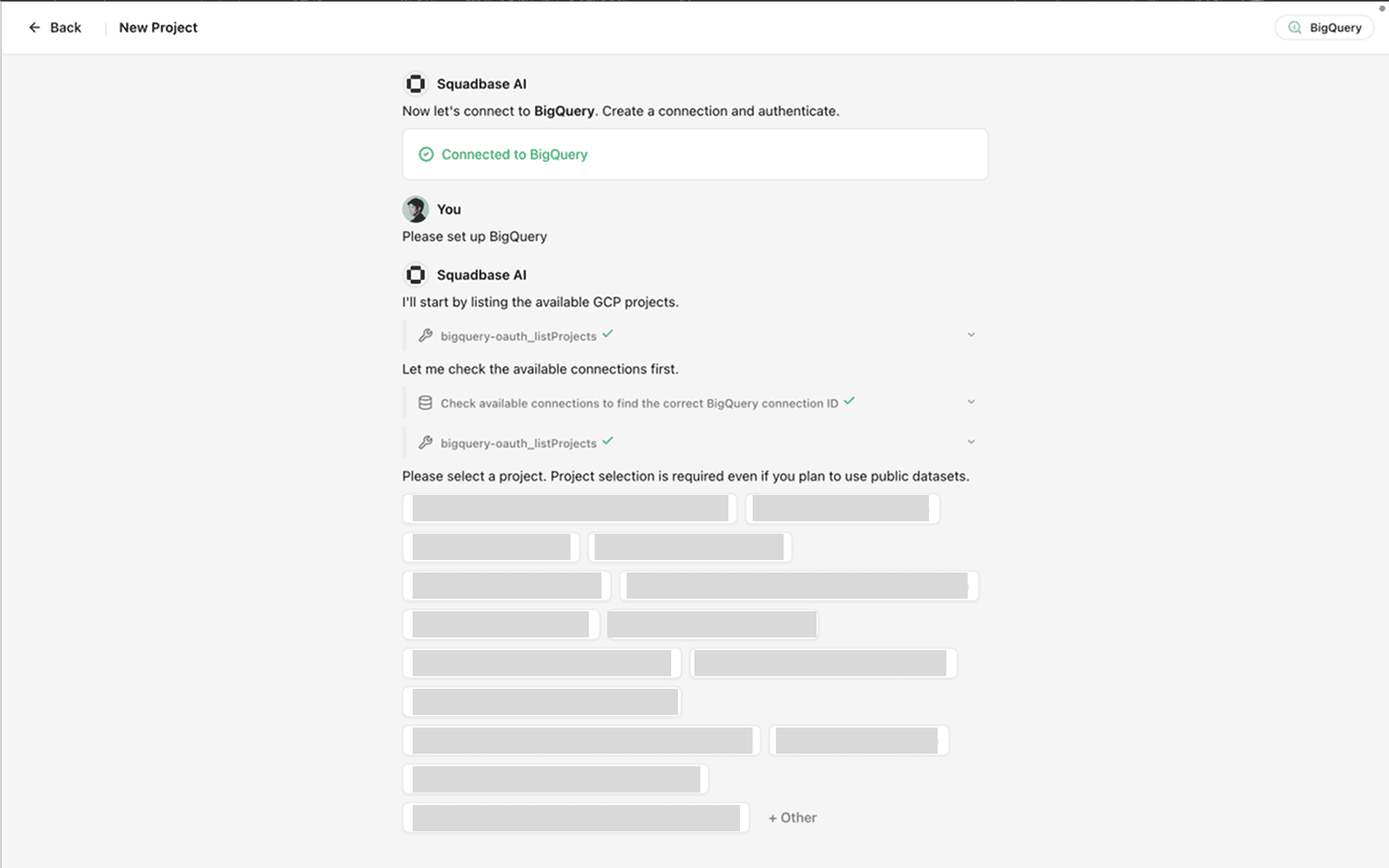
Next, select a dataset within the project, and Squadbase's AI will automatically begin analyzing the data and building a dashboard.
If you see a dashboard like this, you're all set.
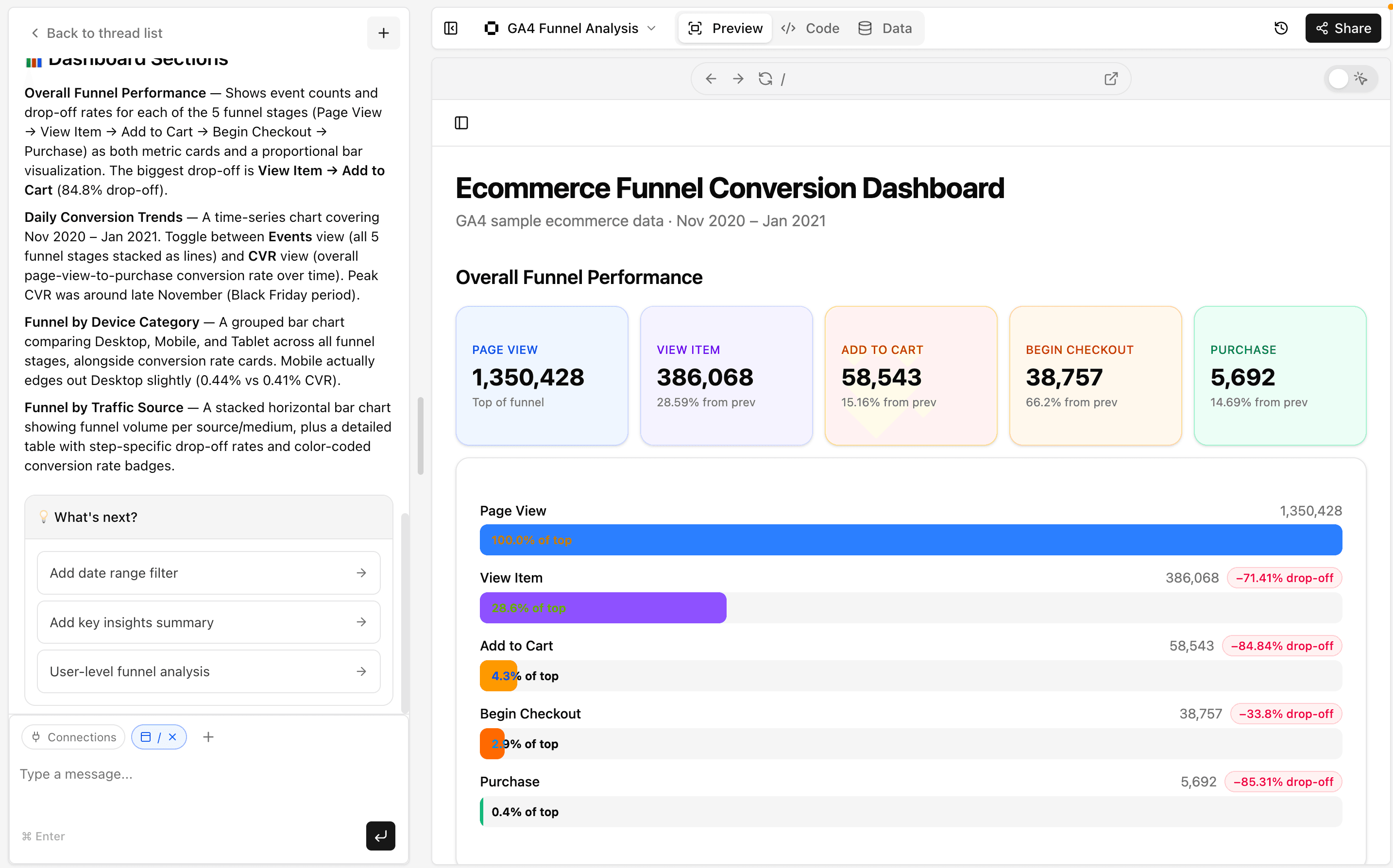
Running Your Own Analysis in Squadbase
Once the initial dashboard is ready, you're free to explore further.
For example, try asking in the chat: "What behaviors are common among users who convert?"
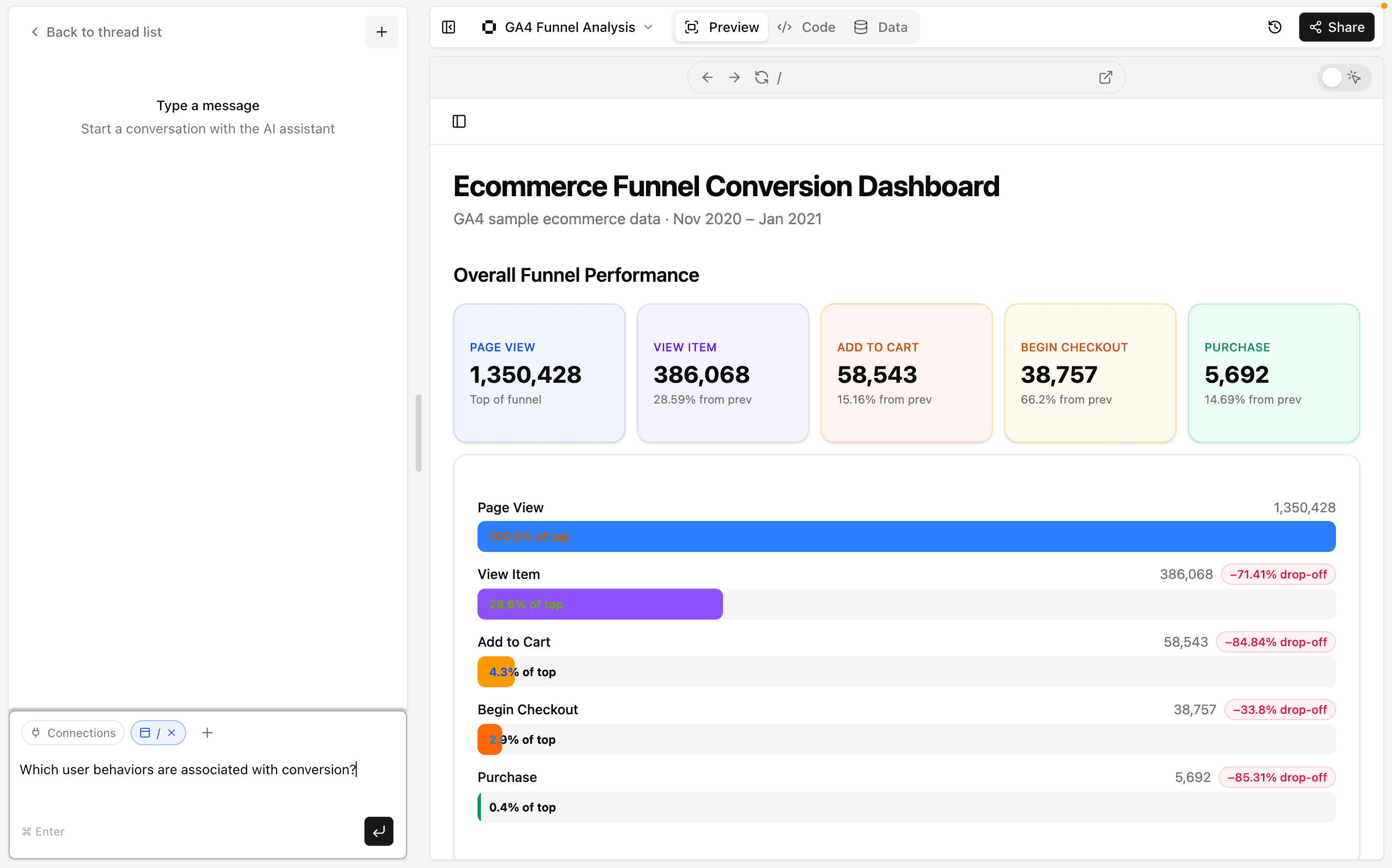
If a new dashboard panel appears showing the behavioral differences between converting and non-converting users, you're good to go.
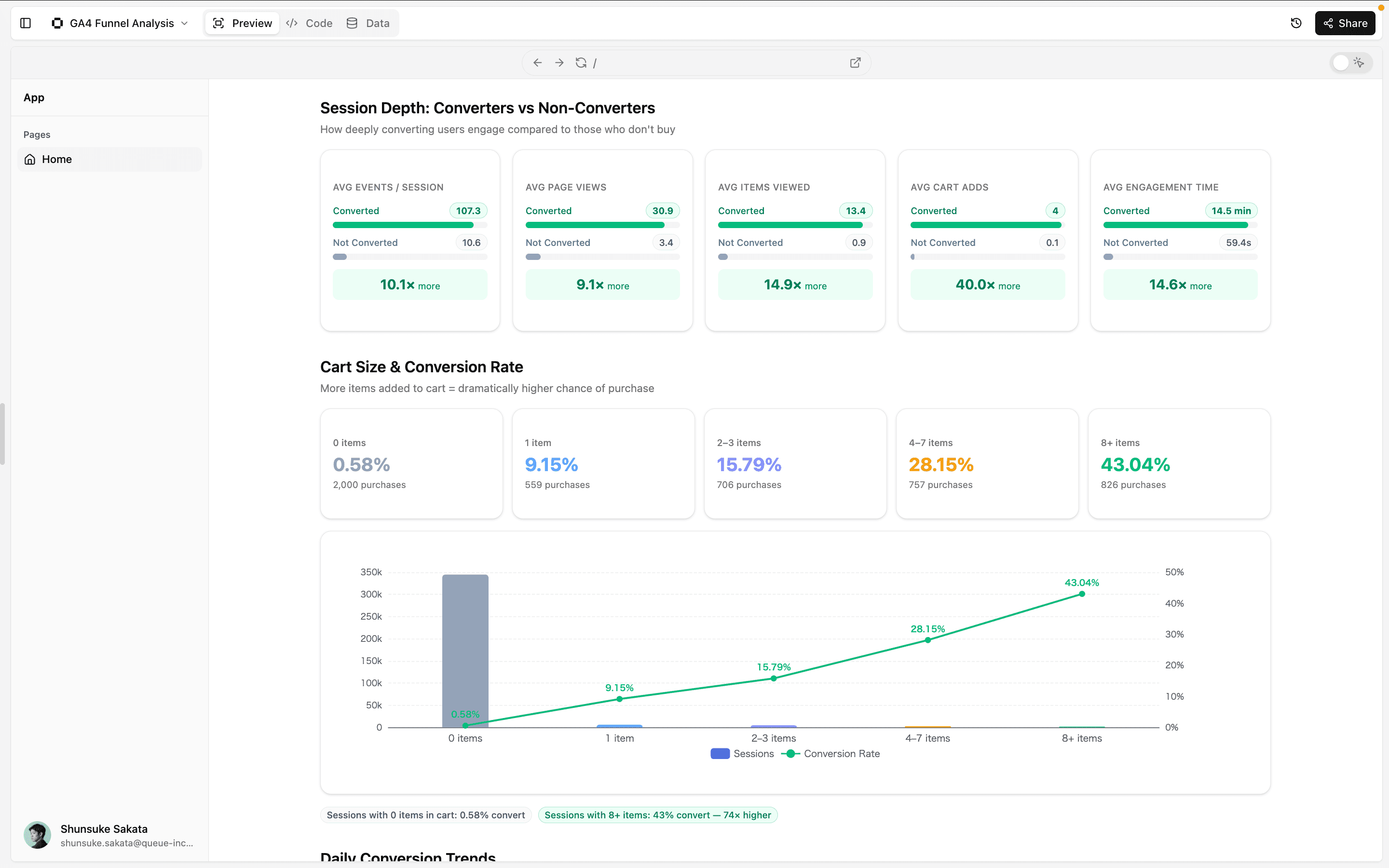
Try other questions too — "Which events have the highest drop-off rates?" or "Analyze the behavioral patterns of converting users" — and unlock the full potential of your GA4 data.