Introducing Automation - From Data Ingestion to Reports, on a Schedule

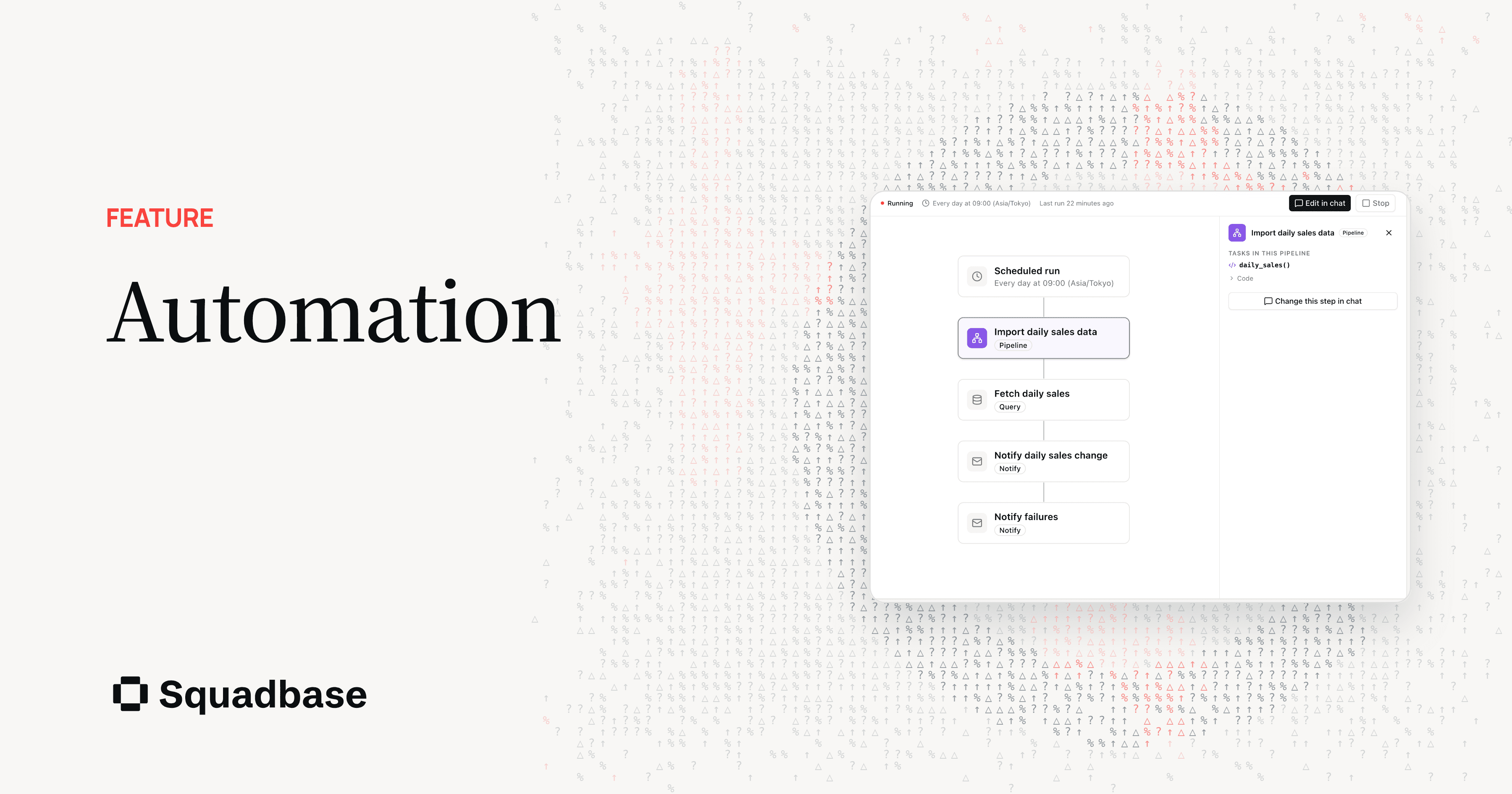
We've released Automation. It takes the recurring data work in a project, from loading data into Squadbase DB to analysis, reports, and notifications, and runs it on a schedule.
Automation replaces Agents. Everything Agents could do, having the AI data analyst run analysis and reporting on a schedule or through an API, works the same way in Automation. What's new is the step before analysis: you can now build ETL pipelines that pull data from external APIs, your data warehouse, public datasets, and other sources, transform it, and load it into Squadbase DB.
Just ask in chat
You create an Automation from the editor chat. Tell it what to look at, what to do, when to run, and where to send the result, in plain words. The AI builds the Automation and runs it once to check that it works.
"Every Monday at 9 a.m., compare last week's CPA and CVR by campaign with the week before, and email the marketing team what stands out and how to improve."
When a notification is involved, a card in the chat asks where to send it: email to project members, or a Slack channel. To change an Automation later, open it and choose Edit in chat, then say something like "change the threshold to 10%" or "run it at 8 instead." Pausing the schedule keeps the Automation, and you can still run it any time with Run now.
Keep Squadbase DB up to date
A pipeline fetches data from a data source on a schedule and loads it into Squadbase DB. Dashboards read the loaded data instead of querying the source every time, so they open faster. Data from your CRM, billing, and ad platforms ends up in one place, where you can combine it in one analysis. Loading happens once at a set time, which also keeps the load on the source down.
You can say how the data should be loaded:
| How to load | Good for | Example request |
|---|---|---|
| Load only what's new | Data that keeps growing (orders, visits, ad performance) | "Load it by date, and add the previous day every day." |
| Update to the latest value | Data whose values change (customers, deals, product master) | "Keep each customer ID up to date." |
| Append as history | Data you want to track over time (stock levels, statuses) | "Append each day's values so we keep the trend." |
When you load only what's new, the dates already loaded are recorded, and the next run fetches only the new ones. Runs get shorter, and so does the credit usage.
From loading to notification, in one flow
An Automation runs its steps from top to bottom. There are four kinds of step.
- Pipeline: fetches data from a data source and loads it into Squadbase DB
- Query: pulls the data for analysis using a query defined in your business logic
- Agent: the AI agent investigates the data and creates reports, dashboards, and documents
- Notification: sends results by Slack or email. Whether to send, and what to send to whom, the AI decides from your instructions
You don't pick the steps yourself. The AI chooses them from your request. "Just load the data" becomes a pipeline alone. "Analyze and send a report" becomes an agent and a notification. "Load, analyze, and send" runs all three in order, and since analysis starts only after loading finishes, the report is always built on the latest data. Behavior like "only notify when it fails" or "change the content for each owner" goes into the Automation when you write it in the request.
When a pipeline fails
The AI data analyst runs each pipeline and checks the result. When a run fails, you can go from finding the cause to fixing it without leaving Squadbase.
Each run is recorded with the result of every step and the credits it used. Automation uses the same AI credits as chat, from the pool your team shares, and there's no separate charge. A pipeline uses 1 credit for every 10 minutes it runs, and steps where the AI works use credits based on usage and model, the same as chat.
Use cases
Sales: deal data that's current every morning
"Every night, load our Salesforce deal data so the dashboard stays up to date." The dashboard you open in the morning reflects every deal through the previous day.
Marketing: budget pacing, checked before the day starts
"Every night, load ad performance, and the next morning, tell each owner which campaigns are off their budget pacing." Loading, analysis, and notification run back to back in a single Automation.
Inventory: keep the numbers that get overwritten
"Every morning, load stock levels and keep the daily history." Stock levels that the source system overwrites build up as a daily record.
Customer success: the customers who need attention
"Every morning, find customers showing upsell opportunities or churn signals, and send their owners the actions to take." The analysis comes with the next step to take, not just the list.
Moving from Agents
Agents have been retired, and existing agents no longer run on their schedules. Open the Agents tab in your project and choose Migrate to Automation. The AI rebuilds each agent as an Automation, keeping its name, schedule, and notification targets. The original agents and their run history stay where they are.
A few things work differently after the move. Email goes to project members only, and the API endpoint for triggering a run changes. If you call agents from Zapier, n8n, or an internal tool, switch to the Automation endpoint. The details are in the migration guide.
Start with one request
Any recurring piece of data work, the kind someone redoes every morning or every Monday, can be handed to Automation with a single request in chat. For how to use it, see the documentation.