Delivering Snowflake Data to Your Business Team — Data Democratization with Squadbase

Your data engineers have done their job. Snowflake is up and running, pipelines are stable, and the tables are well-maintained. Yet the business team keeps saying the same thing: "I can't get the data I need when I need it."
This article breaks down the three barriers standing between Snowflake data and the people who need it most, and shows how Squadbase can tear them down.
Three Barriers Between Snowflake and Your Business Team
Barrier 1: You need SQL and schema knowledge just to get started
Analyzing data in Snowflake requires SQL, but most business team members can't write it. Even if they could, they'd need to understand which tables hold which data and how those tables relate to each other in order to produce correct analysis. The result is a familiar pattern: business teams file requests, wait days for a response, and never get to work with data on their own schedule.
Barrier 2: Metric definitions diverge
Even if Barrier 1 is overcome somehow and business users can analyze data on their own, the next problem is waiting. Different people looking at the same data produce different numbers.
Does "revenue" mean tax-inclusive or tax-exclusive? Before or after returns? These discrepancies are driven by individual interpretation, and different teams pull different numbers from the same Snowflake tables. Weekly meetings devolve into "which number is right?" debates.
To prevent this, you need a single place to manage metric definitions so that everyone sees the same numbers. This concept is known as a "semantic layer."
Barrier 3: Building a semantic layer is heavy for the data team
Popular options include dbt Semantic Layer, Snowflake Semantic Views, and Cube. All are powerful, but all require significant effort: writing YAML definitions, setting up and maintaining the tool, integrating with CI/CD, and keeping definitions up to date. AI can speed up the writing, but it doesn't eliminate the cost of adopting and operating yet another tool. On top of that, even after building a semantic layer, business users still need a separate BI tool like Tableau or Looker to actually use the data.
The irony: pursuing data democratization actually increases the data team's workload. This dilemma is the main reason semantic layer adoption keeps getting postponed.
How Squadbase Solves All Three Barriers
Squadbase is a platform that connects to data sources like Snowflake and lets you build and share dashboards through AI-powered conversation. For this use case, it solves all three barriers: SQL-free data access through AI chat, unified metric definitions through Business Logic, and AI-powered auto-generation of the semantic layer with everything from definitions to dashboards in a single tool.
Deliver data to team members who don't know SQL (Barrier 1)
With Squadbase, business team members don't need to write SQL. They simply ask the AI in chat — "show me monthly revenue trends" — and the AI references the Business Logic to generate queries based on the correct definitions and build a dashboard. The data team is freed from the cycle of fielding requests and writing queries on behalf of others.
Manage metric definitions in one place so everyone gets the same results (Barrier 2)
Business Logic in Squadbase is shared across the project. Once "revenue" is defined as a Business Logic entry, anyone who runs an analysis or views a dashboard in that project gets the same number based on the same definition. The problem of different departments producing different figures disappears.
AI auto-generates the semantic layer, and everything lives in one tool (Barrier 3)
When you connect Snowflake to Squadbase, the AI reads your schema and auto-generates Business Logic definitions. The data team doesn't need to write YAML from scratch — just review and edit what was generated. On top of that, traditional setups require separate tools for building the semantic layer (dbt, Cube) and for consuming data (Tableau, Looker). With Squadbase, metric definition management and dashboard creation live in a single platform. No new tools to adopt or maintain.
Hands-On: From Snowflake to Dashboard, Step by Step
Let's walk through the actual workflow — from connecting Snowflake to a finished, customized dashboard.
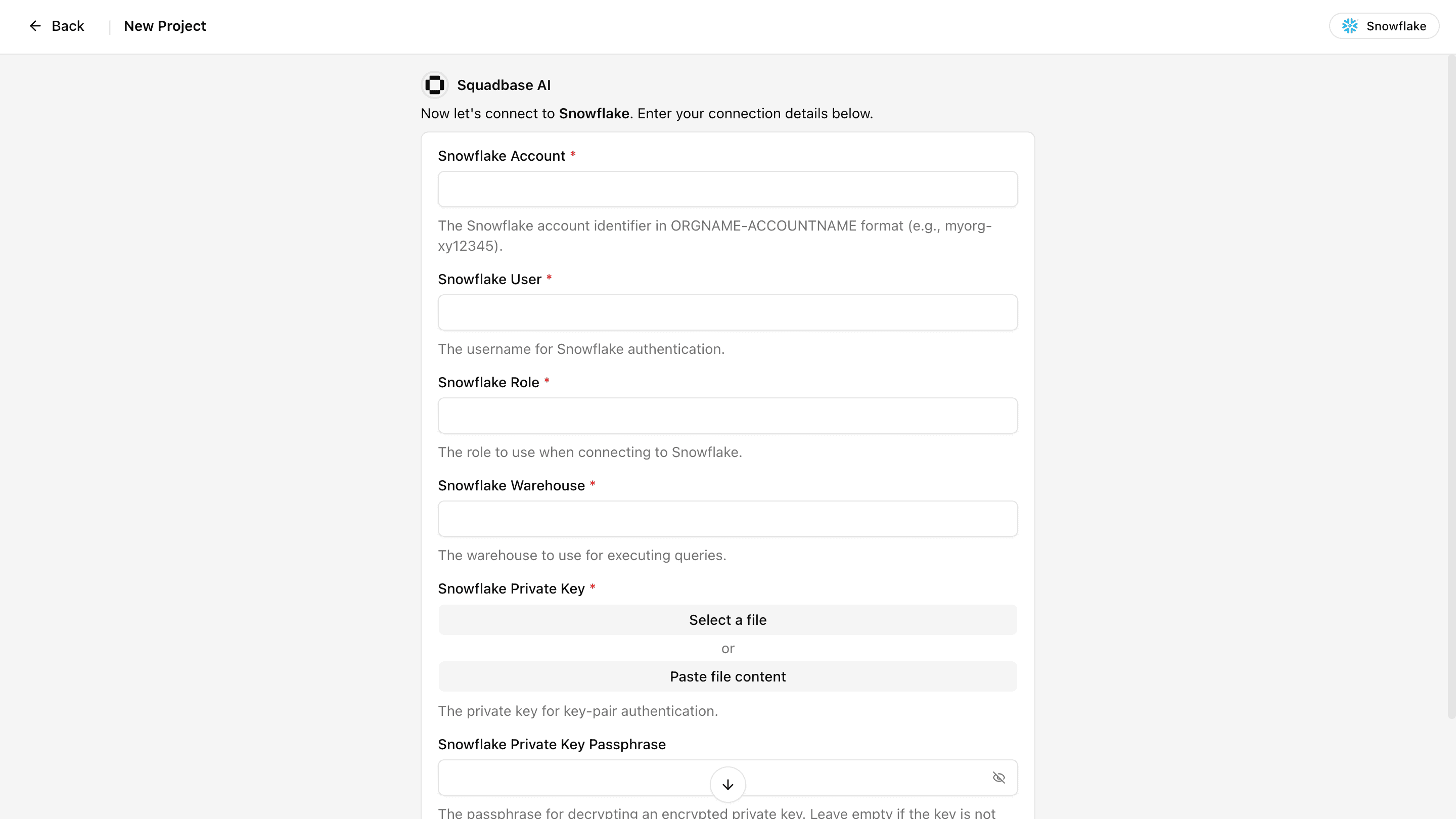
Step 1: Connect Snowflake
Enter your Snowflake connection details in Squadbase's data source settings. For details on finding your connection information, see the documentation:
A few clicks and the connection is live.
Step 2: Review the auto-generated Business Logic
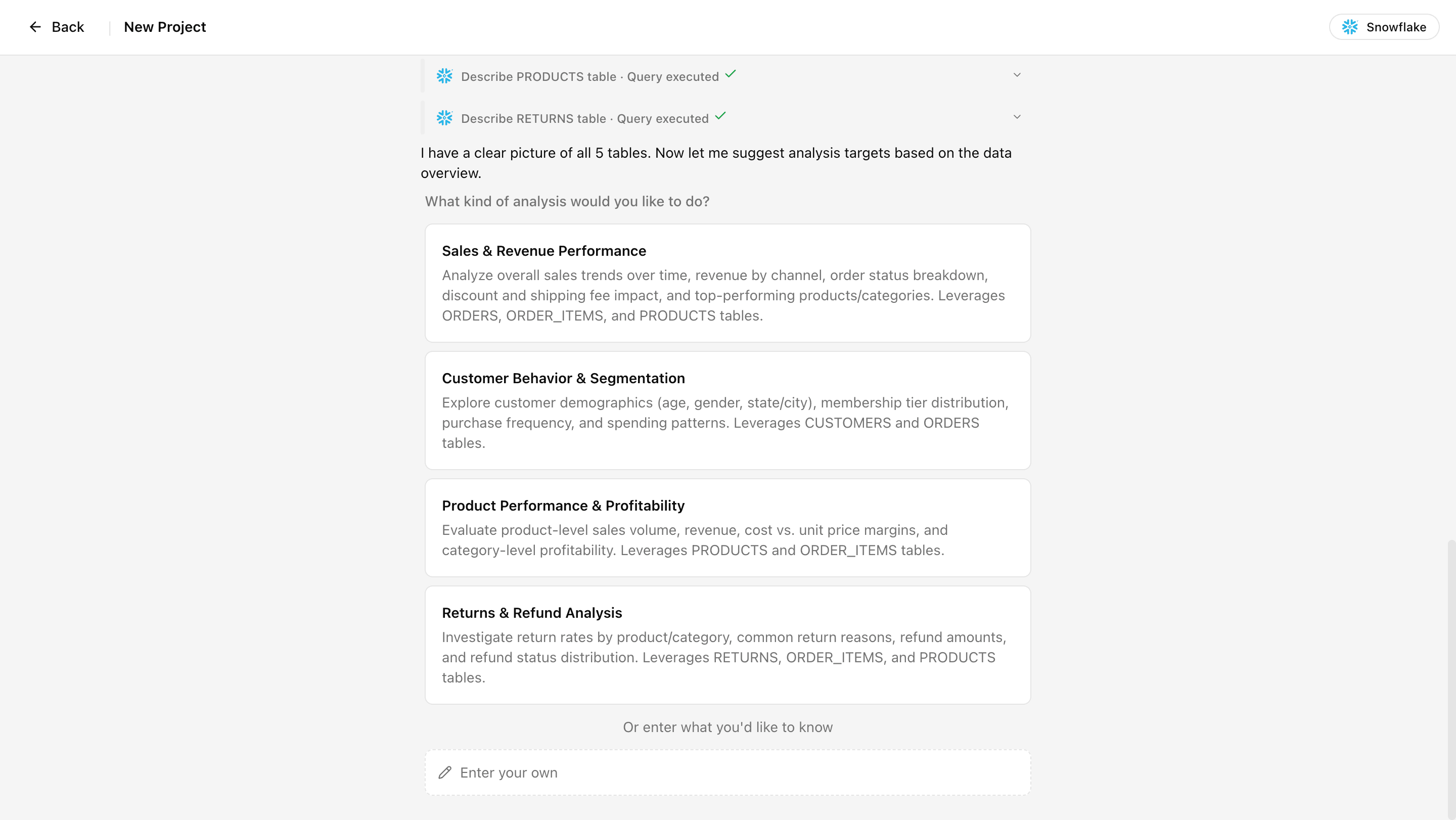
Once connected, select the target database. The AI reads your table structure and suggests analysis directions. Pick one of the suggestions or type your own instructions.
After you confirm, the AI creates Business Logic definitions. In this example, it generated six definitions for a sales and profitability dashboard.
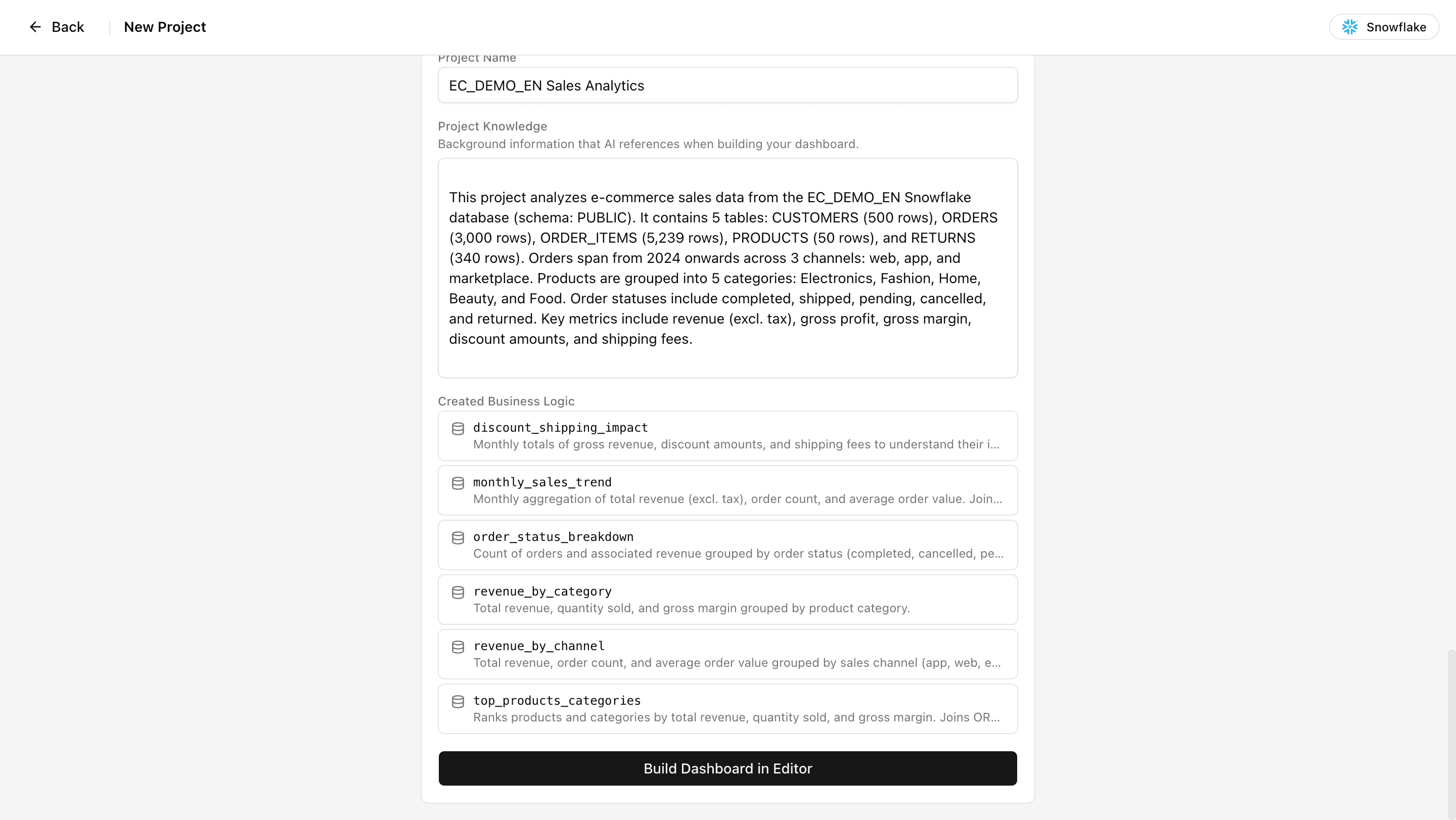
Click "Build Dashboard in Editor" and a dashboard is created based on these definitions.
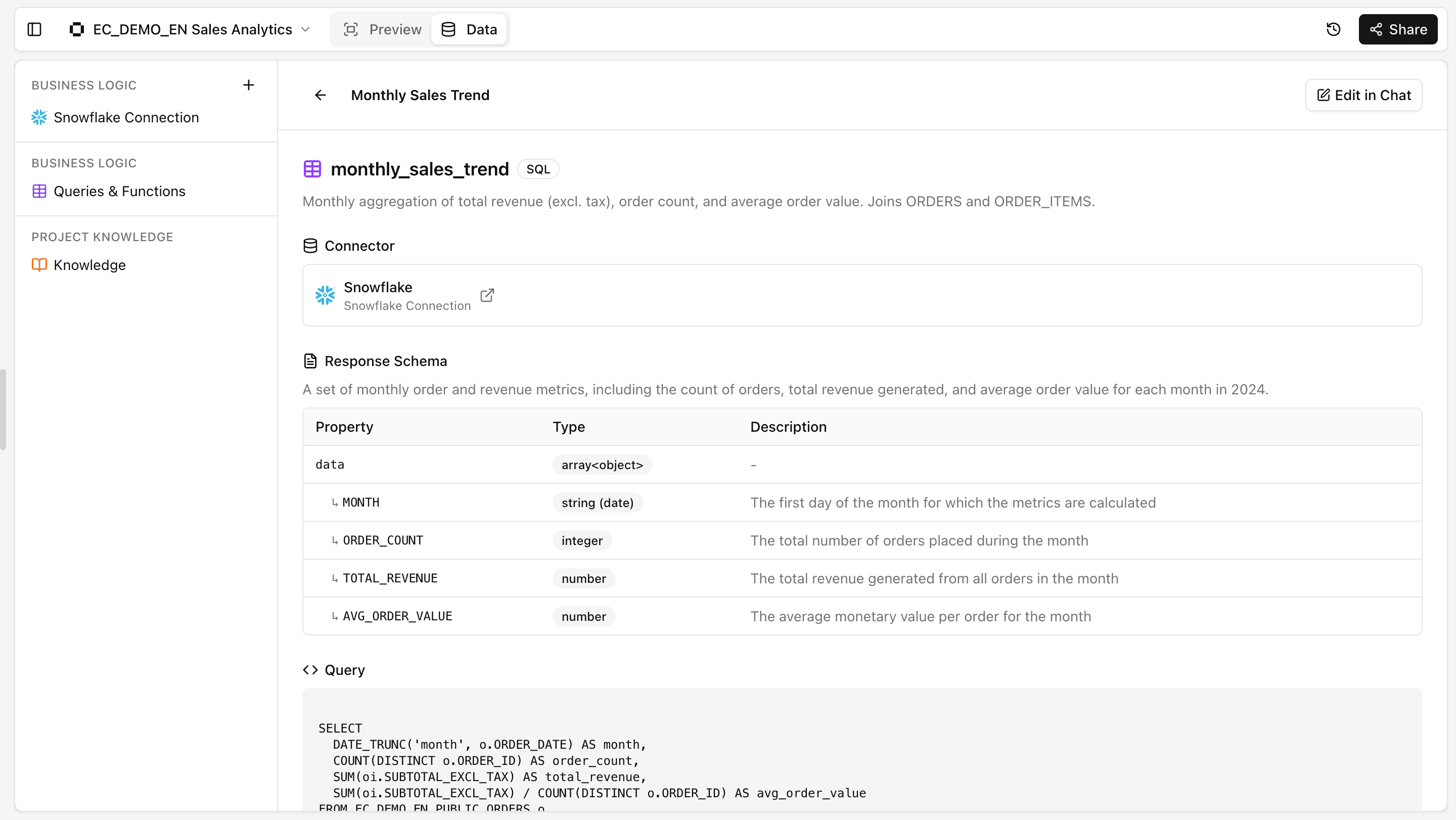
You can review the generated Business Logic under the project's "Data" tab → "Business Logic" → "Queries & Functions."
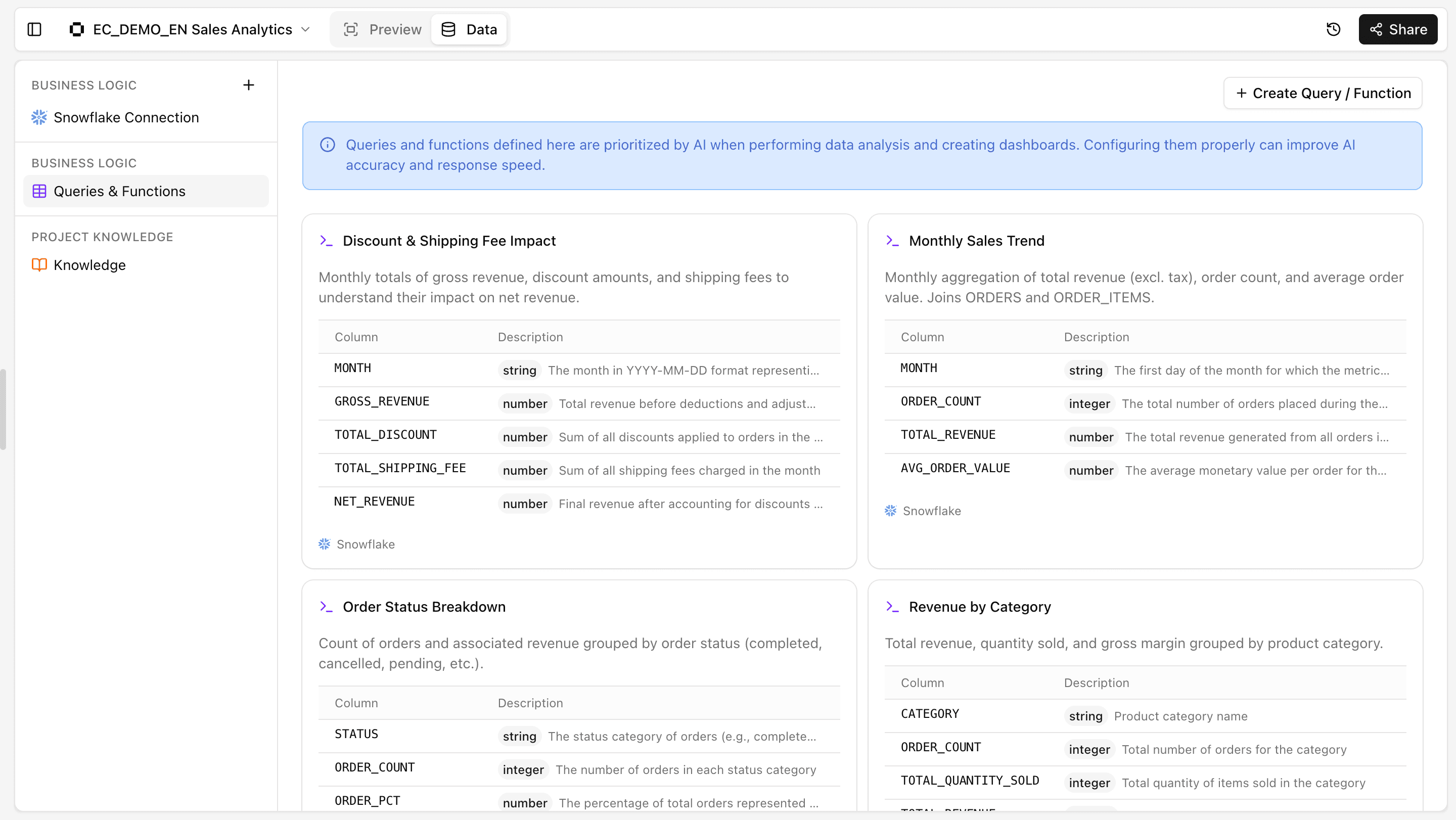
Open any Business Logic entry and you'll see it consists of four elements:
- Query Name: A name and description that identifies the query.
- Response Schema: A list of returned column names, types, and descriptions. The AI references this to understand what the data means.
- Query: The actual SQL that runs against Snowflake.
Step 3: Edit Business Logic to match your business context
The auto-generated definitions are a starting point. The data team reviews them and makes edits or additions to align with internal business requirements.
Editing example: Adding refund deductions to revenue
Looking at the auto-generated "Revenue by Category" (revenue_by_category), the SQL excludes cancelled orders (WHERE o.STATUS != 'cancelled') and calculates revenue using tax-exclusive amounts (SUBTOTAL_EXCL_TAX). However, refunded returns are not accounted for — revenue from orders that were later returned and refunded is still included in TOTAL_REVENUE.
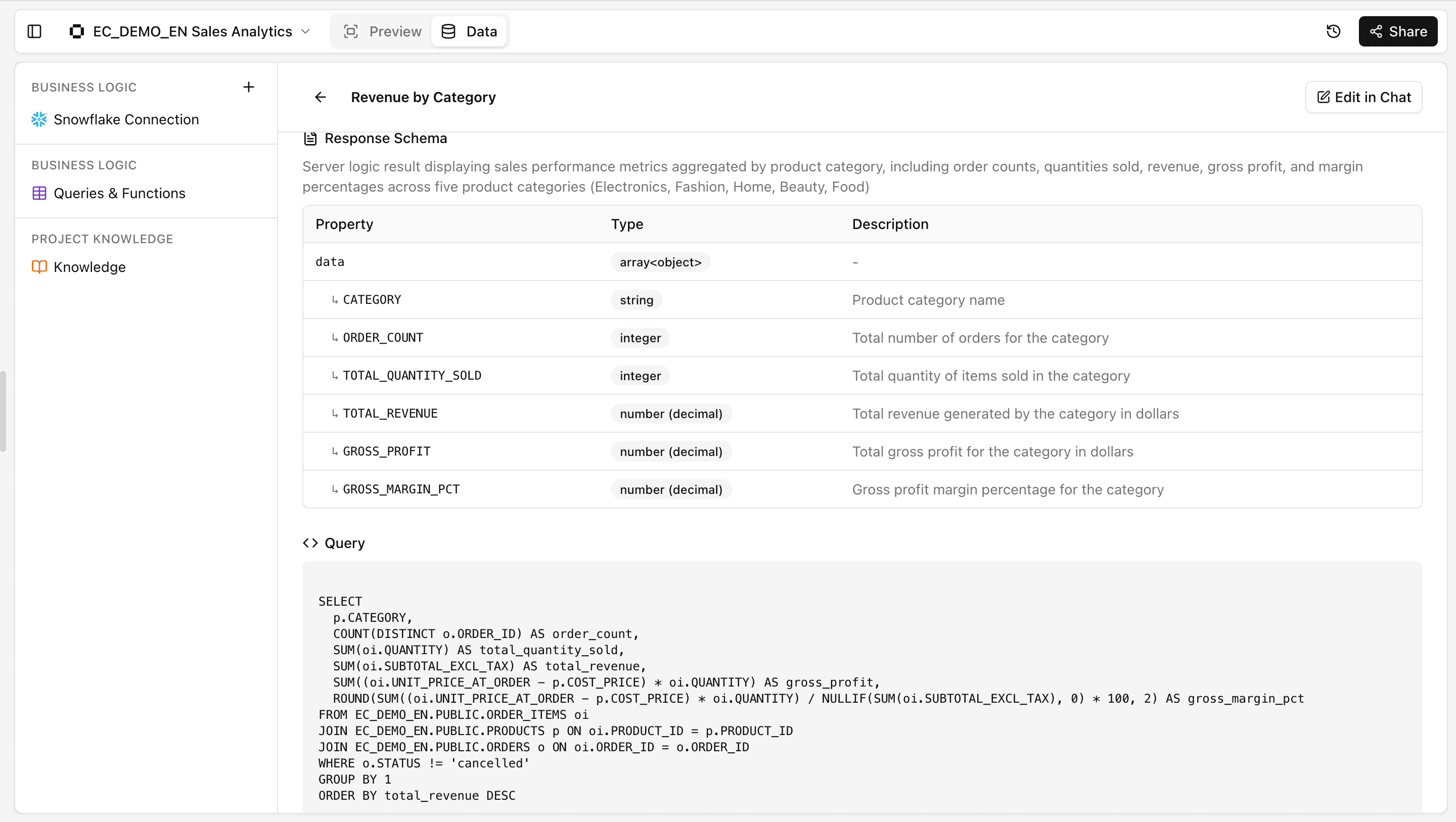
Suppose your company defines revenue as "tax-exclusive, cancellations excluded, and refunds deducted." Click "Edit in Chat" in the top-right corner of the Business Logic detail screen and type something like:
Deduct refunded amounts from revenue. Subtract any amounts from the
returnstable whererefund_statusisrefundedfrom theTOTAL_REVENUEcalculation.
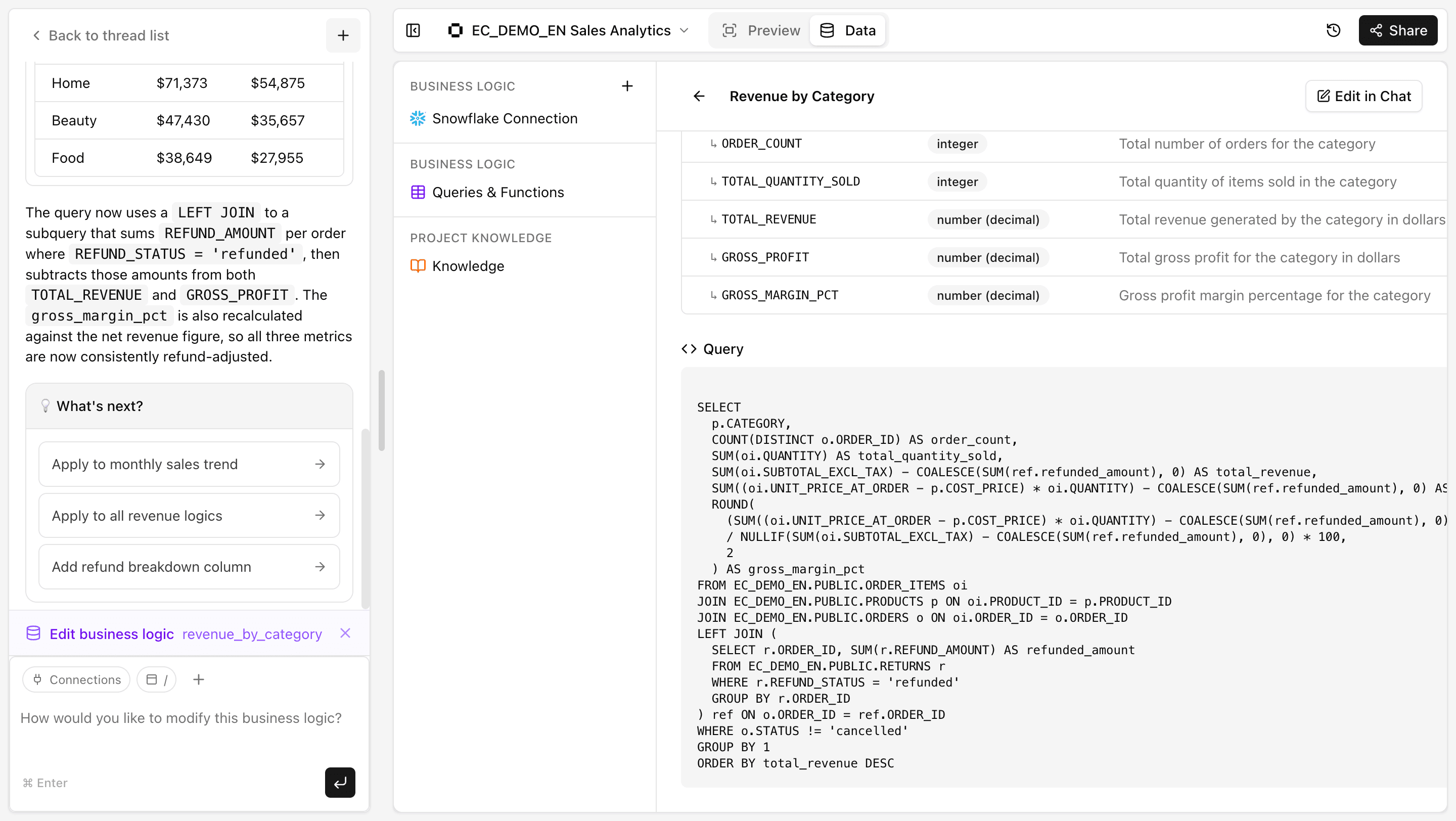
The AI rewrites the SQL accordingly. On the post-edit screen, the AI suggests a next action — "Apply to all revenue logics." Clicking this applies the same refund deduction logic to all other revenue-related Business Logic entries at once, so you don't need to edit them one by one. Once applied, "revenue" consistently means "tax-exclusive, cancellations excluded, refunds deducted" across the entire project.
Adding example: Repeat customer analysis
The auto-generated Business Logic covers sales, margins, categories, channels, and product rankings — but there's no definition for "repeat customers." For an e-commerce business, repeat rate is a critical KPI, so let's add a new Business Logic entry.
Click "+ Create Query/Function" on the Business Logic page and type:
Create a repeat customer analysis query. Define a repeat customer as any
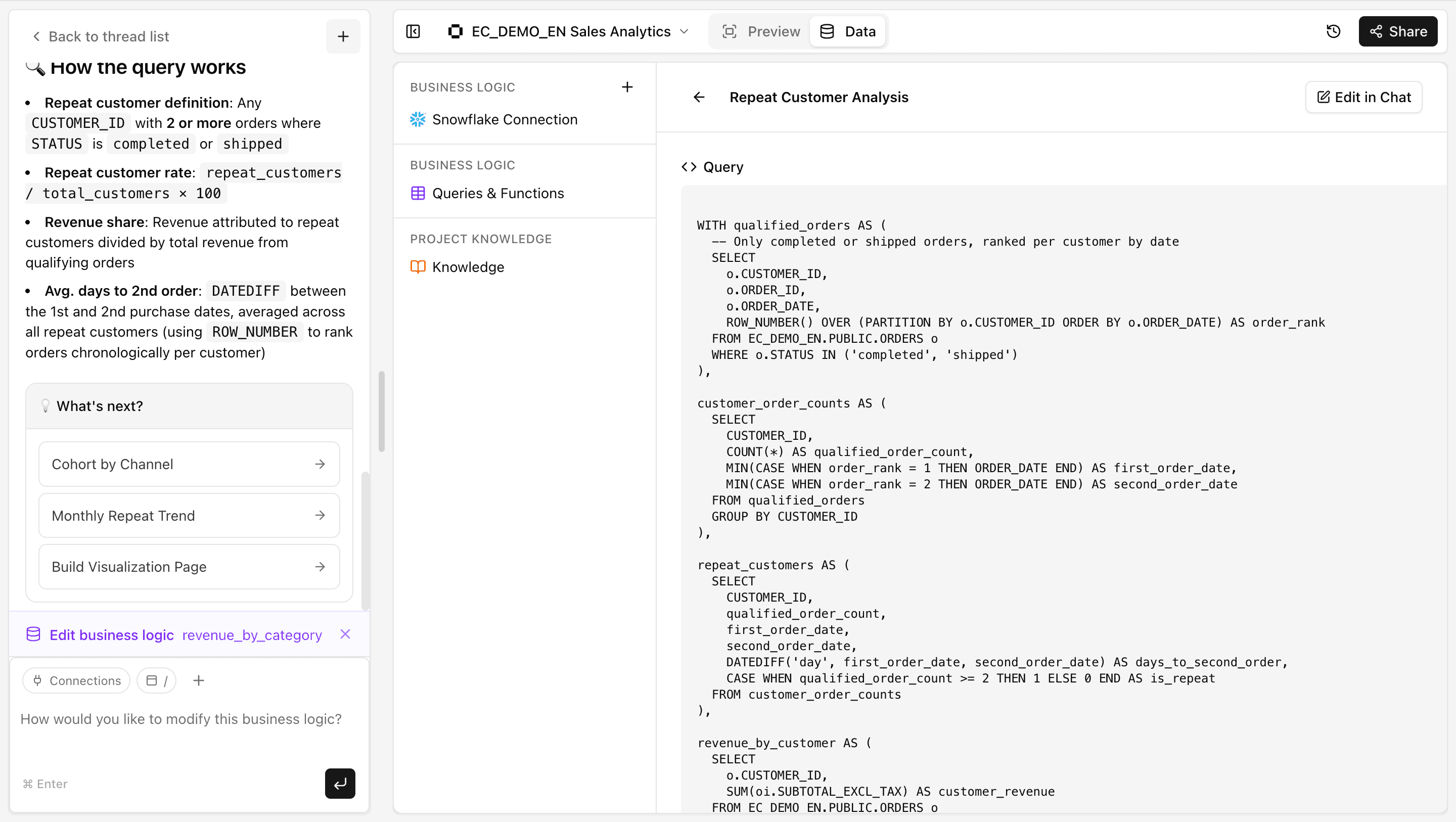
customer_idwith two or more orders wherestatusiscompletedorshipped. Calculate the repeat customer rate as a percentage of all customers, the revenue share from repeat customers, and the average number of days between first and second purchase.
The AI generates a SQL query and Response Schema based on these instructions, using the orders and order_items tables. The key point here is that ambiguous conditions — "do we count cancelled orders?", "how do we handle returned?" — are locked down explicitly in the Business Logic definition. Once defined, anyone who asks "what's our repeat rate?" in chat will get the same number, calculated the same way.
This work is done by the data team. That part is no different from a traditional semantic layer. What's different is that the AI drafts everything for you, edits and additions happen entirely through chat, and the semantic layer and dashboards live in the same platform — no separate BI tool to adopt or maintain.
Step 4: Rebuild the dashboard from updated Business Logic
With Business Logic refined, it's time to update the dashboard. Since an initial dashboard was already generated in Step 2, simply tell the AI in chat:
I've updated and added Business Logic definitions. Please update the dashboard to reflect these changes.
The AI references the updated Business Logic and regenerates the dashboard accordingly.
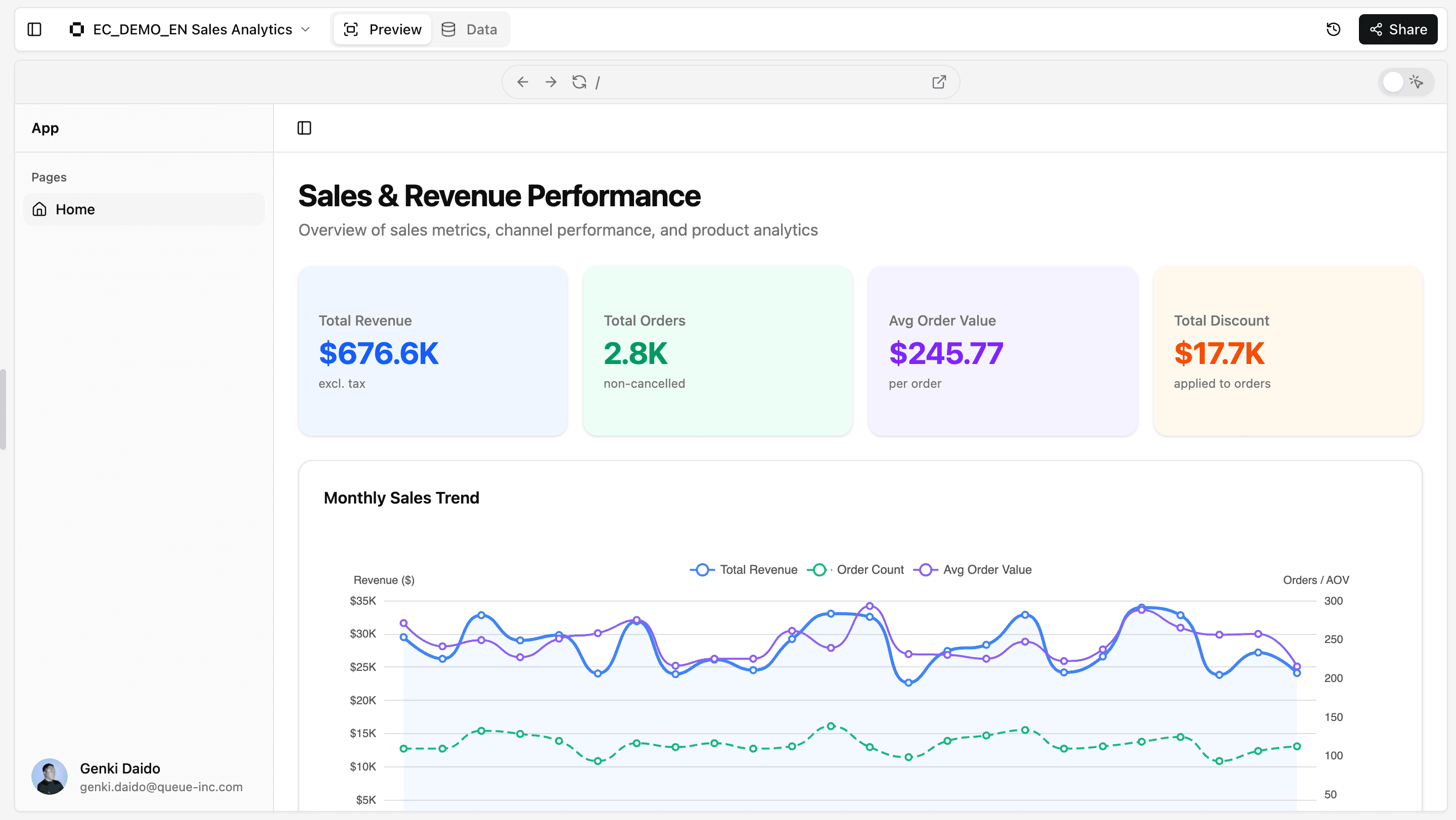
Dashboard before Business Logic refinement
Dashboard after Business Logic refinement
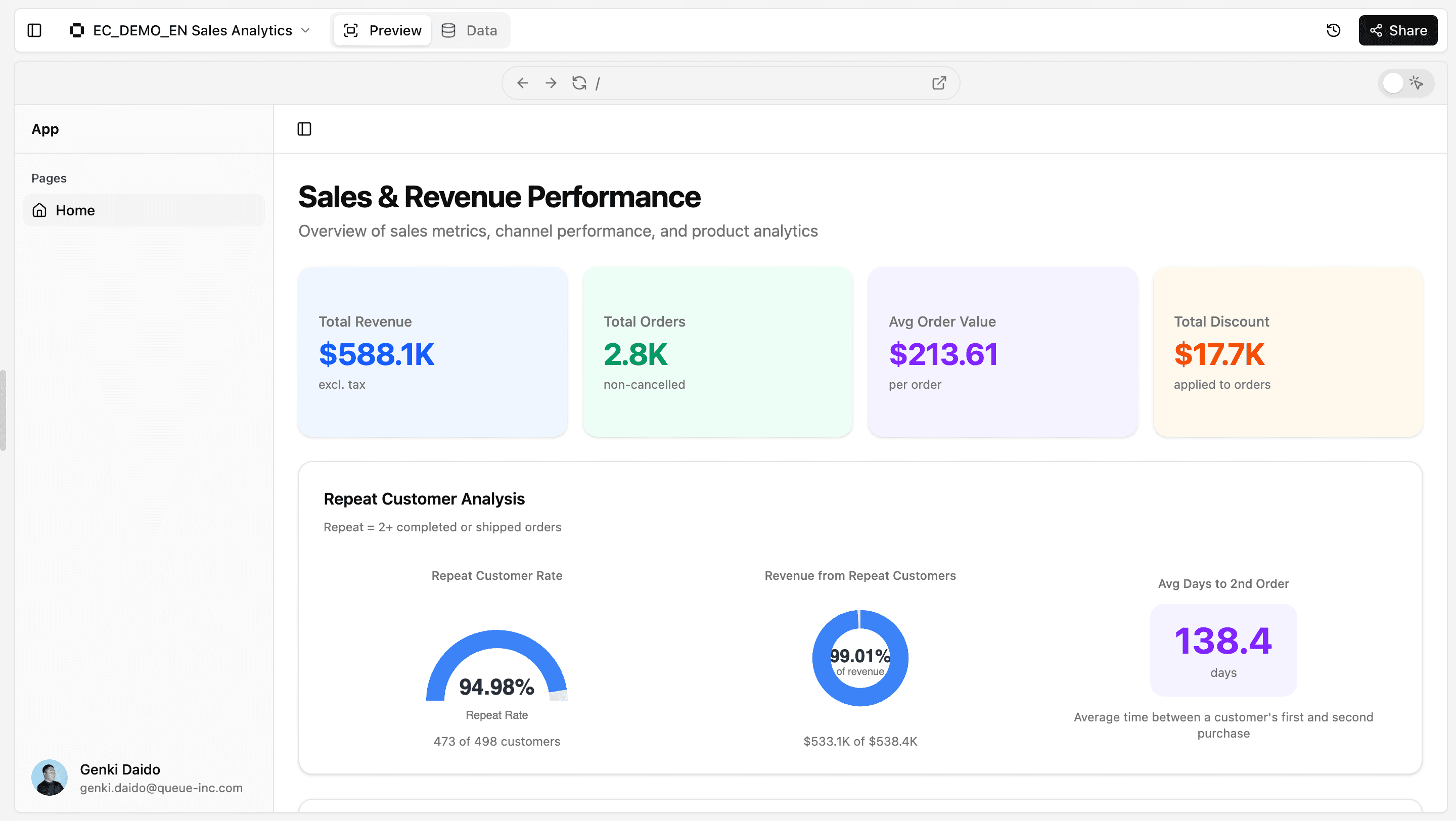
You can see that revenue figures now reflect the updated definition, and repeat customer analysis has been added. Business team members can access the same project and use chat to create their own analyses and dashboards — no SQL needed. The AI generates queries based on the shared Business Logic definitions.
Same Definitions, Same Results — No Matter Who's Asking
Business Logic is shared across the project. Whether the data team built a dashboard or a business user created one through chat, the same metric definitions produce the same results. Ready to accelerate your Snowflake data adoption? Give Squadbase a try.